Instagram GIFs stop working in different places: messages, Stories, Reels, comments, and sometimes the browser version. One minute the GIF button is gone; the next, stickers sit there loading forever.
Start with the current GIF locations, then move through the fixes that clear broken app state, blocked media loading, and account restrictions.
1. Find the GIF control Instagram uses now
For messages, open Instagram > Messages, choose a chat, tap the GIF or Sticker control near the message field, tap GIFs, search, then tap a GIF to send it.
For Stories and Reels, create a Story or record a Reel, tap Stickers at the top, choose GIF or search from the sticker tray, then select the GIF sticker.
For comments, use the Instagram mobile app. Open a post or Reel, tap Comment, tap GIF or Sticker > GIF, search GIPHY, then tap the GIF to post it.
Instagram's GIF controls no longer live in one old universal button, so check the exact place you are trying to post. GIF comments belong on the iPhone and Android app.
Clearing browser data does not add the mobile GIF comment button to instagram.com.
2. Update Instagram from the official store
A current app matters here because GIF buttons, sticker trays, and comment tools change through Instagram rollouts.
On iPhone or iPad, open the App Store, search for Instagram, open the app page, then tap Update.
On Android, open the Google Play Store, search for Instagram, open the app page, then tap Update.
On Windows, open the Microsoft Store, search for Instagram, open the app page, then tap Update or Get.
The Windows app still has fewer mobile-only posting features than Instagram for iPhone and Android.
3. Turn on Instagram auto updates
- 1.Open Instagram.
- 2.Tap your Profile or profile picture.
- 3.Tap Menu.
- 4.Open About.
- 5.Tap App updates.
- 6.Turn Auto-update Instagram on.
This in-app Auto-update Instagram setting is only available on Android devices with Meta App Manager installed. On iPhone and iPad there is no in-app auto-update option, so use the App Store update controls in step 2 instead.
If GIFs keep disappearing after app changes, switch this on where it appears.
4. Restart Instagram and your phone
Reset the active app session first when the GIF picker opens blank or the button vanishes inside a chat.
On iPhone or iPad, open the app switcher, swipe up on Instagram, then reopen Instagram.
If the GIF tool still fails, restart the iPhone or iPad and test again.
On Android, open Settings > Apps > Instagram > Force stop, then reopen Instagram.
5. Clear Android cache or reinstall the app
Android gives you a direct cache button before wiping the app.
On Android, open Settings, tap Apps, select Instagram, open Storage or Storage & cache, tap Clear cache, then open Instagram and test GIFs again.
If GIFs are still broken on Android, return to the same screen and tap Clear storage or Clear data.
That signs you out and resets local app state.
iPhone and iPad do not have a supported Instagram cache button; reinstalling is the current clean reset.
On iPhone or iPad, touch and hold Instagram, tap Remove App > Delete App > Delete, reinstall Instagram from the App Store, then sign in again.
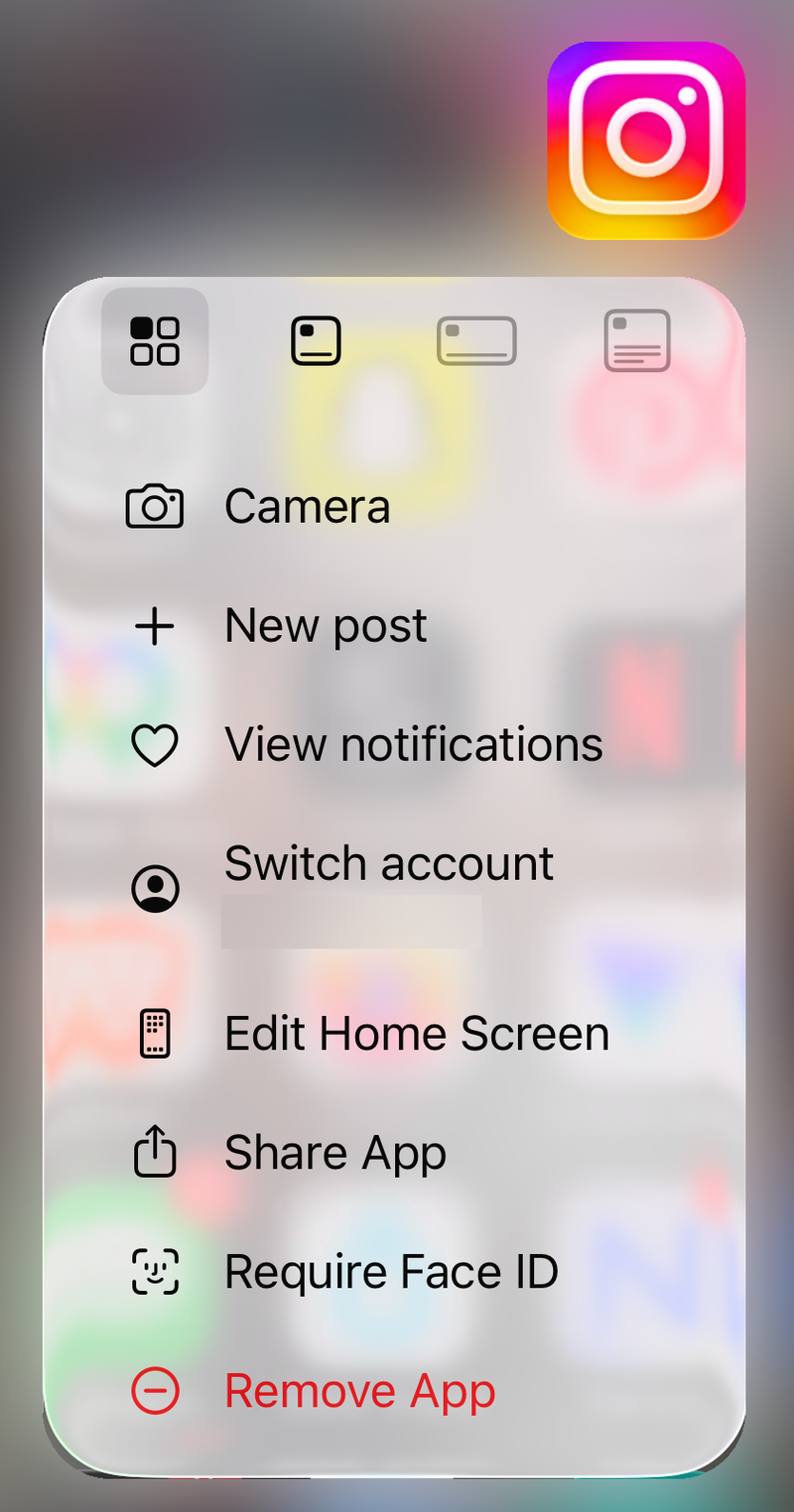
On Android, you can also reinstall through Google Play Store > profile icon > Manage apps & device > Manage > Instagram > Uninstall, then tap Install.
6. Allow GIFs to load on cellular data
Use this when GIFs and stickers spin, stay blank, or load on Wi-Fi but fail on mobile data.
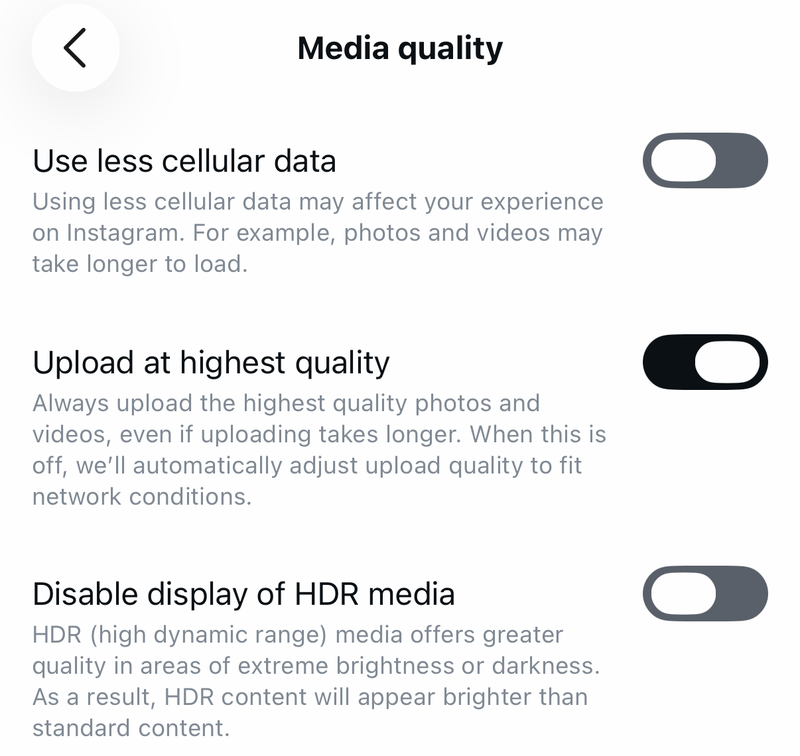
In Instagram, go to Profile > Menu > Media quality, then turn Use less cellular data off.
On iPhone, open Settings > Cellular or Mobile Data, find Instagram (tap Show All if it is not listed), and turn it on.
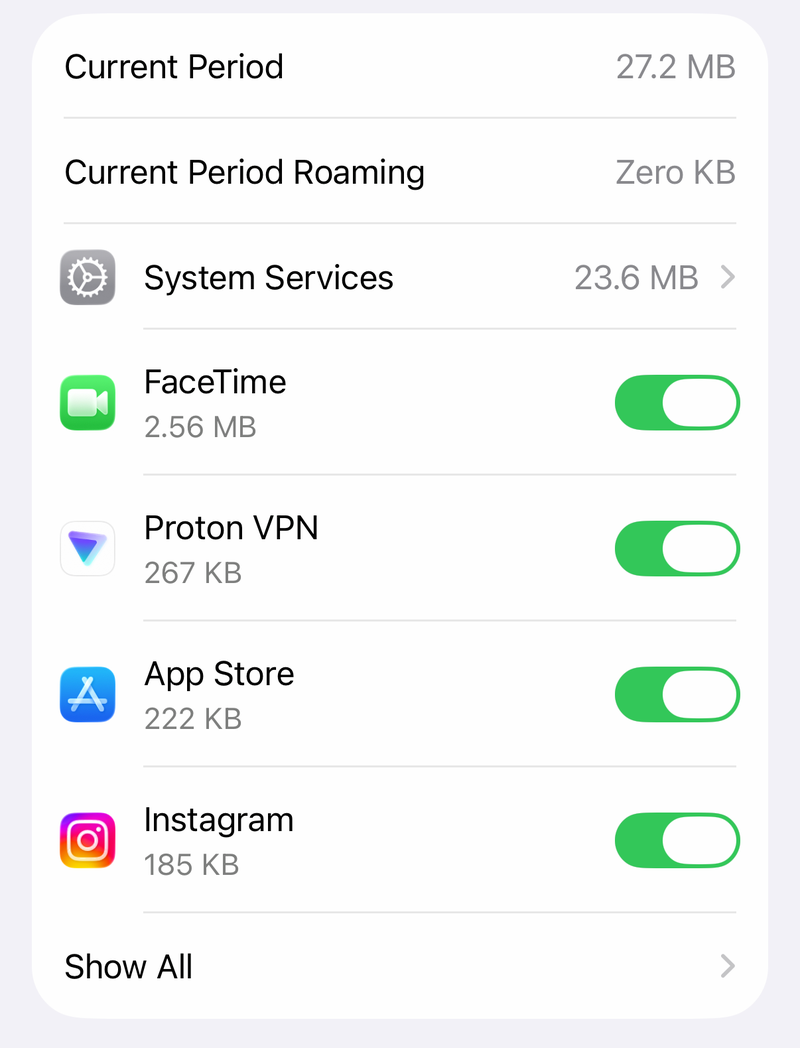
Then open Cellular Data Options; with Dual SIM, pick your cellular line first.
If you see a Low Data Mode switch, turn it off; on a 5G iPhone, open Data Mode and choose Standard or Allow More Data on 5G instead of Low Data Mode while testing.
On Android, open Settings > Network & internet > Data Saver and turn Data Saver off.
Then open Settings > Apps > Instagram > Mobile data & Wi-Fi and allow data access.
Test Instagram once on Wi-Fi and once on cellular.
The result tells you whether the problem is Instagram itself or the phone's data rules.
7. Reset Instagram in your browser
Browser cleanup helps when instagram.com is stuck or embedded media refuses to load. It does not add mobile-only GIF posting tools.
In Chrome, open More > Delete browsing data, select Cookies and other site data and Cached images and files, then click Delete data.
In Edge, open Settings and more > Settings > Privacy, search, and services > Clear browsing data > Choose what to clear, then click Clear now.
On iPhone Safari, open Settings > Apps > Safari > Clear History and Website Data.
If embedded GIF media still fails in Chrome, open More > Settings > Privacy and security > Third-party cookies > Allow third-party cookies, then reload instagram.com.
8. Review content and device restrictions
When GIF search works but certain results do not appear, check the account controls that filter content.
On an adult account, open Profile > Menu > Content Preferences > Sensitive content, then choose a broader setting such as Standard or More where available.
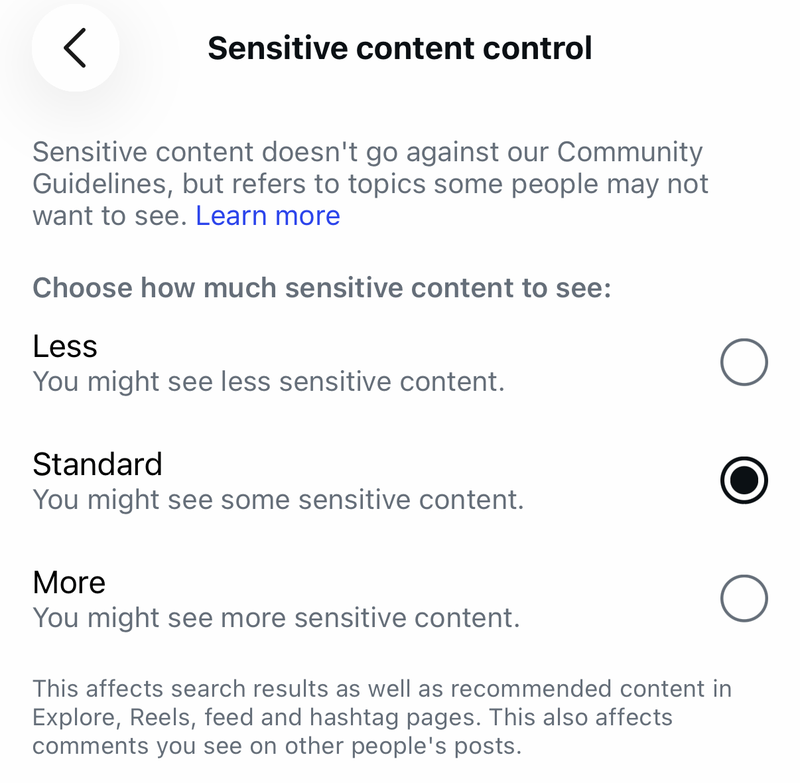
For Teen Accounts, open Profile > Menu > Content preferences > Content setting where available.
A parent or guardian can also review teen safety or supervision settings from their Instagram app.
On iPhone or iPad, if you cannot update, delete, or reinstall Instagram, open Settings > Screen Time > Content & Privacy Restrictions > iTunes & App Store Purchases, then set Installing Apps and Deleting Apps to Allow.
For supervised Android accounts, open Family Link, select the child, go to Screen time > Time limits > App limits > Instagram, then turn the app limit off or adjust it.
For work or school devices, contact the device administrator when Instagram cannot be updated, removed, or allowed on the network.
Managed apps are controlled by the organization.
9. Report the bug and ignore old fixes
Report the problem from inside Instagram after the fixes above.
Shake your phone to open the reporting menu, tap Report a problem, then follow the on-screen instructions.
You can also use Profile > Menu > Help > Report a Problem.
Skip old tutorials that tell you to use Update Messaging, tap an iPhone Instagram Clear Cache button, or upload a saved .gif directly as an animated Instagram post.
Current fixes are the in-chat GIF picker, the Stories/Reels sticker tray, the mobile GIF comment tool, Android cache clearing, iPhone reinstalling, and supported video uploads when you need to post your own animation.
Frequently Asked Questions
Why did the GIF button disappear on Instagram?
Instagram places GIFs inside the current message, sticker, and comment controls, and feature availability varies by account, region, age setting, app version, and rollout. Update Instagram, then check the correct GIF location for DMs, Stories, Reels, or comments.
Can I use Instagram GIF comments on a computer?
Use the Instagram app for iPhone or Android for GIF comments. Instagram web has more limited GIF posting tools, so browser cleanup will not add the mobile GIF comment button.
Why are Instagram GIFs blank or endlessly loading?
Blank or slow GIFs point to media loading restrictions. Turn off Instagram Data Saver, allow Instagram to use cellular data, disable Low Data Mode while testing, and compare Wi-Fi with cellular.
Why do my own GIPHY stickers not show up on Instagram?
Search the Instagram GIF sticker picker by typing @ followed directly by your GIPHY username. For wider discovery, use an upgraded GIPHY Creator or Brand channel with eligible public sticker content and relevant tags.