An HTTP 401 Unauthorized error means the site did not receive valid authentication credentials for the page you requested. You are either signed out, using the wrong saved login, opening a restricted URL, or carrying a broken browser session. Start with access and sign-in checks, then reset the browser pieces that handle sessions.
1. Confirm the page actually accepts your account
A 401 is an authentication error first, so do not start by changing random browser settings. Use the website's regular sign-in route and prove the account works there.
- 1.Open the site's Sign in or Log in page.
- 2.Enter the correct username, password, passkey, or token.
- 3.Finish any account recovery step the site shows, then reopen the page that returned the 401.
- 4.If the page is restricted, use the site's Support, Account recovery, or Request access flow.
If the content belongs behind an account, paywall, private workspace, admin area, or API permission, the site or account owner has to grant access.
2. Check the URL before clearing anything
Click or tap the browser address bar.
Review the domain, path, and spelling.
Remove old private path segments such as admin, api, staging, account, or intranet paths when the URL came from a bookmark or copied link.
Press Enter or Return.
Open the site's homepage, choose Sign in, sign in there, then reopen the protected page.
A valid password does not open a URL your account is not allowed to view.
3. Reload once, then test a private window
A stale cached response keeps the same 401 on screen after the sign-in problem is already fixed. Reload the page first. Then open the link in a private window to test without your regular cookies and site data.
In Firefox desktop, press F5 or Ctrl+R; on Mac, press Command+R.
To reload while overriding cache, press Ctrl+F5, Ctrl+Shift+R, or Command+Shift+R.
In Microsoft Edge desktop, press F5 or Ctrl+R for normal refresh.
Use Ctrl+F5, Ctrl+Shift+R, or Command+Shift+R for hard refresh.
In Chrome desktop, open DevTools, click and hold the Reload button, then choose the hard reload option Chrome shows.
In Chrome on Android, open Chrome, tap More, then choose Open in a new Incognito window.
In Firefox desktop, open the menu button and choose New private window.
For a link, right-click it and choose Open Link in New Private Window.
In Safari on Mac, choose Safari, File, then New Private Window.
In Microsoft Edge, choose Settings and more, then New InPrivate window.
Private browsing tests the browser session. It does not unlock protected content.
4. Clear the stored session in your browser
Cookies and site data hold the login session; cached files hold saved page text and images. Clear both for the browser showing the error, sign in again, and reopen the page.
In Chrome desktop, choose More, Delete browsing data, pick a Time range, select Cookies and other site data and Cached images and files, then choose Delete data.
For one site, choose More, Settings, Privacy and security, Third-party cookies, See all site data and permissions, search for the website, choose Delete, then Delete.
In Microsoft Edge desktop, choose Settings and more, Settings, Privacy, search, and services, Clear browsing data, Choose what to clear, pick a Time range, select Cookies and other site data and Cached images and files, then choose Clear now.
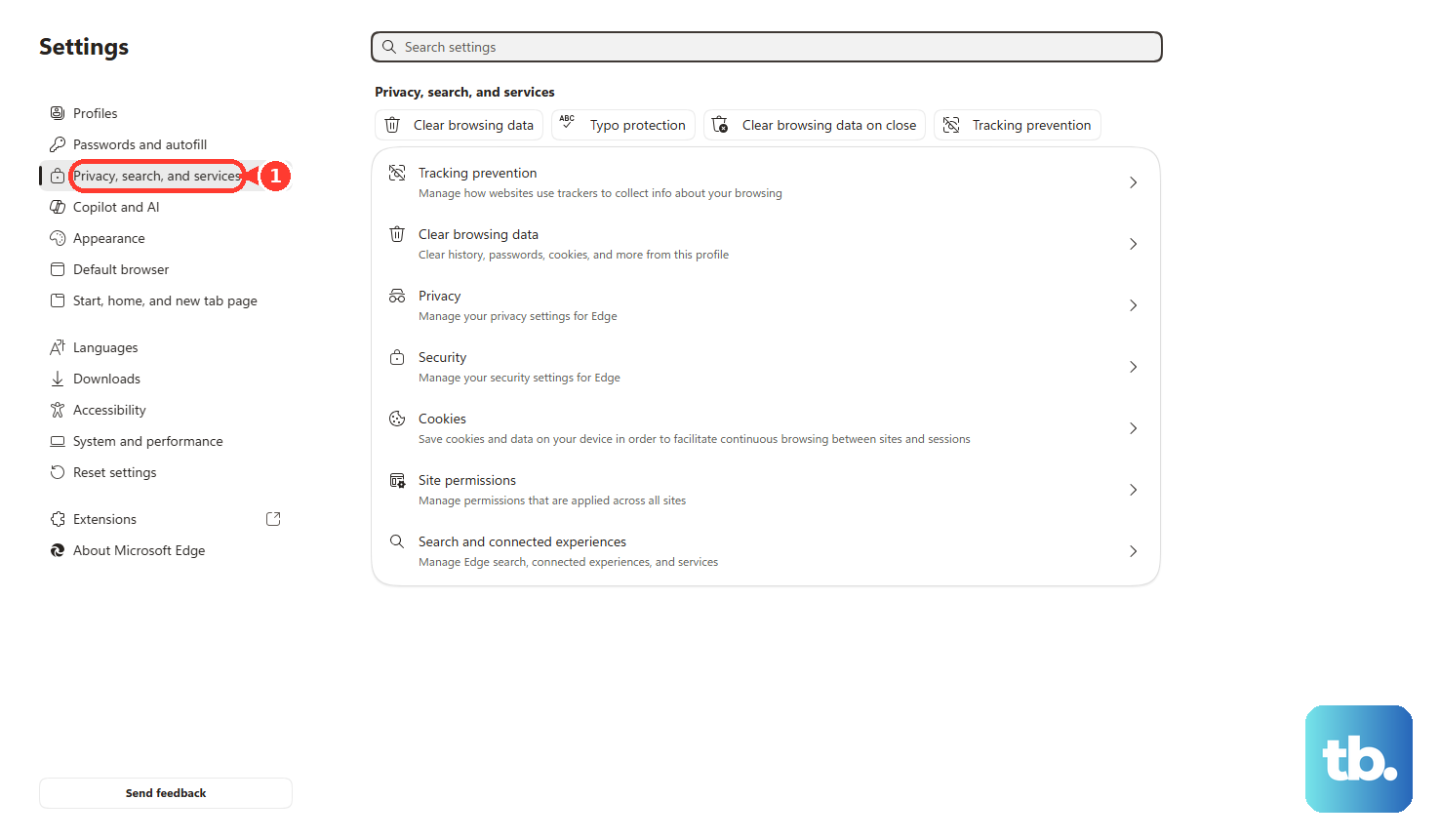
The shortcut is Ctrl+Shift+Delete.
In Firefox desktop, open the menu button, choose Settings, Privacy & Security, Cookies and Site Data or Browsing data, then choose Clear Data... or Clear browsing data.
Set When to Everything, select Temporary cached files and pages, add cookies and site data to reset the login state, then choose Clear.
On iPhone or iPad, open Settings, Apps, Safari, then choose Clear History and Website Data.
To keep history while clearing website data, use Settings, Apps, Safari, Advanced, Website Data, Remove All Website Data, then Remove Now.
In Safari on Mac, choose Safari, Settings, Privacy, Manage Website Data, select the website, then choose Remove.
Choose Remove All to clear all website data.
5. Allow the cookies the login requires
If the site accepts your login and immediately returns to a 401 page, cookie rules are the next place to look.
In Chrome desktop, choose More, Settings, Privacy and security, Third-party cookies, then under Sites allowed to use third-party cookies, choose Add.
Enter the web address and choose Add.
From the address bar, select Third-party cookies blocked and turn on third-party cookies for that site.
In Microsoft Edge desktop, choose Settings and more, Settings, Privacy, search, and services, Cookies, then turn on Allow sites to save and read cookie data (recommended).
For one site, choose Allowed to save cookies, Add site, then enter the site URL.
In Firefox desktop, open the menu button, choose Settings, Privacy & Security, Cookies and Site Data or Browsing data, then choose Manage exceptions or Manage Exceptions....
Enter the exact site address, choose the needed permission, and select Save Changes.
6. Replace bad saved passwords and pause extensions
Autofill turns one old password into repeated failed sign-ins. Extensions also interfere with authentication when they block cookies, rewrite requests, proxy traffic, or alter sign-in pages.
In Chrome on Android, open Chrome, tap More, choose Settings, Google Password Manager, pick the saved password, then use Edit or Delete.
In Microsoft Edge, choose Settings, Passwords and autofill, Microsoft Password Manager, select the right arrow next to the password, choose Edit, then Save.
This one needs an Edge profile signed in with a personal Microsoft account.
On a work or school profile, the administrator can restrict the password manager, so ask IT instead.
In Firefox, open the menu button, choose Logins and Passwords or Passwords, select the login, then choose Edit or Remove.
On iPhone with iOS 18, open the Passwords app, unlock it, choose the website or app, then use Edit, Change Password, or Delete.
On iOS 17 and earlier, open Settings, Passwords, choose the website or app, then use Edit, Delete Password, or Delete Passkey.
In Microsoft Edge, open Extensions, choose Manage extensions, then toggle off ad blockers, privacy blockers, VPN or proxy extensions, password managers, SSO helpers, and developer extensions one at a time.
In Safari on Mac, choose Safari, Settings, Extensions, then deselect the extension checkbox.
To remove one, select the extension and choose Uninstall.
Do not use old fixes such as Chrome chrome://plugins or Safari's Develop menu. Current browser fixes use extension settings, site settings, and built-in browser controls.
7. Disconnect a VPN or proxy for network locked sites
Use this only for sites that depend on network location, corporate SSO, or IP allowlists. A VPN or proxy change fixes a 401 only when the site's authorization rules care about that network.
In Windows, open Settings, Network & internet, Proxy, then under Manual proxy setup, select Set up next to Use a proxy server.
Turn it off and save.
Also review Automatic proxy setup.
On Mac, open the Apple menu, choose System Settings, VPN, then use the Info button next to the VPN service to change settings or choose Remove Configuration.
On Android, open Settings, Network & internet, VPN, then either tap the active VPN name or tap the settings icon next to it, and turn that VPN off.
8. Change the access rules when you own the site
If the 401 appears on your own website, fix the access gate that is rejecting visitors.
For a WordPress post or page, open the post or page in the WordPress editor, use Visibility, Edit, then change the Password protected settings.
From the posts list, use Quick Edit in All Posts to reveal or change a forgotten post password.
That gate prints a WordPress password form rather than a real 401, so if visitors get an actual HTTP 401 challenge, check server level Basic Authentication, cPanel Directory Privacy, a security plugin, or reverse proxy authentication instead.
For cPanel hosting, open cPanel, Files, Directory Privacy, select the directory, then under Security Settings, clear Password protect this directory and choose Save.
To keep the gate, update the authorized username and password in the same Directory Privacy area.
For Apache, verify AuthType, AuthName, AuthUserFile, and Require, then update the user/password file with htpasswd.
For Nginx, verify auth_basic and auth_basic_user_file in the relevant server or location block, update the referenced password file, validate the configuration, then reload the server.
Use HTTPS with Basic Authentication.
9. Ask IT to adjust managed browser policy
Work and school browsers lock some cookie and site-access settings by policy. Check Chrome by entering chrome://policy in the address bar, or Edge by entering edge://policy. If policies are applied, ask the administrator to allow the required cookies or site access in Chrome or Microsoft Edge policy settings.
Frequently Asked Questions
What does HTTP 401 Unauthorized mean?
HTTP 401 Unauthorized means the server requires valid authentication credentials before it will show the requested page or resource.
Why do I get a 401 after logging in?
The browser is often holding a stale session, blocking required cookies, filling an old password, or using an extension that interferes with sign-in.
Can a private window fix HTTP 401?
A private window is a test, not an access bypass. If the page works there, clear cookies and cache in your regular browser profile and check extensions.
Who fixes a 401 on a private work or school site?
The site owner or IT administrator fixes account permissions, required cookies, IP allowlists, and managed browser policies.











