Google Meet won't connect, your video freezes, or nobody can hear you. Start with a quick reconnect, then use the fix that matches what's failing, from camera permissions to a stuck phone app.
Get the meeting working again
Connection trouble interrupts Meet calls even after you've joined successfully.
Select Leave call.
Select Rejoin to reconnect.
If you still cannot connect, check Google Meet on the Google Workspace Status Dashboard.
Open any listed incident for updates. If there's an outage, retry when service is restored.
If you're in a meeting on a computer, open More options > Troubleshooting & help.
Review the connection diagnostics and follow the recommendations shown.
If the problem persists with no reported outage, save your work.
Restart your computer or phone.
Reopen the meeting.
Check what Meet is hearing and seeing
In the computer meeting preview, choose your intended device from the Microphone dropdown.
Speak and watch the microphone meter for a response.
Choose your intended output from the Speaker dropdown.
Select Speaker > Test speakers.
Choose your intended webcam from the Camera dropdown.
Check its preview to confirm the picture.
During a meeting, use the arrows beside the Microphone and Camera controls to change devices.
Turn on your microphone with the Microphone button if it's off.
Turn on your camera with the Camera button if it's off.
Release your headset's physical Mute button if it's engaged.
Tip: If you joined using Companion mode, leave and rejoin normally to get the usual microphone and speaker audio.
Restore browser access to your camera and microphone
In Chrome, visit meet.google.com and open View site information > Site settings. Set the affected permission, Camera or Microphone, to Allow.
In Firefox, open Meet and press Ctrl+I, or Command+I on Mac, to open Page Info. Under Permissions, find Use the camera or Use the microphone, clear Use Default, and choose Allow.
In Safari on Mac, open Safari > Settings > Websites > Camera and set meet.google.com to Allow. Repeat under Microphone for audio access.
In Edge, review existing permissions under Settings > Privacy, search, and services > Site Permissions > All sites > meet.google.com. When Edge requests camera or microphone access, select Allow. Reload Meet after changing browser permissions.
Allow access in your device's privacy settings
Browser permission doesn't override a device-level camera or microphone block. Use the instructions for your device.
On Windows 11, open Start > Settings > Privacy & security > Camera.
Enable Camera access, Let apps access your camera, and Let desktop apps access your camera. Browsers need that desktop-app switch.
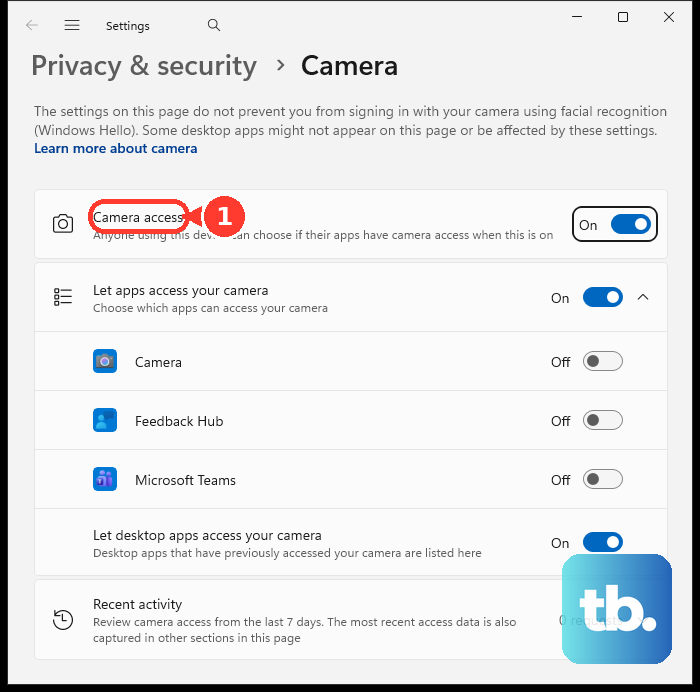
For Windows audio, open Settings > Privacy & security > Microphone.
Enable Microphone access, Let apps access your microphone, and Let desktop apps access your microphone.
On Mac, open Apple menu > System Settings > Privacy & Security > Camera.
Enable the browser or app you use for Meet.
For Mac audio, allow that browser or app under System Settings > Privacy & Security > Microphone.
On Android, open Settings > Apps > See all apps > Meet > Permissions. Choose Gmail instead if that's where you join meetings; wording varies by manufacturer.
Allow Camera and Microphone access while using the app.
If Android still blocks access, open Settings > Security & privacy > Privacy > Privacy controls on devices with these controls.
Turn on Camera access and Microphone access.
On iPhone or iPad running iOS 18 or later, open Settings > Apps > Meet.
Turn on Microphone and Camera.
On iOS or iPadOS 17, which Meet still supports, open Settings > Privacy & Security > Camera or Microphone instead, then turn on Meet in that list.
On Chromebook, select the time to reach Settings > Privacy and security > Privacy controls.
Enable Camera access and Microphone access.
Enable the relevant app permissions there too.
If permissions don't fix the camera, check its connection.
Open its physical privacy shutter if it's closed.
Test the camera in Camera or Photo Booth.
If the camera works there but still fails in Meet, try closing other camera-using applications before reloading Meet.
Stabilize a freezing or choppy call
Use these fixes when you can join but speech cuts out, video freezes, or the call struggles while other apps are busy.
Close unnecessary apps and browser tabs.
Pause downloads, uploads, streaming, and cloud synchronization during the call.
Try wired Ethernet or a 5 GHz Wi-Fi connection instead of congested 2.4 GHz Wi-Fi, using a connection your device supports.
If you use a VPN, temporarily disconnect it in its app.
If your connection uses a proxy, temporarily disable it in your device's network settings. The controls depend on your operating system and provider.
Rejoin through the direct connection.
On hotel, airport, or café Wi-Fi, open a webpage using HTTP to trigger the network's sign-in page.
Complete the network sign-in.
Reopen Meet.
For choppy video on a computer, set Settings > Video > Send resolution to Standard definition (360p).
Set Receive resolution to Standard definition (360p) too.
Choose Audio Only for incoming video if the connection still struggles.
To remove effects that add processing load, open Backgrounds and effects.
In the self-view effects stack, select Turn off visual effects > Remove all.
For an immediate fallback, switch off your video with the Camera button.
If the call remains unusable, join from the Meet mobile app or another compatible device.
Keep your browser and meeting app current
Meet supports current Chrome, Firefox, Edge, and Safari on supported operating systems. Open the meeting in another supported browser if your usual one fails.
To update desktop Chrome, open More > Help > About Google Chrome. Wait for the update check, then select Relaunch if offered. On Linux, update through your package manager; on ChromeOS, update the operating system to update Chrome.
On Android, open Google Play Store > profile icon > Manage apps & devices > Updates available. Install listed updates for Meet and Gmail.
On iPhone or iPad, open App Store > profile icon > App Updates and install available updates. Update iOS or iPadOS if the app problem persists.
Isolate a stubborn Chrome problem
If Meet still fails in Chrome, work through these repairs in order.
- 1.Enter chrome://restart in the address bar to restart Chrome fully. After it reopens, enable your microphone and camera and rejoin.
- 2.Open the meeting URL in an Incognito window and sign in if required. If it works there, investigate extensions and stored site data next.
- 3.Open More > Extensions > Manage Extensions and temporarily switch extensions off, especially Meet add-ons, privacy tools, and ad blockers. Restart Chrome and test Meet.
- 4.Open More > Delete browsing data. Choose a time range, select Cached images and files, and select Delete data. Include Cookies and other site data if the problem persists, and be ready to sign in again after removing cookies.
- 5.If Meet still fails, open More > Settings > Reset settings > Restore settings to their original defaults > Reset settings. This changes permissions, site data, extensions, and other preferences while retaining bookmarks and passwords. Grant Meet permissions again afterward.
Recover an unresponsive phone app
A stuck Meet app blocks you from opening or joining a meeting.
On Pixel, open Settings > Apps > See all apps > Meet > Force stop > OK. Other Android manufacturers use different menus.
Reopen Meet.
Try joining the meeting again.
If the app remains stuck, select Settings > Apps > See all apps > Meet > Storage & cache > Clear cache.
As a later repair, select Clear storage or Clear data in the app's storage settings, then OK. This erases local app data.
Reopen Meet to set it up again.
On iPhone, open the App Switcher.
Swipe the Meet card upward to close it.
Open Meet again from the Home Screen or App Library.
If updates and a device restart haven't fixed Meet on iPhone or iPad, delete the app. Deleting it risks losing app-local data.
Download Meet again from its official App Store listing.
Reopen Meet.
Restore its Camera and Microphone permissions.
Restore screen sharing when the call itself works
These fixes address blocked screen access and windows missing from the sharing picker.
On Mac, open Apple menu > System Settings > Privacy & Security > Screen & System Audio Recording.
If your browser is missing, add it with the Add button.
Enable the browser you use for Meet.
Approve any subsequent system prompt.
Open the window you want to share.
Unminimize it if necessary.
In Meet, select Present now.
Choose A tab, A window, or Your entire screen.
Select the content you want to present.
Click Share.
If sharing still produces an error, restart the browser.
If the host has restricted participant screen sharing, ask them to enable Share their screen in Host controls.
Frequently Asked Questions
Why can't I join one particular Google Meet meeting?
Sign in with the Google account invited to that meeting. Ask the organizer for the current link if yours has expired or been replaced. Enter that URL or code at meet.google.com and select Join. If you're waiting for admission, ask the host to select Admit; meetings with Host must join before anyone else enabled require the host to join first.
Why does Google Meet work with my personal account but not my work or school account?
Work and school accounts have administrator-controlled access to Meet, meeting creation, and incoming calls. Managed networks also have their own connection restrictions. Ask your administrator to check Meet's Service status, the permissions assigned to your account, and Google's Meet network requirements.
Why isn't Google Meet ringing on my phone?
On Android, turn on notifications under Settings > Apps > Meet > Notifications. On iPhone or iPad running iOS 18 or later, enable Settings > Apps > Meet > Notifications > Allow Notifications; on iOS or iPadOS 17, go to Settings > Notifications > Meet and turn on Allow Notifications. Disable an active Focus or Do Not Disturb mode that's silencing calls. Have both callers update Meet; if calling still fails, use Share link or Create and share a link when offered.
Why did my group meeting end after an hour?
Personal-account meetings with at least three participants have a one-hour limit and support up to 100 participants. Workspace limits depend on the organizer's edition. Check the organizer's account type to determine whether the meeting reached its duration limit.











