
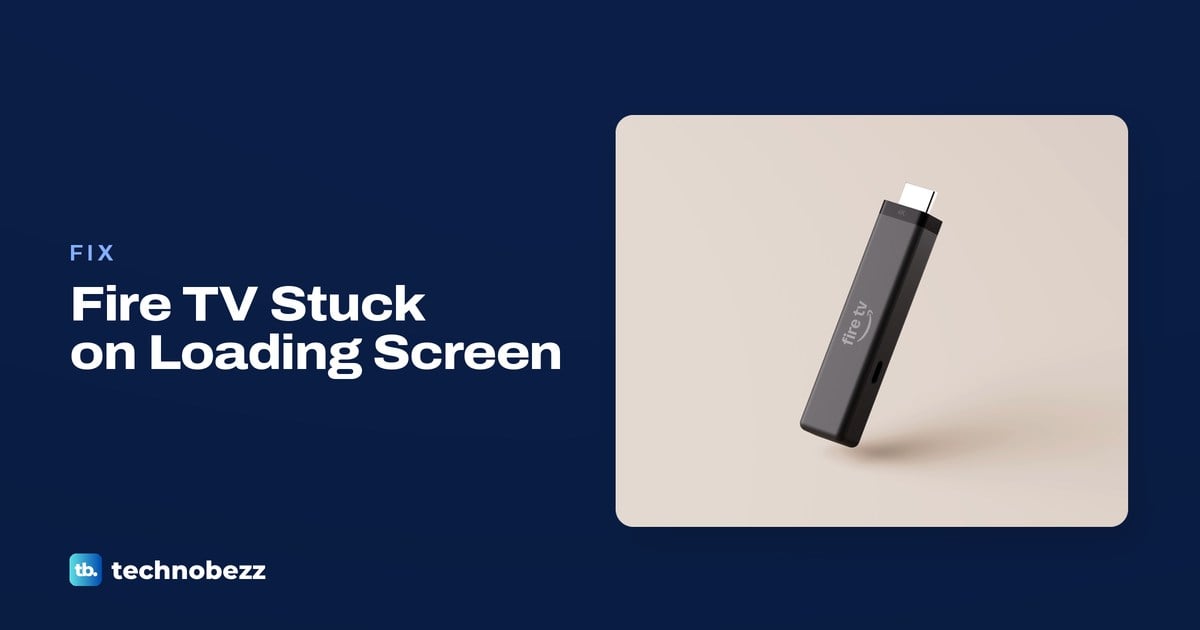
To fix a Firestick stuck on the loading screen, check your model's supplied power equipment, wait 25 minutes, then hold Select and Play/Pause for about five seconds to restart. Plug supplied adapters into an electrical outlet; the Fire TV Stick 4K third generation instead uses its included cable for Direct Power through the TV's USB-A port.
The short version
- Check the supplied power equipment and allow up to 25 minutes for the screen to change.
- Restart with Select and Play/Pause, or disconnect power for 60 seconds on a Stick.
- Check HDMI connections before trying fixes that require working menus.
- Use network diagnostics for connection errors and clear the cache when one app will not load.
- Save a factory reset for last because it removes account information and downloaded content.
| Fix | What it does | Time | Use it when |
|---|---|---|---|
| Power check and wait | Checks power and allows startup | Up to 25 minutes | The startup logo stays visible |
| Restart | Restarts a frozen device | 60 seconds unplugged on a Stick | The wait did not help |
| TCL accessory check | Disconnects attached equipment | 1 minute, then 5 minutes unplugged | A TCL Fire TV stays stuck |
| HDMI check | Checks the display connection | A few minutes | A Stick freezes or shows a blank screen |
| Network check | Diagnoses connection failures | About 3 minutes for router restart | Home or content will not load |
| App and update check | Resets an app and checks software | A few minutes to check | Menus work but an app freezes |
| Factory reset | Erases device data | 10 seconds to request the reset | Earlier checks failed |
| Supported TV recovery | Opens a TV reset menu | A few minutes to try the buttons | A supported TV cannot reset by remote |
Check the power supply and allow startup time
Use your model's supplied power equipment. On models supplied with an adapter, connect it to an electrical outlet. If a supplied accessory is missing, choose compatible Amazon-branded replacement equipment for that model.
For a Fire TV Stick 4K Select, connect the supplied cable to the Stick and adapter, then plug the adapter into an electrical outlet. Keep this model off the TV's USB power port; its setup instructions call for the adapter.
The Fire TV Stick 4K third generation uses its included cable for Direct Power through the TV's USB-A port. If the cable cannot reach that port or an insufficient-power message appears, use a USB-C cable and a 5V 1A USB power adapter connected to a wall outlet instead.
Once the connections are correct, leave the device powered on for 25 minutes or until the screen changes. If the logo still does not move, continue to the restart steps before considering a reset.
Restart a frozen Fire TV
On a working, compatible remote, hold Select and Play/Pause together for about five seconds. If that does not restart your Stick, disconnect its power cord, wait 60 seconds and reconnect it.
For a television with Fire TV built in, unplug its power cord for at least 30 seconds, then reconnect it. Use the supplied cable and try a different electrical outlet if the television still does not respond.
If menus are available, a streaming device also has Settings > My Fire TV > Restart. On a Fire TV Smart TV, use Settings > Device & Software > Restart; some older TCL Fire TV models show My Fire TV instead.
Disconnect accessories on a stuck TCL Fire TV
For a TCL television that stays on its startup logo, unplug it and disconnect attached HDMI devices, USB devices and soundbars. Wait at least 60 seconds, then connect the television directly to a working wall outlet and turn it on.
If it is still stuck, leave it unplugged for approximately five minutes and try again. Keep accessories disconnected during the retry so the TV can start without that attached equipment.
After startup succeeds, reconnect HDMI, USB and audio devices individually. If the problem returns when you reconnect one device, check that device and its cable before attaching it again.
Check the HDMI connection to your television
These checks apply to an external Fire TV device connected to a television. Disconnect it from HDMI, reconnect it, and select the matching Input or Source on the TV remote.
Connect Fire TV directly to the television to bypass an HDMI hub, receiver or soundbar. Try another HDMI port and test with and without the supplied HDMI adapter or extender if you have one.
For a Fire TV device that uses a separate HDMI cable, try another high-speed cable. Review your TV manual's video-cable section for HDCP compatibility, and try the Fire TV device on another television if one is available. If the screen stays black with a no signal message, work through the checks for a Fire TV Stick showing no signal.
A blank display needs these connection checks too. If the picture returns, use the next section only when you can open menus or see a connection error; a frozen startup logo gives you no access to app settings.
Restore the connection when Home will not load
Use network troubleshooting when startup reaches the interface but Home or streaming content cannot load. Open Settings > Network, then press Play/Pause to run diagnostics and follow the recommendations displayed.
On an Unable to Connect error screen, select Network Diagnostics instead. If the connection still fails, open Settings > Network > Wi-Fi, switch it off and switch it back on.
For a continuing connection failure, unplug the modem and router and wait one minute. Reconnect the modem first and allow approximately one minute for it to connect, then reconnect the router and wait approximately another minute.
Move Fire TV and the router closer together if practical, then check the connection again. If several devices have lost internet access, deal with the home network or service outage before resetting Fire TV. If only Fire TV stays offline, follow the steps for fixing a Fire TV that won't connect to Wi-Fi.
Clear a stuck app and check for updates
Clear the affected app
If only one app will not load, open Settings > Applications > Manage Installed Applications and select it. Choose Clear Cache, then reopen the app to check whether it loads.
If it still fails, return to that app and select Clear Data. This resets the app; be ready to sign in again if prompted and restore its preferences.
If a removable app still will not load, select it under Manage Installed Applications and choose Uninstall, then follow the prompts. Open the Appstore, search for the app and reinstall it.
Open another streaming app to check whether the problem affects just one service. If other apps work, check the affected app provider's support for outages, compatibility changes or account problems before resetting Fire TV.
Check for software updates
After recovering access to menus, open Settings > My Fire TV or Device & Software > About > Check for System Update. On a TCL Fire TV, the update option is Check for Updates; select Install Update if offered.
Keep a TCL TV connected to power and the internet during installation, and do not unplug it. Checking for an update and completing its installation are separate stages, so let the installation finish.
Free space when an update fails
If an update fails, check Settings > My Fire TV or Device & Software > About > Storage. Update troubleshooting calls for at least 500 MB available, so remove unused apps if you need room.
Return to Settings > Applications > Manage Installed Applications, select an unused app and choose Uninstall. Follow the prompts to finish, then return to the update check.
Save a factory reset for last
Try a factory reset only after the power, restart and relevant connection checks have failed. It removes account information and downloaded content, so safely eject expandable storage first if your device uses it.
On a compatible remote, hold Back and the right side of the navigation ring for 10 seconds. Read the on-screen prompt and choose whether to continue or cancel; leaving it unanswered starts the reset automatically after the countdown.
If menus work, use Settings > My Fire TV > Reset to Factory Defaults. Fire TV Smart TVs use Device & Software in that path, while older TCL models may show My Fire TV; follow the confirmation prompts.
For a Fire TV Cube, hold its physical Volume Down and Mute buttons until the light flashes blue, about 40 seconds. This also erases account information and downloaded content, so use the restart option first.
After the reset, follow the setup prompts to choose your language, connect to Wi-Fi and sign in to your Amazon account. Complete setup before returning to your apps. For more on each reset method, see resetting an Amazon Fire TV Stick.
Use recovery only on a supported television
Use the physical power button recovery procedure only on a Fire TV Smart TV whose maker supports it for that model. These steps are for supported televisions, so do not apply them to a Fire TV Stick.
Unplug the TV, then hold its physical Power button while reconnecting the power cable. Keep holding until the Fire TV logo appears, release the button, and use the remote to select the recovery menu's factory-reset option. Keep the TV connected to power until the reset finishes.
Some TCL Fire TV models have no customer-accessible recovery menu. If yours stays stuck, contact TCL Support for instructions specific to your exact television.
Do not try generic Android recovery button combinations or firmware found online. Install firmware only when TCL Support supplies it for your exact TV model.
Frequently Asked Questions
Can I restart a Fire TV Cube without a remote or unplugging it?
Yes, hold the Cube's physical Action button for 10 seconds to shut it down. Press the button again to restart it.
Can the Fire TV phone app control a device stuck loading?
Try it only if Fire TV can connect to the same Wi-Fi network as your phone. Install the Fire TV app, open it and sign in, then select the remote icon and Set Up New Fire TV and follow the prompts.
Can I clear every app's cache at once?
Yes, when your menus show that option, open Settings > Applications > Manage Installed Applications > Clear all Application Caches. Select Confirm to clear them.
What if the screen is visible but Fire TV ignores every remote button?
Replace the remote's batteries, using AAA alkaline batteries for compatible remotes. Then retry the restart shortcut before treating the lack of remote response as a startup failure.
How long should I wait on the Fire TV loading screen?
With the supplied power equipment connected, allow 25 minutes or until the screen changes. If the logo stays frozen after that wait, move to the restart and HDMI checks.