
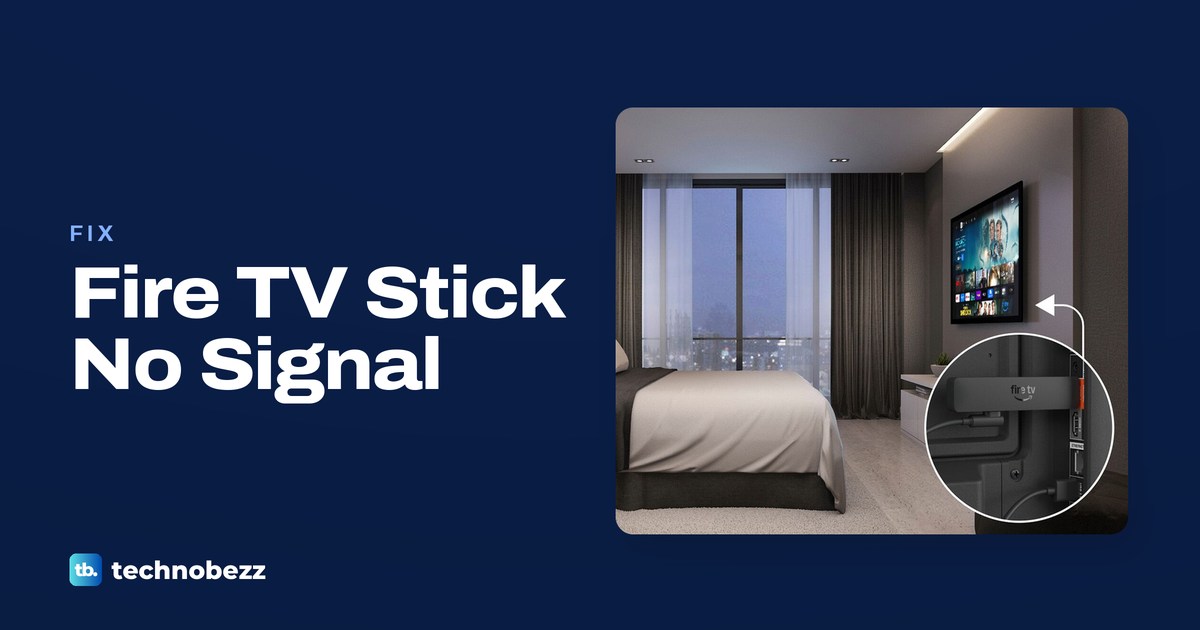
If your Firestick is not recognized by the TV, press Input or Source on the TV remote and choose the HDMI input holding the Stick. Then reconnect its power cable and HDMI connection before trying a restart.
The short version
- Match the TV's selected HDMI input to the port holding your Stick.
- Use the power setup for your model, including Direct Power on supported newer Sticks.
- Restart the Stick and reconnect HDMI before changing settings.
- Bypass receivers and hubs, then try another HDMI port or television.
- Keep a factory reset for last because it erases account information and downloaded content.
| Fix | What it does | Time | Use it when |
|---|---|---|---|
| Choose the input | Shows the connected HDMI source | Under a minute | The TV says No Signal |
| Check power | Corrects the power connection | A few minutes | The Stick will not start |
| Restart | Restarts an unresponsive Stick | A few minutes; 25 minutes if frozen | Startup stalls or nothing responds |
| Reconnect HDMI | Checks ports and accessories | A few minutes | Input and power checks fail |
| Try another TV | Helps locate the fault | A few minutes | You need to check the Stick separately |
| Check display settings | Checks resolution and HDMI control | A few minutes | You can see menus on a TV |
| Check sleep and playback | Addresses intermittent signal loss | A few minutes | The picture disappears after startup |
| Factory reset | Erases and resets the Stick | 10 seconds to open the remote reset prompt | Other checks have failed |
Choose the matching TV input
Look at the HDMI port holding the Stick, then use the TV remote's Input or Source control to select that port. Match the port rather than choosing an input because its name sounds right. If you later move the Stick to another socket, change the selected input again.
Press Select on your paired Fire TV remote to wake the device. If the Fire TV home screen appears, stop the connection checks and check whether the problem affects only an app. A visible home screen gives you access to the app troubleshooting steps in the FAQ.
Check the power supply for your model
Power through the supplied wall adapter
For a Stick supplied with a wall adapter, reconnect the included power cable to the Stick and adapter. Plug the adapter into a wall outlet rather than powering that model through the TV's USB port. If its original cable or adapter is missing, replace it with Amazon branded equipment.
Direct Power from the TV
The Fire TV Stick HD 2nd Generation released in 2026 uses a different setup. Connect its included USB-C power cable to the Stick and connect the other end to the TV's USB-A port. This model supports Direct Power from the TV, so a TV USB connection is part of its documented setup.
The Fire TV Stick 4K 3rd Generation also supports that Direct Power setup. Connect its included USB-C cable to the Stick's power port and the TV's USB-A port.
Fix insufficient power
If either Direct Power model gets insufficient power, try a different TV USB port, preferably USB 3.0 if available. If the cable cannot reach the port or power remains insufficient, use a USB-C cable and a 5V 1A USB power adapter connected to a wall outlet.
A low-power screen before startup is a reason to switch to an outlet. Selecting Got it or Ask me Later only acknowledges or postpones the notification; it returns until the power issue is resolved.
Restart an unresponsive Stick
Disconnect the Stick's power cable from the device or its power source, wait 60 seconds, then reconnect it. Check the selected TV input again while the device starts. Disconnecting HDMI alone is a separate connection check, so unplug the power cable for this restart.
If your paired remote has the buttons, hold Select and Play/Pause together for about five seconds to force a restart. Use the power restart instead if the remote is not responding. A failed remote shortcut does not establish that the Stick itself is faulty.
If a Fire TV logo or other startup screen appears but stays frozen, leave the device powered on for 25 minutes or until the screen changes. This wait is for a frozen screen, rather than a substitute for checking a missing power connection. If the logo keeps returning after that wait, follow the steps for a Fire TV stuck on the loading screen. If no picture appears, continue with the HDMI checks.
Reconnect HDMI and bypass extra equipment
Check a direct HDMI connection
Disconnect the Stick from the TV's HDMI port, then plug it back in securely. If the picture stays blank, try a different HDMI port and select its matching input on the TV. Keep the model's normal power supply connected while checking the new port.
Check receivers hubs and extenders
If the Stick connects through a receiver or soundbar, check that device's selected input as well. Then connect the Stick directly to the TV to bypass the receiver or soundbar. For an HDMI hub, remove it from the connection while checking the direct setup.
Try the connection with and without an HDMI adapter or extender where there is enough room. If the Stick cannot fit properly, use an extender rather than leaving it partly inserted. For the Fire TV Stick 4K 3rd Generation, use a 4K HDMI extender.
If your setup includes a separate HDMI cable or hub, try a replacement after the direct connection check. Use a High-Speed HDMI cable for 4K playback. A Stick plugged straight into the television does not have a separate HDMI cable to replace, so focus on its port and any extender instead.
Try the Stick on another television
Connect the Stick to another compatible TV using its normal power supply, then select the matching HDMI input. If it produces a picture there, focus next on the original TV, its port or the equipment between it and the Stick. That result helps narrow the search without erasing the device.
On a Samsung TV, connect another working HDMI device to the original input. If the other device works, contact Amazon for help with the Stick. If both devices fail after the source and connection checks, contact Samsung about TV service.
Before buying replacement equipment, keep track of which connection produced a picture. A direct connection that works gives you a reason to check the bypassed receiver, soundbar or hub first. If another TV displays the Fire TV menus, you can also check the display settings before reconnecting to the original television.
Check display settings when menus are visible
Once you have a picture on a TV, open Settings > Display & Sounds > Display > Video Resolution on a compatible 4K Stick. Select Auto before checking the original connection again. If a notification says HDCP 2.2 was not detected, check the TV input and any receiver or soundbar for HDCP 2.2 support.
For 4K playback, the TV input and every receiver or soundbar in the connection must support HDCP 2.2. Some HDMI ports on an Ultra HD TV do not support it, so check the TV manual for the suitable input. A television supporting 4K does not establish that every HDMI port supports the required content protection.
If blank-screen problems continue when you can access settings, open Settings > Display & Sounds > HDMI-CEC Device Control. Turn it off and then on again, then check the connection. Some interfaces call the parent menu Display & Audio; use that label if it appears on your screen.
Address signal loss during sleep or playback
If the picture disappears after inactivity, press Select to wake the Stick before reconnecting anything. On supported devices, Low Power Mode activates by default during sleep. Where Display settings include Sleep Mode Behavior, choosing Black Screen prevents the device from turning off HDMI during sleep.
A few seconds of black screen when starting or stopping 4K playback can be normal. If the picture stays missing, return to the input and HDMI checks rather than treating it as a normal transition. When menus remain visible, check the TV's picture or input settings against its manual's 4K and HDR instructions.
On models with the tool, open Settings > Display & Sounds > Audio/Video Diagnostics. Check the detected maximum resolution, refresh rate, HDR and Dolby Vision support. The tool is not available on every Fire TV device, so skip this step if the menu is absent.
Use the test video at the bottom of the diagnostics page to check HDR or Dolby Vision support. Any connected receiver or soundbar must be able to pass through the format you want to use. If the needed format is missing, check that equipment and the TV settings before changing more Fire TV options.
Keep a factory reset for last
Consider a factory reset only after checking power, HDMI and another TV. It removes your account information and downloaded content, so it is a bigger step than a restart. If you have a usable picture, open Settings > My Fire TV > Reset to Factory Defaults and follow the prompts.
The remote alternative is to hold Back and the right side of the navigation circle together for ten seconds. On the TV, choose whether to continue or cancel. If you make no choice, the device resets automatically after several more seconds, so avoid starting this shortcut blindly unless you are ready to erase it.
After the reset finishes, follow the on-screen remote pairing instructions. If you still cannot get a picture, contact Amazon for help with your device. Include the results of the direct HDMI and alternate-TV checks so support can see what you have already ruled out.
Frequently Asked Questions
Can I use my phone if the Fire TV remote isn't working?
Download the Fire TV app and connect your phone to the same Wi-Fi network as the Stick. Open the app, sign in to your Amazon account, select the remote icon, then Set Up New Fire TV and follow the prompts. It provides a way to navigate a connected device, so finish the power and HDMI checks if you still cannot see a picture.
How do I pair a remote that won't wake the Stick?
Install fresh AAA alkaline batteries and keep the remote within ten feet of the Stick. Hold Home for about ten seconds, until the pairing prompt appears if the screen is visible.
How do I fix a black screen in just one app?
With Fire TV menus visible, open Settings > Applications > Manage Installed Applications and select the affected app. Choose Clear Cache, then Clear Data if the problem continues; clearing cache and data resets the app without deleting it.
How do I update the Stick after the picture returns?
Open Settings > My Fire TV > About > Check for System Update. If your model shows Device & Software instead of My Fire TV, use that menu before opening About. Update after restoring a picture so you can follow the screen.
Why does the remote control Fire TV but not the TV's power or volume?
With a picture restored, open Settings > Equipment Control > Manage Equipment > TV and check the displayed TV brand under Change TV. If it is wrong, select Change TV and follow the prompts. The steps for setting up your Fire TV remote to control your TV cover that power and volume setup.