FaceTime video can work while your microphone, speaker, or audio route fails. Start inside the active call, then check permissions, physical mic openings, speaker output, network settings, and the FaceTime app itself. These fixes cover iPhone, iPad, Mac, and FaceTime links opened on Windows or Android.
Check the mute button first
Check whether your microphone is muted when the other person can see you but cannot hear you.
During the FaceTime call, tap the screen once to show the controls.
If your mic is muted, tap the Microphone button to turn it back on.
Say a few words and ask the other person whether they can hear you clearly.
Change the microphone mode
Use FaceTime’s audio controls when your voice sounds missing, muffled, or over-filtered.
- 1.Stay in the FaceTime call and open Control Center.
- 2.Tap FaceTime or App Controls.
- 3.Under Audio & Video, tap Mic Mode.
- 4.Choose Automatic, Standard, Voice Isolation, or Wide Spectrum. Voice Isolation and Wide Spectrum need iOS 15 or iPadOS 15 or later on iPhone XR, iPhone XS models, and later, iPad (8th generation) and later, any iPad Pro 11-inch, iPad Pro 12.9-inch (3rd generation) and later, iPad Pro 13-inch (M4), iPad Air (3rd generation) and later, or iPad mini (5th generation) and later. Automatic needs iOS 18 or iPadOS 18 or later. Modes your device or software version does not support will not appear in the list.
- 5.Return to the call and test your voice again.
Make sure FaceTime can use the microphone
On iPhone or iPad, open Settings > Privacy & Security > Microphone. Turn on FaceTime if it appears in the list.
If FaceTime is not listed under Microphone, move on to the hardware and routing checks below.
For FaceTime links opened on Windows or Android, use the latest Google Chrome or Microsoft Edge. When the browser asks for access, allow FaceTime to use the Microphone and Camera, then join the call.
Pick the right speaker or microphone
Check whether audio is using a connected device instead of the speaker or mic you want.
If the call shows an Audio control, tap it and select your iPhone or iPad speaker, Bluetooth headset, or hearing device when available.
Apple documents HomePod as a speakerphone for telephone and FaceTime audio calls. For this video-call test, use the device speaker or a connected headset.
If several audio devices are connected, open Control Center.
Tap FaceTime or App Controls.
Tap the device next to Audio Input, or tap Input if that is the label you see.
Select the microphone or audio device you want to use for the call.
To change the default route for future calls, open Settings > Accessibility > Touch > Call Audio Routing and choose the destination you prefer.
Clean and test the mic and speaker
Cases, screen protectors, films, and debris can block audio even when FaceTime video keeps working normally.
Remove any case, screen protector, or film from the device.
Clear debris from the microphone openings. If needed, clean the speaker or receiver openings with a small brush that has soft bristles and is clean and dry.
On iPhone, open Voice Memos, tap Record, speak at the bottom of the phone, stop, then play it back.
To test speakerphone audio on iPhone, open Camera, record video while speaking at the top of the iPhone, switch cameras, record again, then play back both videos.
On iPad, open Camera, record yourself speaking with the front camera, tap the camera chooser, record with the back camera, then play both videos back.
Fix low or missing sound from the other person
This fixes the opposite problem, where they can hear you but you cannot hear them, or the audio is too low.
During the FaceTime call, press the volume buttons on the side of your iPhone to raise call audio.
For a separate speaker test, turn off Silent mode.
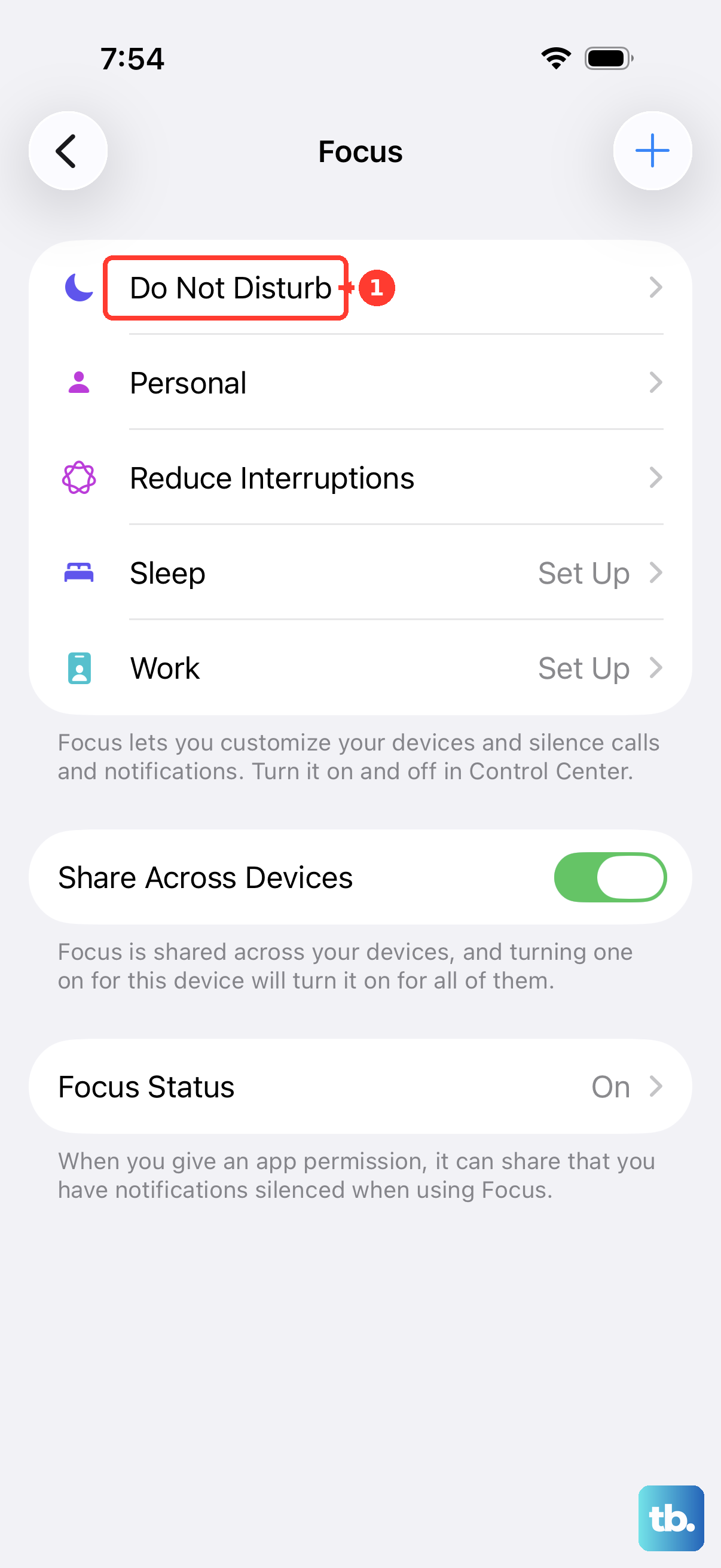
Open Settings > Focus > Do Not Disturb and make sure Do Not Disturb is off.
Remove any case, screen protector, or film.
Check and clean the speaker or receiver openings.
Open Settings > Sounds or Settings > Sounds & Haptics.
Move the Ringtone and Alerts slider back and forth to test the speaker. No sound or a dimmed speaker button can indicate that the device needs service.
Try the FaceTime call again later or from a different location if the audio still sounds poor.
Refresh FaceTime and the connection
Open Settings > Apps > FaceTime, turn FaceTime off, then turn FaceTime back on. In the same screen, sign in to your Apple Account and select the correct phone number or email address under You can be reached by FaceTime at.
For cellular calls, open Settings > Cellular or Settings > Mobile Data and turn on FaceTime. On iPad, use Settings > Cellular Data when that menu is shown.
Open Settings > General > Date & Time and turn on Set Time Automatically, which some versions label Set Automatically. Then restart your iPhone or iPad and try FaceTime again.
If audio is choppy, missing, or dropping, check Apple System Status for a FaceTime outage and make sure both people are using a fast Wi-Fi or cellular connection. When Wi-Fi is slow or busy, reduce streaming on that network or try another network or location.
Update or reinstall the FaceTime app
Back up your iPhone or iPad.
Connect the device to power and Wi-Fi.
Open Settings > General > Software Update.
Tap Download and Install when an update is available.
Deleting a built-in app also removes its related user data and configuration files. Keep the backup from the update steps above before proceeding.
To remove the FaceTime app, touch and hold FaceTime.
Tap Remove App or Delete App.
Tap Delete App or Delete.
To restore it, open App Store.
Search for FaceTime.
Tap the Redownload button.
Wait for the app to return, then open it from the Home Screen.
Apple says FaceTime calls can still work from Contacts and Phone after the FaceTime app is deleted.
Frequently Asked Questions
Why can the other person see me but not hear me on FaceTime?
Your microphone is muted, blocked by a case or debris, routed to another device, filtered by Mic Mode, or blocked in microphone permissions.
Why can I hear nothing on FaceTime when video still works?
Raise the volume during the call and check the selected audio destination. Use the speaker checks above if other sounds are also missing. If incoming calls do not ring, check Silent mode and Do Not Disturb separately. For poor call quality, try a stronger network.
Can I fix FaceTime audio on a Mac the same way?
On Mac, quit and reopen FaceTime, restart the Mac, choose the correct microphone or output from FaceTime’s Video menu, adjust input or output volume, and update macOS.
What if FaceTime audio fails only on a work or school device?
Check local Screen Time restrictions first. On a managed device, ask the administrator to review FaceTime, camera, microphone, app removal, and privacy access restrictions.











