A Windows 10 screen usually looks zoomed in because Magnifier is on, the display scale is too high, the resolution is too low, or one app has its own zoom setting. Start with the fastest keyboard fixes, then move to the Windows settings that control the whole desktop.
Turn off Magnifier first
Magnifier is the fastest thing to rule out when the entire desktop suddenly looks enlarged.
- 1.Press the Windows logo key + Esc to close Magnifier.
- 2.If Magnifier needs to stay open, press the Windows logo key + Minus sign to zoom out.
- 3.Use Ctrl + Alt + mouse scroll wheel to zoom in or out while Magnifier is open.
- 4.Press Ctrl + Alt + Minus sign to toggle between your set magnification level and 1x.
- 5.Press the Windows logo key + Ctrl + M to open Magnifier settings if you need the on-screen zoom controls.
Stop Magnifier coming back after sign in
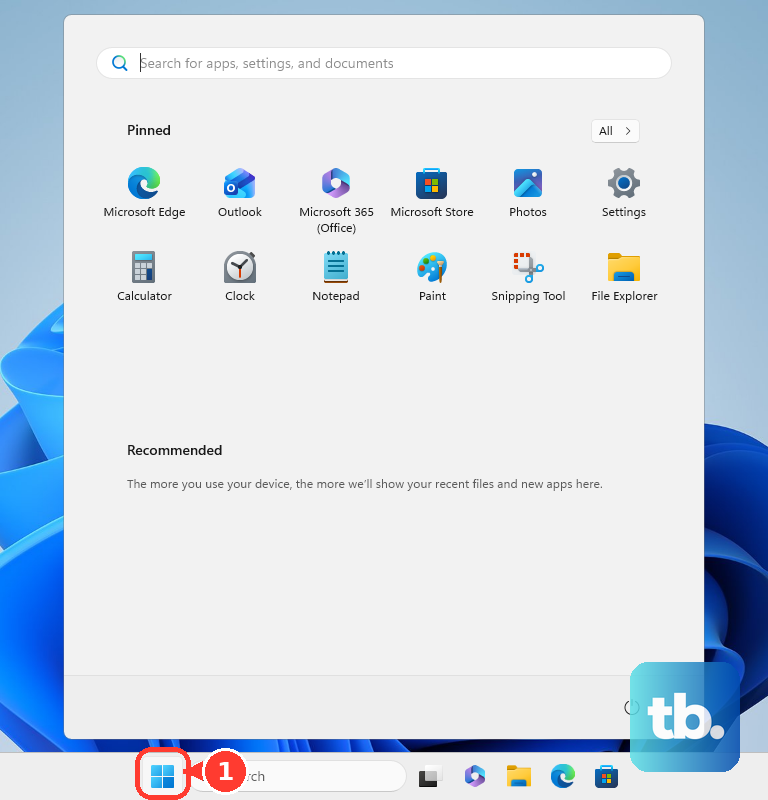
Open Start, then go to Settings, Ease of Access, and Magnifier.
Turn off Start Magnifier after sign in.
Turn off Start Magnifier before sign in for everyone if the screen is already zoomed before you reach the desktop.
You can also press the Windows logo key + Ctrl + M, tab to either startup option, and press Spacebar to turn it off.
Restart once after changing these settings so you can confirm Magnifier no longer opens by itself.
Change the Magnifier view
Full screen Magnifier can make Windows look broken because the whole desktop moves around enlarged. Press Ctrl + Alt + D for Docked view, or press Ctrl + Alt + L for Lens view.
Press Ctrl + Alt + F to return to Full screen view. Press Ctrl + Alt + M to cycle between Full screen, Docked, and Lens.
If changing the Magnifier view does not fix the oversized desktop, check Windows scaling and resolution next.
Set scale and resolution back to recommended
The most common cause after Magnifier is a display scale or resolution setting that makes text, apps, icons, and windows look too large.
Open Start, then select Settings, System, and Display.
In Rearrange your displays, select the display that looks zoomed in.
Scroll to Scale and layout. Under Change the size of text, apps, and other items, choose the option marked Recommended.
Stay in Scale and layout, open Display resolution, and choose the option marked Recommended. A low resolution can make everything look oversized, stretched, centered, or surrounded by black edges.
When only text is too large
If windows and icons look normal but words are oversized, use the text-size setting instead of changing the whole display. Open Start, then go to Settings, Ease of Access, and Display.
Move the slider under Make text bigger to reduce the text size, then select Apply. This changes text size without changing the full Windows layout.
Fix a monitor or projector that looks oversized
The most common cause with an external screen is a projection mode that chooses an awkward resolution for a monitor, TV, projector, or wireless display.
Press the Windows logo key + P.
Choose the display mode that fits your setup: PC screen only, Duplicate, Extend, or Second screen only.
If the picture still looks wrong after changing projection mode, return to Settings, System, and Display, then set Display resolution to the option marked Recommended for that display.
Reset zoom in your browser or app
This fixes one zoomed website, document, worksheet, slide, Teams window, or browser page while the Windows desktop looks normal.
In Microsoft Edge, press Ctrl + 0 to reset the current page.
Press Ctrl + Minus sign to zoom out, or open Settings and more and choose Zoom out.
Press F11 if Edge looks zoomed in because full-screen mode is hiding the address bar, tabs, or taskbar.
In Google Chrome, open More and use Zoom out, or press Ctrl + Minus sign.
Press F11 in Chrome to leave full-screen mode.
In Firefox, open the menu button and use the - button to zoom out.
Click the number in Firefox zoom controls to reset the site to its default zoom level, or hold Ctrl and press 0.
In Microsoft Teams, press Ctrl + 0 to reset zoom or Ctrl + Minus sign to zoom out.
In Office apps, use the zoom slider on the status bar, or click - to zoom out.
Update or roll back the display driver
Unexpected resolution changes can come from a graphics driver problem, especially after a display or driver change. Open Start, then go to Settings, Update & Security, and Windows Update, then install available updates.
To update the driver directly, right-click Start and select Device Manager. Expand Display adapters, right-click your display adapter, choose Update driver, and select Search automatically for updated driver software.
If Windows does not find a driver there, select Search for updated drivers on Windows Update.
When a recent driver change caused the zoomed-in display, open Device Manager, expand Display adapters, right-click the adapter, open Properties, choose the Driver tab, and select Roll Back Driver.
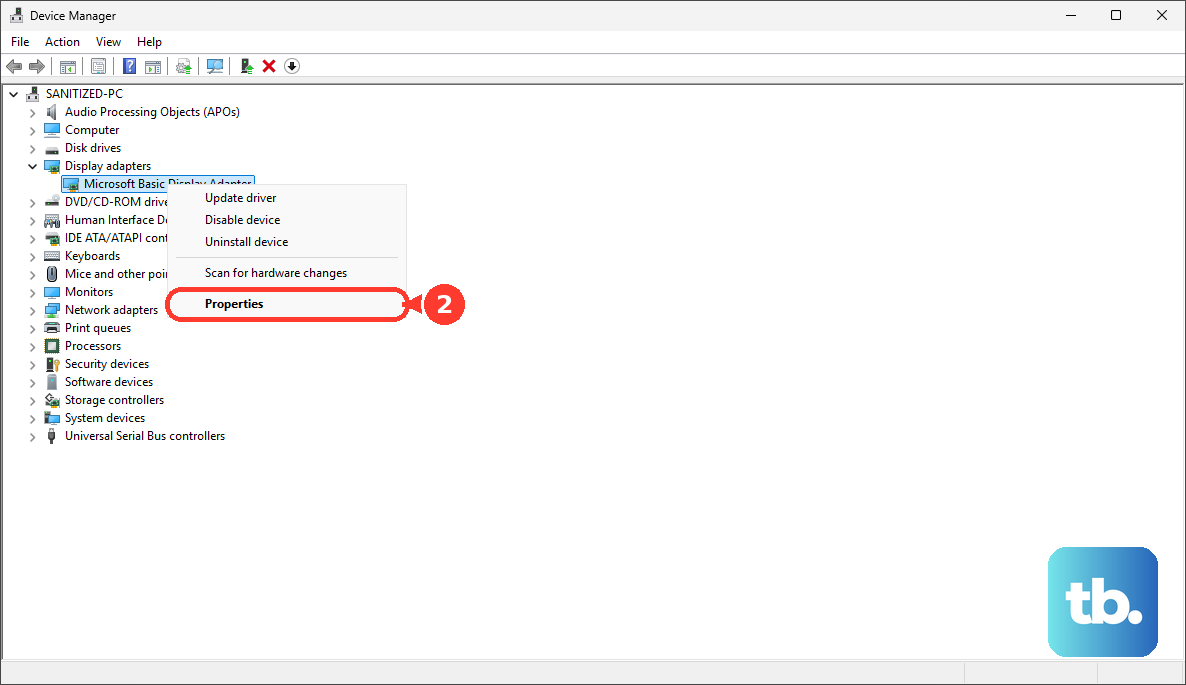
To reinstall instead, right-click the display adapter, choose Uninstall device, confirm with Uninstall, and restart so Windows can detect the adapter again.
Only select Delete the driver software for this device in the removal prompt if you also want to remove the driver package. That option needs an administrator account and is not required for a normal reinstall.
Older fixes you can skip
Older Windows 10 display tutorials often point to Control Panel display applets. Use Start, Settings, System, and Display for scaling and resolution instead.
For text size, use Start, Settings, Ease of Access, and Display. That is where Windows 10 keeps the Make text bigger control.
Skip third-party DPI fix utilities as a first move. Use Windows Settings, Windows Update, Device Manager, browser or app zoom controls, or managed-device settings.
On work or school PCs, a legacy desktop app can look wrong because of managed DPI settings. Ask your IT admin to handle legacy app DPI scaling through the organization’s device policy tools.
Frequently Asked Questions
Why is my screen zoomed in on Windows 10 all of a sudden?
The usual causes are Magnifier being turned on, display scaling being set too high, screen resolution being set too low, browser zoom, app zoom, or a display driver change.
What keyboard shortcut fixes a zoomed-in Windows 10 screen?
Press Windows logo key + Esc to close Magnifier. If Magnifier is open and you only want to zoom out, press Windows logo key + Minus sign.
Why is only one website zoomed in?
That is browser zoom, not Windows display scaling. Use Ctrl + 0 in Edge, Chrome, or Firefox to reset the current page zoom.
Why does my monitor look zoomed in after plugging it in?
Windows may be using a projection mode or resolution that does not fit the display well. Press Windows logo key + P to change the display mode, then set Display resolution to Recommended in Windows display settings.











