When a VIZIO sound bar stops working with HDMI ARC, the TV may show a connection but send no sound, ignore volume commands, or fail to wake the bar. The fix usually comes down to the ARC port, HDMI CEC, the TV audio format, or a stale HDMI handshake. Start with the simple checks first, then move into the deeper VIZIO settings only if sound still does not come back.
Start with the ARC port and power
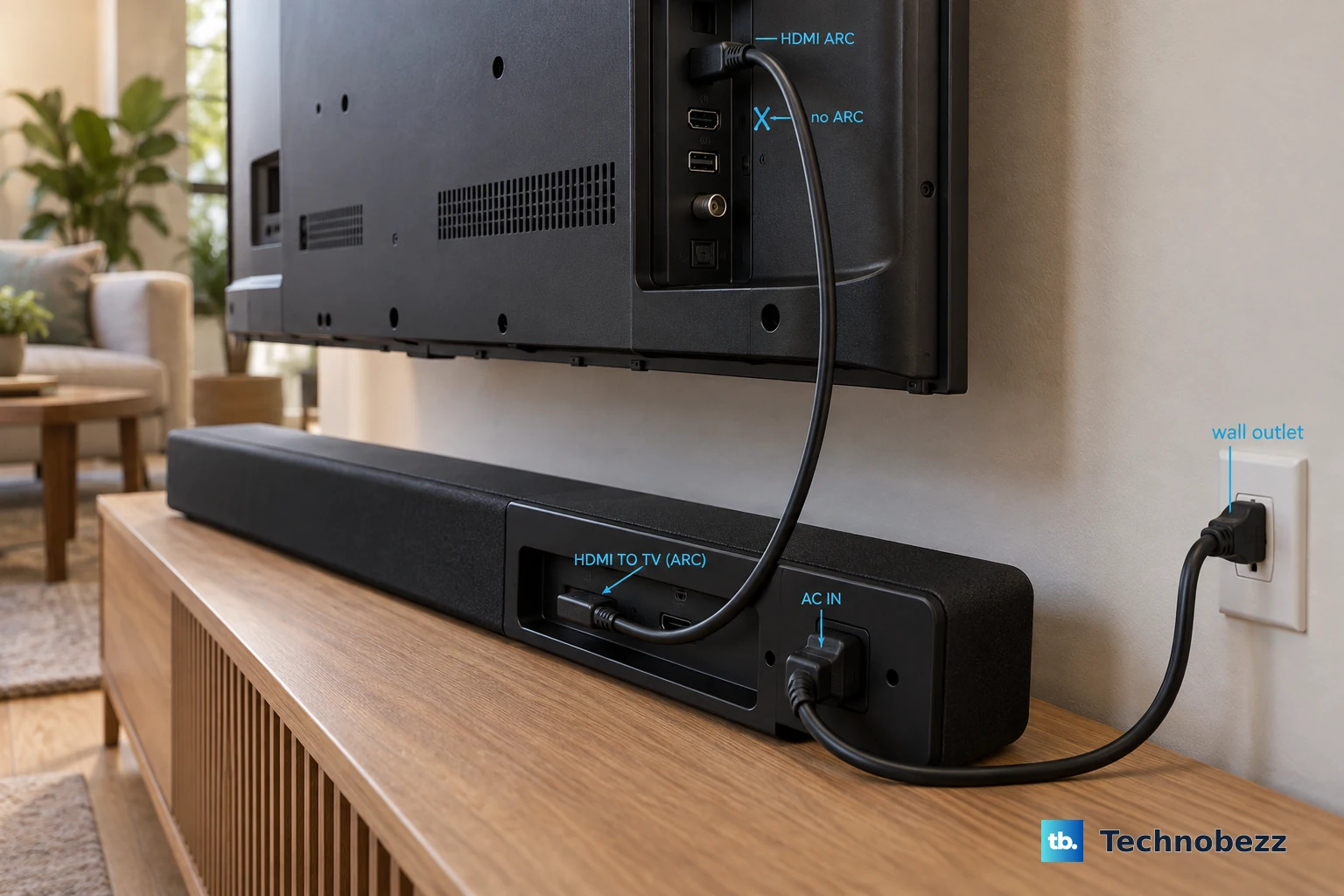
Connect the HDMI cable from the sound bar to the TV port labeled HDMI ARC or HDMI eARC.
Make sure that TV port is an audio output. A regular HDMI input will not send ARC audio back to the sound bar.
Use the HDMI cable included with the sound bar when you have it.
Connect the sound bar power cable to AC IN, then plug it into a working electrical outlet.
Turn on the TV with the TV remote. On current VIZIO sound bars without a separate remote, the sound bar should wake automatically with the TV.
Check the physical port label before changing settings, because HDMI ARC audio will not work from a port that is not labeled ARC or eARC.
Enable HDMI CEC and ARC audio
This fixes a correct HDMI connection that still is not sending TV audio or volume control to the sound bar.
Open the TV settings menu.
Turn on HDMI CEC.
Turn on ARC or eARC in the TV audio or HDMI control area.
On a VIZIO TV, press Menu.
Go to System, open CEC, and set CEC to Enable.
Use Menu > Audio for the TV audio output settings, and check your TV manual for the eARC control, because its location varies by model.
Play TV audio again after both settings are enabled.
Run Device Discovery on a VIZIO TV
Use this when the sound bar is connected to a VIZIO TV through HDMI ARC or eARC but the TV does not seem to register it. It also helps after you reconnect HDMI devices or replace a cable.
Open the VIZIO TV System settings.
Go to CEC.
Choose Device Discovery and let the TV register the sound bar.
After discovery finishes, use the TV remote volume buttons and play something with sound.
Check volume mute and the outlet
Press Power on the TV remote or on the side of the sound bar. If the sound bar was asleep, it should turn on before you test ARC audio again.
Raise the volume with Volume Up on the TV remote or on the side of the sound bar. Press Mute on the TV remote to make sure the sound bar is not muted.
Confirm that the power cord is firmly connected at the sound bar and the wall outlet. Test the outlet with another device if the sound bar shows no sign of power.
If this method fails, power-cycle the TV next because ARC and CEC can drop out even when the cable and settings look right.
Power cycle the TV to refresh HDMI ARC
Unplug the TV from power for about 5 seconds, then plug it back in and let it start normally.
VIZIO uses this reset for TVs with audio dropouts, no audio, or stuck HDMI CEC and ARC behavior.
Once the TV is back on, test the same HDMI ARC source again before changing more settings.
Set the TV audio output format
Use this when ARC is detected but you still get silence or audio that only works with some apps or devices. The TV may be sending a format the sound bar is not handling correctly.
On VIZIO TVs with the classic menu path, open Menu.
Go to Audio.
Open Digital Audio Out.
Choose the digital audio format used for HDMI ARC devices.
For older VIZIO ARC sound bars, set the TV digital audio setting to Dolby Digital or Bitstream.
If audio still fails, switch the setting to PCM as a compatibility test.
If your TV has an audio output mode labeled Fixed, Standard, or Variable, choose Fixed or Standard instead of Variable.
Update the TV and sound bar
Use the supported update paths before assuming the HDMI ARC hardware has failed.
- 1.On a current VIZIO TV, press Menu, open Admin and Privacy, then select Check for Updates.
- 2.Let the TV finish the update when one is available.
- 3.For a VIZIO sound bar, open the VIZIO firmware search page and enter the serial number from the sticker on the back of the sound bar.
- 4.Select Get Firmware Data, then follow the model-specific firmware instructions VIZIO returns for that serial number.
- 5.For app-compatible sound bars, pair the bar in VIZIO Mobile because the app is used for sound bar control, settings, and system updates.
Use VIZIO Mobile for app compatible bars
Download VIZIO Mobile from VIZIO's official mobile page, then sign in with the account the app asks for. VIZIO's current sound bar pages say a Walmart Account is required for sound bar control, settings, and system updates, while the manuals for -0806 models still call for a VIZIO Account.
Turn on Bluetooth on your phone and stand next to the sound bar.
Open VIZIO Mobile and pair with the sound bar. The discovery window is model-specific, so match the steps to the model number on your bar.
On -0806 models such as the SV510M-0806 and SL512X-0806, the app recognizes the sound bar automatically for the first hour after installation. After that hour, press and hold the sound bar Bluetooth button and release it after 5 seconds to start pairing for up to 3 minutes.
On newer -0906 models such as the SV510MW-0906, the app discovers the sound bar automatically for the first 72 hours. After that, make sure the bar is powered on and quickly press the Bluetooth button to start pairing for up to 1 hour.
Once paired, use the app to adjust sound bar settings such as bass, treble, height, and dialogue.
If app control gets stuck later, unpair the sound bar in VIZIO Mobile, then pair it again.
Test the speakers then reset the sound bar
Run a speaker test when you need to separate an HDMI ARC problem from a sound bar speaker or amplifier problem. On current VIZIO sound bars, press and hold Bluetooth and Volume Up on the sound bar for 5 seconds; the same test is also available in VIZIO Mobile.
If the speaker test works but HDMI ARC still does not, reset the sound bar. Press and hold Bluetooth and Volume Down on the sound bar for 5 seconds.
The reset erases settings and preferences. The subwoofer stays paired, but VIZIO Mobile needs to be paired with the sound bar again.
Current no-remote VIZIO sound bars use the hardware-button reset and VIZIO Mobile. Older controls such as ARC (SAC), System Audio Control, or a remote-based Reset menu are model-specific and may not appear on current models.
Frequently Asked Questions
Why does my VIZIO sound bar turn on but have no HDMI ARC sound?
The TV may be using a regular HDMI port instead of HDMI ARC/eARC, HDMI CEC or ARC may be off, or the TV digital audio output may be set to a format the sound bar is not handling.
Can I use optical instead of HDMI ARC?
Use optical only when HDMI ARC or eARC is unavailable and both the TV and sound bar support optical. Some newer VIZIO sound bars use HDMI eARC/ARC only, so optical is model-dependent.
How do I know if my TV supports HDMI ARC?
Check the physical HDMI port label for HDMI ARC or HDMI eARC. You can also check the TV product specifications under outputs for ARC or HDMI eARC support.
Will factory resetting the VIZIO sound bar erase everything?
Yes. On current models, the hardware-button reset erases settings and preferences. The subwoofer remains paired, but VIZIO Mobile must be paired again.