Your phone shows the charging icon, but the battery percentage stays frozen, drops, or stops at 80%. The cause is usually weak power, a bad connection, heat or cold protection, heavy battery drain, or a charge limit. Start with the quick power checks, then move through the settings and service steps that actually match current Apple, Google, and Samsung guidance.
Start with a stronger charger and outlet
This applies when the phone says it is charging, but the number has not moved after several minutes. A low-power computer USB port or weak adapter can keep the phone on without raising the battery percentage.
Plug the phone into a wall outlet with a known-good cable and a compatible power adapter.
For Pixel phones, use a compatible USB-C PD or PPS adapter. For Samsung Galaxy phones and tablets, use Samsung-approved or certified accessories.
Lock the screen and leave the phone alone for several minutes after switching power sources. That gives the charger a chance to add power instead of competing with active screen use.
Check the cable, adapter, outlet, and port fit
Unplug the phone and inspect the cable for damage, bent connectors, corrosion, or a loose fit.
Try a different compatible cable and charger.
Connect the charger directly to a wall outlet.
Move to another outlet and reconnect the phone firmly.
Look into the phone charging port for visible dust, lint, debris, damage, corrosion, or bent pins.
Change one thing at a time so you can tell whether the cable, charger, outlet, or phone port caused the stalled charge.
Clean out visible port debris
This fixes a poor physical connection that makes charging start but blocks normal power flow.
Power the phone off when practical.
Inspect the charging port under good light.
Remove visible dust, lint, or debris carefully. Samsung recommends a soft brush for debris removal.
Reconnect the charger firmly.
Wait a few minutes and check whether the battery percentage starts rising.
Let temperature protection clear
Phones can slow or pause charging when they are too hot or too cold. If the phone is warm from sun, gaming, video calls, navigation, hotspot use, or charging in a hot place, unplug it and move it away from heat.
Lock the screen and stop using high-power apps while it cools. When the phone returns to normal temperature, reconnect the charger and check the percentage again.
If the phone is very cold, move it to a warmer place before charging. Resume charging after it returns to a normal temperature range.
Stop battery drain from outrunning the charger
The most common cause is heavy use while charging, especially games, video streaming, navigation, camera recording, hotspot or tethering, uploads and downloads, or video calls.
Lock the phone and let it charge with the screen off.
On iPhone, open Settings and Battery, then review battery usage, suggestions, or insights. Tap View All Battery Usage to find apps or system activities using the most power.
On Android, open Settings and Battery to check battery use and restrict high-drain apps.
On Samsung Galaxy, open Settings and Battery to see usage and charging time.
Restart and recover from a stuck charging state
A normal restart clears temporary charging and software glitches. On Android, press Power for about 30 seconds or until the phone restarts, then tap Restart when prompted.
On Samsung Galaxy, press and hold Side button and Volume Down until the Samsung logo appears. On iPhone, restart the device, then plug it in again.
When the phone shows a charging icon but still will not recover, use the force restart sequence for your model. For iPhone 8 or later and iPhone SE 2nd generation or later, press and quickly release Volume Up, press and quickly release Volume Down, then hold Side button until the Apple logo appears; on Android, keep the phone plugged in and hold Volume Down and Power together for at least 20 seconds.
If the battery is deeply discharged, wait before judging the result. Android guidance says to charge for at least 30 minutes when a red light or depleted-battery indicator appears, while Samsung says the charging indicator may take up to 10 minutes and recommends at least 1 hour on a known-good Samsung travel charger.
Turn off charging limits that stop the number rising
This applies when charging works normally but stops around a set level, especially near 80%. Battery protection features can be useful, but they also make the phone look stuck when you need a full charge now.
On iPhone 15 or later, go to Settings, Battery, Charging, then choose a higher charge limit up to 100%. If Optimized Battery Charging is delaying charging, touch and hold the Lock Screen notification and tap Charge Now.
On iPhone 14 or earlier, open Settings, Battery, Battery Health & Charging, then turn Optimized Battery Charging off when you need immediate charging past 80%. In the United States, Clean Energy Charging can also delay charging; touch and hold its Lock Screen notification and tap Charge Now, or turn off Clean Energy Charging from the same Battery charging area.
On Pixel phones that show the feature, open Settings, Battery, Battery health, Charging optimization, then turn off Limit to 80% when you need the battery to go higher. On Samsung Galaxy, go to Settings, Battery, Battery protection, then turn the switch off or set the maximum charge level higher.
Fix wireless and accessory warnings
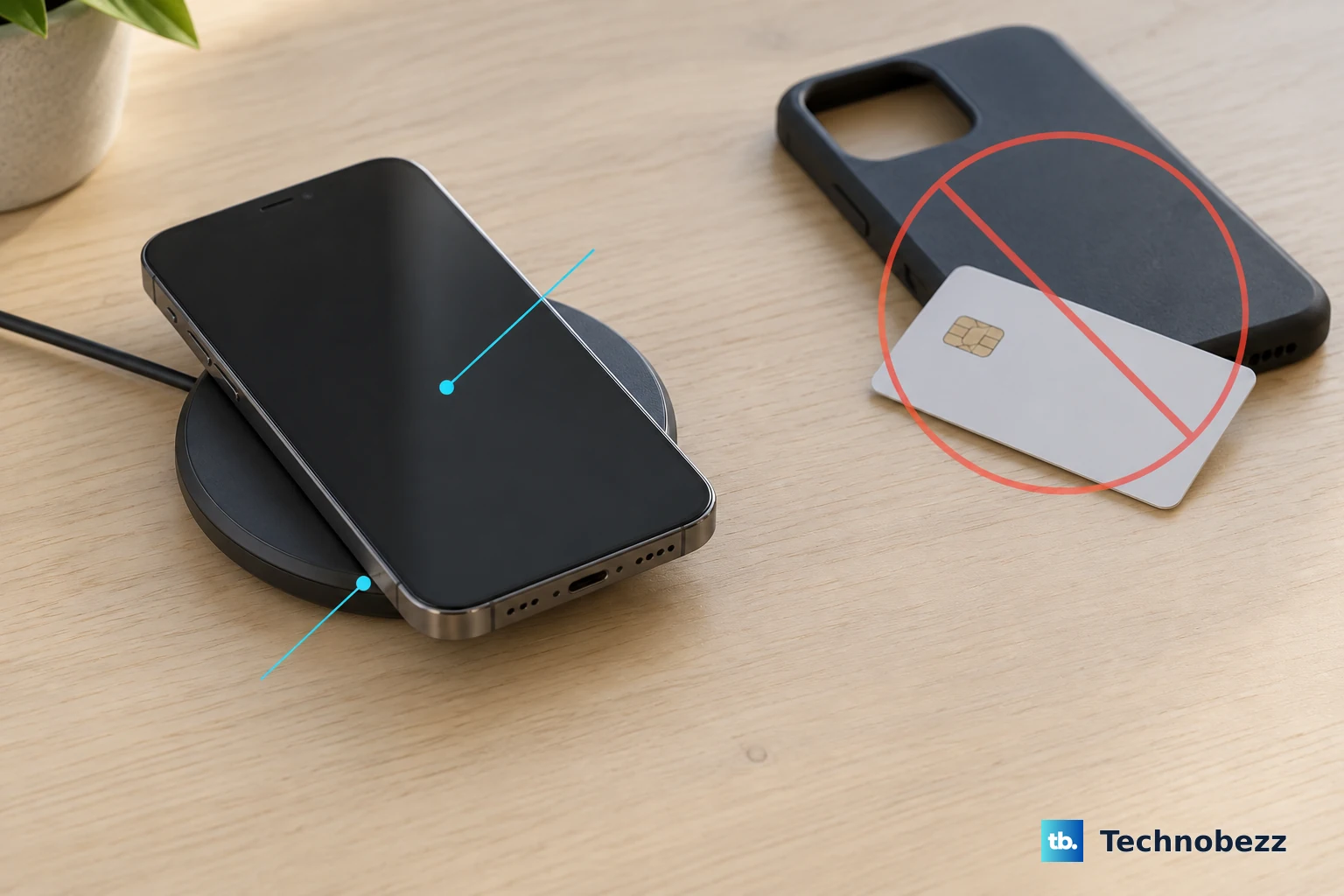
The most common cause is an incompatible charger, case, alignment problem, or accessory warning that slows charging to a crawl.
For wireless charging, use a charger compatible with the phone.
Remove incompatible cases or covers.
Make sure there are no foreign objects between the phone and charging pad.
For Pixel 10 series phones, use Qi2 or Pixelsnap-compatible chargers. Google's charging guide says Pixel 10 phones will not charge wirelessly on Pixel Stand 1st or 2nd generation, while its Pixelsnap documentation describes those older Qi1.3 stands as not optimized because they lack magnetic alignment. Either way, use a Qi2 or Pixelsnap charger.
If an iPhone says the accessory is not supported or certified, connect it directly to the charger with no adapters or other equipment.
Remove debris from the charging port, restart the iPhone, try a different USB cable or charger, and make sure iOS is up to date.
If a Pixel shows Check charging accessory, replace the cable or USB power adapter with one compatible with that Pixel phone.
If a Pixel shows Unplug charger, turn off the phone and let it sit a few minutes to cool before turning it back on.
If a Pixel shows Liquid or debris in USB port, wait until OK to use USB port appears.
Update software, then decide on service
Software updates can resolve power and app behavior issues. On iPhone, open Settings, General, Software Update, then tap Download and Install when an update is available; on Pixel and most other Android phones, open Settings, System, Software update, then follow the status shown on screen. On Samsung Galaxy, open Settings, then tap Software update or System updates depending on the model, and tap Download and install.
Update apps too. On iPhone, open the App Store, tap the My Account button, then use App Updates; on Android, open the Google Play Store, tap the profile icon, choose Manage apps & devices, then install the available updates.
Check battery health when the problem keeps returning. On iPhone 15 or later, use Settings, Battery, Battery Health; on iPhone 14 or earlier, use Settings, Battery, Battery Health & Charging, and follow the service instructions when Service appears.
Do not remove the battery yourself, and do not use the old full-discharge-to-0% calibration ritual as a fix. If charging still fails after these checks, Apple says to get service, Google recommends support or an authorized repair partner for persistent Pixel power issues, Samsung recommends a walk-in service center or repair scheduling, and work or school-managed phones may need an admin to change battery, app, update, or profile policies.
Frequently Asked Questions
Why does my phone show charging but stay at the same percentage?
The phone is receiving too little usable power, using power faster than the charger supplies it, paused by temperature protection, blocked by debris or a bad accessory, or stopped by a charging limit.
Why is my phone stuck at 80% while charging?
On iPhone, Pixel, and Samsung phones, charging limit or battery protection features can stop charging around 80%. Raise or turn off the limit when you need the battery to charge higher.
How long should I leave a dead phone plugged in before trying again?
For Android phones, charge for at least 30 minutes after a red light or depleted-battery indicator appears. Samsung says the indicator can take up to 10 minutes to appear and recommends at least 1 hour with a known-good Samsung travel charger.
Can a bad app stop my phone battery from increasing while charging?
Yes. Games, video streaming, navigation, camera recording, hotspot use, uploads, downloads, and video calls can use enough power to outrun a weak charger. Lock the screen, check Battery usage, and restrict or remove the high-drain app.
When should I get the phone repaired?
Get service when the port is damaged, burned, melted, corroded, or loose, when liquid or debris warnings do not clear, when Battery Health shows Service on iPhone, or when the battery still will not rise after charger, port, temperature, app, update, and limit checks.