A printer that does not show up is either not added on your device, not on the same connection, or saved as a stale entry. Start with the device you print from, then move to the printer's Wi-Fi setup or IP address if it still does not appear. Here are the current paths for Windows 11, macOS, iPhone, Android, Chromebook, Chrome, and major printer apps.
Find a printer in Windows 11
This fixes a Windows 11 PC that cannot see a USB, Wi-Fi, network, or Bluetooth printer.
For a USB printer, connect the printer to the PC with the USB cable.
Turn the printer on.
Open Start.
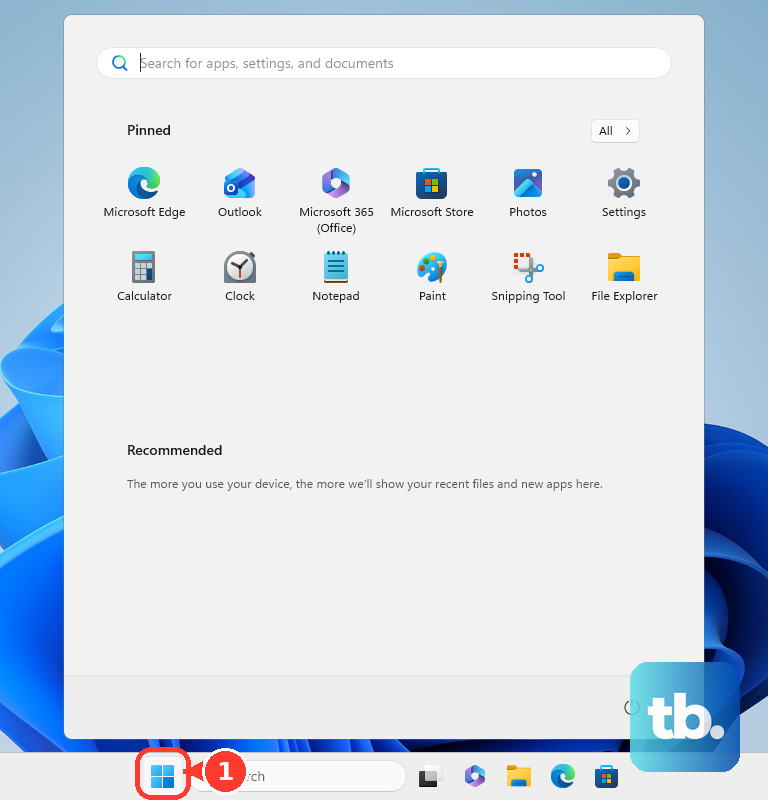
Open Settings.
Select Bluetooth & devices.
Select Printers & scanners.
Select Add a printer & scanner.
Select Add device.
Wait for the printer list to populate.
Select Add Device next to your printer.
For a Wi-Fi or network printer, turn the printer on and connect it to the same network as the PC before using Add device.
For a Bluetooth printer, make the printer discoverable before using Add device in Printers & scanners.
Fix a printer Windows cannot list
The most common cause is that Windows automatic discovery missed an IP-based, shared, older, or non-discoverable printer.
Open Start.
Open Settings.
Select Bluetooth & devices.
Select Printers & scanners.
Select Add a printer & scanner.
Select Add device.
Select Add a new device manually next to The printer that I want isn't listed.
Follow the prompts in the Add Printer window.
For a printer shared from another Windows PC, choose Select a shared printer by name.
Enter \\ComputerName\PrinterShareName.
Follow the on-screen instructions.
For a stale or duplicated printer, open Printers & scanners.
Select the printer.
Select Remove.
Return to Add device and install the printer again.
Add a printer on a Mac
Open System Settings.
Select Printers & Scanners.
Choose Add Printer, Scanner, or Fax.
Select your printer from the list.
Choose Add.
For a USB printer, connect it to the Mac with the proper cable.
Turn the printer on.
Add it from Printers & Scanners.
For a Bluetooth printer, make the printer ready to connect with Bluetooth.
Select it in Add Printer, Scanner, or Fax.
Choose Add.
AirPrint-capable network printers on the same Wi-Fi network as the Mac appear in macOS without extra drivers, often without any setup. If the printer does not appear, connect it to that network first, then add it from Printers & Scanners.
Use the printer IP address on macOS
Network printers that do not appear in the regular Mac list still work when you add them by address. Open System Settings, select Printers & Scanners, and choose Add Printer, Scanner, or Fax.
Select the IP button. Enter the printer IP address or host name, choose the protocol, select the model or software, fill in queue details when the printer requires them, and choose Add.
The printer must support AirPrint, HP Jetdirect Socket, Line Printer Daemon, or Internet Printing Protocol.
If this method fails, remove the old printer from Printers & Scanners with Remove Printer, then add it again from Add Printer, Scanner, or Fax.
Print from iPhone and Android
The most common cause on phones and tablets is that the printer has not been selected from an app's print screen or the Android print service is off.
On iPhone or iPad, open the app you want to print from.
Tap Share, Actions, More, or Reply, depending on the app.
Choose Print.
Tap No Printer Selected.
Choose an AirPrint-enabled printer on the same Wi-Fi network.
Tap Print.
On a Pixel or another Android 14 or later device, open Settings.
Select Connected devices.
Select Connection preferences.
Select Printing.
Select a print service.
Turn the selected print service on.
To add a print service, choose Add service from Printing.
Enter the printer information.
Inside Android apps that support printing, use Menu, More, Share, or Print.
Choose the printer in the Android print screen.
On earlier Android versions and on phones from other manufacturers, the printing controls may sit elsewhere in Settings, so check your device maker’s printing settings.
Select a printer on Chromebook and Chrome
A Chromebook saves a network printer after ChromeOS discovers it. Select the time at the bottom right, open Settings, go to Device, open Printers and scanners, then select Print.
Under Other available printers, choose Save next to your printer. To add one manually, return to Print, choose Add printer manually, and enter the printer details.
In Chrome on Windows, macOS, Linux, or ChromeOS, open the page, image, or file. Choose File, select Print, open Destination, choose the printer, then select Print.
In Chrome on Android, open the page, image, or file. Choose More, select Share, choose Print, then select the printer at the top.
If this method fails, add the printer in the device's printer settings first, then return to Chrome's Destination menu.
Connect the printer to Wi-Fi
Use the printer's touchscreen or built-in display to choose your Wi-Fi network name.
Enter the Wi-Fi password on the printer.
For printers that support USB-assisted setup from a Mac, connect the printer to the Mac with USB.
Install the Mac software that came with the printer.
Confirm that the software includes a printer setup assistant.
Use the printer setup assistant to connect the printer to Wi-Fi.
Disconnect the USB cable.
For printers that create a temporary setup network, install the printer's Mac software.
Turn on the printer's ad-hoc Wi-Fi network.
Select that network from the Mac Wi-Fi menu.
Use the setup assistant to connect the printer to your normal Wi-Fi.
Return the Mac to your normal Wi-Fi.
For WPS push-button setup, put the printer in Wi-Fi Protected Setup mode.
Press and hold the router WPS button within the required window.
For printers that use the WPS PIN method instead, select WPS (PIN Code) on the printer and enter the PIN it displays into your router’s setup page. Check your printer and router documentation for the WPS method your hardware supports.
After the printer joins Wi-Fi, return to the add-printer screen on your computer, phone, or Chromebook.
Use the printer maker app
The most common cause is that the printer is new, reset, or not fully set up for the device you are using.
For HP printers, install or open the HP app from 123.hp.com.
Select Add a new device or +.
Choose your printer model and follow the prompts.
For supported HP printers, the HP app also shows device status, adjusts settings, keeps devices up to date, and shares printer access. HP Smart is the earlier name for this app and still gives full-feature printer support on operating systems where the HP app is not yet available.
For Canon printers, open Canon PRINT.
Tap the Add/Switch icon.
On the Add/Switch screen, choose Register Printer.
Tap the printer you want to add.
For Epson printers, install or update Epson Smart Panel.
Open the app.
Tap the icon in the upper right to add your printer and start setup.
For Brother printers, install Brother Mobile Connect.
Tap Add Machine.
Choose Add your machine to the app when it is already on the network.
Choose Connect your machine to Wi-Fi when it is not.
Find the printer IP address
When your computer still cannot find the printer, confirm that the printer is connected to the network and get its IP address. Many printers print a network report from the control panel.
On supported Brother button models, use Print Reports, select Network Config, then press Go. On supported Brother touchscreen models, use Settings, All Settings, Print Reports, Network Configuration, and Yes.
On Canon PIXMA and Canon inkjet models with operation-panel network settings, use Setup, Device settings, LAN settings, and Print LAN details. On Epson models with a control panel, use Settings, Network Settings, and Print Status Sheet.
After you find the IP address, open a browser on a device connected to the same network and type the printer IP address into the address bar for Epson and Canon printers with browser-accessible network pages.
You can also look for the printer in your router's connected-device list. In the Google Home app, open Home, then Wifi, Devices, and the device details to see connection status, IP address, and MAC address.
On TP-Link, open Tether, select Local Device, and choose Clients. You can also sign in through tplinkwifi.net or 192.168.0.1, then check Network Map or DHCP Client List.
If this method fails, reconnect the printer to Wi-Fi from its control panel or manufacturer app, then try the Windows, Mac, Chromebook, or phone add-printer screen again.
Frequently Asked Questions
Why can't my computer find my wireless printer?
The printer is not on the same Wi-Fi network, not connected to Wi-Fi yet, or saved as an old printer entry. Reconnect the printer to Wi-Fi, then remove and re-add it on the computer.
How do I find my printer's IP address?
Print a network report or status sheet from the printer's control panel, or check the router's connected-device list. Brother, Canon, and Epson printers include control-panel paths for network reports on supported models.
Can I find a printer from Chrome alone?
Chrome selects printers that the computer, Chromebook, or Android device already has available. Add the printer in the device's printer settings first when it is missing from Chrome's Destination menu.
Do I need the printer manufacturer's app?
No. Windows 11, macOS, iPhone, Android, and ChromeOS include printer discovery tools. Use the HP, Canon, Epson, or Brother app when the printer is new, reset, or not connected to Wi-Fi.











