
Factory resetting your Google Pixel 10 Pro is the most definitive way to clear out persistent software problems or prepare it for a new owner. It completely erases all your personal data, apps, and settings, returning the phone to the state it was in when you first took it out of the box.
Back Up Everything to Google First
This step is non-negotiable. A factory reset is permanent. Head to Settings > System > Backup on your Pixel 10 Pro. Make sure backup is toggled on for your Google account and tap Back up now for a final sync.
Double-check that your photos and videos are safely in Google Photos by opening the app. I'd also recommend manually saving any files from your Downloads folder or local storage to Google Drive, just to be thorough.
Remove Your Google Account
To avoid getting locked out by Factory Reset Protection (FRP), you need to remove your main Google account. Go to Settings > Passwords & accounts. Tap on your Google account and select Remove account.
Confirm the removal. This tells the phone's security system that you're intentionally resetting it, so it won't ask for that old password after the wipe is complete.
Perform the Reset from Android Settings
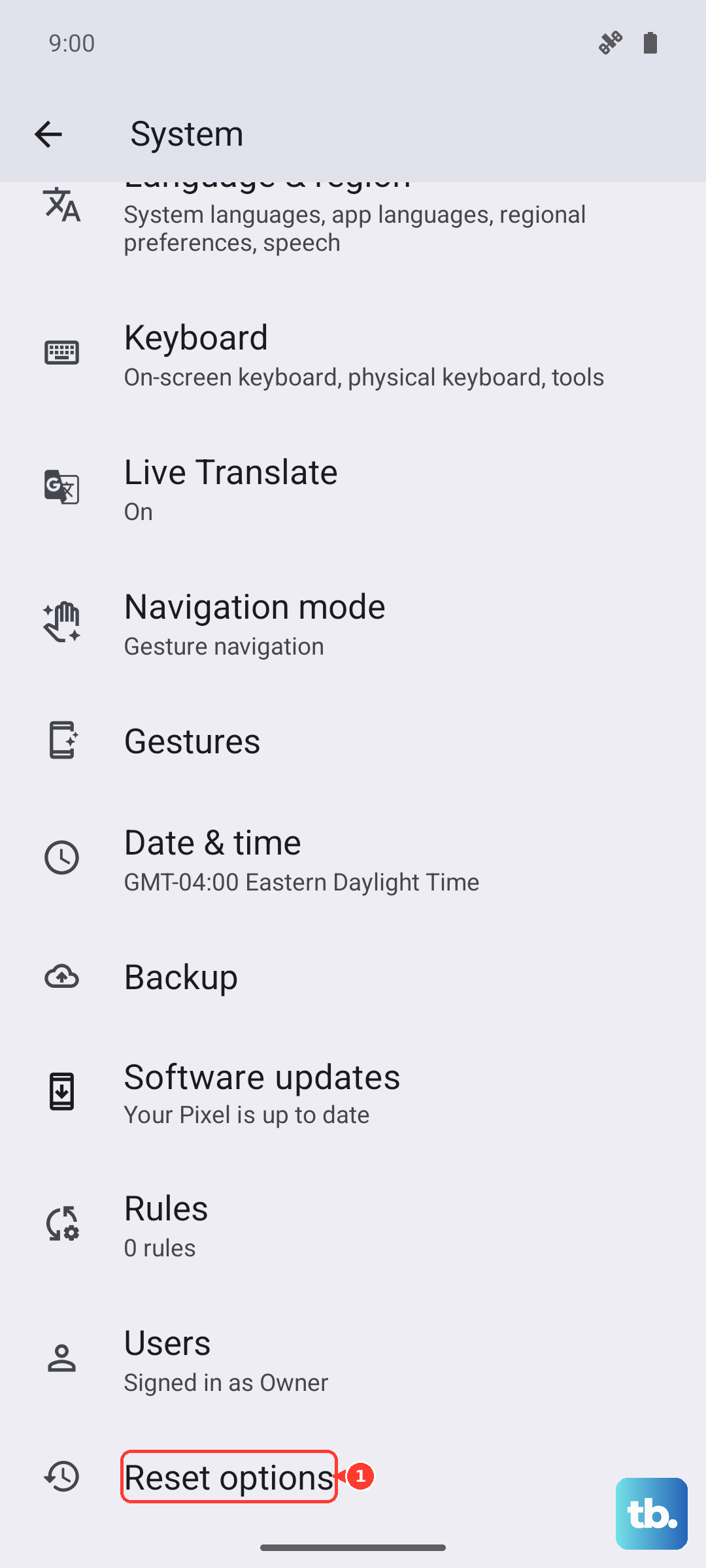
This is the standard method when your phone is working. Navigate to Settings > System > Reset options. On the next screen, tap Erase all data (factory reset).
You'll see a final screen listing everything that will be deleted. Tap Erase all data, enter your device PIN or password if prompted, and confirm. The Pixel will restart and begin the erasure process, which takes a few minutes.
Use Recovery Mode If the Phone Won't Boot
If your Pixel 10 Pro is frozen, stuck in a boot loop, or won't turn on normally, you can reset it using the physical buttons. First, power the phone off completely.
Press and hold the Power button and the Volume Up button together. Hold them for about 10 seconds until you feel a vibration and see the Google logo, then release. This is the force restart sequence that often gets you to the bootloader.
Use the volume buttons to scroll to Recovery mode and press the power button to select it. When you see the Android robot with an exclamation mark, hold the power button and briefly press the volume up button. Use the volume keys to highlight Wipe data/factory reset and select it with the power button. Confirm on the next screen.
Try a Less Drastic Reset First
A full factory reset isn't always necessary. Back in Settings > System > Reset options, you'll see other useful tools. Reset Wi-Fi, mobile & Bluetooth can fix network issues.
Reset app preferences reverts all your app permissions and default app assignments without deleting any app data. It's a great first step for fixing misbehaving apps.
Restoring Your Pixel After the Reset
Once the reset finishes, you'll be greeted with the Android setup screen. Follow the prompts, connect to Wi-Fi, and sign back in with your Google account. When you reach the restore screen, choose to copy your data from a cloud backup.
Select the most recent backup you created. Your installed apps, device settings, and call history will begin restoring over your Wi-Fi connection. Your photos will repopulate from Google Photos as it syncs.
When a Factory Reset Makes Sense
Use this for severe, unfixable software glitches, major slowdowns on Android 15 that other fixes don't resolve, or if you're passing the phone to someone else. It's also a last resort for removing stubborn malware.
For general sluggishness, try clearing the cache for specific apps first or using the lighter reset options mentioned earlier. A factory reset is a powerful solution, but it's always the one that requires the most prep work.