

To enable macros in Excel, open the workbook and select Enable Content on the yellow SECURITY WARNING bar, but only if you trust the source, know what the macros do and want them. If a red SECURITY RISK bar appears instead, there is no Enable Content button. Close the workbook, right-click the file in File Explorer, choose Properties, tick Unblock on the General tab and open it again.
Leave Excel's macro setting on Disable VBA macros with notification, the default, rather than switching every macro on. On our PC one click on Enable Content was enough, with no second dialog, and a workbook saved from an email attachment opened in Protected View before the red block appeared.
The short version
- Yellow SECURITY WARNING: select Enable Content only if you trust the source and know what its macros do.
- Red SECURITY RISK: close the file, right-click it in File Explorer, choose Properties, tick Unblock and reopen it.
- Check it worked: press Alt + F8, pick your macro if it is listed and select Run.
- Keep the macros: save as Excel Macro-Enabled Workbook (.xlsm), because .xlsx drops them.
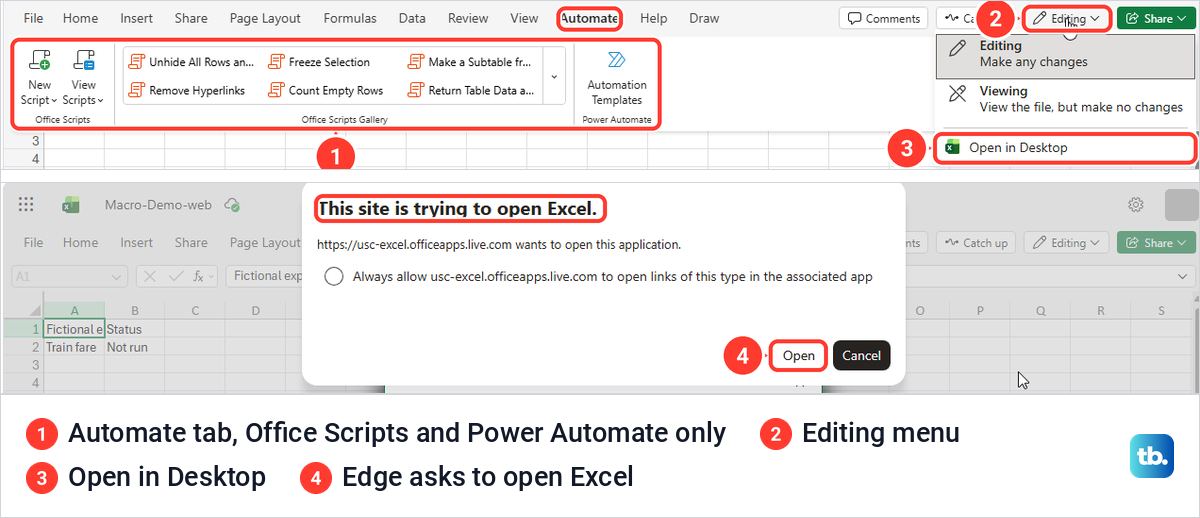
- In a browser: Excel for the web cannot run VBA, so use Editing > Open in Desktop.
Which macro warning you have and what to do
| What you see | What it means | What to do |
|---|---|---|
| Yellow SECURITY WARNING, Macros have been disabled, with Enable Content | Macros are off, and Excel lets you approve this workbook | Check its source and what its macros do, then select Enable Content |
| Yellow PROTECTED VIEW with Enable Editing | The file came from the internet or an email and opened read-only | Select Enable Editing only if you trust it, then read the next bar |
| Red SECURITY RISK with Learn More and no Enable Content | Excel blocked the macros because the file is marked as coming from the internet | Close it, open its Properties in File Explorer and tick Unblock |
| No bar, and Run says macros have been disabled | Macro Settings is on Disable VBA macros without notification, the signed-only option blocks an unsigned macro, or your organization blocks macros | Check Macro Settings, choose Disable VBA macros with notification if you are allowed to, then reopen the file |
| Macros gone after saving as Excel Workbook (.xlsx) | That format cannot store VBA | Open the .xlsm original or a backup |
| The workbook is open in a browser tab | Excel for the web cannot run VBA | Select Editing > Open in Desktop and run it in desktop Excel |
Read the bar before you click anything. The yellow and red bars look alike at a glance, but only the yellow one can be cleared from inside Excel. Microsoft's own warning covers both: never enable macros in a Microsoft 365 file unless you're sure you know what those macros do and you want the functionality they provide.
You can still read and edit a workbook with its macros switched off. Microsoft says plainly that you don't need to enable macros to view or edit the file, so open it, look at what it contains and ask the sender if anything is unclear before you approve it.
Enable macros in a workbook you trust
Open the workbook in Excel for Microsoft 365. If Excel shows the yellow SECURITY WARNING bar, Macros have been disabled, between the ribbon and the formula bar, select Enable Content for a workbook you trust.
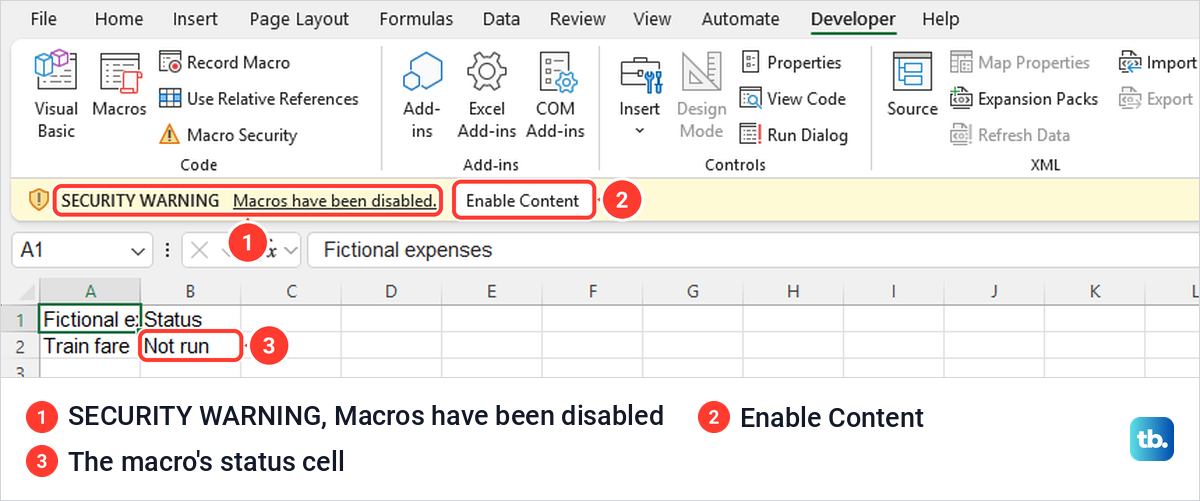
On our PC that one click removed the bar and switched the macros on, with no second dialog. Microsoft's steps add a Security Warning dialog where you select Yes to make the document trusted, and its Trusted Documents page says that dialog appears when you try to trust a file from a network location. Microsoft advises trusting network files only in a location that is access controlled or created by the system administrator.
Enable Content usually does more than switch macros on for now. For our local workbook it made the file a Trusted Document, and when we closed and reopened it, it opened with no warning at all. Microsoft notes that a trusted file opens without a prompt even if new macros are added later, although the prompt returns if the file is moved.
Some files cannot be made trusted. Microsoft lists a file opened from the temporary Internet folder or the Temp folder, a PC where the administrator has turned Trusted Documents off, and macros disabled by a policy or by your own Trust Center settings. Microsoft says the content is then enabled for that session only, and the Message Bar appears again when you reopen the file.
Check that the macro actually ran
A missing bar does not prove a macro ran, so run it once and look for its result. Alt + F8 opens the macro list, and the same commands sit on the Developer tab, which Excel hides by default. To show that tab, open File > Options > Customize Ribbon, tick Developer in the Main Tabs list on the right and select OK.
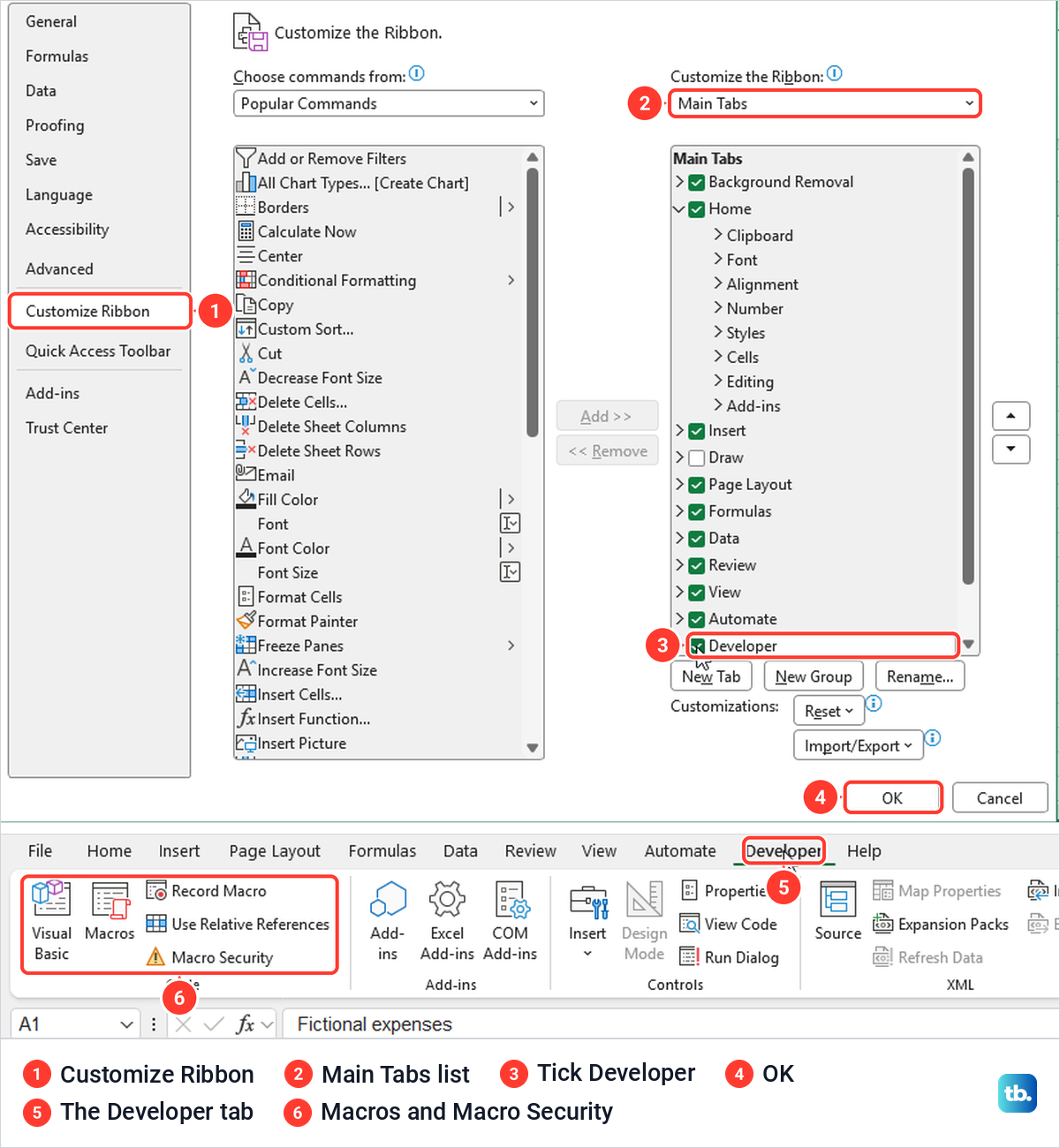
On our PC the Developer tab appeared between Automate and Help, with Visual Basic, Macros, Record Macro, Use Relative References and Macro Security in its Code group. Showing the tab changes nothing about security, because the Trust Center still decides what runs. If the ribbon and the File menu are new to you, first learn Excel's basic File and ribbon controls.
Select Developer > Macros, or press Alt + F8, to open the Macro dialog. If the macro you expect is in the list, pick it and select Run. Our test workbook held a small recorded macro called MarkDone, and Run changed cell B2 from Not run to Macro ran, the visible proof that the macro was allowed.
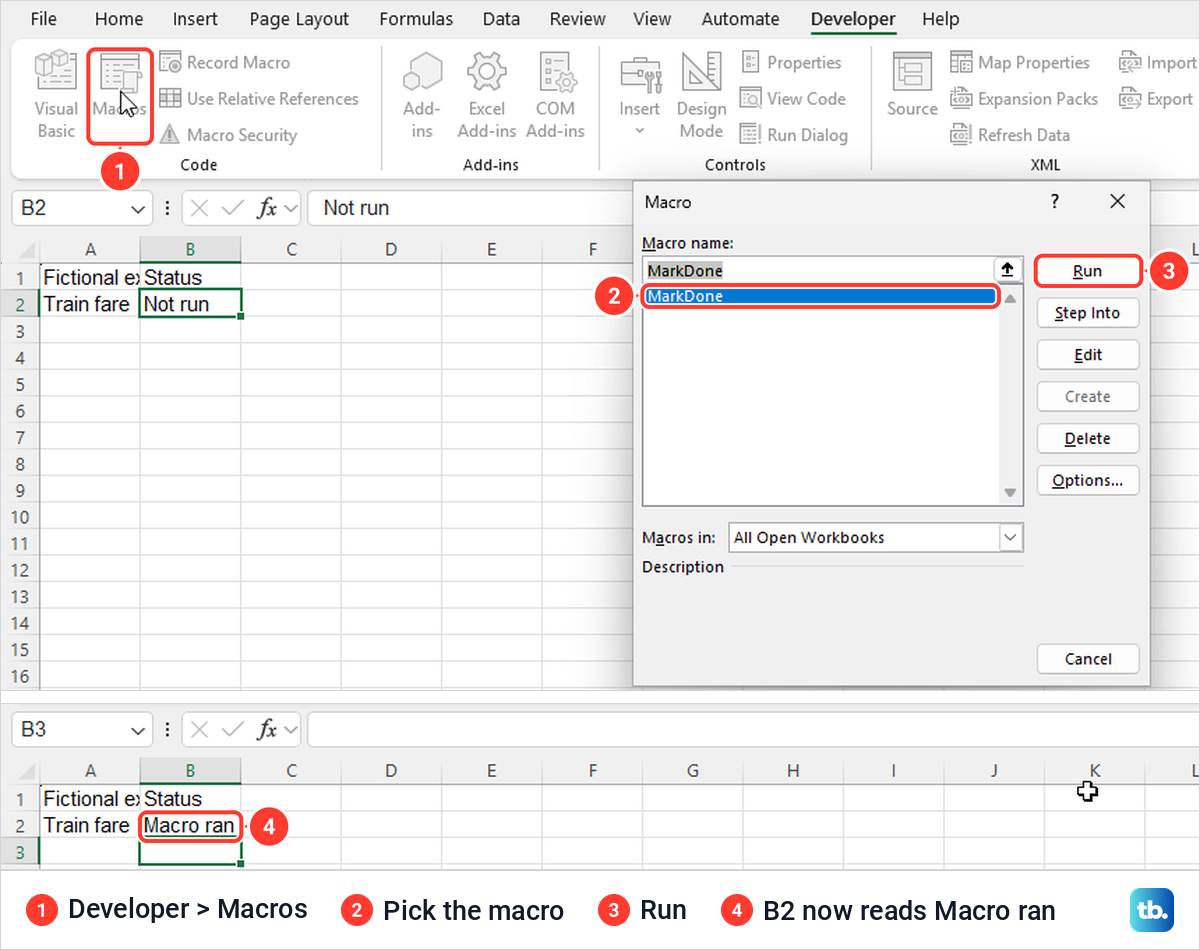
Alt + F8 opened the same Macro dialog as the ribbon button. Its Options button has a Shortcut key box for giving a macro its own Ctrl shortcut.
Unblock a workbook from the internet or an email
Microsoft says Windows adds a Mark of the Web to files from an untrusted location, for example browser downloads and email attachments. Excel then blocks the macros in those files by default, and Enable Content is not offered. We mailed our test workbook to a second account, downloaded the attachment from Outlook on the web and opened the downloaded copy in Excel.
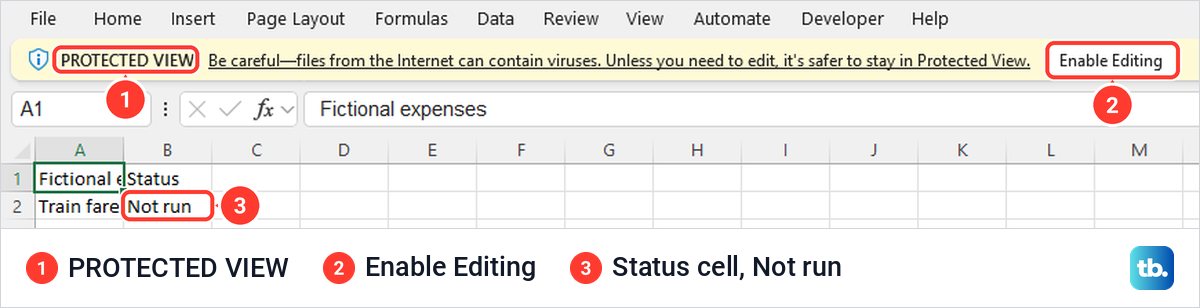
It opened in Protected View first, under a yellow PROTECTED VIEW bar warning that files from the internet can contain viruses, with an Enable Editing button. Protected View is a read-only layer, and Microsoft says active content is not enabled automatically when you exit it.
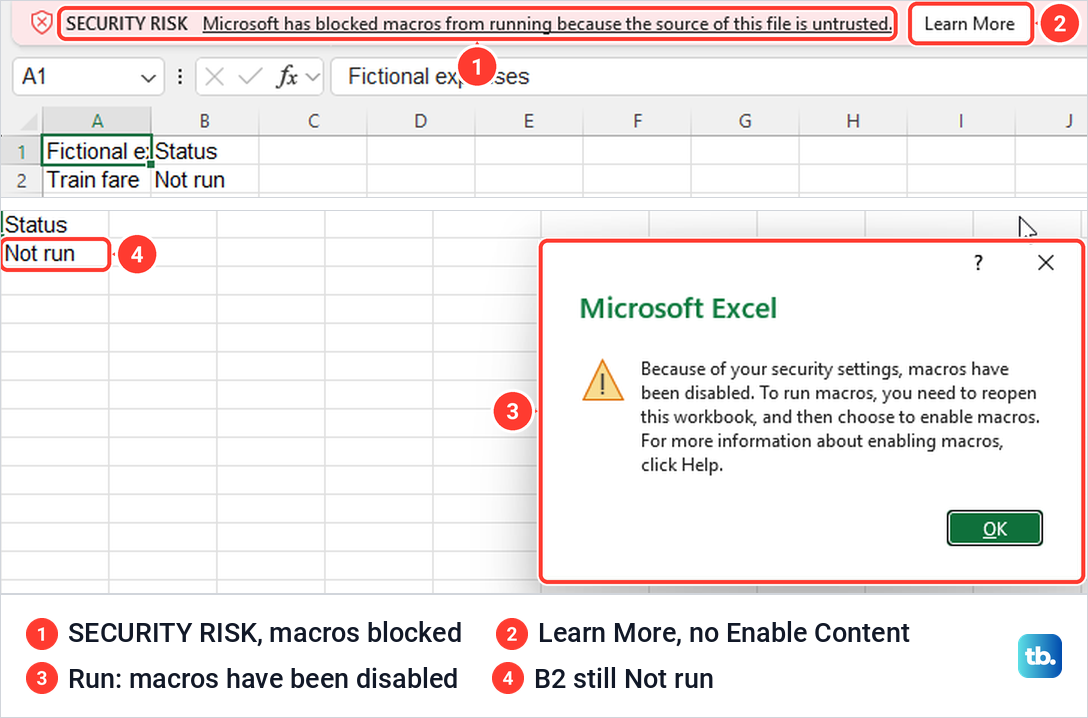
When we selected Enable Editing, the yellow bar turned red and read SECURITY RISK, Microsoft has blocked macros from running because the source of this file is untrusted. The only button was Learn More. Running MarkDone from the Macro dialog brought up a message that macros had been disabled because of the security settings, and B2 still read Not run.
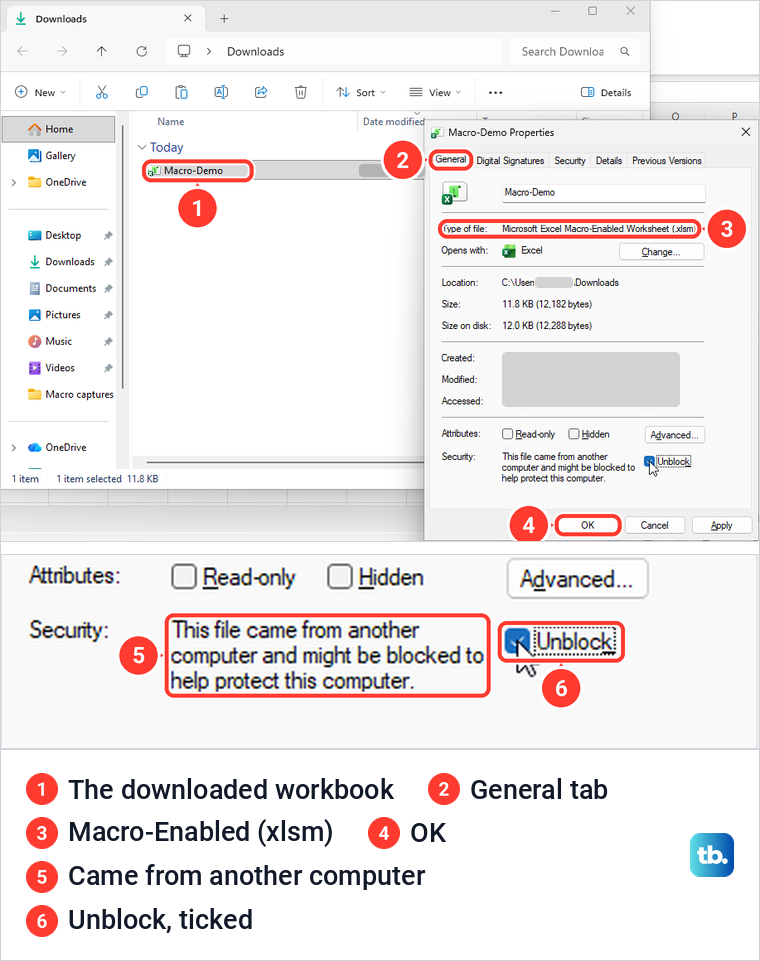
To clear the block on a file you trust, close it in Excel first. Open File Explorer, find the workbook, right-click it and choose Properties. If you are not sure where it was saved, our guide to find and open a downloaded file shows where Windows and browsers put downloads.
On the General tab, our download showed This file came from another computer and might be blocked to help protect this computer, with an Unblock box beside it. Tick Unblock, select OK and open the workbook again. Type of file read Microsoft Excel Macro-Enabled Worksheet (.xlsm), and if Explorer hides the ending you can show file extensions in Windows 11 to check it at a glance.
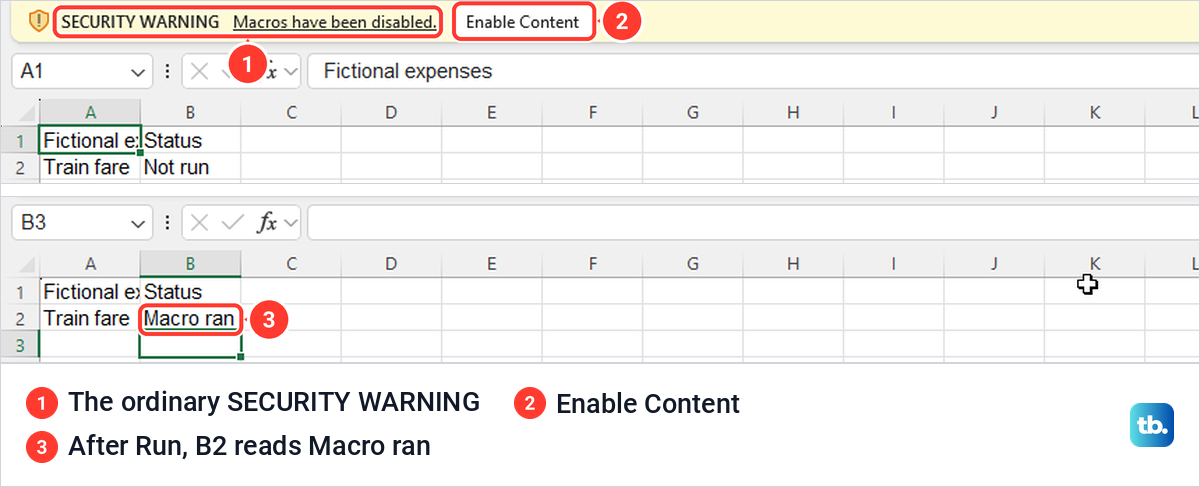
After Unblock, our copy opened with no Protected View and no red bar. The ordinary yellow SECURITY WARNING was back, one click on Enable Content cleared it with no extra dialog, and Alt + F8 and Run changed B2 to Macro ran. Unblock does not switch macros on by itself; it gives you back the normal choice.
When the Unblock box is missing or does nothing
Microsoft says you might not see the Unblock checkbox for some files, usually ones on a network share. Even when the box is there, ticking it has no effect if the share counts as part of the Internet zone. The fix then belongs to whoever runs the network, who can add the location to Trusted sites or the Local intranet zone.
For files in OneDrive or SharePoint, the way the copy reached your PC matters. Microsoft says a file opened with Open in Desktop App from the OneDrive or SharePoint website, or downloaded by the OneDrive sync app, does not get the Mark of the Web, while a browser download can. If you open the same workbooks often, set up OneDrive on Windows so they sync instead of arriving as downloads.
At work or school, send IT the exact text of the bar and where the file came from. Do not switch on every macro to get past one blocked file, because that setting then applies to every workbook you open.
Choose the right macro setting in the Trust Center
Excel's macro settings sit under File > Options > Trust Center. Select Trust Center Settings, then Macro Settings in the list on the left, because on our PC the Trust Center opened on its Message Bar page. Microsoft adds that Developer > Macro Security opens the Trust Center in one step.
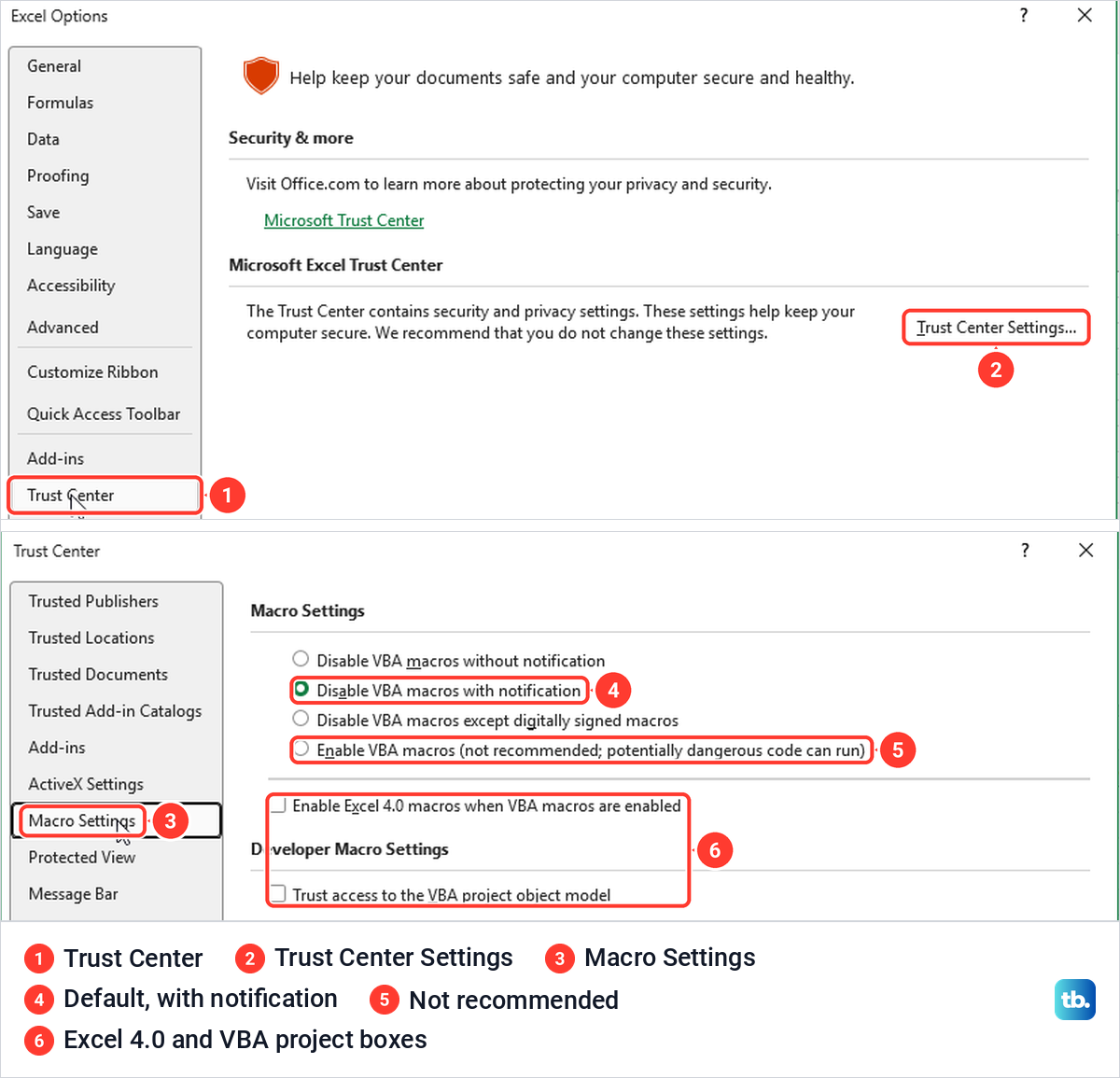
Our Trust Center listed four Excel choices with Disable VBA macros with notification selected, and Microsoft calls that the default. It keeps macros off and shows a security alert when a workbook has macros, so you decide file by file. On our PC a file marked as coming from the internet still got the red block, and trusted files opened with no bar.
Disable VBA macros without notification turns them off silently. Disable VBA macros except digitally signed macros lets signed macros from a trusted publisher run while, in Microsoft's words, all unsigned macros are disabled without notification.
The fourth choice reads Enable VBA macros (not recommended; potentially dangerous code can run). Microsoft says this setting makes your computer vulnerable to potentially malicious code, and it covers every workbook you open, not just the one in front of you. Changes on this page apply only to Excel, not to Word or the other Office apps.
We switched to Disable VBA macros without notification to see what it looks like. Our workbook opened with no bar at all, and Run produced Because of your security settings, macros have been disabled, the same message the blocked download gave. If a workbook's buttons do nothing and no bar appears, check Macro Settings for this choice or the signed-only one, choose the notification option if you are allowed to and reopen the file.
The two boxes under the list do separate jobs. Enable Excel 4.0 macros when VBA macros are enabled covers old XLM macro sheets, and Trust access to the VBA project object model is for programs that write or change VBA code. Neither is needed to run an ordinary macro, and both were unticked on our PC.
Trust a folder for macro files you use often
If you open macro workbooks from the same place every day, a Trusted Location saves you the yellow bar each time. Microsoft's caution is that any files you store in a trusted location are considered safe by the system and will bypass some of the security checks. Use a folder that only you control, and never your Downloads folder or a folder other people can write to.
In the Trust Center, select Trusted Locations, then Add new location. In the Microsoft Office Trusted Location box, select Browse, pick the folder and select OK in the folder picker. Leave Subfolders of this location are also trusted unticked unless you need it, type a description so you remember why the folder is there, then select OK.
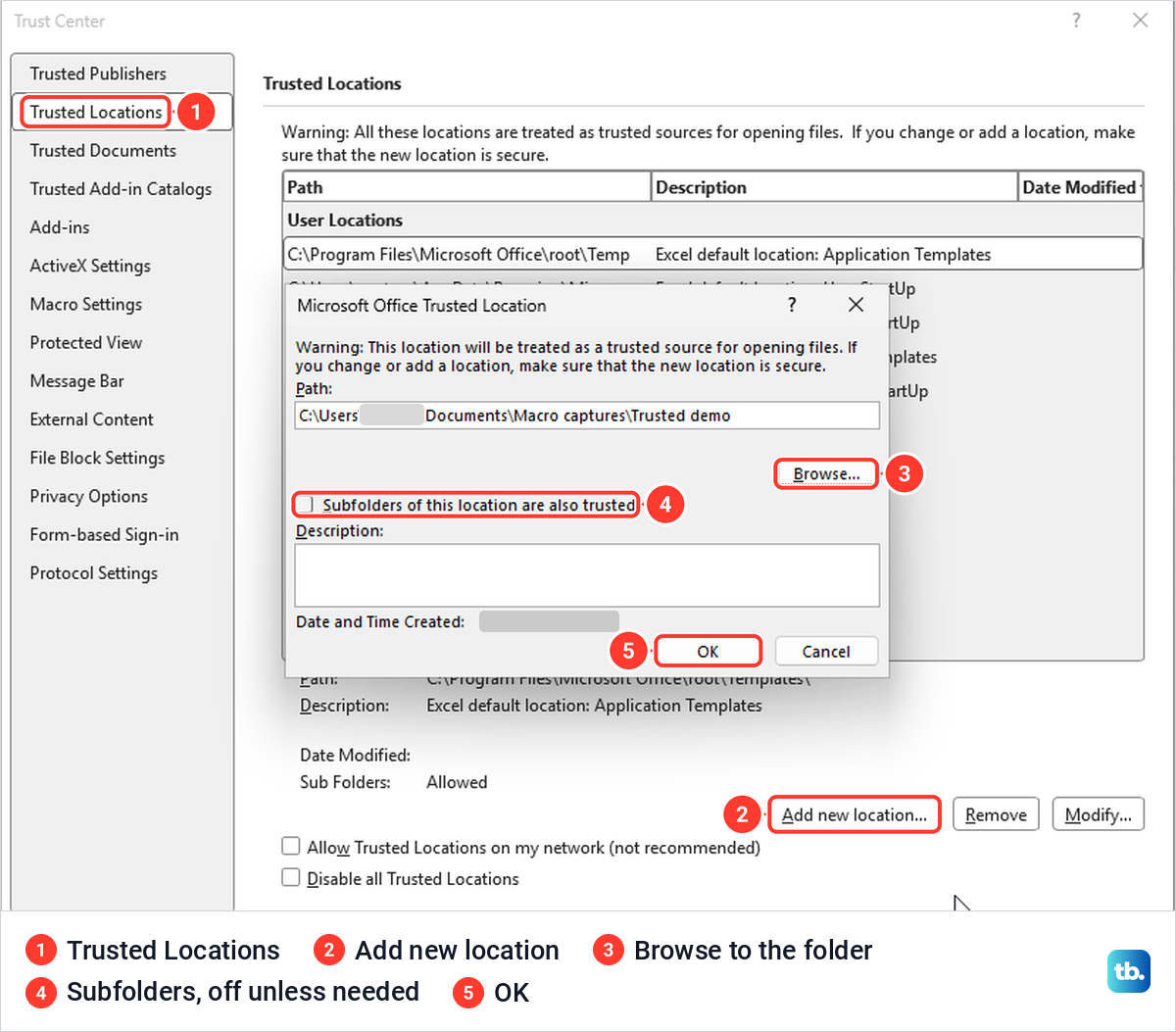
Our folder appeared at the top of the list, and a copy of the test workbook opened from it with no bar and ran its macro straight away. Microsoft notes that a file saved to a Trusted Location also skips the Mark of the Web check, which is why the folder must stay narrow. The same page has Allow Trusted Locations on my network, marked not recommended, which we left unticked.
To undo it, select the folder in the list and select Remove. On our PC the entry disappeared at once with no confirmation, so check that the right line is selected first.
Trust a signed publisher after checking it
Some companies sign their macros with a code-signing certificate. For a signed workbook that opens with the Security Warning and Enable Content, Microsoft's route is File > Info, then Enable Content > Advanced Options in the Security Warning area, and Trust all documents from this publisher in the Microsoft Office Security Options box. The same box offers Enable content for this session if you only need the macros until you close the file.
Think before you choose the publisher option. Microsoft warns that when you trust a publisher, you're trusting ALL code that is signed with that publisher's certificate, not one workbook. You can review or remove publishers later under Trust Center Settings > Trusted Publishers.
Stop trusting a workbook
Excel has no button to untrust a single file. In the Trust Center, select Trusted Documents, then Clear beside Clear all Trusted Documents so that they are no longer trusted. Excel asked us to confirm with Yes or No, and Yes clears the list for every workbook you have trusted, not only the current one.
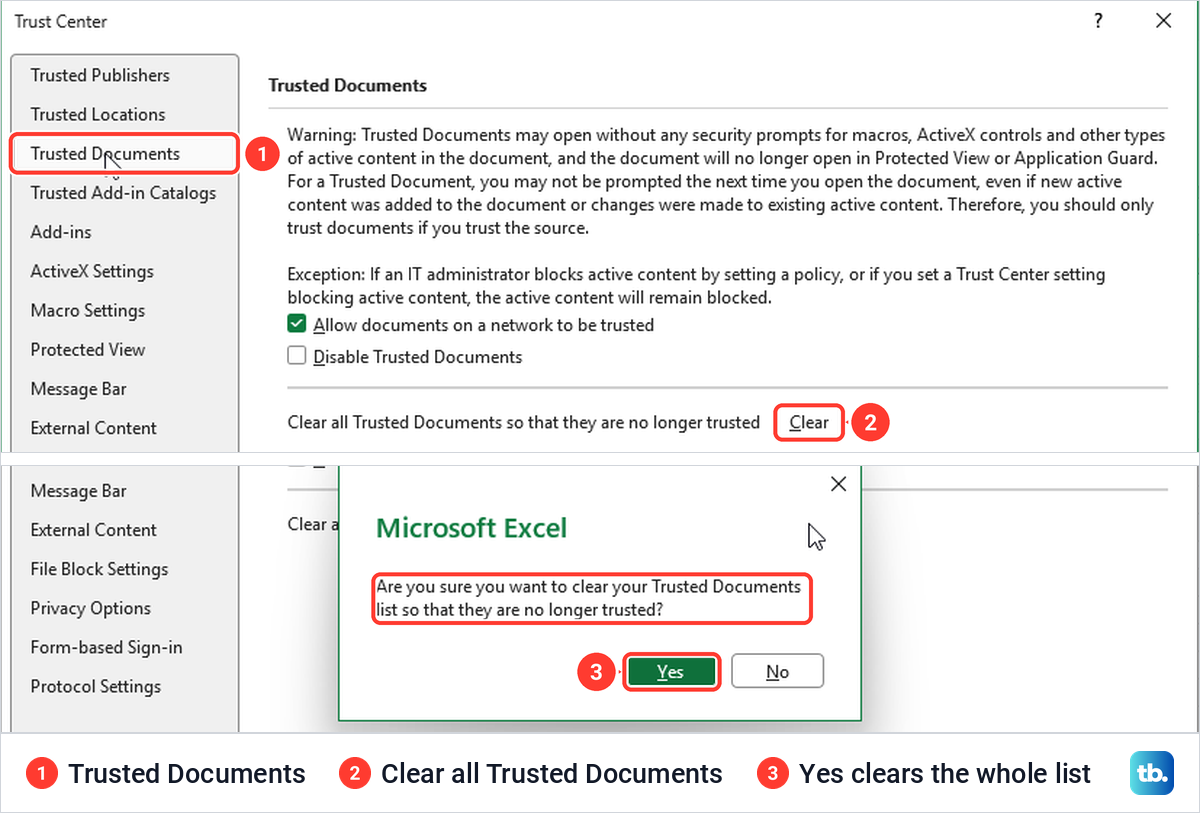
After we cleared the list, our test workbook showed the yellow SECURITY WARNING again on the next open. The same page has Allow documents on a network to be trusted, which was ticked on our PC. Microsoft documents clearing that box to turn off Trusted Documents for network locations, so files on shared drives can no longer be remembered as trusted.
Save the workbook so the macros stay
Excel Workbook (.xlsx) cannot store VBA macros, so save this workbook as Excel Macro-Enabled Workbook (.xlsm) to keep them. Microsoft's list of Excel formats says the .xlsx format cannot store VBA macro code, while the .xlsm format stores it. In our Save As dialog that type was listed as Excel Macro-Enabled Workbook, without the .xlsm ending.
When we saved a macro workbook as Excel Workbook, Excel stopped with a warning that the following features cannot be saved in macro-free workbooks, followed by VB project. The buttons were Save, Save and erase features and Go back, not the Yes and No that one of Microsoft's help pages still describes. Select Go back and change the type to Excel Macro-Enabled Workbook to keep the macros.
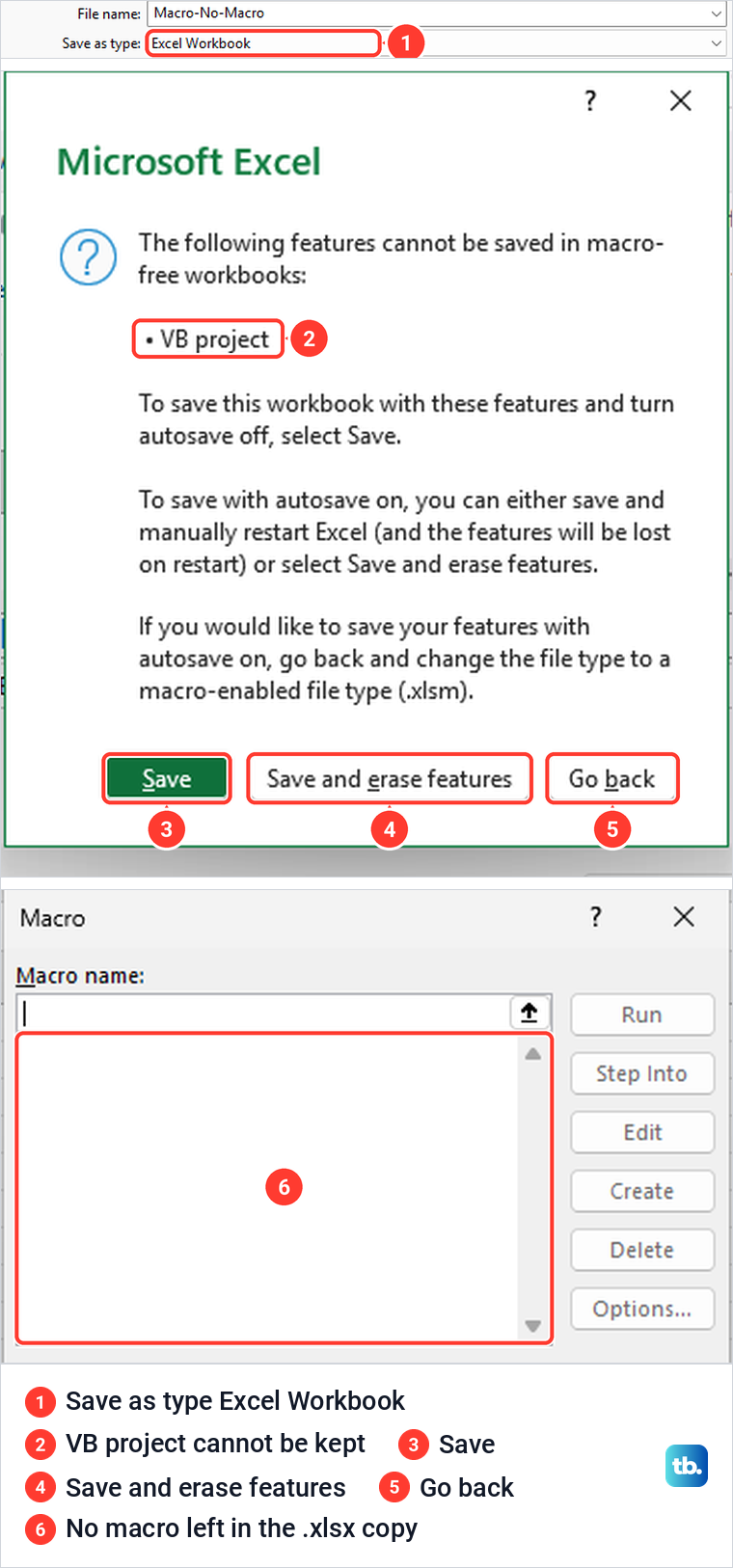
We chose Save and erase features to see the result, and the reopened .xlsx copy had an empty macro list. Before you change a file's format or experiment with a workbook someone sent you, make a copy of the Excel file and keep the original. If you lost the .xlsm original because Excel closed before you saved it, try to recover an unsaved Excel file before you rebuild the VBA by hand.
Macros in Excel for the web
Excel for the web opens .xlsm workbooks but cannot run their macros. Microsoft says you can't create, run, or edit VBA there, though any existing macros remain in the workbook. Our .xlsm, uploaded to OneDrive, opened for editing in Microsoft Edge with no macro message, and its Automate tab offered only Office Scripts and Power Automate.
To run the macro, hand the file to the desktop app. Microsoft's page points to an Open in Desktop App button above the ribbon, but in our browser the command sat in the Editing menu at the top right, as Open in Desktop. Edge then asked This site is trying to open Excel, with Open and Cancel, so select Open and carry on with the desktop steps above.
Macro settings in Excel for Mac
Excel for Mac keeps its macro choice in the Excel menu. Microsoft's steps are Excel > Preferences > Security, where Disable all macros with notification is the default and prompts you each time a macro is detected. Disable all macros without notification blocks them silently, with no prompt.
Microsoft's caution about the remaining choice, Enable all macros, is that it will allow ALL macros, both good and bad, to run without any further warning. It says to choose it only if you're certain that you won't be opening any malicious or dangerous files, so keep the notification setting and approve files one at a time.
If the settings are locked or the file will not open
On a work or school PC, the Trust Center choices may be locked. Microsoft says some users may not be able to change Trust Center settings due to group security policies, and that you then need to contact the IT administrator. Tell IT the exact text on the bar, the file name and where the file came from.
Screens can differ between Office versions, so if yours do not match these and your organization allows it, update Microsoft Office before you change any setting. If Excel will not open the workbook at all, fix an Excel file that will not open first, because macro settings only matter once Excel can read the file.
How we tested this guide
We tested this in Excel for Microsoft 365 on Windows 11, version 25H2, and in Excel for the web in Microsoft Edge, from the first macro warning to the Open in Desktop command.
Frequently Asked Questions
How do I enable macros for only one Excel workbook?
If you trust it and know what its macros do, select Enable Content on the yellow SECURITY WARNING bar. For most files that makes the workbook a Trusted Document, so it opens without the warning next time. A file that cannot be trusted, such as one opened from the Temp folder or on a PC where IT has turned Trusted Documents off, asks again each time you open it.
Why is there no Enable Content button?
A red SECURITY RISK bar means Excel blocked the macros because the file came from the internet or an email. Close it, tick Unblock in its Properties in File Explorer and reopen it, and on our PC the normal yellow bar with Enable Content came back.
Is Enable Content permanent?
For a Trusted Document it stays until you clear the Trusted Documents list in the Trust Center, which removes trust from every file at once, and Microsoft says the prompt also returns if the file is moved. A file that cannot be trusted, such as one opened from the Temp folder, is enabled for that session only. For a signed file, Microsoft's Advanced Options route also offers Enable content for this session.
Why did my macros disappear after saving?
If you saved it as Excel Workbook (.xlsx), the macros were dropped, because that format cannot store VBA. Reopen the .xlsm original or a backup, and choose Excel Macro-Enabled Workbook whenever you save it.
Does adding the Developer tab enable macros?
No. It only shows the macro commands, and the macro setting in the Trust Center still decides whether a macro runs.
Can Excel for the web run VBA macros?
No. It opens and edits the workbook and keeps the macros in it, but to run them you need Editing > Open in Desktop and the desktop app.
Should I choose Enable VBA macros to stop the warnings?
No. Microsoft marks it not recommended because potentially dangerous code can run, so use Enable Content for files you trust or a Trusted Location for a folder you control.