
Knowing the health of your Motorola Edge 40's battery is key to understanding its performance and lifespan. While Android 15 doesn't have a universal battery health percentage like some other systems, there are several ways to get a clear picture of your battery's condition and optimize it for the long haul.
Check Battery Usage and Optimization
Start by heading to Settings > Battery. Here, you'll see a detailed breakdown of your battery usage since the last full charge. Tap on Battery usage to see which apps have been consuming the most power, both on-screen and in the background.
This is often the first sign of a battery issue. If you notice an app using an unusually high percentage of battery despite minimal use, it might be misbehaving. You can restrict its background activity from this same menu to help preserve battery life throughout the day.
Use the Device Diagnostics Tool
Motorola includes a helpful built-in diagnostics tool. Open your app drawer and look for the Device Help app. Inside, tap on Device diagnosis or a similar option, then look for a Battery test.
This test will check the battery's ability to hold a charge and its overall hardware status. It won't give you a precise health percentage, but it will tell you if the battery is functioning within normal parameters or if there's a detected hardware problem that needs attention.
Monitor with AccuBattery for Detailed Metrics
For the most detailed health estimate, I'd recommend installing AccuBattery from the Google Play Store. This app runs in the background and analyzes your charging and discharging patterns over several charge cycles.
After a few days of use, it provides an estimated battery health percentage, showing how much of your battery's original design capacity remains. It also tracks metrics like charge speed (you should see peaks near 68W with the official charger) and discharge rate, giving you a comprehensive view of your battery's performance.
Check for Software Updates
Battery performance is closely tied to software optimization. Motorola frequently releases updates that can improve power management and charging efficiency. Go to Settings > System > System updates to check for any available downloads.
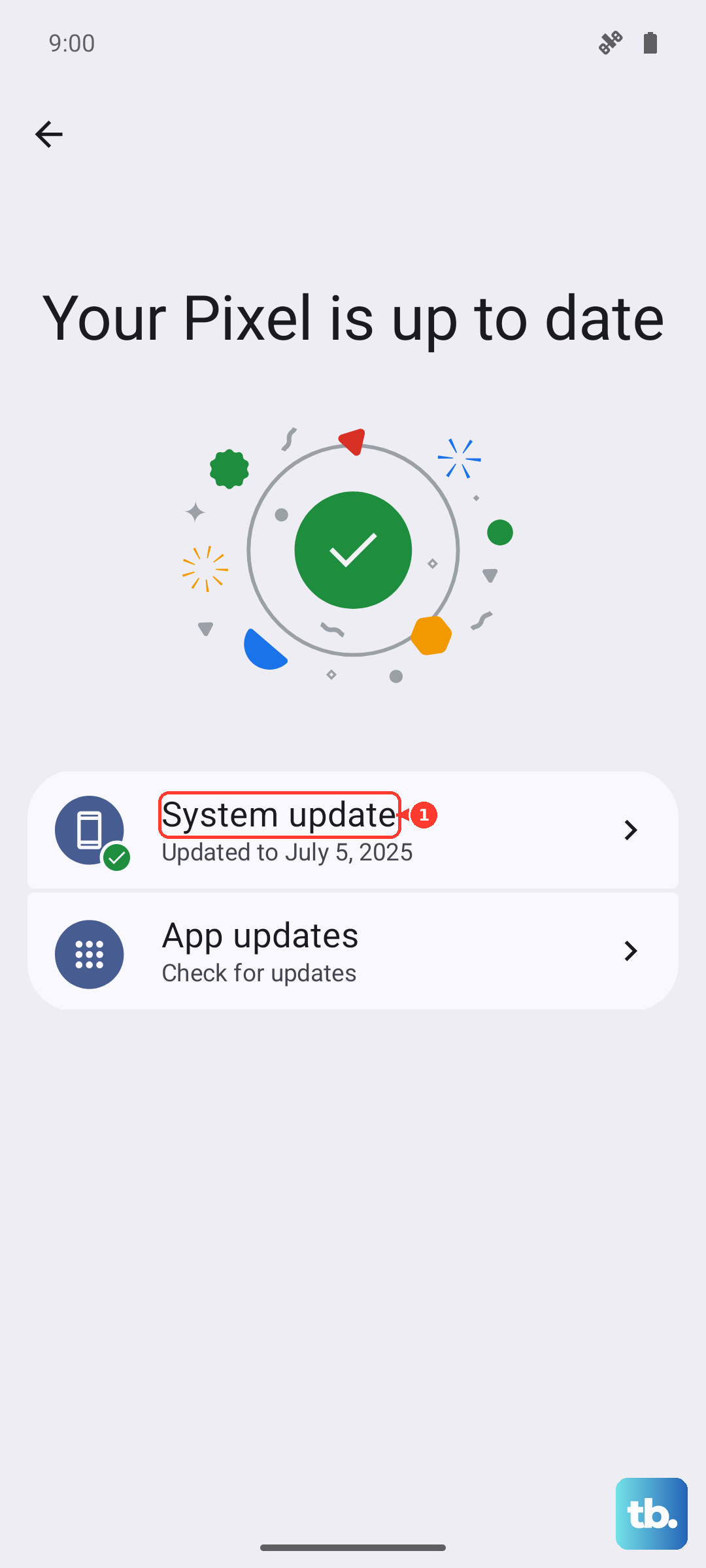
Installing the latest update can resolve software glitches that might be causing excessive battery drain or preventing your phone from charging at its full 68W wired or 15W Qi2 wireless speeds. This is a simple but often effective step.
Inspect Your Charging Hardware
Sometimes what feels like a battery problem is actually a charging issue. First, ensure you're using the original Motorola 68W charger and cable for the fastest, most reliable wired charging. For wireless charging, make sure you're using a compatible Qi2 charger and that the phone is properly aligned on the pad, especially if you're using a case.
The USB-C port on your Edge 40 can accumulate pocket lint over time, which prevents a solid connection. Power off the phone and gently clean the port with a dry, non-conductive tool like a plastic toothpick. I've seen this simple fix restore full charging speed for many people.
Enable Adaptive Charging and Battery Saver
Within your Settings > Battery menu, look for features like Adaptive charging. When enabled, this uses AI to slow down charging as you approach 100%, especially overnight, which is gentler on the battery's long-term health.
You can also explore Battery saver modes. While these limit background activity and performance, using them when your battery is low can help you reach a charger and also reduces strain on the battery by preventing deep discharge cycles.
Recognizing When a Battery is Failing
Software can tell you a lot, but physical symptoms are a clear sign. If your Edge 40 shuts down unexpectedly while showing 20% or 30% charge left, that's a strong indicator of a degraded battery. Similarly, if the back casing is beginning to bulge or separate, the battery is swelling and needs immediate replacement.
Extremely slow charging, even with the correct hardware, or the phone getting excessively hot during normal use are other red flags. At this point, the battery has likely worn out and should be serviced.
To maximize your battery's lifespan, try to avoid letting it regularly drain to 0% or consistently charging it to 100%. Keeping it between 20% and 80% is ideal when possible. Also, avoid exposing the phone to extreme heat, like leaving it on a dashboard in direct sunlight, as high temperatures accelerate battery degradation faster than anything else.