
Your iPhone Air battery health tells you a lot about whether you're getting full performance or if it's time for a replacement. Apple's tools in iOS 26 make it straightforward to check everything from capacity to cycle count. Let's get into it.
Open Battery Health and Peak Performance
Head to Settings > Battery > Battery Health & Charging. The Maximum Capacity number is the big one. It shows your battery's current maximum charge relative to when it was new. A fresh iPhone Air reads 100%. After normal use over a year or two, you'll typically see 85 95%. Once that number dips below 80%, Apple considers the battery significantly worn and you'll likely notice shorter run time.
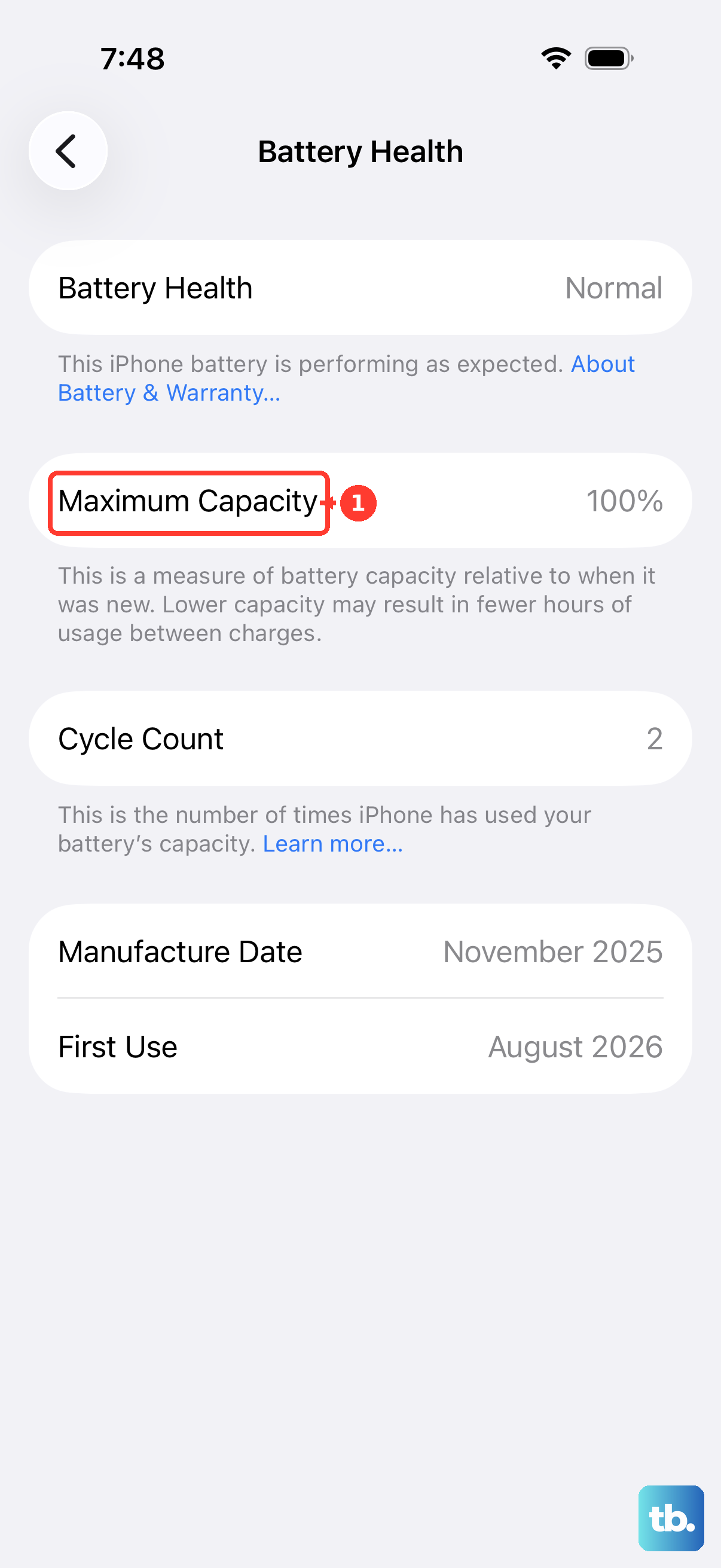
Right under that percentage, you'll see Peak Performance Capability. If everything's normal, it says your battery supports normal peak performance. If degradation is more advanced, you might see a message about performance management kicking in to prevent unexpected shutdowns.
Find Your Battery Cycle Count
A charge cycle means you've used the equivalent of 100% of your battery's capacity, not necessarily all at once. Drain 50% today and 50% tomorrow and that counts as one cycle. Apple rates modern iPhone batteries, including the iPhone Air, to retain about 80% capacity after 1,000 full cycles.
On iOS 26, you can see the cycle count directly. Go to Settings > Battery > Battery Health and you'll find it listed alongside the manufacture date and first use date. No need for third-party apps. If yours sits above 500 cycles, you're still well within the expected lifespan but worth keeping an eye on the max capacity trend.
Battery Draining or Not Charging? Try This First
The iPhone Air has a known issue where a fully depleted battery can leave the phone unresponsive, even when you plug in a USB-C cable. If you see a black screen and nothing happens when you connect power, grab a magnetic battery pack. Attach it to the back of the phone to wake it up, then switch to a wired charger once you see the Apple logo. This works because the Qi2/MagSafe connection can sometimes jump-start the charging circuit when USB-C won't.
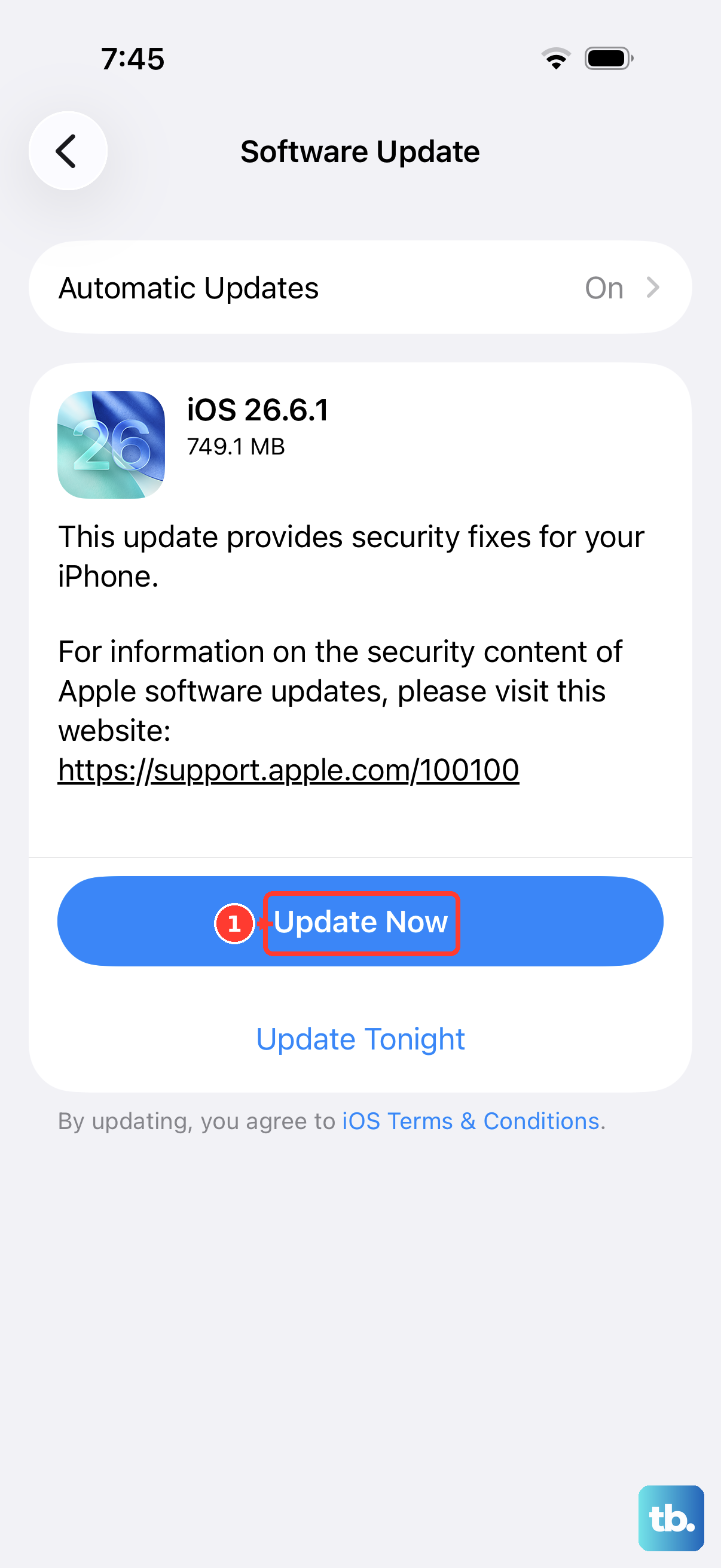
After you get the phone powered on, check if a software glitch caused the problem. Go to Settings > General > Software Update and install any available iOS 26 update. The latest version should be 26.4.2 or newer. If the charging issue returns or the phone feels sluggish, a simple restart often clears it up. If the screen won't respond to touch, perform a force restart: quickly press and release the Volume Up button, then quickly press and release the Volume Down button, then press and hold the Side button until the Apple logo appears.
Use Only Certified USB-C Accessories
The iPhone Air charges at up to 40W over USB-C and 20W wirelessly via MagSafe, but only if you're using proper hardware. Damaged cables and uncertified adapters are a common cause of slow charging or no charging at all. If your Max Capacity looks fine but the phone still won't charge, swap the cable and the power brick for Apple-certified replacements. Cheap knockoff cables often lack the right chip to negotiate fast charging with Apple's power management IC.
Turn On Optimized Battery Charging
Go back to Settings > Battery > Battery Health & Charging and make sure Optimized Battery Charging is toggled on. This feature learns your daily routine and holds the charge at 80% until just before you typically unplug. Lithium-ion batteries degrade fastest when kept at 100% for hours, so this delay makes a real difference over a couple of years.
You might also see a 80% Limit option on the iPhone Air. This caps charging entirely at 80%, giving you maximum long-term protection if you're willing to trade a bit of daily range. Choose whichever fits how you use your phone.
See Which Apps Are Draining Battery
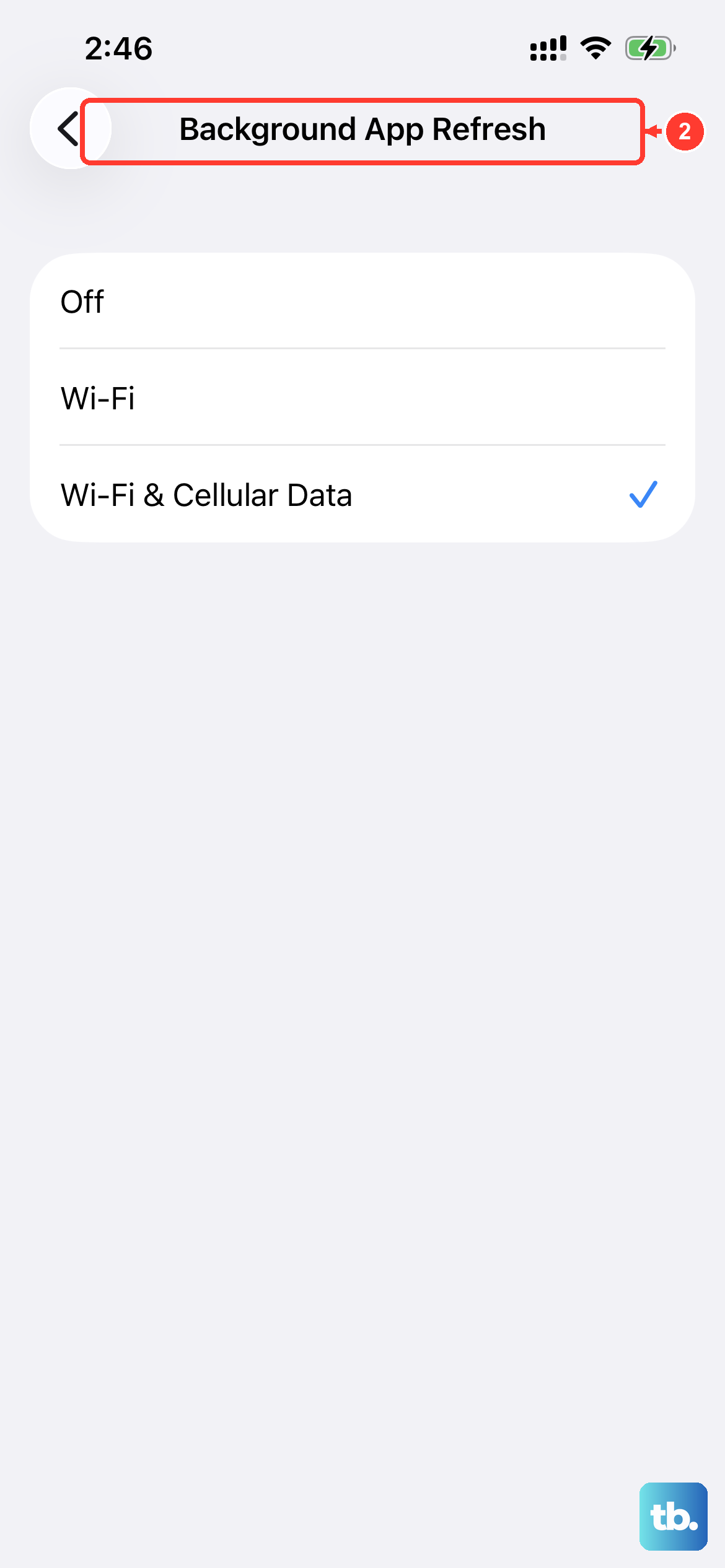
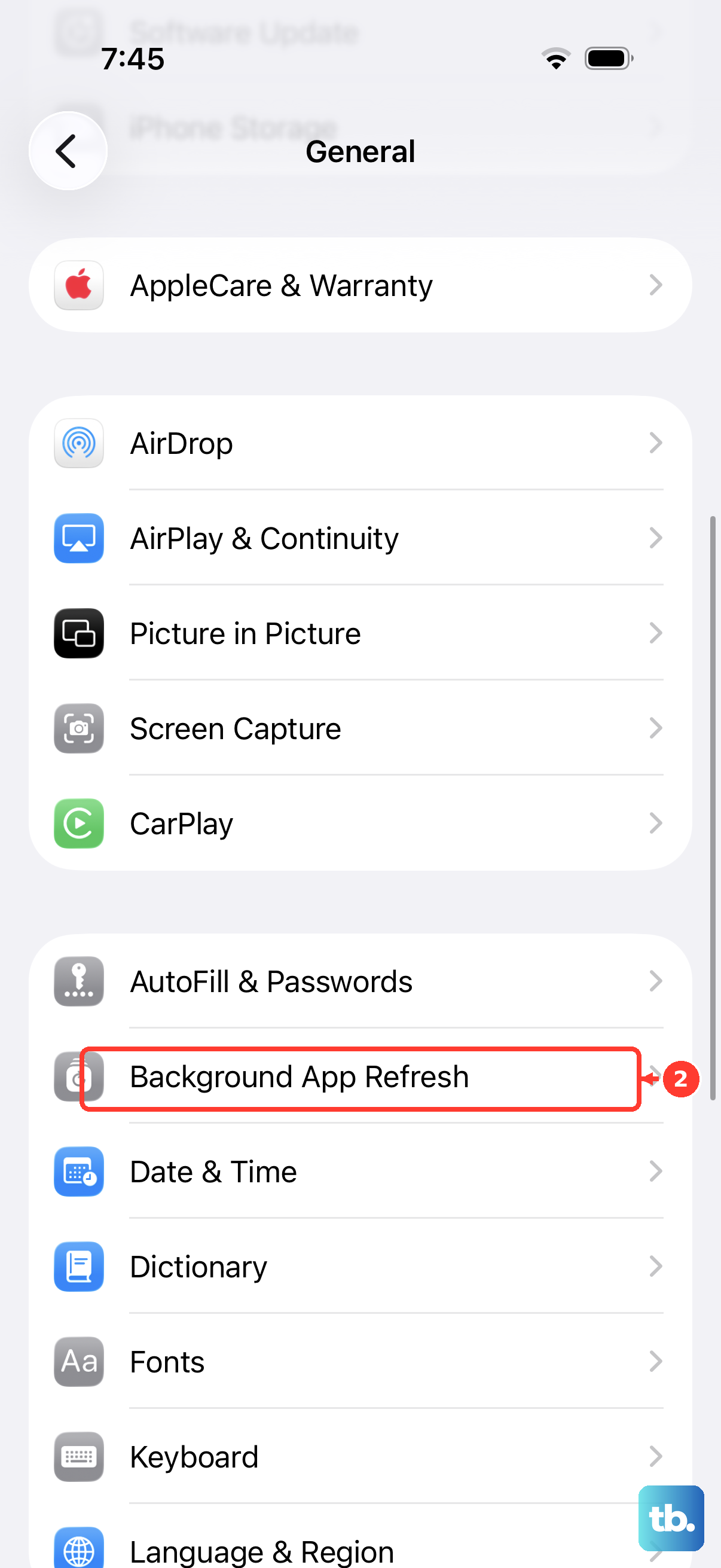
Open Settings > Battery and scroll to the app list. You can view usage over the last 24 hours or the last 10 days. Tap Show Activity to split screen-on time from background use. If an app you barely touch is burning through power, either force-quit it or turn off its background refresh under Settings > General > Background App Refresh.
This is also a good spot to spot any app that's keeping your phone warm when it shouldn't be. Overheating accelerates battery wear, so addressing misbehaving apps helps preserve your capacity longer.
Keep Your Battery Healthy Day to Day
Extreme heat is your battery's worst enemy. Don't leave the iPhone Air in a parked car on a sunny day or use heavy apps while it's fast charging and running warm at the same time. For daily charging, try to keep the battery between 20% and 80% instead of regularly draining it to zero or leaving it plugged in at 100% overnight. Those habits slow the chemical aging process and keep that Max Capacity number higher for longer.
If your Maximum Capacity drops below 80% and you're seeing the performance management message, a battery replacement is the fix. Apple offers replacement service, and a fresh battery brings capacity back to 100% along with full performance. On the iPhone Air, you'll typically hit that threshold somewhere north of 1,000 cycles depending on your usage and charging habits.