Your controller should not drift, pull to one side, or miss part of a trigger press. The fix depends on the platform and the controller model. Start with the system tool that matches your device, then use profile tuning, game deadzones, or a reset when calibration is not available.
1. Pick the right controller fix first
Calibration resets how a supported system reads sticks, triggers, or motion sensors. Deadzone or sensitivity changes how a game or saved profile responds to stick movement. Driver reinstall or hardware reset clears a bad device entry or resets a controller, but it does not write new stick calibration values. Controller menus use similar words for different jobs, so match the symptom to the right tool before changing settings.
2. Calibrate Windows controllers with joy.cpl
Use the built-in Windows Game Controllers wizard for HID or DirectInput-style controllers, including many joysticks, wheels, and some gamepads on Windows 10 and Windows 11. Press Windows key + R, type joy.cpl, and select OK.
Choose your controller, select Properties, open the Settings tab, select Calibrate, and follow the Device Calibration Wizard. To undo it, return to joy.cpl, select the controller, open Properties, choose Settings, and select Reset to default.
For modern Xbox controllers, use Xbox Accessories when that app supports your model.
3. Recalibrate supported Xbox controllers
On Windows, open the Microsoft Store page for Xbox Accessories, then select Install or Get. Open Xbox Accessories and connect the controller with a USB cable or Xbox Wireless Adapter. Xbox Accessories on Windows does not detect controllers over Bluetooth.
Select your controller, check for any available controller firmware update, and install any available controller firmware update. Open the ... menu, select Recalibration options, choose stick recalibration or trigger calibration, and follow the on-screen prompts.
Xbox Accessories handles stick recalibration and trigger calibration for Xbox Wireless Controller and Xbox Elite Wireless Controller Series 2 on Xbox consoles and Windows PCs. Trigger calibration is for minor trigger issues. Older Xbox One-era controllers are outside the current Xbox recalibration path.
Elite Series 2 owners can also tune stick response. Open Xbox Accessories, select the controller, choose Configure, and create or edit a profile. Adjust the stick settings and save the profile. That changes response behavior; it is not firmware recalibration.
4. Tune PlayStation models that support profiles
Sony does not document a standard DualSense stick calibration wizard. For a standard DualSense reset, turn off the PS5, disconnect USB, and press and hold the reset button in the small hole next to the Sony logo for at least 5 seconds. Connect the controller with the official USB cable, then press the PS button.
On PS5, open Settings, select Accessories, and choose DualSense Edge Wireless Controller. Open Custom Profiles, select Create Custom Profile or edit an existing profile, then open Stick Sensitivity/Deadzone. Choose the left or right stick, adjust the settings, and use Playtest when needed.
DualSense Edge gets stick sensitivity and deadzone profiles on PS5 and Windows. On Windows, install PlayStation Accessories, connect the DualSense Edge, and create or select a profile. Open Stick Sensitivity/Deadzone, adjust the stick, select Apply, and select Done.
For PlayStation Access controller on PS5, go to Settings > Accessories > Access controller > Profile Library. Create or select a profile, choose Edit, open Stick sensitivity/deadzone, and save it. Assign it to Slot 1, Slot 2, or Slot 3.
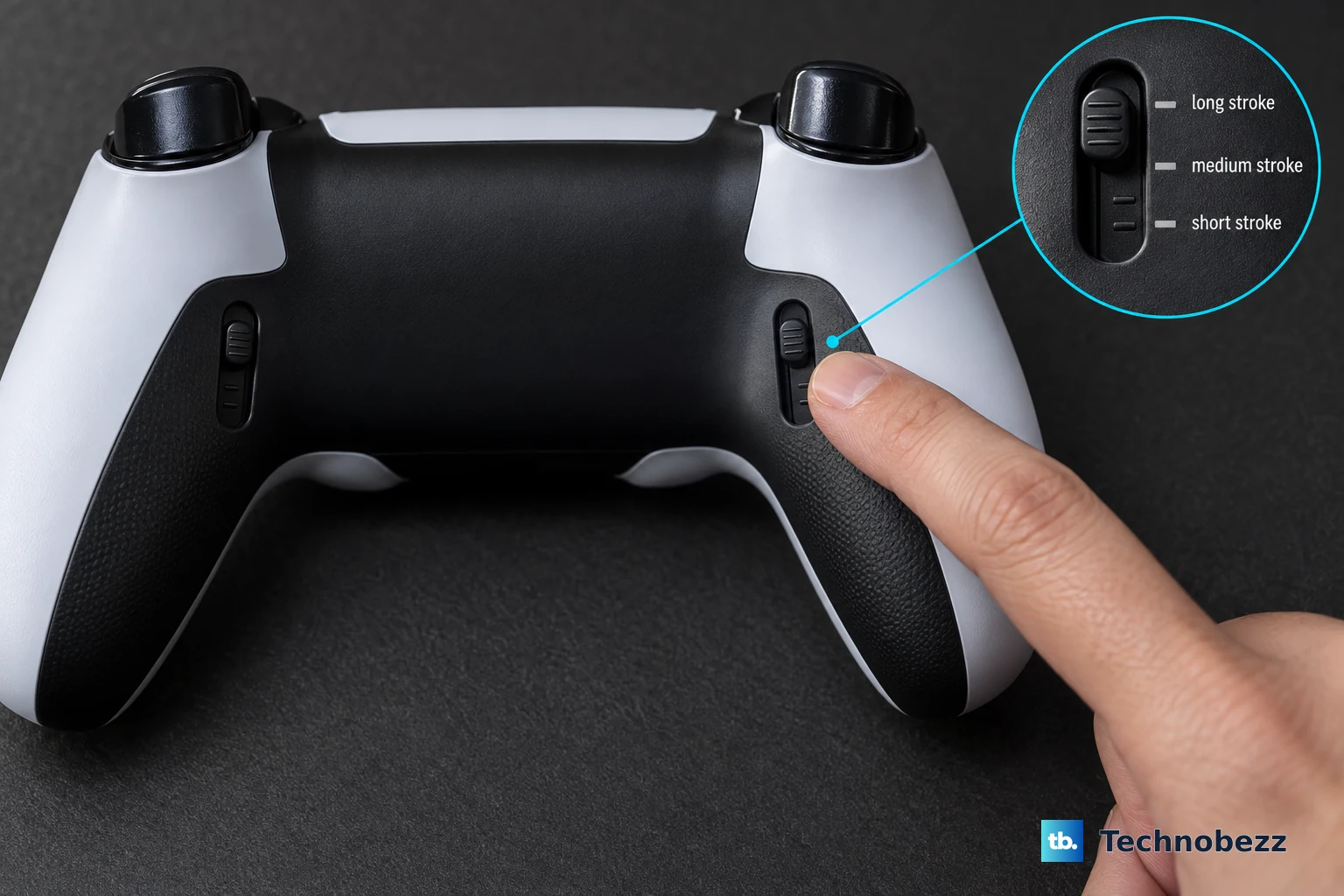
5. Fix Nintendo Switch sticks and motion controls
Check that your console has the latest system update installed, then open System Settings from the HOME Menu. On Nintendo Switch, choose Controllers and Sensors; on Nintendo Switch 2, choose Controllers & Accessories. Select Calibrate Control Sticks, fully tilt the control stick in one direction for a few seconds, and follow the on-screen prompts.
Nintendo keeps stick calibration in System Settings. The menu name changes between Switch and Switch 2, but the calibration flow is direct. Use this for Nintendo Switch, Switch Lite, Switch OLED, Nintendo Switch 2, Joy-Con, Joy-Con 2, Nintendo Switch Pro Controller, Nintendo Switch 2 Pro Controller, and the supported Nintendo 64 or GameCube controllers Nintendo lists.
If the controller input does not update after calibration, put the console to sleep and wake it. Alternatively, press SYNC once, then press any other button.
Motion controls use a separate menu. Detach Joy-Con or Joy-Con 2 before calibrating motion, and remove straps and accessories. Open Calibrate Motion Controls, choose Calibrate Controllers on Switch 2, and hold - or +. Place the controller stick-facing upward on a flat stable surface, wait, and select OK.
6. Check Steam Deck inputs and Steam Controller calibration
Use Valve’s Steam Controller calibration path for the 2015 Steam Controller, and use the Steam Deck input test when you only need to confirm what the sticks and buttons are sending. Launch Steam in Big Picture Mode, select the settings icon in the top-right, and open Controller. Choose Controller settings, select the Steam Controller under Detected Controllers, select CALIBRATE, and follow the on-screen instructions.
On Steam Deck, press the Steam button, open Settings, choose Controller, and select Test Controller Inputs.
7. Calibrate Linux joysticks from terminal or jstest-gtk
- 1.Identify the joystick device, commonly /dev/input/js0.
- 2.Run jscal --calibrate /dev/input/js0 or jscal -c /dev/input/js0.
- 3.Follow the terminal prompts.
- 4.On Debian or Ubuntu-style systems, run jscal-store /dev/input/js0 to persist the calibration.
Linux desktop systems that expose the classic /dev/input/js* joystick interface can use jscal. For a graphical tool, open jstest-gtk, select the attached joystick or controller, choose Properties, and open Calibration. Adjust the axes and deadzones; jstest-gtk applies calibration changes immediately as you make them. To keep them across reconnects and reboots on Debian or Ubuntu-style systems, run jscal-store.
8. Adjust game deadzones when system tools stop short
Game-level deadzones are the right fix when the controller works but one game still drifts or feels too sensitive. This changes that game only.
In Battlefield 6, select the settings cog, choose Controller, and open Edit Settings. Go to Other, select Modify next to Controller Tuning, and adjust stick deadzone or max input threshold. To revert that category, use Reset Category from a settings screen.
On Apple platforms, use customization instead of calibration. These controller-customization settings require iOS 16 or later, iPadOS 16 or later, tvOS 16 or later, macOS Ventura 13 or later, or visionOS on Apple Vision Pro.
On iPhone or iPad, open Settings > General > Game Controller, choose the controller name, and select Default Controls. On Apple TV, open Settings > General > Remotes and Devices > Bluetooth, choose the controller, and use Customization. On Mac, open Apple menu > System Settings > Game Controllers, then select the controller.
Frequently Asked Questions
Does controller calibration fix stick drift permanently?
Calibration fixes bad center or range readings when the platform supports real calibration. Deadzone tuning can mask light drift in a profile or game, but it is not a documented hardware repair.
Why does Windows calibration not work for my Xbox controller?
The Windows joy.cpl wizard is for HID and DirectInput-style devices. Use Xbox Accessories for Xbox Wireless Controller and Xbox Elite Wireless Controller Series 2 recalibration.
Can I calibrate a standard DualSense controller on PS5?
Sony does not document a standard DualSense calibration wizard. The supported troubleshooting path is the hardware reset button; DualSense Edge uses stick sensitivity and deadzone profiles.
What is the difference between deadzone and calibration?
Deadzone changes how far a stick must move before a game or profile responds. Calibration changes how a supported system reads the controller input.
Can I calibrate a controller on iPhone, iPad, Apple TV, or Mac?
Apple documents controller customization surfaces for iPhone, iPad, Apple TV, and Mac, but Apple does not document a calibration wizard.











