
Getting unwanted calls on your new iPhone 16 Pro is a quick way to ruin your day. The good news is that iOS 26 gives you several powerful tools to block numbers and manage spam, all built right into your phone. Once you block a contact, they can't call, text, or FaceTime you anymore.
Block a Recent Caller
If you just missed a call from a number you want to block, start in the Phone app. Tap the Recents tab at the bottom and find the number in your list. Tap the small (i) info button next to it to open the call details.
Scroll down on this screen until you see the red Block this Caller option. Tap it, and then confirm by tapping Block Contact. That's all it takes. From now on, their calls will go silently to voicemail.
Block Someone from a Text Conversation
For spam texts or messages from someone you don't want to hear from, open the conversation in your Messages app. At the top of the screen, tap the contact's name or phone number, then tap the (i) info button to open the details.
Just like with a phone call, you'll find the Block this Caller option if you scroll down. Tapping it will immediately block all future calls and messages from that sender. I've found this is the fastest way to stop a persistent texter.
Block a Saved Contact
Sometimes you need to block someone who is already in your address book. Open the Contacts app, or go to the Contacts tab within the Phone app. Find and tap on the person's name to open their full contact card.
At the very bottom of their contact information, you'll see the block option. Tapping Block this Caller will block every phone number and email address associated with that contact entry. It's a comprehensive block with one tap.
Check Your Blocked List
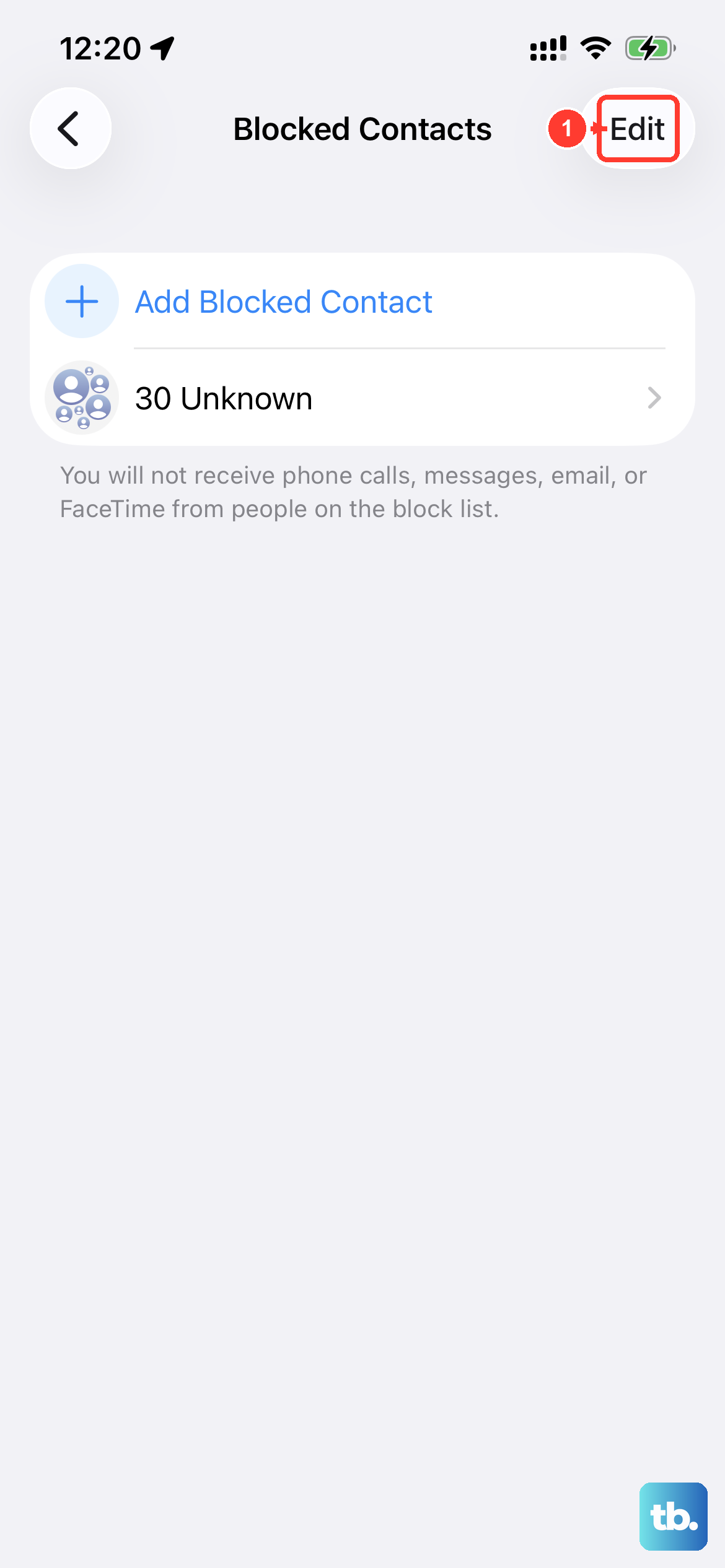
To see who you've blocked or to unblock someone, go to Settings > Phone. From there, tap on Blocked Contacts. You'll see a complete list of every number and contact you've blocked.
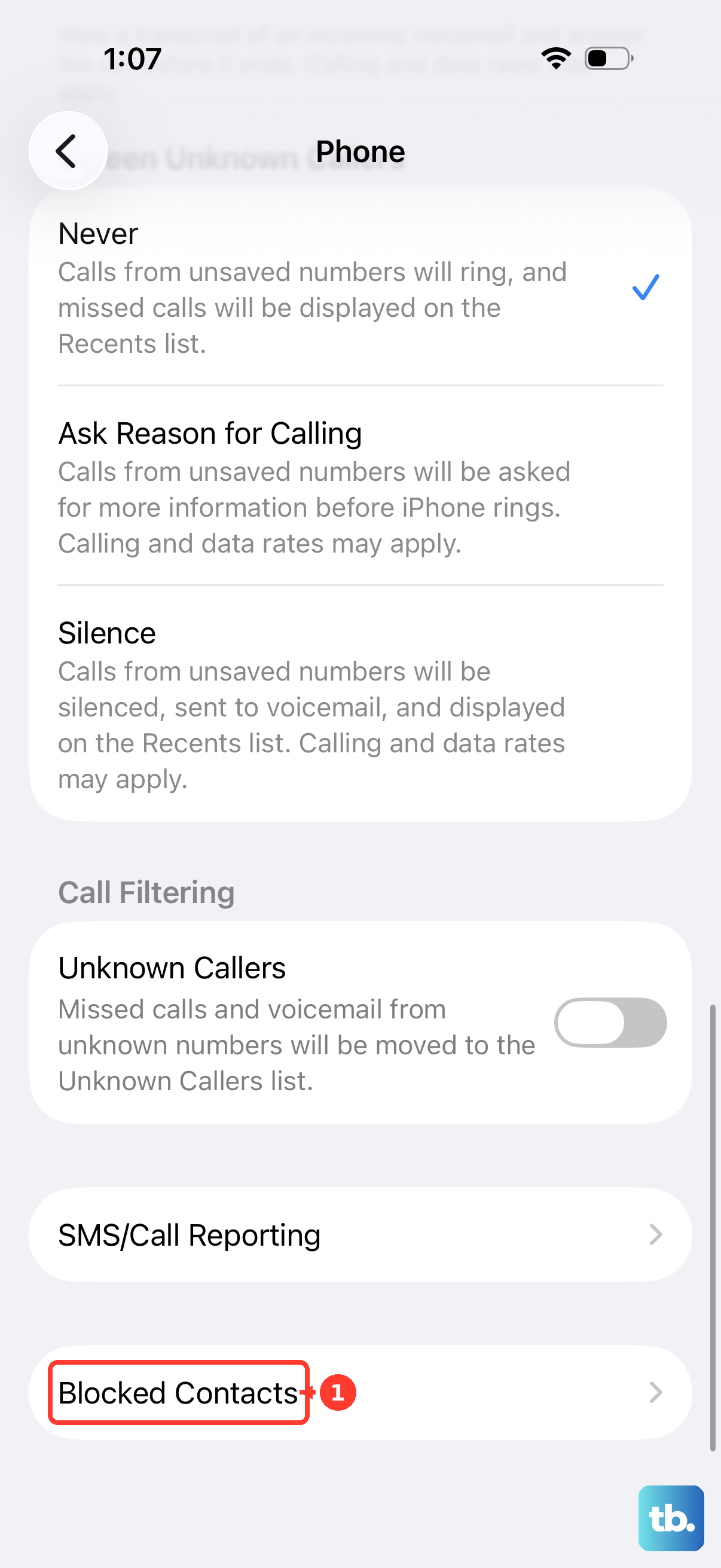
To unblock someone, simply swipe left on their entry and tap Unblock. You can also tap Edit in the top corner to remove multiple people at once. This list is universal, so anyone here is blocked from contacting you through any Apple service.
Silence All Unknown Callers
If you're getting bombarded by spam, a more aggressive option is to silence every call from numbers not in your contacts. Head to Settings > Phone and look for Silence Unknown Callers. Toggle this switch on.
With this enabled, calls from numbers you haven't saved will be sent directly to voicemail without ever making your phone ring. You'll still see the missed call notification and can check any voicemail they leave. Just remember, this will also silence calls from legitimate places like your pharmacy or a food delivery driver.
Report Junk Texts
When you get a clear spam text, you can report it to help improve filters. Open the suspicious message. Below the message text, you should see an option that says Report Junk. Tap it.
Your iPhone will ask if you want to report the message and delete it, or report it and block the sender. Choosing the latter does both actions at once. This information is sent anonymously to Apple and your carrier to help fight spam for everyone.
What Blocking Actually Does
When you block a number, the caller will hear the phone ring once or twice on their end before it goes to your voicemail. They won't receive any notification that they've been blocked. If they leave a voicemail, it won't notify you, but you can find it in a special "Blocked Messages" section at the very bottom of your voicemail list.
For texts and iMessages, the messages are simply not delivered to your device. The sender won't get a "Delivered" receipt, and you'll never see the message. The same silent blocking applies to FaceTime calls.
Block Email Senders
If you're getting spam in the Mail app, you can block those senders too. Open the email from the person you want to block. Tap the sender's name at the top of the email, then tap it again in the menu that pops up.
Select Block this Contact. Any future emails from that address will automatically go to your Trash folder. You can review and manage all your blocked email addresses in Settings > Mail > Blocked.