You pressed the Power button on your Google Pixel 9a expecting the home screen, but instead the colorful "G" logo just sits there, frozen, refusing to move on. Maybe it flickers, maybe it loops, maybe it has been staring back at you for several minutes. A boot that hangs on the logo is almost always recoverable, and most of the time you can fix it yourself without losing a single photo.
The Pixel 9a is a standard Android smartphone running Android 15 on Google's Tensor G4 chip, and it boots from internal storage like any other phone. That means the usual charge, restart, and recovery steps apply directly to it. The fixes below are ordered from the safest and easiest to the more involved, with the data-erasing options saved for last. Work through them in order and stop as soon as your phone boots normally.
Give the Battery a Real Charge First
A Pixel 9a that appears stuck on the logo is sometimes simply too low on power to finish booting. Connect the phone to a known-good USB-C cable, charger, and wall outlet; the 9a charges at up to 23W wired, so a quality adapter helps it recover faster.
If you see a flashing red light, there is not enough power to turn the phone on yet, so leave it plugged in for at least 30 minutes. If a battery icon appears on the screen, the phone is powered off and charging normally. Once it has had time to build up a charge, press and hold the Power button for 5 to 7 seconds to turn it on.
Rule Out the Case, Cable, and Charger
The accessories around your phone can quietly cause a bad charge that leaves the device hanging at the boot logo. Remove your phone case so it does not interfere with the charging plug or the wireless charger.
Next, confirm the charger itself is healthy. Charge another device with the same adapter and cable to verify they work, inspect the USB-C port for lint or debris, and try a different wall outlet. Eliminating a faulty power path is quick and often resolves a stalled boot before you try anything more involved.
Force the Pixel 9a to Restart
When the phone is unresponsive and frozen on the logo screen, a forced restart is the next step.
Press and hold the Power button for up to 60 seconds.
Watch the screen as you hold it.
When the phone begins to reboot and displays the "G" logo, release the Power button.
Google notes slightly different hold times depending on the situation. For a phone that is frozen with the screen on, you can hold the Power button for about 30 seconds to restart it, and on the won't-turn-on guidance the figure given is about 35 seconds. The behavior is the same idea, so keep holding until the phone reboots.
Try the Power and Volume Up Restart Menu
If your Pixel 9a responds enough to bring up the on-screen power menu, you can use Google's standard restart method for Pixel 6-and-later devices, which includes the 9a. This is gentler than a forced restart and is worth trying when the screen is at least partly responsive.
Press and hold the Power button and the Volume up button together for a few seconds.
When the menu appears, tap Restart.
This triggers a clean reboot through the operating system rather than a hard power cut, which can be enough to clear a one-off boot hiccup.
Boot Into Safe Mode to Rule Out a Bad App
Sometimes the phone gets past the logo but keeps freezing or restarting once it reaches the home screen. In that case, a recently installed app may be the culprit, and Safe mode lets you test that theory by loading the phone without third-party apps.
With the phone off, press the Power button.
When the animation starts, press and hold the Volume down button.
Keep holding the Volume down button until the animation ends.
Look for "Safe mode" at the bottom of the screen.
If the freezing or restarting stops in Safe mode, an app is almost certainly to blame. Remove recently installed apps one at a time, restarting the phone normally after each removal, until the problem disappears.
Install Any Pending Software Update
Once you can reach the home screen, it is worth checking for a system update, since a pending Android or security update can resolve boot and stability bugs. Updates are handled entirely on-device through the built-in Settings app, and no separate companion app is required for a Pixel.
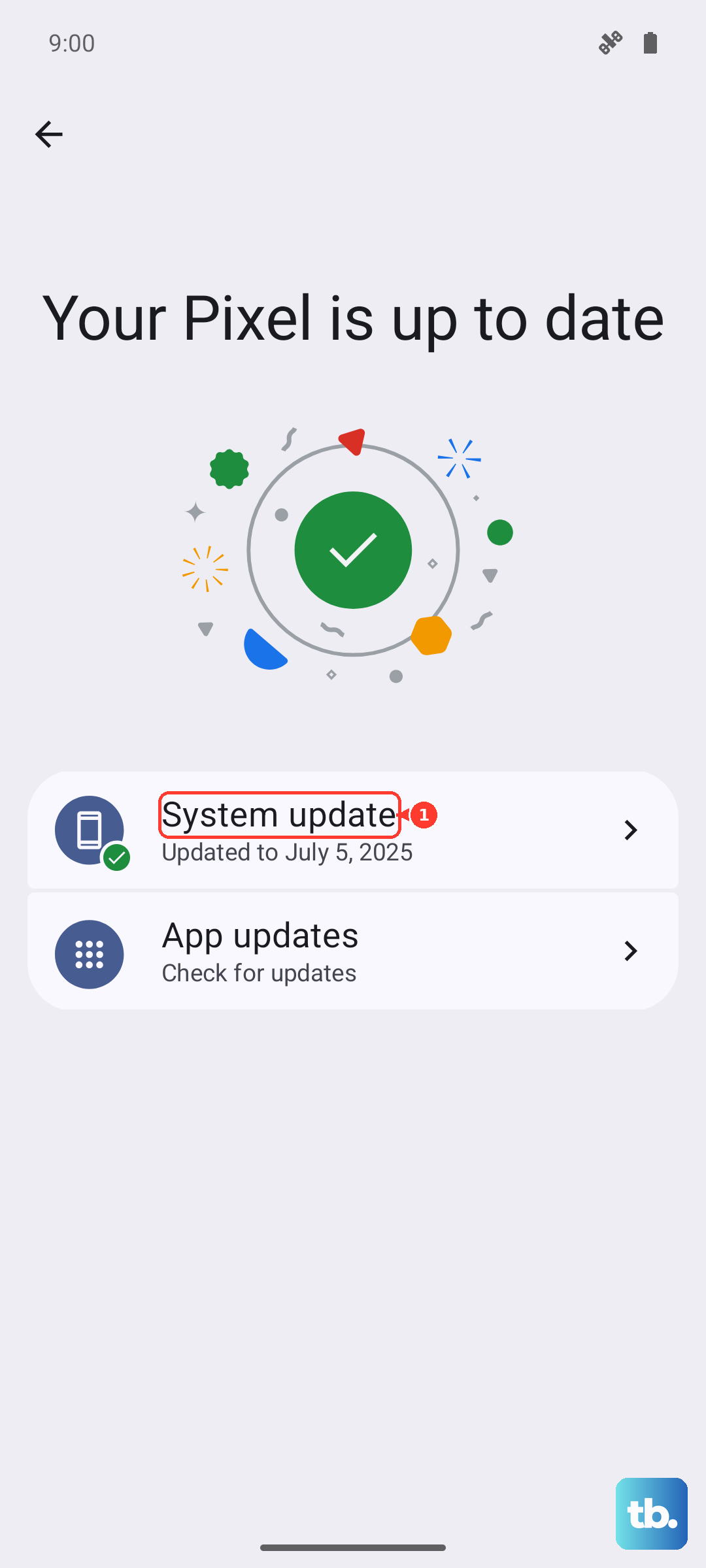
Open Settings, tap System, then tap "Software updates" (or "System update") and follow the on-screen instructions. Let the phone download and apply anything it finds, then restart and confirm it boots cleanly.
Free Up Storage and Stop Misbehaving Apps
Low storage can cause a Pixel to freeze and crash, and problems tend to appear when free space runs very low. If your phone now boots but behaves poorly, clearing space and reining in a problem app can stabilize it.
Open Settings > Storage and free up space by removing files or apps you no longer need.
Update your installed apps through the Google Play Store so you are running the latest, most stable versions.
If a specific app seems to trigger the trouble, force it to stop via Settings > Apps > See all apps > the app name > Force stop > OK.
Factory Reset as a Last Resort
If the phone still refuses to get past the logo after everything above, a factory reset is the final software step. Be aware that a factory reset erases all your data from your phone, so back up anything you can first if the device is reachable at all.
If you can get into Settings, the cleanest path is Settings > System > Reset options > Erase all data (factory reset), then follow the prompts.
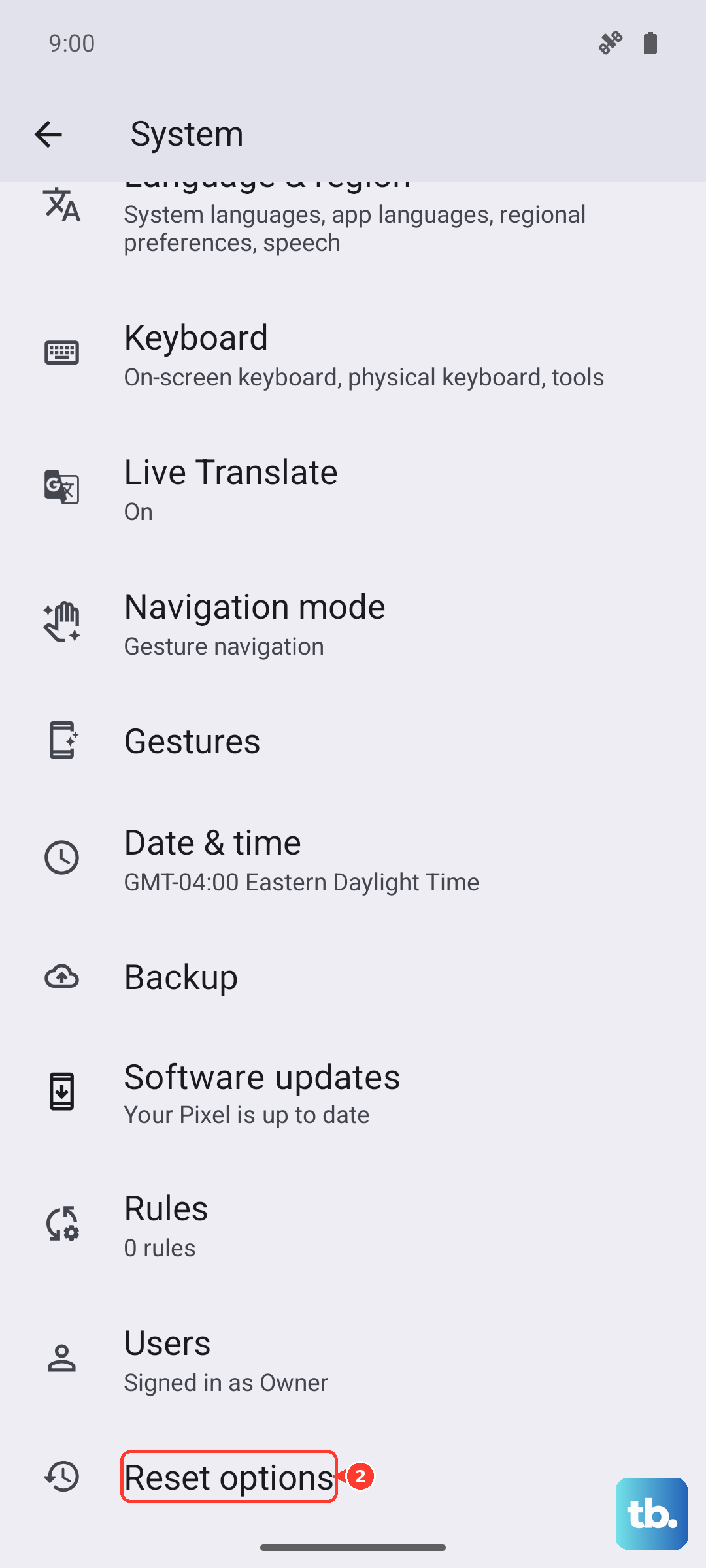
If the phone will not boot far enough to open Settings, you can reset it using the hardware buttons through Recovery mode. This also erases all of your data, so use it only when you have accepted that loss.
- 1.Press and hold the Volume down and Power buttons at the same time for up to 30 seconds until the Fastboot mode screen shows.
- 2.Press the Volume up or Volume down buttons until "Recovery Mode" is displayed, then press the Power button to select it.
- 3.When the screen shows "No command," press and hold the Power button. While you hold the Power button, press the Volume up button and let go of both buttons quickly.
- 4.Use Volume down to scroll and the Power button to select "Wipe data/factory reset."
- 5.Select "Factory data reset" to confirm.
Because this wipes everything, only take this step once you have exhausted the non-destructive fixes and accepted that the phone's data will be erased.
When to Contact Google or an Authorized Repair Partner
If your Pixel 9a still will not boot even after a factory reset, you are likely looking at a hardware fault rather than a software glitch. At that point, the right move is to get the device looked at by Google or an approved partner rather than continuing to retry the same steps.
Start a repair through Google Store Repair services, which offers walk-in and mail-in options, or contact Pixel Support or an authorized repair partner. Check your warranty eligibility while you are at it, since a covered factory defect may be repaired at no cost to you.
Frequently Asked Questions
How long should I hold the Power button to force restart a frozen Pixel 9a?
For an unresponsive phone, press and hold the Power button for up to 60 seconds, and release it once the phone begins to reboot and shows the "G" logo. For a phone that is frozen with the screen on, holding the Power button for about 30 seconds is enough to restart it, and the won't-turn-on guidance lists about 35 seconds.
Could a dead battery be why my Pixel 9a is stuck on the logo?
Yes. A device that looks stuck on the logo may simply be too low on power. Plug it into a working USB-C cable, charger, and outlet; if you see a flashing red light there is not enough power to turn on, so charge for at least 30 minutes before pressing and holding the Power button for 5 to 7 seconds to power it on.
Will a factory reset delete my photos and files?
Yes. A factory reset erases all your data from your phone, so back up anything important first if the device is reachable. Treat the reset as a last resort, after charging, force restarting, Safe mode, updates, and storage cleanup have all failed.
Do I need a special app to fix or update my Pixel 9a?
No. Pixel phones are configured on-device through the built-in Settings app, and Google does not require a separate companion app to control a Pixel. Software updates are done through Settings > System > Software updates, and official repairs are started through Google Store Repair services or Pixel Support.
What if my Pixel 9a still won't boot after a factory reset?
If it still will not get past the logo after a reset, the problem is likely a hardware fault. Start a repair through Google Store Repair services (walk-in or mail-in) or contact Pixel Support or an authorized repair partner, and check your warranty eligibility, since a covered factory defect may be repaired at no cost to you.