You raise the Pixel 9a, rest your thumb on the spot near the bottom of the screen where the fingerprint icon glows, and nothing happens.
The phone sits there waiting, the icon pulses, and you end up typing your PIN again.
The Pixel 9a uses an under-display fingerprint sensor (Pixel Imprint) that reads your print through the lower part of the screen, so a smudge, dry skin, a fresh screen protector, or a stale software bug can all stop it from recognizing you.
The good news is that most fingerprint failures on the 9a are fixable in a few minutes, and the steps below run from the safest and easiest first to the official reset and repair path last.
Start by ruling out outdated software
Before you touch anything physical, make sure the phone is fully up to date.
A stale build can break biometric reading until it is patched, so updating is the safest first step for a misbehaving fingerprint sensor.
Open Settings > System > Software updates (on some screens this reads 'System update').
Follow the on-screen instructions to download and install anything available.
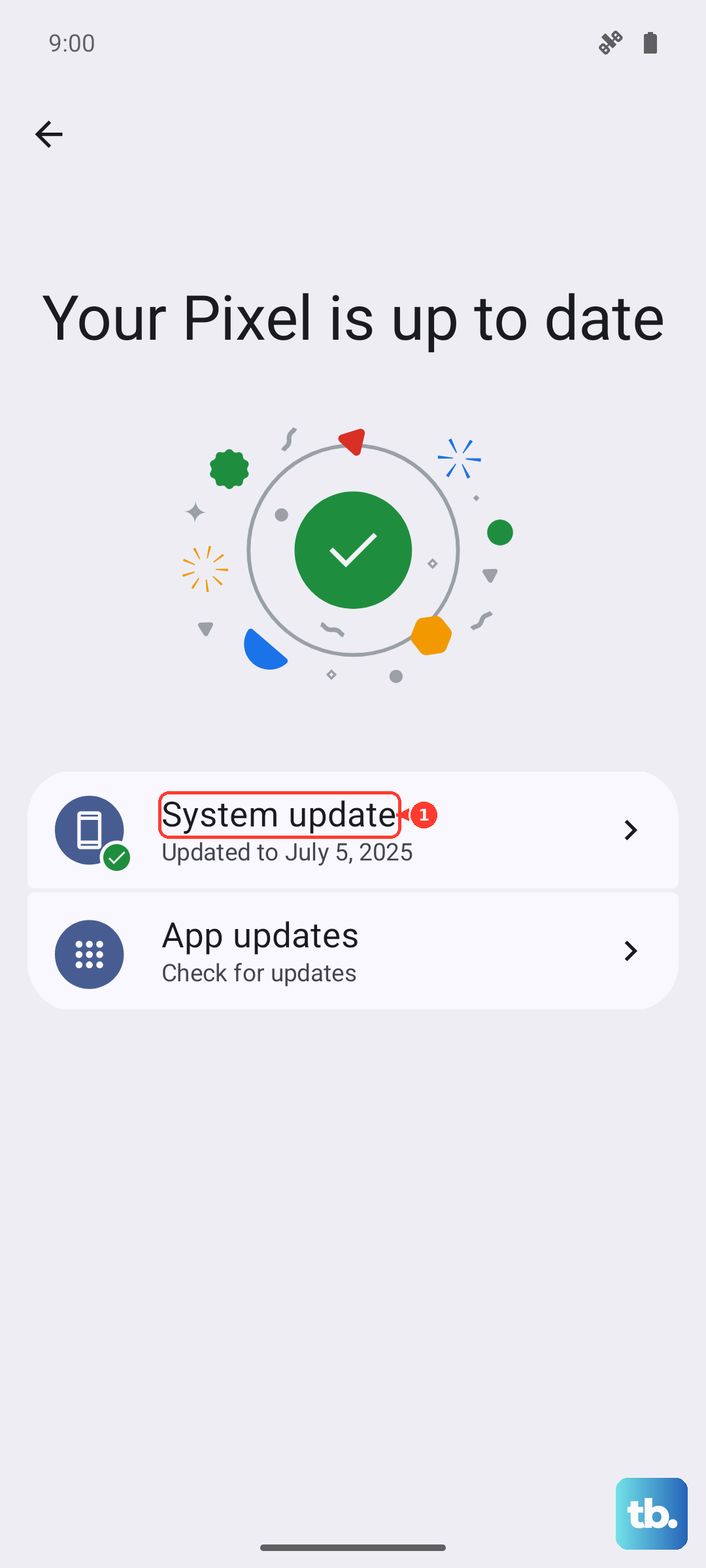
Google recommends connecting to Wi-Fi and charging to at least 75% first.
Downloaded updates install in the background and finish applying the next time you restart the phone, so plan to reboot once it is ready.
You can confirm what you are running under Settings > About phone > Android version, which shows the Android version, security update, Google Play system update, and build number.
Use the right finger and press it firmly
The under-display sensor needs solid, deliberate contact, not a light tap.
Google's official fix is to press and hold your finger firmly on the sensor until your phone unlocks, rather than brushing it quickly.
Just as important, make sure you are using the same finger you used when you enrolled in Fingerprint Unlock.
The Pixel 9a stores up to 4 fingerprints, so if you sometimes unlock with a finger you never set up, the phone will reject it every time.
Confirm the finger touching the screen is one you actually enrolled.
Wipe the screen where the sensor lives
Because the Pixel 9a's sensor reads through the display, anything covering that spot can blind it.
Google says to make sure your display is clean and without dirt or smudges before you try again.
Wipe the lower portion of the screen where the fingerprint icon appears, then attempt to unlock.
Fingerprints, oils, and dust collect exactly over the sensor area through normal handling, so a quick clean often restores reliable reads on its own.
Sort out dry, wet, or damaged skin
Your finger condition matters as much as the screen.
Google notes that if you have excessively dry fingers, you should moisturize and re-attempt to unlock your device.
Very dry, wet, or damaged skin can stop the under-display sensor from reading your print cleanly.
If your hands are cracked from cold weather or wet from washing, dry them or add a little moisture and try the same enrolled finger again.
Check the screen protector you are using
A screen protector sits directly between your finger and the sensor, so the wrong one is a common cause of failures.
Google warns that a screen protector can stop a fingerprint from scanning, and that non-certified protectors may interfere with the function or security.
Use a 'Made for Google' certified screen protector for the Pixel 9a, which is on Google's certified-compatible list.
Apply it without air bubbles, and ideally set up Fingerprint Unlock after the protector is on.
Use the on-screen QR-code flow to recalibrate the sensor; performance should improve over the first few hours or days as it adjusts.
Keep in mind that even certified protectors can reduce performance slightly compared with none at all.
Give the phone a normal restart
If the sensor still misbehaves, a clean restart can clear a temporary glitch in the software handling biometrics.
The Pixel 9a is a Pixel 6-and-later device, which determines its button sequence.
Press and hold the Power button + Volume up button for a few seconds.
Tap Restart.
Let the phone come back to the lock screen, then test the fingerprint again with a clean finger and a clean screen.
Force a reboot if the screen is frozen
Sometimes the phone is not just rejecting your print, it is fully unresponsive and the sensor will not react at all.
In that case you need to force a reboot instead of a normal restart.
Press and hold the Power button for up to 60 seconds.
Once the phone begins to reboot and shows the 'G' logo, release the Power button.
(Google's frozen-phone guidance describes this as holding the Power button for about 30 seconds to restart, so keep holding until the logo appears.)
Once it boots normally, try the sensor again.
Delete the saved fingerprint and enroll it again
If the print still will not read, the stored data itself may be the problem.
Removing it and capturing a fresh, more complete scan often fixes a sensor that recognizes you only occasionally.
Go to Settings > Security & privacy > Device unlock > Fingerprint & Face Unlock.
Tap the fingerprint you want to remove, then tap Delete.
Tap Add fingerprint to start a fresh enrollment.
When enrolling, place the center of your finger over the sensor, then follow the prompts to adjust your finger position so the phone captures the edges and tips of your fingerprint.
A thorough scan gives the sensor more to match against.
Remember you can store up to 4 fingerprints, so it is worth adding a second finger as well.
Set up Face Unlock as a backup
While you work through the fingerprint sensor, you do not have to rely on your PIN for every unlock.
Google's recommended fallback is that if you still have issues with Fingerprint Unlock on your Pixel device, you should try to set up Face Unlock.
The Pixel 9a supports Face Unlock as a separate biometric, so you can keep unlocking conveniently even while the fingerprint sensor is acting up.
It is a practical safety net rather than a cure, but it keeps the phone usable during troubleshooting.
Factory reset as a last resort, then reach out for repair
If nothing above works and you suspect a software fault rather than a hardware one, a factory reset is the final software step.
This is destructive, so treat it carefully.
Google warns that a factory reset erases all your data from your phone, so back up everything first.
- 1.Back up your data.
- 2.Go to Settings > System > Reset options > Erase all data (factory reset) > Erase all data.
- 3.If prompted, enter your PIN and tap Erase all data to confirm.
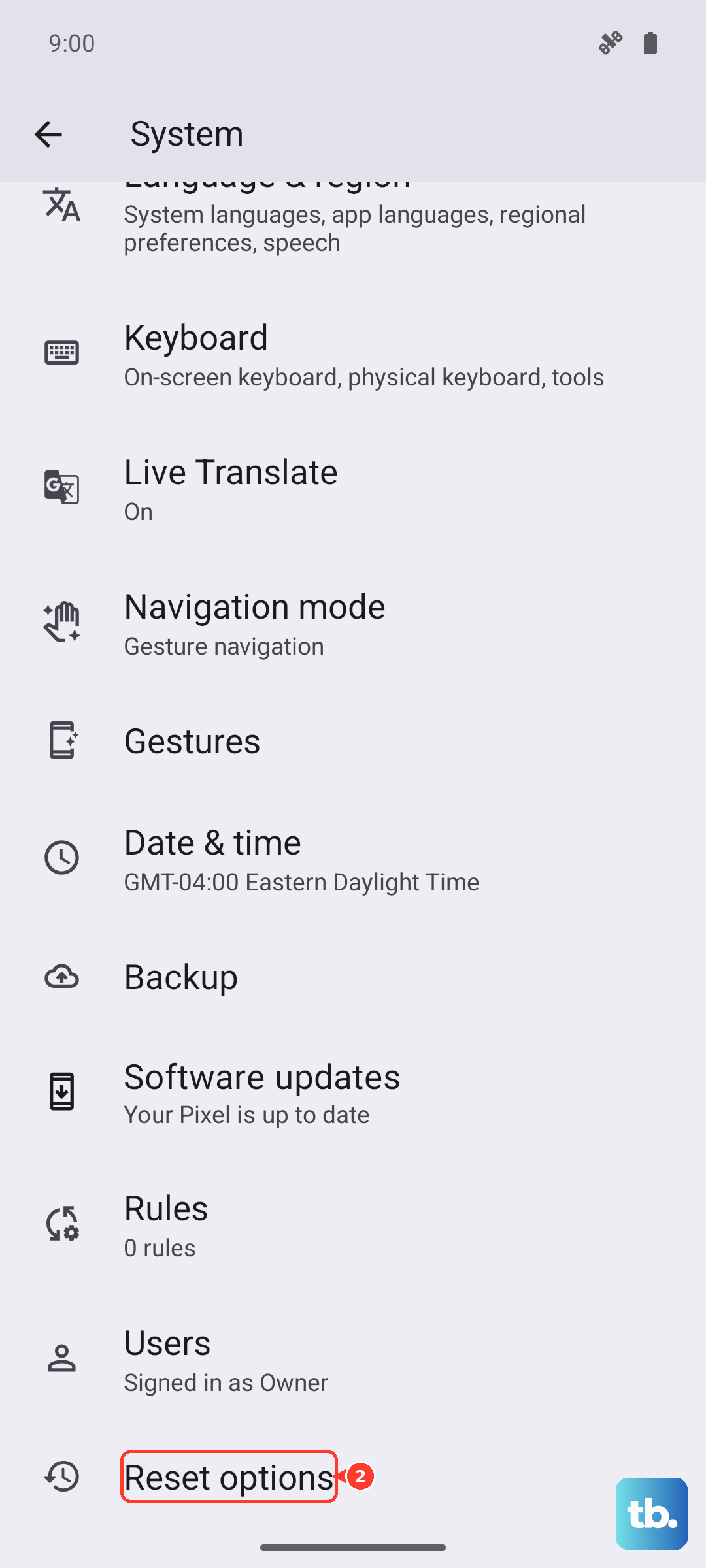
Set the phone up again, re-enroll your fingerprint, and test it.
If the sensor still fails after a clean reset, the issue is likely hardware.
At that point, contact Google support for repair.
Frequently Asked Questions
Where is the fingerprint sensor on the Pixel 9a?
The Pixel 9a uses an under-display fingerprint sensor located toward the bottom of the display, so it reads your print through the screen. When the phone is locked, a fingerprint icon appears near the lower part of the screen to show you exactly where to place your finger.
How many fingerprints can the Pixel 9a store?
You can add up to 4 fingerprints. To manage them, go to Settings > Security & privacy > Device unlock > Fingerprint & Face Unlock, where you can tap a fingerprint to delete it or tap Add fingerprint to enroll another.
Can a screen protector stop the Pixel 9a fingerprint scanner from working?
Yes. Google warns that a screen protector can stop a fingerprint from scanning, and that non-certified protectors may interfere with the function or security. Use a 'Made for Google' certified protector, apply it without air bubbles, and use the on-screen QR-code flow to recalibrate the sensor, which should improve over the first few hours or days.
What should I do while my fingerprint sensor is still failing?
Set up Face Unlock as a backup. Google recommends trying Face Unlock if you still have issues with Fingerprint Unlock, and the Pixel 9a supports it as a separate biometric, so you can keep unlocking conveniently while you troubleshoot.
Does a factory reset fix a Pixel 9a fingerprint problem?
It can if the cause is a software fault, but it should be a last resort because a factory reset erases all your data from your phone, so back up first. If the sensor still fails after a reset, the problem is likely hardware, and you should contact Google support for repair.