
When your Google Assistant stops responding to "Hey Google" on your Pixel 9, it can feel like you've lost a helpful sidekick. The assistant that's supposed to be hands-free suddenly requires hands-on troubleshooting. Here's how to get it listening and talking again.
Verify Google Assistant is Enabled
First, let's make sure the core feature is actually turned on. Open the Google app on your Pixel 9 and tap your profile picture in the top right corner. Go to Settings > Google Assistant.
In the "All settings" section, tap on Hey Google & Voice Match. Here, you need to ensure "Hey Google" is toggled on. If it's off, turn it on and you'll be prompted to retrain the voice model.
Retrain Your Voice Model
If Assistant is enabled but still not responding, retraining it can often fix the issue. This is especially true if you've had a cold, or if the phone is struggling to recognize your voice in a new environment.
In the same "Hey Google & Voice Match" menu, tap on Voice Model and then select Retrain voice model. Follow the prompts, speaking the four phrases clearly. I've found this resolves the issue about half the time when the hotword just stops working.
Check for Digital Wellbeing Interference
Android's Digital Wellbeing features can sometimes interfere with background listening. Go to Settings > Digital Wellbeing & parental controls.
Tap on Focus mode and make sure it's not currently active, as it can block certain apps. Also, check Bedtime mode settings. If it's on, tap its settings and ensure "Hey Google" is allowed to work while the mode is active.
Review Microphone Permissions
Google Assistant needs constant access to your microphone. Let's verify it has it. Go to Settings > Apps > See all apps.
Find and tap on the Google app. Go to Permissions. Under "Microphone," it should say "Allowed all the time." If it's set to "Allowed only while in use," change it. The Assistant can't listen for the hotword with this restricted permission.
Disable Battery Optimization for the Google App
Android's battery optimization can aggressively put the Google app to sleep, preventing it from listening. In the Google app's info page (Settings > Apps > Google), tap on Battery.
Set the battery usage to Unrestricted. This tells your Pixel 9 not to restrict the app's background activity, which is essential for the "Hey Google" detection to work reliably.
Test Your Microphones
Your Pixel 9 has multiple microphones for noise cancellation and clear audio. If one is blocked or faulty, voice detection can fail. Try making a quick voice recording using the Recorder app or a video.
Speak near the bottom edge, the top earpiece, and the back near the camera bar. If audio is faint or distorted in the recording, there might be a physical blockage. Gently clean the microphone ports with a soft, dry brush.
Check Your Network Connection
While basic commands can process on-device, many Assistant features require an internet connection. A weak Wi-Fi signal or mobile data issue can cause delays or a complete lack of response.
Try asking your Assistant something simple that doesn't need the web, like "Set a timer for one minute." If that works but "What's the weather?" does not, your network is likely the culprit. Toggle Airplane mode on and off to reset the radios.
Restart Your Pixel 9
A simple reboot clears out temporary software glitches that can affect system services like the Assistant. Press and hold the Power button and Volume Up button together until the power menu appears, then tap "Restart."
If the phone is completely unresponsive, you can force a restart by pressing and holding the Power button for about 30 seconds until you feel a vibration and see the Google logo.
Update the Google App and Android
Bugs in a specific version of the Google app or Android 15 itself can break voice detection. Open the Play Store, tap your profile icon, and go to Manage apps & device > Updates available.
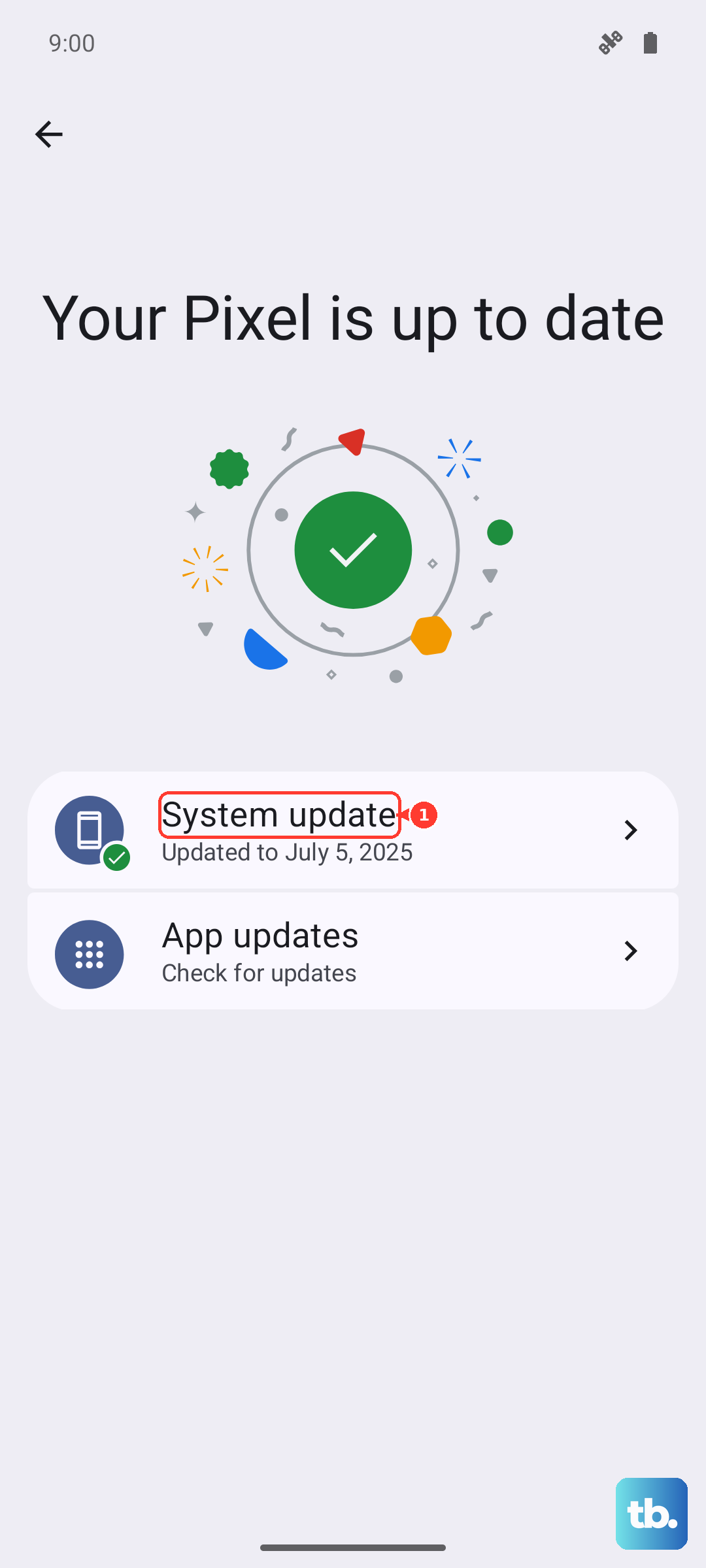
See if the Google app is listed and update it. Next, check for a system update by going to Settings > System > System update. Pixel Feature Drops, in particular, have been known to introduce and subsequently fix these kinds of issues.
Clear the Google App's Cache and Data
If the problem persists, corrupted data within the app could be the cause. Go back to Settings > Apps > Google.
Tap Storage & cache. First, tap Clear cache. This is safe and won't delete your personal data. Test the Assistant. If it still fails, go back and tap Clear storage or Manage space > Clear all data.
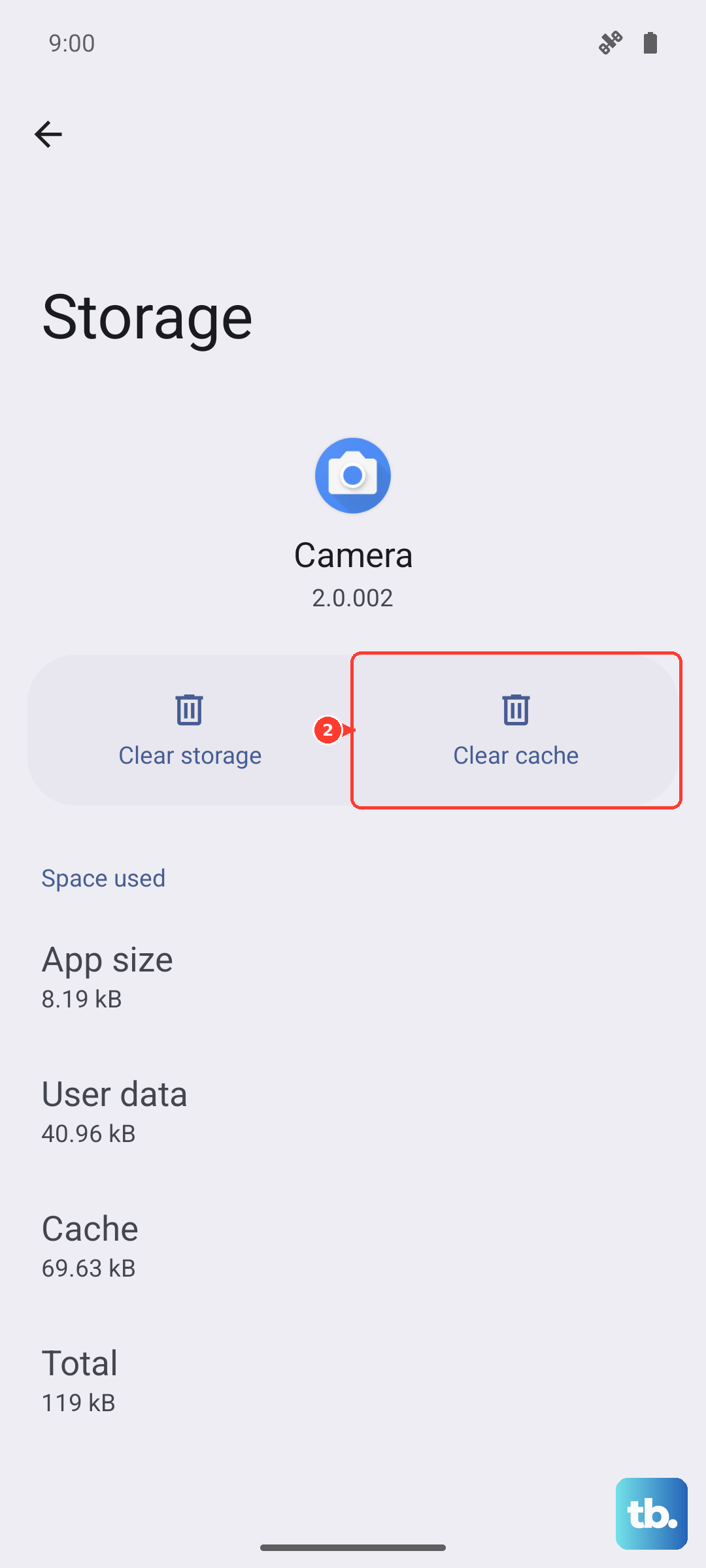
Be aware this will reset the Google app, so you'll need to sign back in and retrain your Voice Match. It's a more thorough reset that often clears stubborn bugs.











