
Hold down the power button for a full 30 seconds. Keep holding it until you see the Google logo appear on the screen. This force restart is the single most effective fix for an unresponsive touchscreen on the Pixel 9, as it clears out any temporary software glitches that are freezing the digitizer.
I'd start with this one every time. It works for most temporary freezes and doesn't delete any of your data or settings. Your phone should vibrate and restart on its own once the 30 seconds are up.
Clean the Screen and Your Hands
It sounds simple, but moisture, grease, or a dirty screen protector can completely block touch input. Use a soft, slightly damp microfiber cloth to wipe the entire screen clean. Make sure your hands are completely dry as well.
Pay special attention to the edges of the screen. If you're using a screen protector, check for any bubbles or lifting at the corners, as this can confuse the touch sensors. Sometimes, removing a cheap or damaged protector is the instant fix.
Boot Into Safe Mode
If a recently downloaded app is causing the problem, Safe Mode will tell you. First, press and hold the power button and the volume up button on your Pixel 9 together until the power menu appears on screen.
Then, tap and hold the "Power off" option. You'll see a prompt to reboot to Safe Mode. Tap "OK" to confirm. If your touchscreen works perfectly in Safe Mode, you know a third-party app is the culprit.
You'll need to restart normally to get out of Safe Mode. Then, start uninstalling apps you downloaded around the time the problem began, or use the process of elimination to find the bad one.
Check for Software Updates
Google releases monthly security updates and larger Feature Drops that often include bug fixes for touchscreen issues. To check, you need to get to Settings > System > System update.
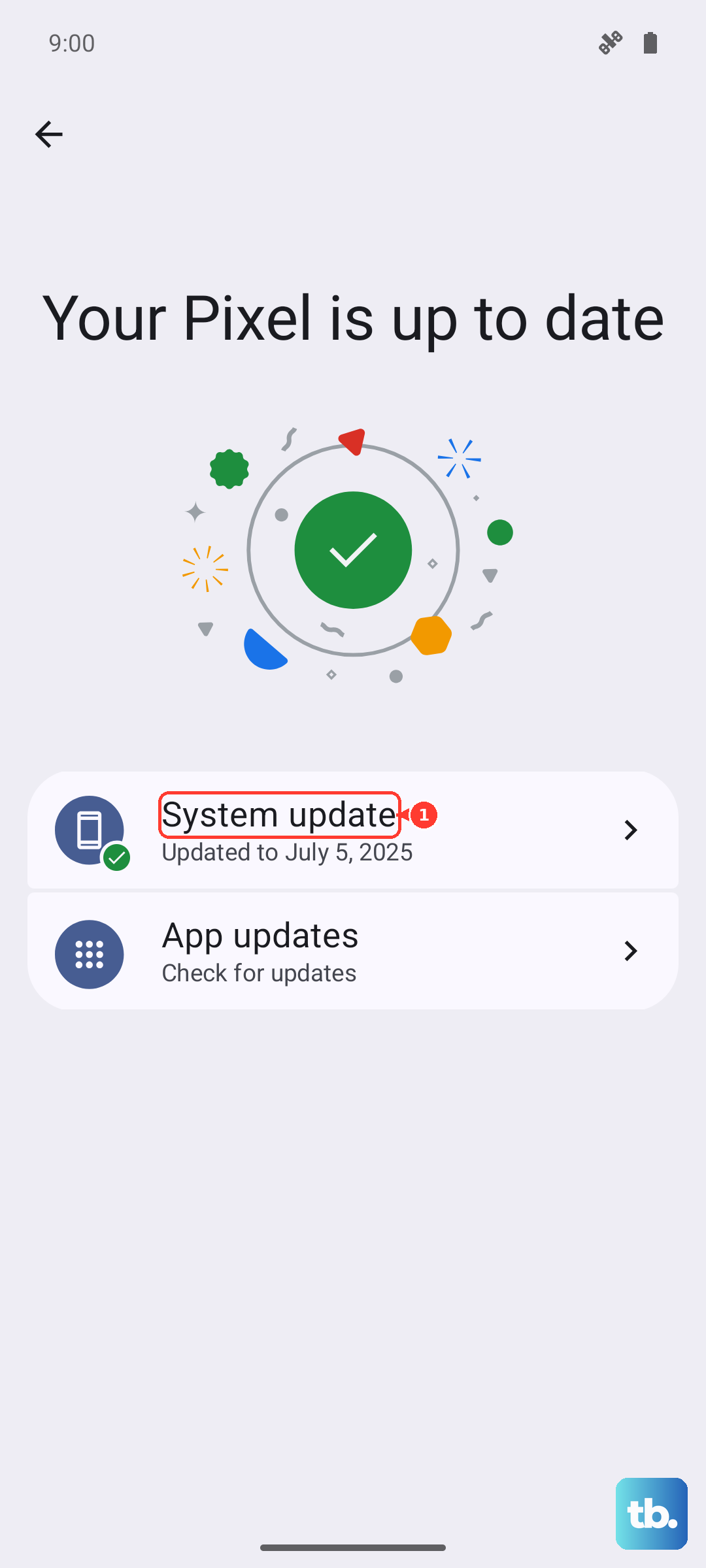
If the touchscreen is completely dead, you can sometimes use the volume buttons to navigate and the power button to select. Plugging in a USB-C mouse or using Google's "Switch Access" accessibility feature are other ways to navigate and check for updates.
Installing an available update can resolve a software bug that's crippling the touch response. Make sure your phone is connected to Wi-Fi and has plenty of battery before starting the update.
Let the Battery Drain Completely
This is a less common fix, but it can work for certain types of deep software freezes. Just let your Pixel 9 sit until the battery runs all the way down to zero and the phone turns itself off.
Once it's off, plug it into the official Google 30W charger or another reliable USB-C charger. Let it charge for at least 30 minutes without touching it, then try the 30-second force restart again.
This full power cycle can clear residual charge from the phone's memory and hardware controllers, allowing them to reset more thoroughly than a standard reboot.
Calibrate the Touchscreen
While Android doesn't have a built-in "calibration" tool like some older phones, you can use a developer option to get detailed touch feedback. First, enable Developer Options by going to Settings > About phone and tapping "Build number" seven times.
Then, go back to Settings and into System > Developer options. Scroll down and enable "Show taps" and "Pointer location." These will show visual feedback for every touch.
If you see touches registering in the wrong spot or not at all, it points to a deeper software or hardware problem. This info can be helpful if you need to contact support.
Perform a Factory Reset
This erases everything on your phone, so it's a major last resort. If you can't use the touchscreen to navigate, you can sometimes initiate it with hardware buttons. First, power the phone off completely.
Then, press and hold the volume down button and the power button together for up to 30 seconds until the Fastboot Mode screen appears. Use the volume buttons to highlight "Recovery mode" and press the power button, then at the "No command" screen press and hold power and tap volume up to open the Android Recovery menu.
Use the volume buttons to navigate to "Wipe data/factory reset" and select it with the power button. This will delete all your apps, photos, and settings, returning the phone to its out-of-box state.
Check for Physical or Liquid Damage
Look very closely at the screen for any new, even hairline, cracks you might have missed. A cracked digitizer layer underneath the glass can cause dead spots or a completely unresponsive screen.
Think about if the phone has been exposed to moisture recently. While the Pixel 9 has an IP68 rating, damage can still occur. Look for condensation under the camera lens or within the screen itself.
If you suspect physical damage, the issue is likely hardware-related. The touchscreen assembly on modern phones like the Pixel 9 is fused to the display, so repair usually means replacing the entire screen unit.