You pressed the Power button on your Pixel 9 Pro expecting your home screen, and instead the colorful "G" logo just sits there, glowing and going nowhere. A phone frozen at the boot logo feels alarming, but in most cases it means the device stalled partway through starting up rather than suffering permanent damage. The fixes below move from the safest, no-data-loss steps to the official reset and repair paths, so start at the top and only go as far down as you need.
Work through them in order. Each one rules out a likely cause, from a simple boot freeze to a drained battery, a misbehaving app, or corrupted system data, before you ever reach anything that erases your information.
Force a hard reboot to clear a stuck boot
Most logo-stuck Pixels are simply frozen mid-boot, and forcing a fresh reboot clears the hang without touching your data. This is the first thing to try because it costs you nothing and resolves the majority of these cases.
For the Pixel 9 Pro (part of the Pixel 6 and later family), the official method is to press and hold the Power button for up to 60 seconds. Once your phone begins to reboot and the screen displays the "G" logo, release the Power button. The full minute matters, so do not let go early if nothing has happened yet.
If your screen is on but completely frozen instead of cycling, the official guidance is to hold down the power button for about 30 seconds to restart. Give the phone a moment after release to load fully before you judge whether it worked.
Charge the phone, then try a longer hard reboot
A dead or very low battery can leave the phone stalling at the logo because it does not have the power to finish booting. A short charging session followed by a longer power hold often gets a flat Pixel moving again.
- 1.Remove any case so nothing blocks the charging port or interferes with the cable.
- 2.Inspect the USB-C port for lint, dust, or debris that could stop a solid connection.
- 3.Plug into a known-good cable and a Google 30 W USB-C power adapter or other programmable power supply (PPS) adapter rated for 30 W or more, or another USB power delivery (PD) adapter rated for 15 W or more.
- 4.Let it charge for several minutes before trying anything else.
If no battery icon appears after charging, the official guidance is to reboot by pressing and holding the Power button for about 35 seconds. Patience here is important, because a deeply drained battery needs time before the screen comes back.
Check whether the phone is actually powered on
Sometimes the screen stays dark even after charging and a 35-second hold, and it is worth confirming the phone is genuinely on before you assume a charging fault. A dark screen on a running phone is a very different problem from a phone that will not power up at all.
To test this, call the phone from another device, or use Find Hub (Google's official locate and ring service) to make it ring. If it rings, the phone is powered on and the trouble is with the screen or the boot process, which points you back toward the freeze and reset steps rather than the charging steps.
Install any pending software update once it boots
If a force restart gets you past the logo and into the system, a pending update can patch the very boot-stability bug that caused the freeze. Installing it promptly reduces the chance the phone hangs again on the next restart.
Go to Settings > System > Software update and follow the prompts to download and install whatever is waiting. While you are in there, it is also worth opening Settings > Storage and clearing space if the device is nearly full, because a system that is short on free storage can struggle to operate normally.
Boot into Safe mode to rule out a bad app
If the phone makes it past the logo but then freezes or loops once your apps load, a downloaded app may be to blame. Safe mode temporarily turns off all downloaded apps, which lets you see whether the phone behaves when only built-in software is running.
If the Pixel runs cleanly in Safe mode, the culprit is almost certainly something you installed. Restart the phone normally, then remove recently downloaded apps one at a time, restarting between each removal so you can pinpoint exactly which app caused the problem.
Use Fastboot and Recovery mode when it never reaches the home screen
When the phone is too stuck to open Settings at all, you can reach Google's built-in maintenance tools directly with the hardware buttons. This gives you a way in even when the operating system itself will not load.
To enter Fastboot mode on the Pixel 9 Pro, press and hold the Volume down and Power buttons at the same time for up to 30 seconds until the Fastboot mode screen shows. From the Fastboot screen you can reach Recovery Mode, which is where the manual reset options live if the earlier steps have not worked.
If you only need to confirm the phone can still respond to button input, reaching this screen is already useful proof. From here, the next two steps cover the actual reset, which erases data, so go further only if you have exhausted the non-destructive fixes above.
Factory reset through Settings if it keeps freezing
If the phone boots but keeps freezing or dropping back to the logo, a factory reset is the last software fix Google offers. This erases everything, so treat it as a serious step rather than a quick try.
Warning: A factory reset erases all your data from your phone. Back up your data first if you possibly can. Google account data can be restored afterward, but your apps and their data are uninstalled and will need to be set up again.
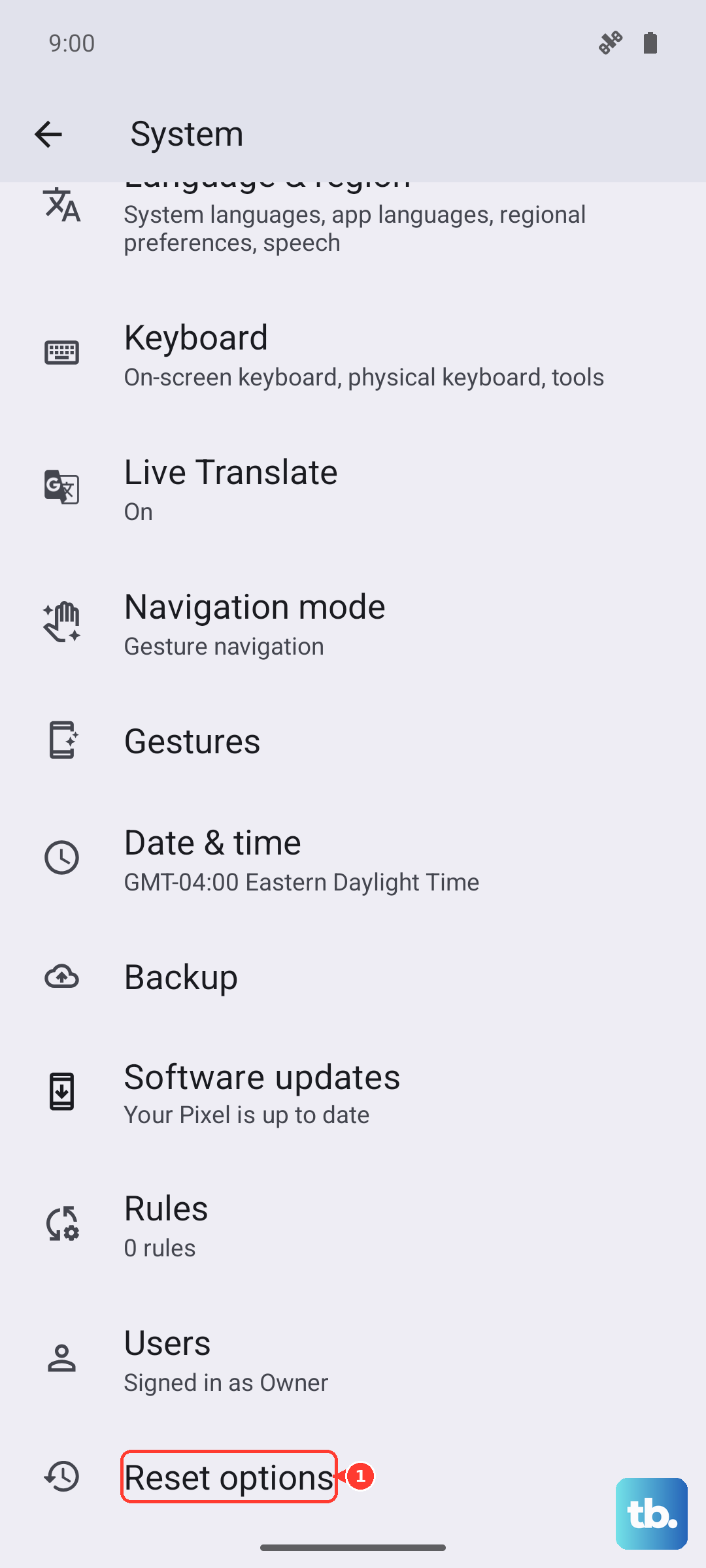
Before you begin, charge the phone and connect it to Wi-Fi or mobile data, then give the process time to finish. The path is Settings > System > Reset options > Erase all data (factory reset). Follow the on-screen confirmations to complete it.
Reset through Recovery mode, then check repair options
If you cannot open Settings at all, you can still factory reset the phone through Recovery mode. As with the Settings reset, this erases all data on the device, so understand that going in.
- 1.Enter Fastboot mode (Volume down and Power held together for up to 30 seconds), then select "Recovery Mode."
- 2.At the "No command" screen, hold the Power button and press Volume up, then release.
- 3.Under Android Recovery, choose "Wipe data/factory reset."
- 4.Confirm "Factory data reset."
- 5.Select "Reboot system now" once the wipe completes.
If the Pixel 9 Pro still will not boot after a full Recovery-mode reset, the problem is most likely hardware rather than software. At that point, check your warranty along with Google's repair and replacement options, since a stuck-on-logo phone that survives a clean wipe usually needs a service technician rather than another reboot.
Frequently Asked Questions
Will any of these fixes erase my data?
The first six steps (force restart, charging, confirming power, updating software, Safe mode, and entering Fastboot or Recovery to look) do not erase your data. Only the last two, the factory reset through Settings and the manual reset through Recovery mode, wipe everything, and both carry the warning that a factory reset erases all your data from your phone.
How long should I actually hold the Power button to force a restart?
For the Pixel 9 Pro, press and hold the Power button for up to 60 seconds and release it once the screen shows the "G" logo and begins to reboot. If the screen is frozen but on, hold for about 30 seconds; if the phone will not turn on after charging and shows no battery icon, hold for about 35 seconds.
My screen stays black even after charging. Is the phone dead?
Not necessarily. Try calling the phone or using Find Hub to make it ring; if it rings, the phone is powered on and the issue is with the screen or boot rather than a dead battery, which means you should focus on the restart and reset steps instead of the charging steps.
What charger does Google recommend for a Pixel 9 Pro that will not charge?
Use a Google 30 W USB-C power adapter or another programmable power supply (PPS) adapter rated for 30 W or more, or any USB power delivery (PD) adapter rated for 15 W or more. Pair it with a known-good cable, remove the case, and check the port for debris before charging.
What if the phone still gets stuck on the logo after a factory reset?
If the Pixel 9 Pro will not boot even after a complete Recovery-mode factory reset, the cause is most likely a hardware fault. At that stage, check your warranty and look into Google's repair and replacement options, because no further software step is likely to fix it.