You unlock your Pixel 9 Pro and the screen starts shimmering, with faint horizontal lines, a brief stutter in the brightness, or a flicker that comes and goes as you scroll. On a phone built around a Super Actua OLED panel that shifts between 1 and 120 Hz, that kind of visual instability is hard to ignore, and it leaves you wondering whether it is a passing software hiccup or the start of a real display problem. The good news is that most flicker is fixable from the Settings app, and Google has a clear order of steps to follow before you ever need to think about a repair.
It is worth viewing a few test patterns from a online monitor test before changing hardware. Faults that persist across every pattern point firmly at the display itself.
Work through the fixes below in order. They start with the quickest, safest things to try and move toward the official reset and repair path only at the end, so you avoid wiping data or booking a repair before you have to.
Start With a Clean Restart
A flicker is very often a temporary software glitch rather than a failing panel, and a simple restart clears it more often than you would expect.
Restarting drops the running processes and reloads the display stack from scratch, which is exactly what a transient rendering fault needs.
Use the official restart sequence for Pixel 6 and later, which includes the Pixel 9 Pro.
Press and hold the Power button and the Volume up button for a few seconds.
Tap Restart.
Give the phone a minute to come back up, then watch the screen during normal use to see whether the flicker returns.
If it is gone, you are done.
Force a Reboot When the Screen Is Too Erratic to Tap
Sometimes the flickering is bad enough that you cannot reliably tap Restart, or the screen has become unresponsive altogether.
In that case you can force the phone to reboot using the Power button alone.
Press and hold the Power button for up to 60 seconds.
Once the phone begins to reboot and the screen displays the "G" logo, release the Power button.
Do not assume a fixed shorter hold. The official instruction is to keep holding for up to 60 seconds until that "G" logo appears.
If your screen will not come on at all, there is a separate recovery move.
With your phone plugged in, press and hold both the Volume up button and the Power button at the same time for at least 20 seconds.
Install Any Waiting Software Update
This is Google's first official fix aimed specifically at a screen that flickers, shows a green tint, or shows horizontal or vertical lines.
Display drivers and rendering code are updated through system software, so a pending update can resolve a flicker that no amount of restarting will.
Open your phone's Settings app.
Select System and then System update.
Install any updates.
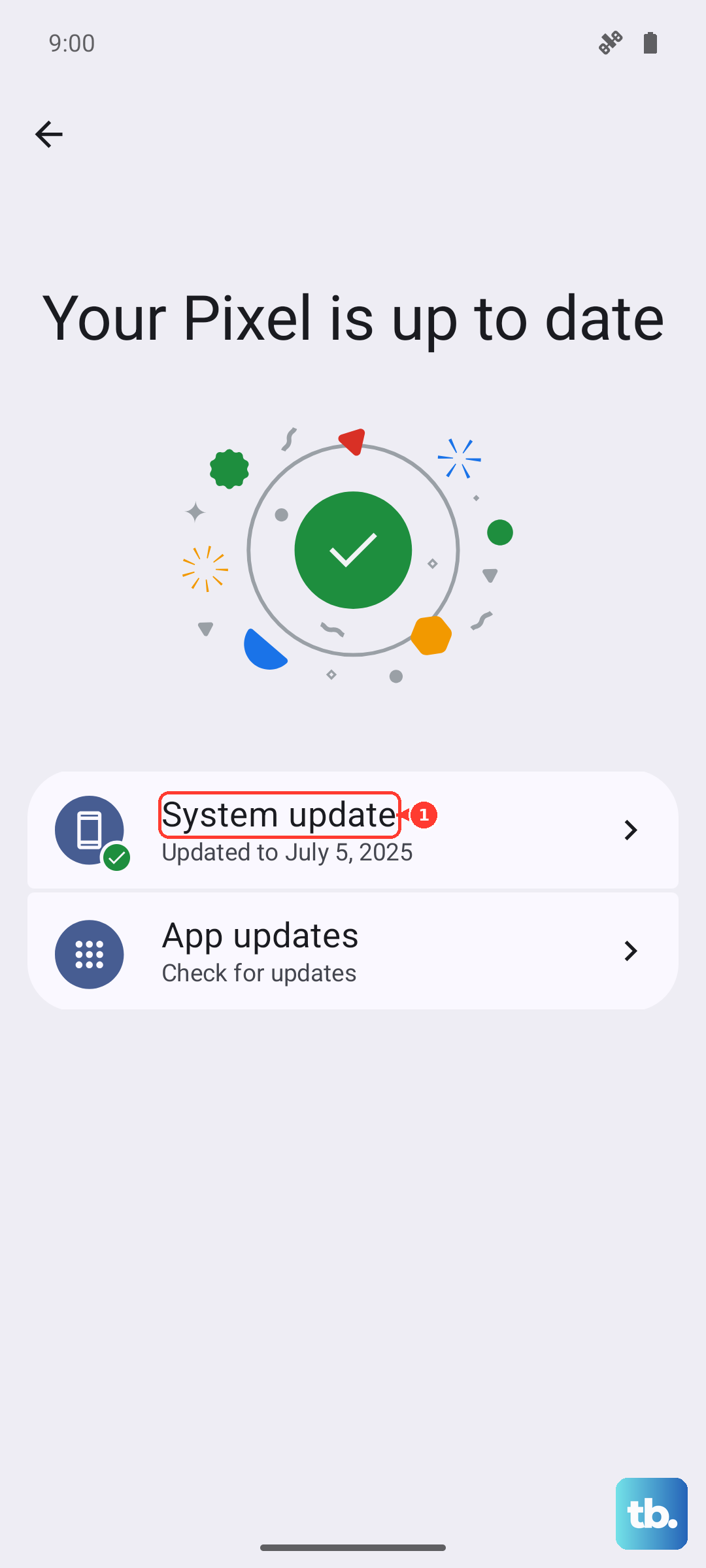
The Pixel 9 Pro shipped with Android 14 and receives 7 years of OS, security, and Pixel Drop updates, so it can move up to later versions such as Android 15 through this same path.
To confirm what you are currently running, go to Settings, then About phone, then Android version, where you can also see your security update status and build number.
Rule Out Brightness Behavior
Rapid automatic brightness shifts can read as flicker, especially in mixed or changing lighting where the panel keeps re-adjusting.
Before you suspect the hardware, it is worth seeing whether the flicker is tied to how the brightness is being controlled.
Go to Settings, then Display & touch.
Adaptive brightness automatically fits your screen's brightness to the light around you and is on by default.
Try toggling it off.
Then set a steady level yourself using Brightness level and moving the slider.
Watch the screen for a while at that fixed brightness.
If the flicker stops once auto-adjustment is out of the picture, you have found a comfortable workaround and ruled out a deeper fault.
Test Smooth Display and Dark Theme
The Pixel 9 Pro's panel runs between 1 and 120 Hz, and a high refresh rate or a very bright background can sometimes be involved in how a flicker presents.
Toggling these display options is a quick, non-destructive way to see whether either one changes what you are seeing.
Still under Settings, then Display & touch, find Smooth Display and toggle it.
Note that it increases battery usage when enabled.
Next, turn on Dark theme, which darkens the background on some of your phone's screens and can be set to turn on automatically at certain times.
With the refresh rate and background changed, run the phone through the apps where you usually notice the flicker.
If the behavior shifts or settles, you have a useful clue about what conditions trigger it.
Boot Into Safe Mode to Check for a Rogue App
A misbehaving downloaded app can interfere with how the screen draws, and Safe mode is the official way to test for that.
Safe mode starts the phone without any of your downloaded apps, so if the flicker disappears there, an installed app is the likely culprit.
Before you start, note that Safe mode removes some Home screen widgets.
If you use widgets, take a screenshot of your layout first so you can rebuild it afterward.
Press and hold the Power and Volume Up buttons for a few seconds.
Tap and hold either the Power off or Restart button.
Tap OK.
Wait until "Safe mode" appears at the bottom of your screen.
Use the phone normally in this state.
If the flicker is gone, exit Safe mode by pressing and holding the Power button and Volume up button for a few seconds and then tapping Restart.
Then remove recently downloaded apps one at a time, restarting after each, until the flicker stays away.
Back Up and Factory Reset as the Final Software Step
If the flicker persists and still seems software-related after everything above, a factory reset is the last in-software measure to try.
This is a significant step, so treat it carefully.
A factory reset erases all your data from your phone, so back up everything you want to keep first.
Before you begin, charge the phone to at least 70%.
Connect it to Wi-Fi or your mobile network.
Then follow the official procedure.
- 1.Open Settings, then go to System, then Reset options, then Erase all data (factory reset).
- 2.Tap Erase all data.
- 3.Enter your PIN if prompted.
- 4.Confirm Erase all data.
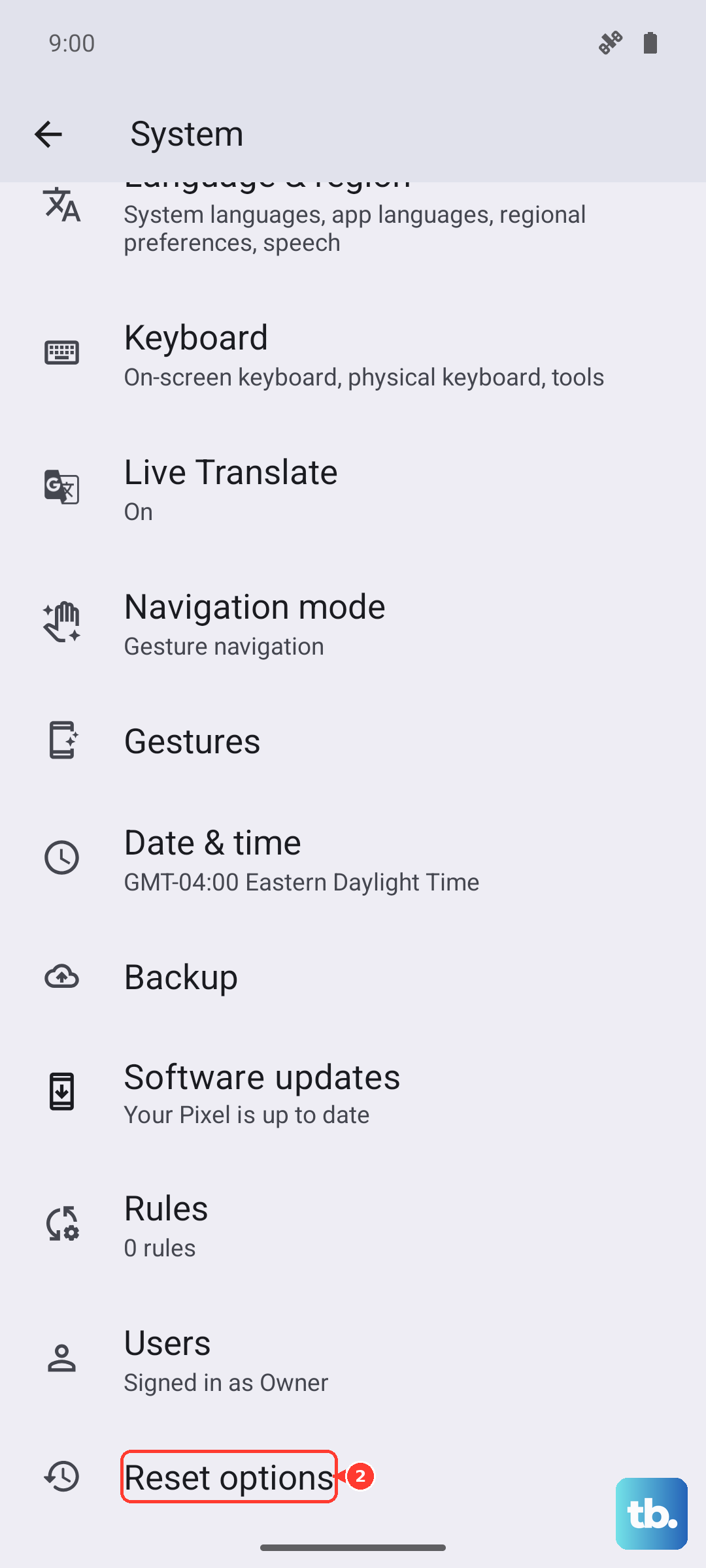
Once the phone finishes, set it back up.
Watch the display before restoring a large backup, so you can tell whether the reset itself cleared the problem.
When to Treat It as Hardware and Book a Repair
Google states that a screen that flickers, shows a green tint, or shows horizontal or vertical lines may be a hardware issue.
If you have updated the software and worked through the steps above without success, it is reasonable to stop troubleshooting and get the phone looked at.
You can start a repair through Google Store repair services.
Select your device or enter the IMEI or serial number.
Select the issue.
Then choose in-store service or mail-in repair.
Before you send the phone anywhere, back up your data.
Remove the SIM card so a flickering panel reaches someone who can confirm whether the display hardware needs service.
Frequently Asked Questions
Is screen flickering on the Pixel 9 Pro a sign of a hardware fault?
Not always. A flicker is often a temporary software glitch that a restart or a software update clears. However, Google does note that a screen that flickers, shows a green tint, or shows horizontal or vertical lines may be a hardware issue, so if the software steps do not help, it is worth getting the phone checked or repaired.
Could Adaptive brightness be causing what looks like flicker?
It can. Adaptive brightness automatically fits your screen's brightness to the light around you and is on by default, and rapid auto-adjustments can look like flicker in changing light. You can test this by going to Settings, then Display & touch, turning Adaptive brightness off, and setting a steady level with the Brightness level slider.
How do I force restart a Pixel 9 Pro if the screen is unresponsive?
Press and hold the Power button for up to 60 seconds. Once the phone begins to reboot and the screen displays the "G" logo, release the Power button. If the screen will not come on at all, plug the phone in and press and hold both the Volume up button and the Power button at the same time for at least 20 seconds.
Will a software update really fix a flickering screen?
It can, and it is Google's first official fix for a flickering screen, green tint, or lines. Open the Settings app, select System and then System update, and install any updates. You can check your current version under Settings, then About phone, then Android version.
What should I do before sending my Pixel 9 Pro in for repair?
Back up your data and remove the SIM card first. Then go to Google Store repair services, select your device or enter the IMEI or serial number, select the issue, and choose in-store service or mail-in repair.