You press the power button, the white screen with the colorful "G" logo appears, and then nothing happens. Your Pixel 8 just sits there on the boot animation, sometimes for minutes, sometimes looping back to the logo over and over. It is one of the more nerve-wracking things a phone can do, because you cannot reach your apps, your photos, or even the lock screen to tell what went wrong.
The good news is that a phone hung on the boot logo is usually recoverable, and most of the fixes below cost you nothing and risk nothing. Work through them in order, starting with the safe, non-destructive options, and only move to a full reset if the gentler steps fail. Here is how to get a Pixel 8 unstuck and booting normally again.
What a stuck boot logo actually means
When your Pixel 8 freezes on the "G" logo, the phone has powered on but cannot finish loading Android. That can be caused by a momentary software hang, a deeply drained battery, a buggy update, or a downloaded app that crashes the system during startup. Because the cause is rarely obvious from the outside, the smart approach is to rule out the simple, reversible causes first before you erase anything.
1. Force a hard restart from the boot screen
A forced restart is the first and safest thing to try, and it clears the kind of temporary software hang that traps a phone on the logo. No data is lost, so there is no reason to skip it.
Press and hold the Power button for up to 60 seconds.
Once your phone begins to reboot and the screen displays the "G" logo, release the Power button.
Google's separate guidance for a frozen phone phrases this a little differently. If your phone is frozen with the screen on, hold down the Power button for about 30 seconds to restart. Either way, the key is to keep holding well past the point where you would normally expect something to happen, then let go as the logo reappears.
2. Charge it, then power it on again
A battery that has drained to nearly empty can stall the boot process, and the phone may show the logo without ever having enough power to finish. Giving it a proper charge often solves the problem on its own.
Remove any case from the phone.
Check that there is nothing in the port of your phone, like dust or lint.
Use a working charger to charge your phone for 10 minutes. If the battery was very low, allow several minutes of charging before the screen will power on at all.
Press and hold your phone's Power button for 5-7 seconds to start it.
Use a charger, cable, and wall outlet you know are good. A faulty cable or a dead outlet can mimic a stuck-boot problem when the real issue is simply that no power is reaching the phone.
3. Install any pending software update
If your Pixel 8 manages to reach the home screen between reboots, even briefly, install any waiting update. Software updates frequently include fixes for boot and stability bugs, and the Pixel 8 is officially eligible for ongoing Android updates through Android 16, with seven years of OS, security, and Feature Drop updates from its launch.
Open your device's Settings app.
Tap System and then Software update or System update.
Follow the on-screen instructions to download and install.
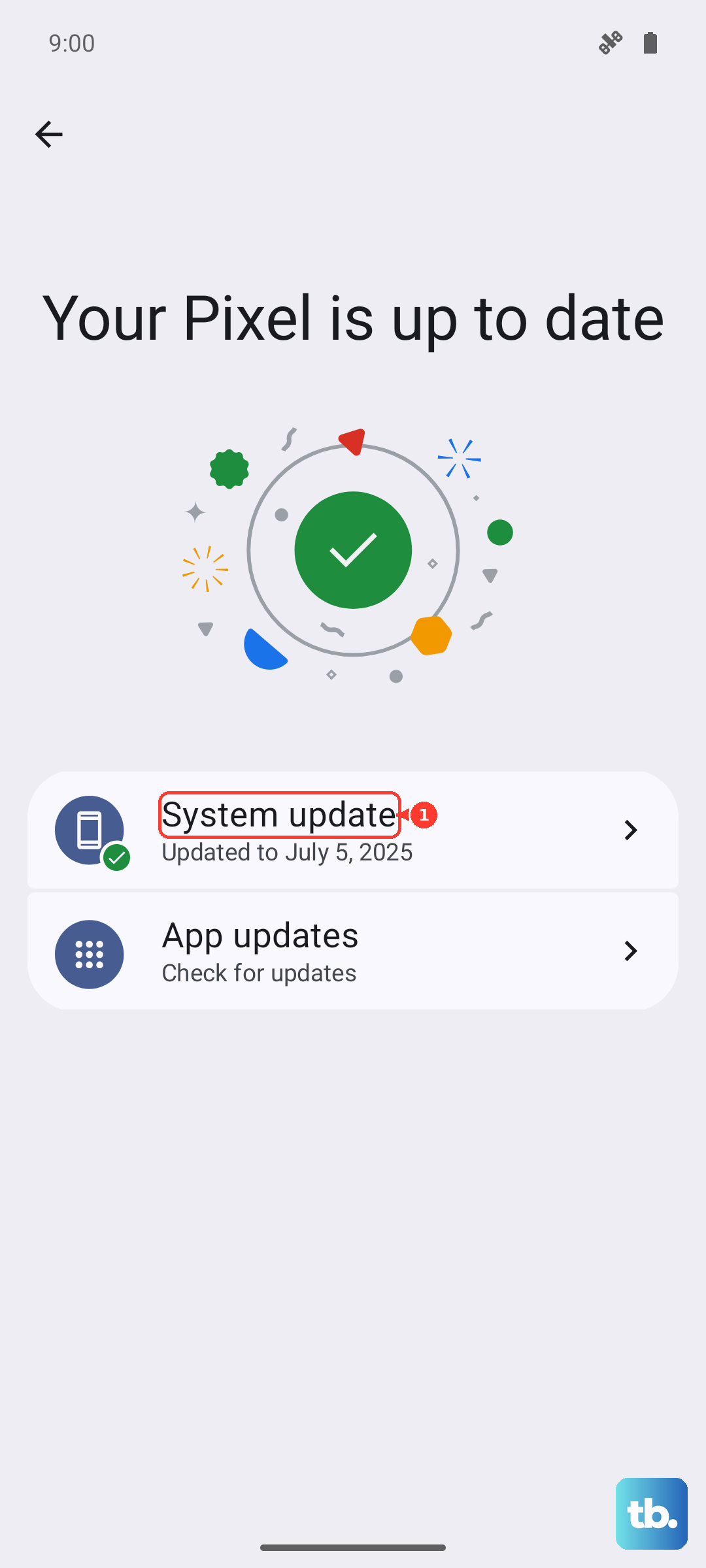
To confirm which version you are currently running, open the Settings app, tap About phone, and then Android version. Keep the phone charged and connected to Wi-Fi while the update installs so it does not interrupt midway.
4. Boot into Safe mode to expose a bad app
Safe mode temporarily turns off every app you have downloaded, leaving only the software the phone shipped with. If your Pixel 8 boots cleanly in Safe mode, you know a downloaded app is the culprit behind the crashes or boot loop.
Power the phone off.
Press and hold the Power and Volume Up buttons for a few seconds.
Tap and hold either the Power off or Restart option until "Safe mode" appears at the bottom of the screen.
If the problem disappears in Safe mode, a downloaded app is to blame. Restart normally afterward, then move on to the next fix to track down and remove the offending app.
5. Free up storage and remove recent installs
A Pixel that is critically low on storage can misbehave during startup. Google notes that issues can occur when less than 10% of storage is available, so clearing space is worth doing before anything drastic.
Open Settings, then Storage, to see how much room is left, and clear out files or apps you no longer need if you are running low. If a particular app started the trouble, especially one you installed right before the boot problems began, this is the time to remove it.
After restarting the phone normally, uninstall recently downloaded apps one at a time, restarting after each removal. Working through them individually lets you pinpoint exactly which app was causing the crash without wiping anything you want to keep.
6. Erase the phone from Settings
If the Pixel 8 still boots far enough to open Settings but remains unstable no matter what you try, a factory reset gives it a clean slate. This step erases everything, so treat it as a deliberate last resort among the software fixes.
Warning, a factory reset erases all your data from your phone. Before you begin, back up your data to your Google Account and charge the phone to at least 70%.
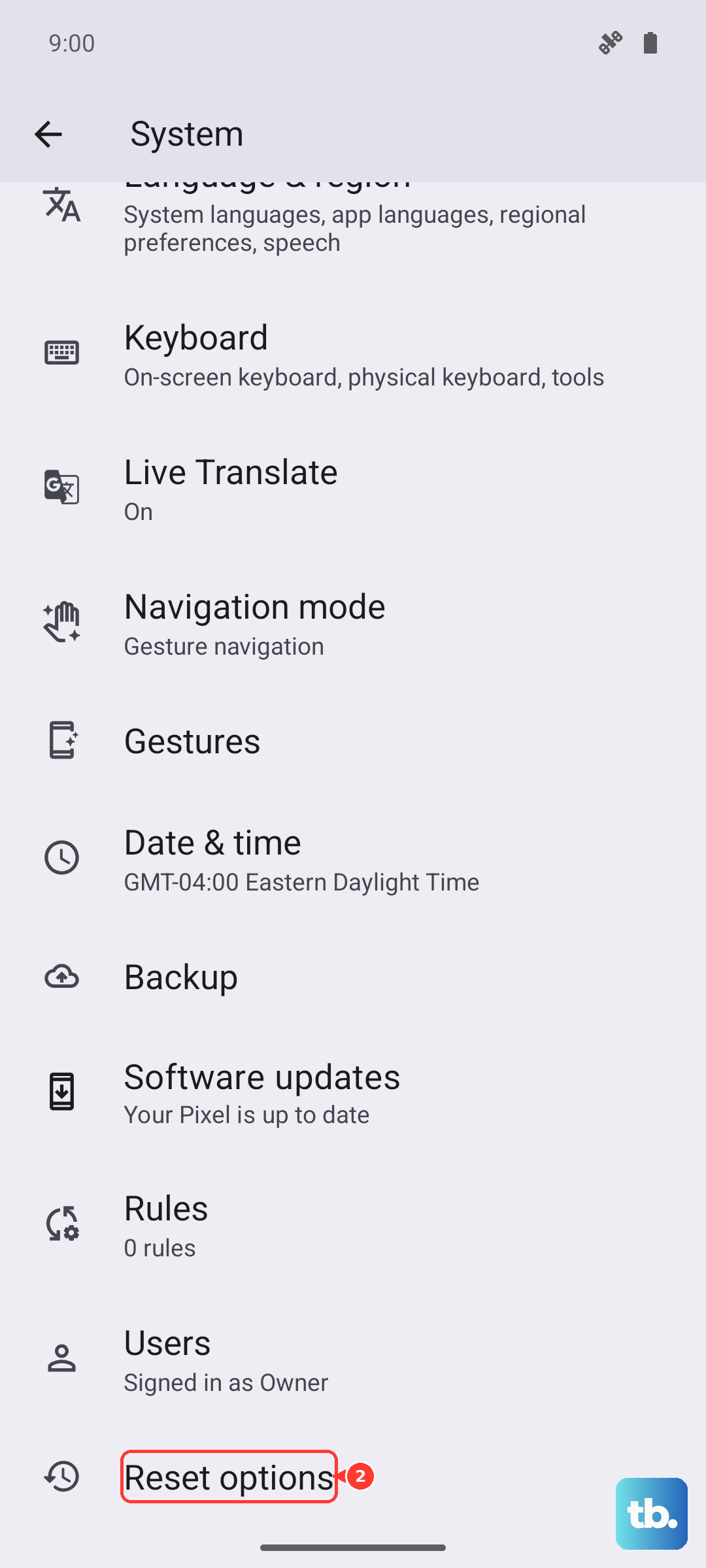
Open Settings and go to System, then Reset options.
Tap Erase all data (factory reset), then Erase all data.
Enter your PIN if prompted, then tap Erase all data again to confirm.
The phone will wipe itself and restart as if it were new. When it comes back up, sign in with the same Google Account to restore the data you backed up.
7. Run a factory reset from Recovery mode
When you cannot reach Settings at all because the phone never gets past the logo, you can still reset it using the hardware buttons. This also erases everything on the phone, so it is for situations where nothing else has worked and the phone is otherwise unusable.
Warning, this wipes all of your data, and because the phone will not boot you may not be able to back it up first. Use it only as a last resort.
- 1.Press and hold the Volume down and Power buttons at the same time for up to 30 seconds until the Fastboot mode screen shows.
- 2.Press the Volume up or Volume down buttons until "Recovery Mode" is displayed, then press the Power button.
- 3.At the "No command" screen, press and hold the Power button while pressing the Volume up button, then let go of both buttons quickly.
- 4.Under Android Recovery, select "Wipe data/factory reset," then "Factory data reset."
- 5.When the screen shows "Data wipe complete," select "Reboot system now."
The phone will erase all of its data and boot back into the initial setup. As with the Settings-based reset, signing back into your Google Account restores whatever was saved to the cloud.
8. Get the phone serviced by Google or an authorized center
If your Pixel 8 still will not get past the logo even after a reset, or it rings and buzzes but the screen stays blank, the problem is likely hardware and the phone needs professional attention. At that point, no amount of button-pressing will fix it.
Google directs owners to contact a local authorized repair center or to check their warranty and repair options through official support. Have your purchase details and any warranty information ready so the repair process goes smoothly.
Frequently Asked Questions
Will a forced restart delete my photos or apps?
No. Holding the Power button to force a restart simply reboots the phone and does not touch your data. The only steps in this guide that erase data are the two factory resets, both of which carry an explicit warning.
How long should I hold the Power button if the screen is frozen?
For a Pixel 8, press and hold the Power button for up to 60 seconds and release it once the "G" logo appears. Google's frozen-phone guidance also describes holding the Power button for about 30 seconds when the screen is on, so do not let go too early.
What is the "No command" screen and is something broken?
The "No command" screen is a normal step on the way into Recovery mode, not an error. To move past it, press and hold the Power button while pressing the Volume up button, then let go of both buttons quickly to reach the recovery menu.
Do I need to charge the phone before a factory reset?
Yes. Before performing a factory reset, back up your data to your Google Account and charge the phone to at least 70% so it does not power off partway through the wipe.
My Pixel 8 vibrates but the screen stays black. What now?
If the phone responds in some way, such as ringing or buzzing, but the display never turns on even after a reset, that points to a hardware fault. Contact Google or a local authorized repair center to have it serviced.