
Press and hold the Power button for a full 30 seconds. Keep holding it even if you feel a vibration or see the screen flicker. This force restart is the most common fix for an unresponsive Pixel 8 touchscreen, especially if it happened after an app update or a system glitch.
If touches seem to go missing, run an online touch screen test first. The grid fills in wherever the screen registers contact, so gaps stand out immediately.
I'd start with this one every time. The phone should power back on normally once you release the button. If the screen is still black or frozen after this, move on to the next steps.
Clean the Screen and Check for Damage
Power the phone off completely and give the screen a thorough clean with a soft, slightly damp microfiber cloth. Sometimes oils, lotion, or a screen protector that's lifting at the edges can interfere with the touch sensors.
Inspect the screen closely for any new cracks, even hairline ones, especially around the edges. Physical damage is a common reason for touch failure. Also, try removing any third-party case, as some poorly designed cases can press on the screen's bezel and disrupt touch sensitivity.
Boot Into Safe Mode
This tells you if a recently downloaded app is causing the problem. First, power off your Pixel 8. Then, press and hold the Power button until you see the Google logo appear on the screen.
As soon as you see the logo, release the Power button and immediately press and hold the Volume Down button. Keep holding it until the animation finishes and you see "Safe mode" in the bottom corner. If the touchscreen works perfectly in Safe Mode, you've got a problematic app. You'll need to uninstall apps one by one, starting with the most recent downloads, to find the culprit.
Update Your Software
Outdated software can have bugs that affect the touchscreen. Google has released firmware fixes for various issues, including some related to touch responsiveness. Connect to Wi-Fi and go to Settings > System > System update to check for and install any available updates.
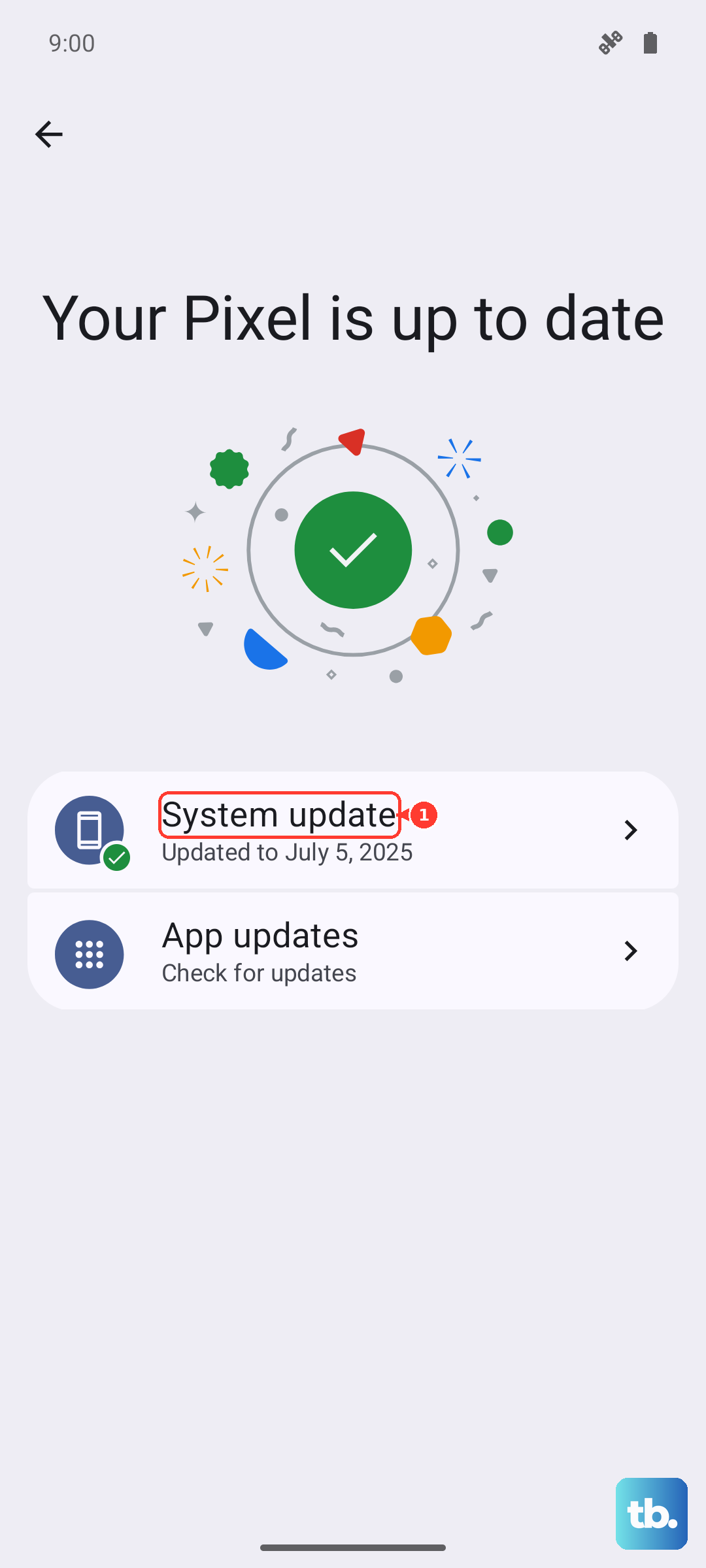
Make sure your phone is charged above 50% or plugged into its 27W charger during the update. If you can't navigate the touchscreen to check, you can try updating via a computer using Android Flash Tool, but that's a more advanced process.
Check for Overheating
The Pixel 8 can throttle performance or disable certain features if it gets too hot. If your phone feels very warm to the touch, especially near the camera bar, turn it off and let it cool down completely in a shaded spot.
Avoid using it while fast charging in a warm environment, as this combination is a known trigger for overheating. Once it's back to a normal temperature, try the force restart again. The touchscreen should return to normal if overheating was the cause.
Calibrate the Touchscreen
While Android doesn't have a built-in "calibration" menu like some older phones, you can use a developer option to get a visual aid. First, enable Developer Options by going to Settings > About phone and tapping "Build number" seven times.
Then, go back to Settings, enter "Developer options," and find "Show taps" or "Pointer location." Turning these on will show visual feedback for your touches. This doesn't technically calibrate anything, but it helps you verify if the phone is detecting touches incorrectly (like registering a tap in the wrong spot).
Perform a Factory Reset
This erases all your personal data, so it's a last resort. If you can still navigate the settings, back up your data first. Then, go to Settings > System > Reset options > Erase all data (factory reset).
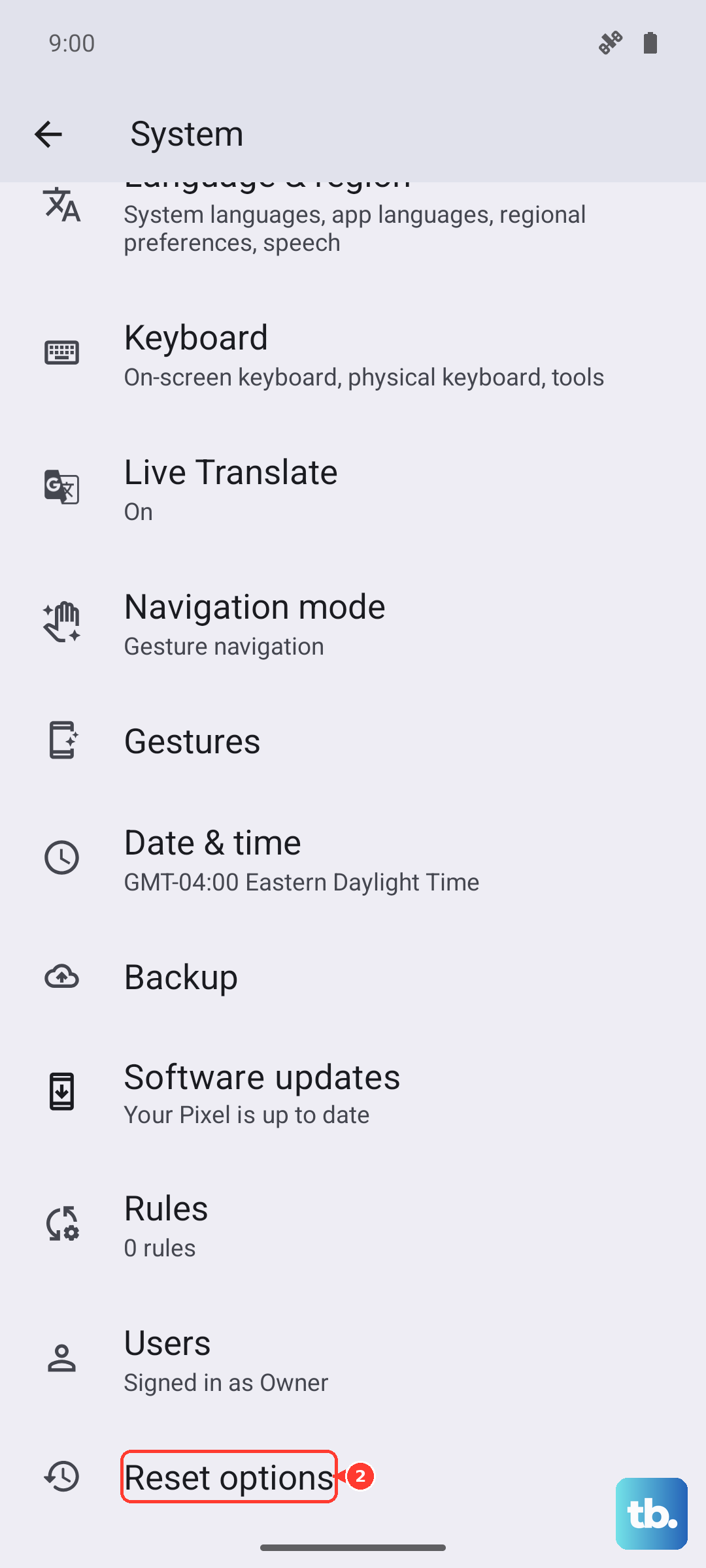
If the touchscreen is completely dead, you can try resetting via recovery mode. Power off the phone, then press and hold the Power and Volume Down buttons together. Use the volume buttons to navigate to "Recovery mode" and select it with the Power button. When you see the Android robot with an exclamation mark, hold Power and tap Volume Up once to see the menu, then navigate to "Wipe data/factory reset."
Inspect the USB-C Port
While less common for touch issues, intermittent connection problems with the USB-C port have been reported on some Pixel 8 units. Debris in the port could theoretically cause a short that affects other components.
Shine a light into the charging port and look for any packed lint or dirt. Carefully clean it out with a dry, non-metallic tool like a plastic toothpick. Avoid using compressed air, as it can push debris further in. After cleaning, try the force restart one more time.