You set up your Google Pixel 8 to share its connection with a laptop or tablet, but the other device either cannot see the network, refuses the password, or connects and then loads nothing. A hotspot that fails like this is frustrating because the phone itself usually has a perfectly good signal, so the problem is almost always a setting, a carrier permission, or a temporary glitch rather than broken hardware. The good news is that your Pixel 8 fully supports a built-in Wi-Fi hotspot, plus Bluetooth and USB tethering, so the fix is nearly always something you can sort out yourself.
Work through the steps below in order. They start with the quickest, safest checks and only move toward resets and a factory reset at the very end, so most people never need to reach that far.
Confirm your plan actually includes tethering
Before you touch a single setting, rule out the one cause no on-device change can fix. Google states plainly that some mobile carriers limit or charge extra for tethering, and recommends checking with your carrier. If your plan does not include tethering, the hotspot can switch on and broadcast a name, yet it will not pass any data to a connected device.
Contact your carrier or check your account online to confirm tethering is enabled and that you have data allowance left. Doing this first saves you from chasing a phone setting when the block is actually on the account.
Switch the Wi-Fi hotspot off and on the proper way
A clean toggle re-establishes the connection and clears a surprising number of one-off failures. The point is to use the correct path so you are confident the feature is genuinely on.
Open Settings > Network & internet > Hotspot & tethering > Wi-Fi hotspot, then turn on Wi-Fi hotspot.
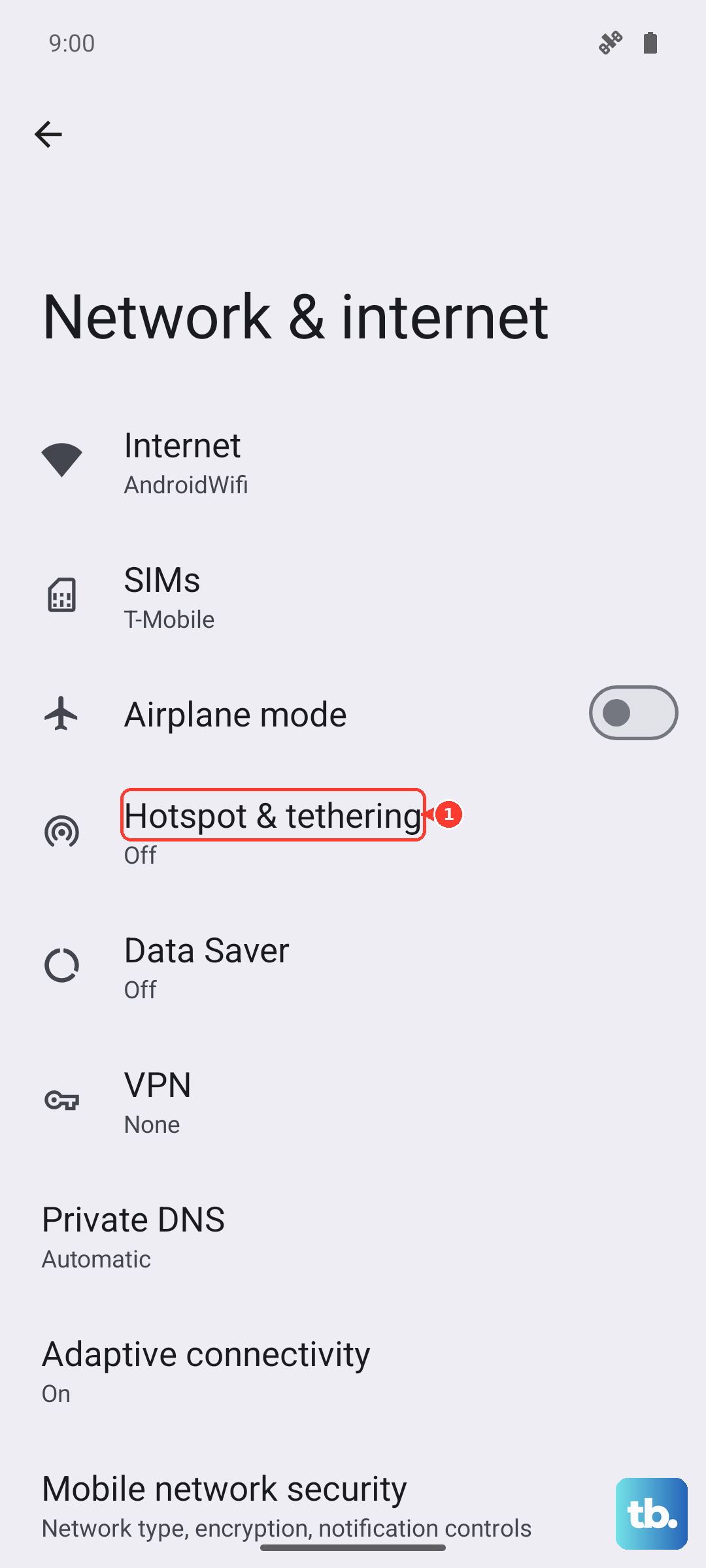
If it was already on, turn it off, wait a few seconds, then turn it back on.
On the device you want to connect, open its Wi-Fi list, pick your phone's hotspot name, enter the password, and select Connect.
Remember the ceiling here: you can share your phone's mobile data with up to 10 other devices via a Wi-Fi hotspot. If you are already at that limit, disconnect something you are not using before adding another device.
Switch off Data Saver before you tether
Data Saver is designed to cut background data use, and on Pixel it can stop the hotspot from working at all. Google is explicit on this point: if you have turned on Data Saver, turn it off to tether by Wi-Fi.
Disable Data Saver, then start the hotspot again and test the connection from your other device. This is a common, easily missed culprit, so do not skip it even if you do not remember enabling the feature.
Stop the hotspot from quietly shutting itself off
If your hotspot appears to work for a moment and then keeps shutting off on its own, a battery-saving option is likely turning it off behind your back. Under Settings > Network & internet > Hotspot & tethering > Wi-Fi hotspot there is a setting called 'Turn off hotspot automatically', described as: your hotspot turns off when no devices are connected.
If you enable the hotspot and do not connect a device quickly enough, the phone shuts it back down. Connect your laptop or tablet promptly after switching the hotspot on, or adjust this setting so it stays available while you get the other device ready.
Double-check the hotspot name, password, and security
Wrong credentials are one of the most common reasons a device simply will not join. A single mistyped character in the password, or a name you do not recognize, will look like a hotspot failure when it is really a connection mismatch.
In the Wi-Fi hotspot screen, tap the relevant hotspot setting to view or change the hotspot name or password.
If you want an open network with no password, choose 'None' under 'Security'.
Then reconnect the other device using the exact name and password you see on the phone.
Make sure the mobile data the hotspot shares is alive
A hotspot can only share a mobile data connection that is actually working, so confirm the phone itself is online over cellular first. Two things commonly get in the way: airplane mode, and a SIM that is switched off or seated badly.
Go to Settings > Network & internet and turn off airplane mode.
Open Settings > Network & Internet > SIMs and confirm 'Mobile data' is enabled and 'Use SIM' is on for your carrier.
Check that the SIM is inserted correctly, then load a page over mobile data on the phone before testing the hotspot again.
If the Pixel 8 cannot reach the internet on its own over cellular, no hotspot setting will help until that connection is restored.
Restart the Pixel 8, or force a restart if it is frozen
A restart clears temporary software hiccups that block the hotspot, and on Pixel 8 the button sequence matters. For a normal restart on Pixel 6 and later, which includes the Pixel 8, press and hold the Power button and the Volume up button for a few seconds, then tap Restart.
If the phone is frozen with the screen on and will not respond, hold down the power button for about 30 seconds to restart.
After it boots back up, switch the hotspot on and test the connection again.
Install any waiting Android and security updates
Outdated software can carry connectivity bugs that a later release fixes, so make sure your Pixel 8 is current. Connect to Wi-Fi and keep the phone charged or plugged in before you begin.
Open Settings > System > Software updates (some Pixels label this 'System update').
Follow the on-screen steps to check for and install any available updates.
Restart the phone afterward, since Google notes that installed updates become active the next time that you restart your device.
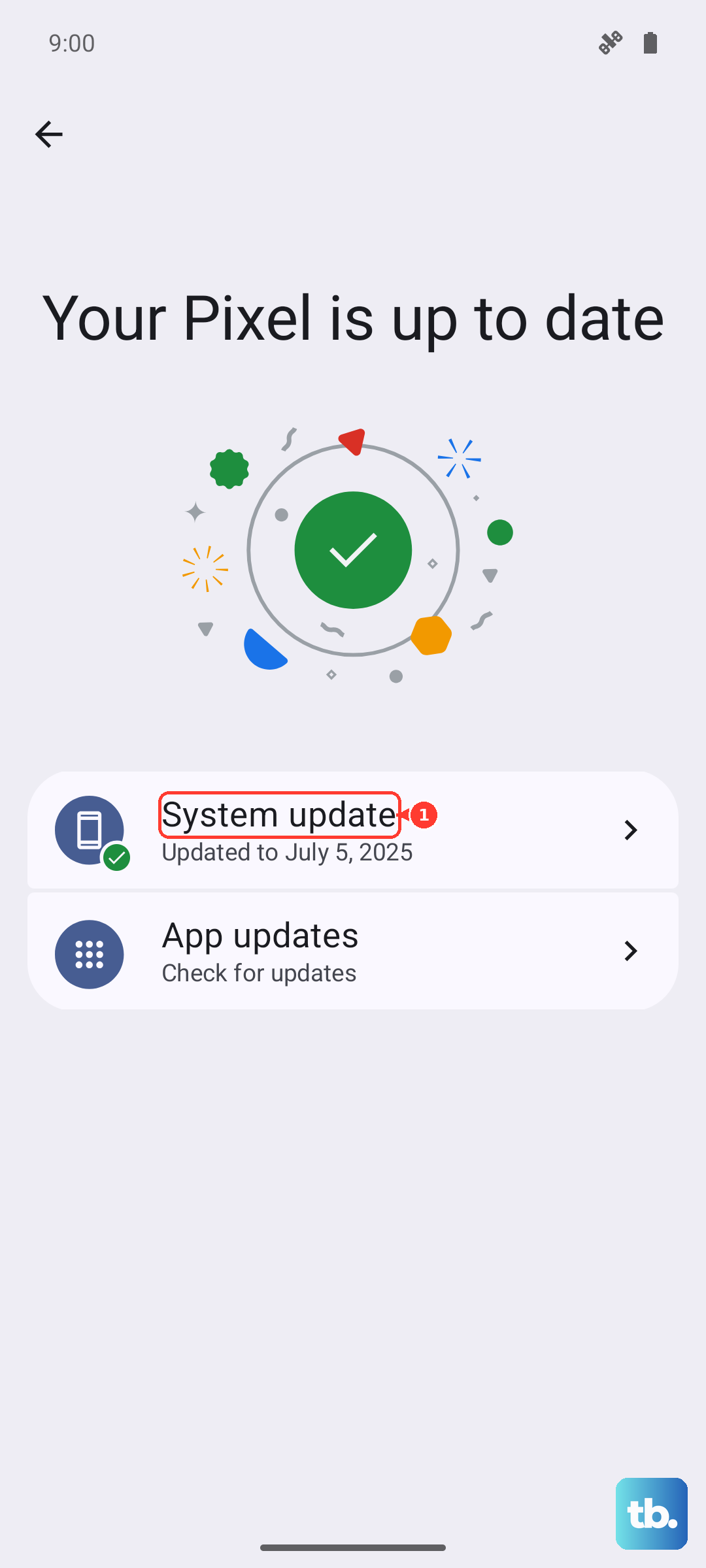
Once it restarts, try the hotspot again to see whether the update resolved the issue.
Reset the network settings to clear a stubborn glitch
If the hotspot still misbehaves, resetting the connectivity settings clears cellular and network glitches without erasing your personal data, photos, or apps. Start with the narrower reset and only widen it if needed.
Go to Settings > System > Reset options > Reset mobile network settings to refresh the cellular and data connection the hotspot relies on.
If that does not help, use Settings > System > Reset options > Reset Wi-Fi, mobile & Bluetooth, then tap Reset settings to clear saved networks and pairings.
Set up the hotspot again from scratch and reconnect your other device.
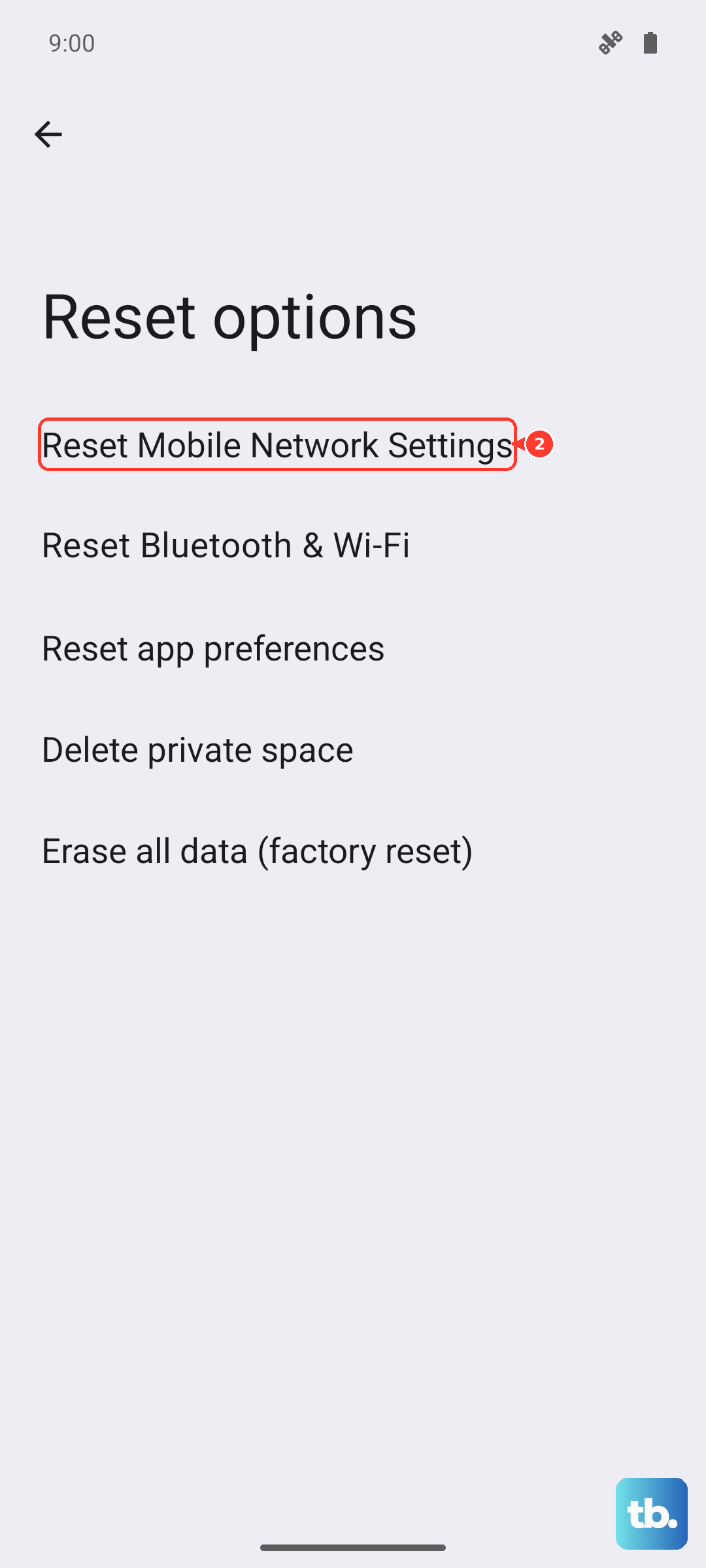
Because these resets clear remembered networks, you will need to re-enter Wi-Fi passwords and re-pair Bluetooth accessories afterward.
Factory reset as a last resort, then call your carrier
Only do this if every step above has failed, because a factory reset is destructive. Google's warning is direct: a factory reset erases all your data from your phone. Back up everything you care about first, charge the phone to at least 70%, and stay connected to Wi-Fi or mobile during the process.
- 1.Confirm your backup is complete and the phone is charged to at least 70%.
- 2.Go to Settings > System > Reset options > Erase all data (factory reset) > Erase all data.
- 3.Let the phone finish, set it up again, and test the hotspot on a clean configuration.
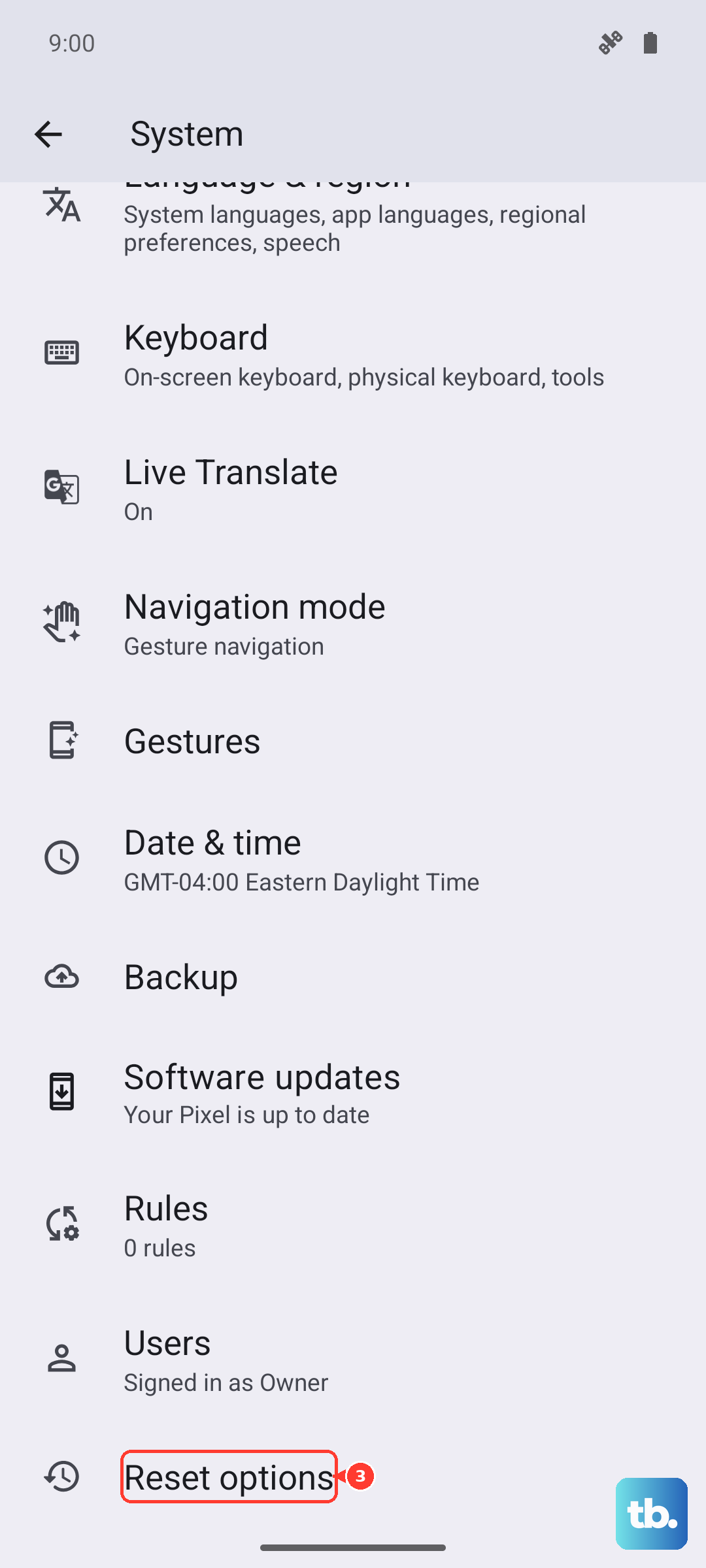
If the hotspot still fails even after a factory reset, contact your carrier to check for any outages in your area and to confirm that nothing has changed with your data plan. At that point the issue is more likely on the network or account side than on the device.
Frequently Asked Questions
How many devices can the Pixel 8 hotspot support at once?
You can share your phone's mobile data with up to 10 other devices via a Wi-Fi hotspot. If you are at that limit, disconnect a device you are not using before adding a new one.
Why does my Pixel 8 hotspot keep turning itself off?
It is most likely the 'Turn off hotspot automatically' setting under Settings > Network & internet > Hotspot & tethering > Wi-Fi hotspot, which turns the hotspot off when no devices are connected. Connect a device promptly after enabling the hotspot, or adjust that setting.
Will resetting network settings delete my photos or apps?
No. Reset mobile network settings and Reset Wi-Fi, mobile & Bluetooth clear connectivity settings, saved networks, and pairings, but they do not erase your personal data. Only the factory reset under Erase all data (factory reset) wipes everything on the phone.
The hotspot switches on but devices cannot get online. What now?
Confirm your carrier plan actually includes tethering, since some carriers limit or charge extra for it. Then make sure the phone itself has working mobile data by turning off airplane mode in Settings > Network & internet and checking that 'Mobile data' is enabled under Settings > Network & Internet > SIMs.
Could Data Saver be blocking my hotspot?
Yes. If Data Saver is on, the Wi-Fi hotspot may not work. Turn Data Saver off to tether by Wi-Fi, then start the hotspot again and test the connection.