When your Google Pixel 8 stops receiving or sending emails, it can throw a real wrench in your day. Whether you use Gmail, Outlook, or another email app, the problem usually comes down to a few common settings or a temporary glitch. I'd start by checking the basics before moving to more involved fixes.
First, make sure you have a solid internet connection, either on Wi-Fi or mobile data. It's also worth a quick check to see if your email provider is having a widespread outage, which you can usually find on their status page or social media.
Force Close and Reopen Your Email App
This is often the quickest fix for a frozen or misbehaving app. Swipe up from the bottom of your screen and hold to enter the recent apps view. Find your email app, like Gmail, and swipe it all the way up to close it. Wait a few seconds, then tap its icon to reopen it fresh.
Check Your Sync and Background Data Settings
Android manages how apps fetch data in the background. If sync is off, your emails won't update automatically. Pull down the notification shade twice and tap the gear icon to open Settings. Go to Accounts and select your email account. Make sure the toggle for syncing that account is turned on.
You should also check background data permissions. Go to Settings > Apps, select your email app, then tap Mobile data & Wi-Fi. Ensure that "Background data" is allowed. This lets the app check for new messages even when it's not open.
Toggle Airplane Mode to Reset Network Connections
A simple network refresh can clear up temporary connectivity bugs that block email. Swipe down from the top of your screen to open the Quick Settings panel and tap the airplane icon. Wait about 15 seconds, then tap it again to turn Airplane Mode off. Your Pixel will reconnect to Wi-Fi and mobile data, which often resolves the issue.
Verify Your Account Password and Security
Sometimes the problem is as simple as an expired password or a new security requirement from your provider. Try logging into your email account through a web browser on a computer. If you can't sign in there, you'll need to reset your password through your email provider's website.
If you use two-factor authentication (2FA), you might need to generate a new app password specifically for your Pixel 8's mail app, rather than using your main account password. Check your email provider's security settings for this option.
Clear the App's Cache and Data
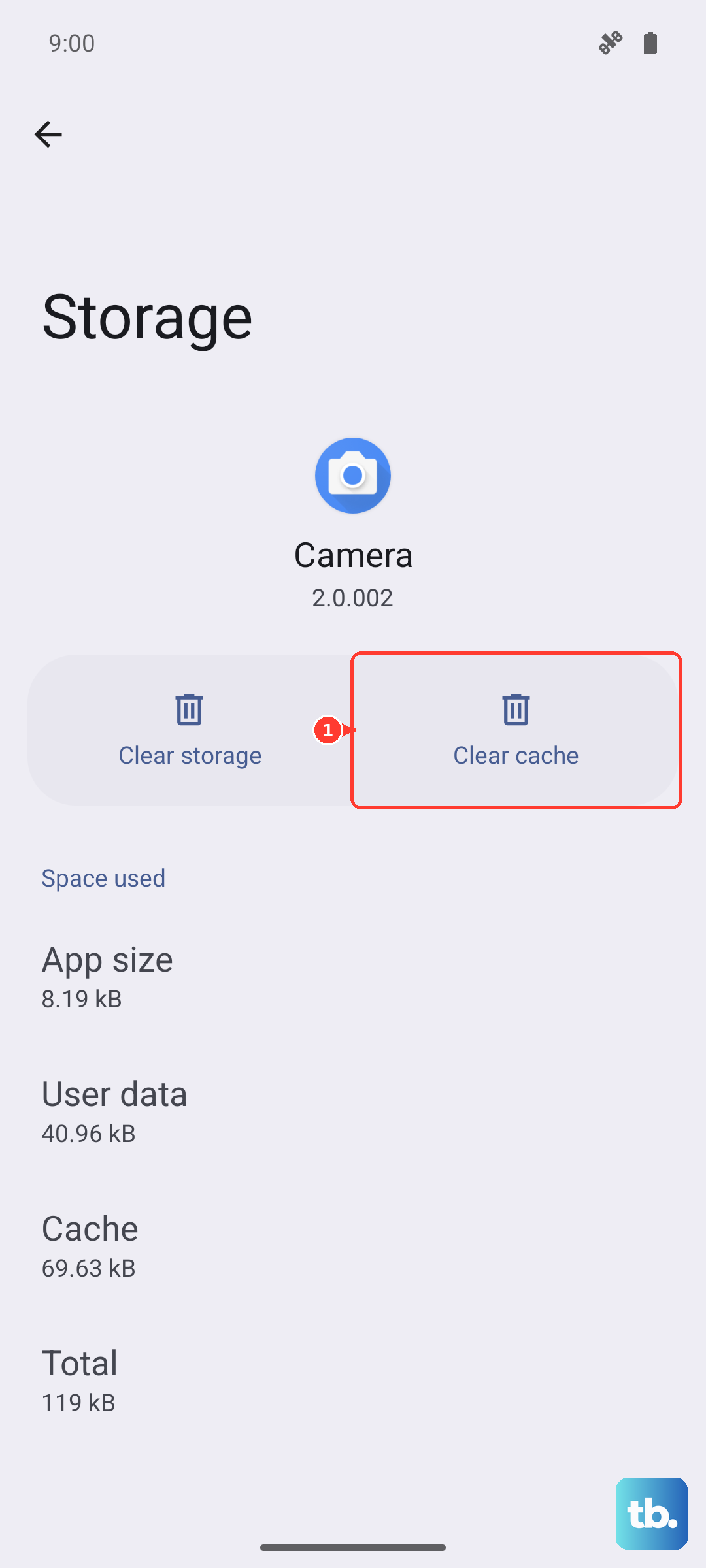
Corrupted temporary files can cause all sorts of problems. Clearing the cache is safe and won't delete your emails. Go to Settings > Apps, find and select your email app, then tap Storage & cache. Tap "Clear cache." If the problem persists, you can try "Clear storage" or "Manage space," but be aware this will remove the app's data, requiring you to sign back in.
Check for App and System Updates
Outdated software is a common culprit. Open the Google Play Store, tap your profile picture, and go to Manage apps & device > Updates available. See if there's an update for Gmail or your other email app and install it.
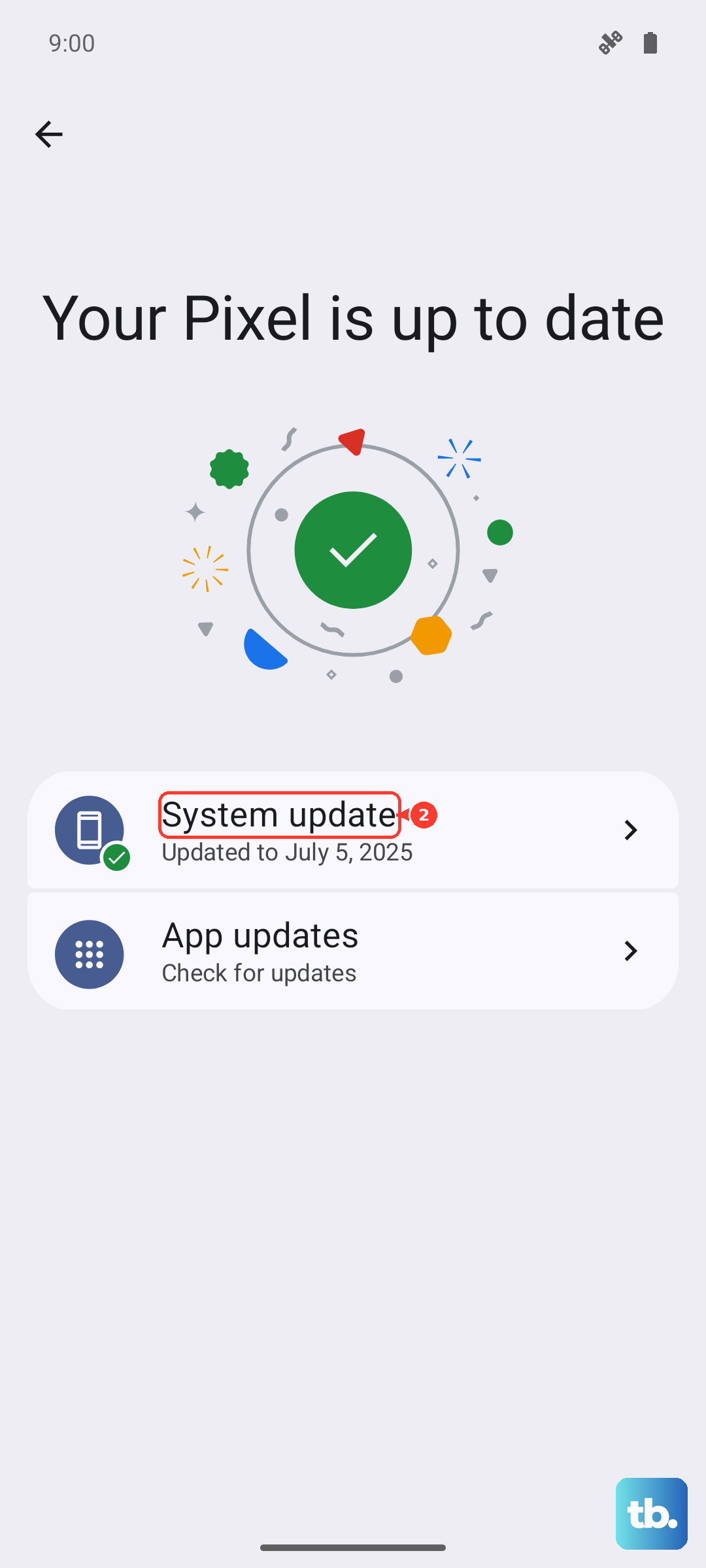
Also check for a full Android system update, which can contain important bug fixes. Go to Settings > System > System update to see if a new version of Android is ready for your Pixel 8.
Remove and Re-add Your Email Account
This resets the connection from scratch and can solve persistent sync errors. The path varies slightly depending on if you use Gmail or another app. For Gmail, open the app, tap your profile picture, and select "Manage accounts on this device." Tap the account to remove and select "Remove account."
For other accounts set up in the system, go to Settings > Accounts, select the account, and tap "Remove account." After removing it, go back and add it again through the Settings > Accounts > Add account menu.
Review Your Notification Settings
If emails are arriving but you're not getting alerts, your notification settings might be off. Long-press on your email app's icon and tap App info. Go to Notifications and make sure all notification categories are turned on. You can also check Settings > Notifications > App settings to fine-tune the alert style and sound.
Perform a Force Restart on Your Pixel 8
A full reboot can clear out deeper software hiccups. Simply press and hold the Power button on the right side of your phone for about 30 seconds. Keep holding it until you see the Google logo appear, then release. The phone will restart, which often resolves temporary system issues affecting multiple apps.
Examine Battery Optimization Settings
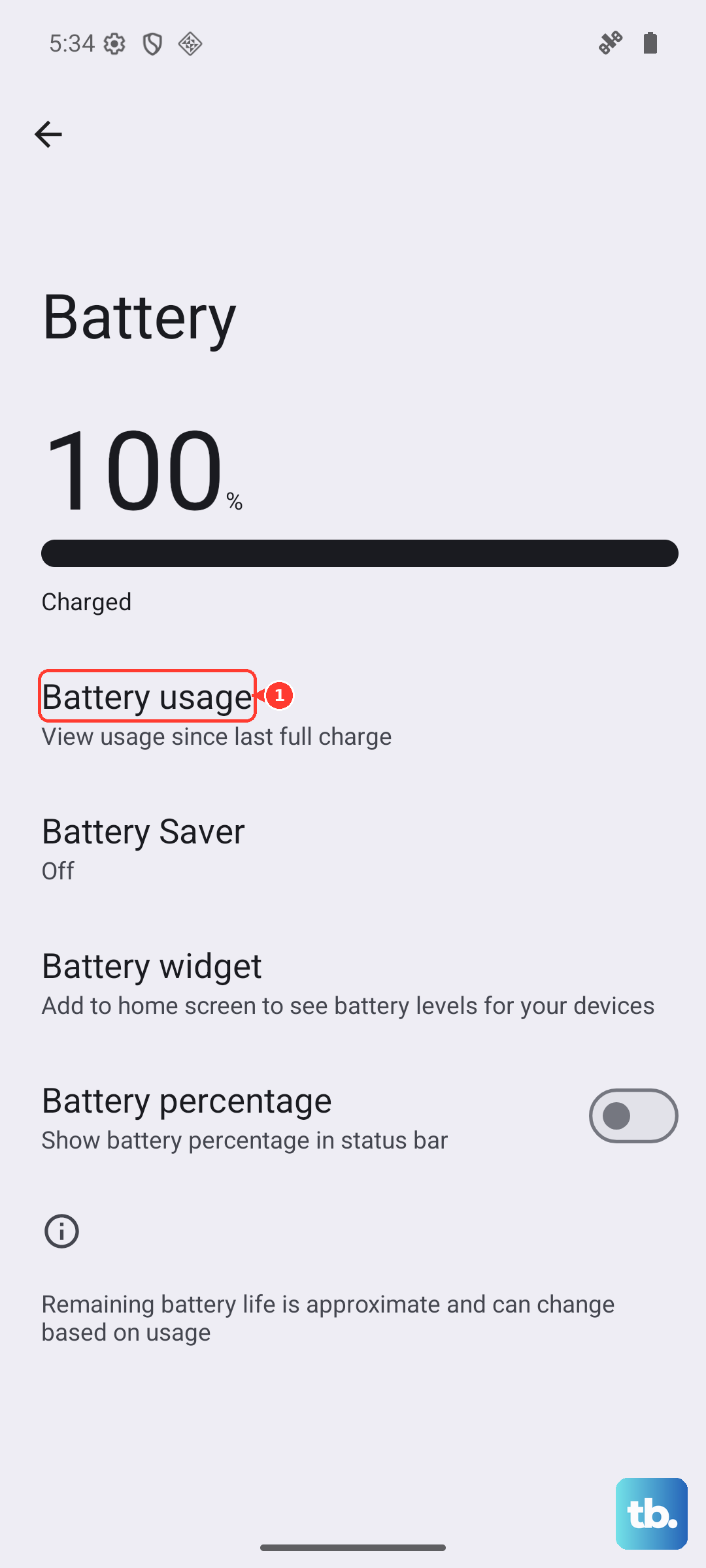
Android's battery saver features can sometimes be too aggressive and stop apps from syncing in the background. Go to Settings > Battery and see if Battery Saver is enabled. If it is, try turning it off temporarily to see if your email starts working.
You can also exempt your email app from optimization. Go to Settings > Apps, select your email app, tap Battery, and choose "Unrestricted" for the battery usage setting.
Try a Different Email App Temporarily
This is a great way to figure out if the problem is with your specific app or with your account/phone settings. Download another email client like Outlook or Edison Mail from the Play Store and try adding your account there. If it works perfectly in the new app, the issue is likely with your original app's installation or settings.
Reset Your Network Settings
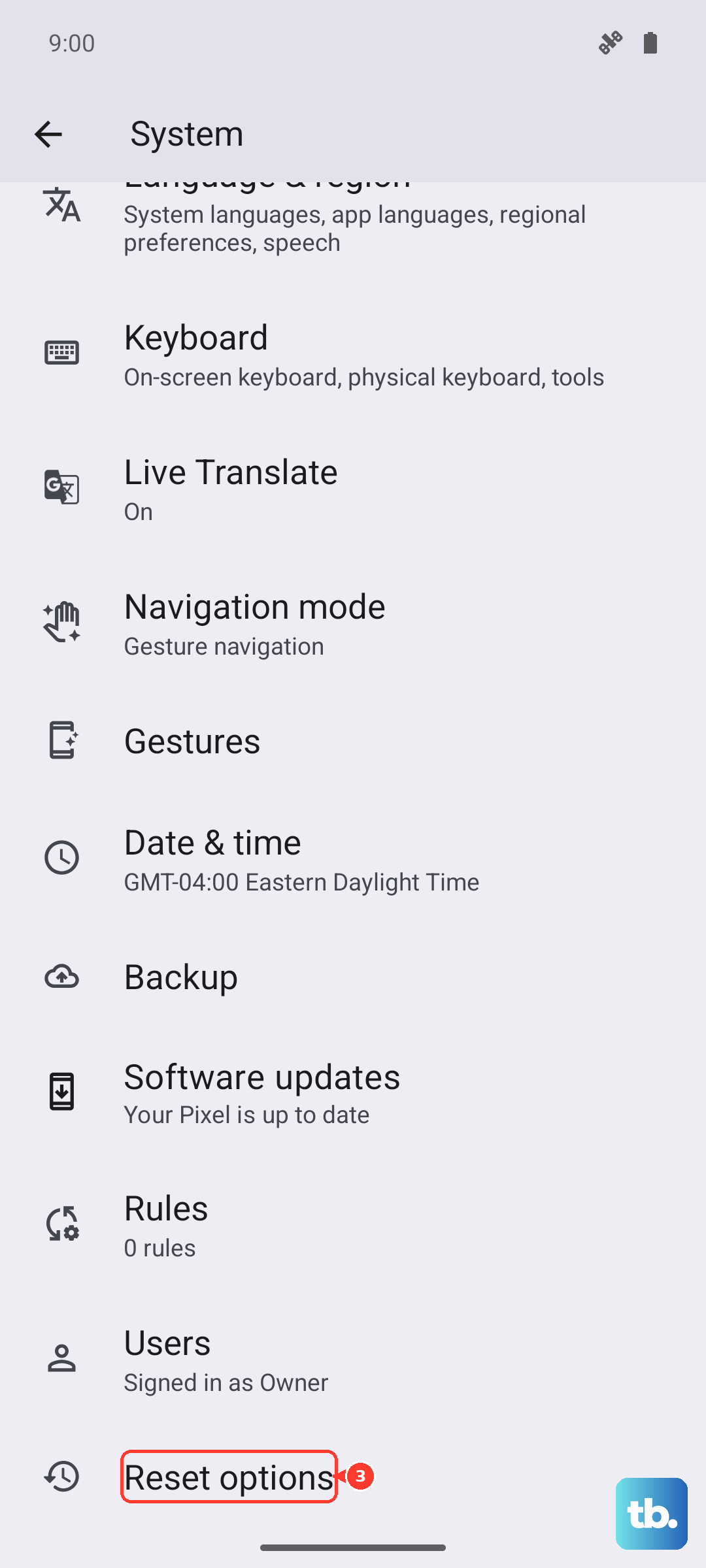
This is a more comprehensive step that resets all Wi-Fi, mobile data, and Bluetooth connections without deleting your personal data. Go to Settings > System > Reset options. Tap "Reset Wi-Fi, mobile & Bluetooth" and confirm. You'll need to re-enter Wi-Fi passwords and re-pair Bluetooth devices afterward.