
Your Pixel 10a suddenly stopped vibrating for calls, texts, or notifications. It's annoying, but most of the time the fix is quick. Let's go through the likely causes and what to do about them.
Force Restart the Phone
Start with a forced reboot. It clears out temporary software glitches that can mess with the vibration motor.
Press and hold the Power button for 30 seconds straight. If that doesn't work, try holding Power + Volume Down together for 10 15 seconds until the phone restarts. That's the Pixel 10a's official force-restart combo.
Is Vibration Actually Turned On?
It sounds obvious, but it's easy to accidentally toggle vibration off. Go to Settings > Sound & vibration and make sure Vibrate for calls is enabled. While you're there, tap Vibration & haptics and check that the sliders for calls, notifications, and touch feedback aren't all the way down. I've seen people think their phone was broken when they'd just silenced it.
Sound Mode Check (Not Silent Mode)
Your Pixel might be stuck in silent or vibrate-only mode, which can sometimes cause odd behavior. Swipe down twice to open Quick Settings and tap the sound icon to cycle through Sound, Vibrate, and Silent. Keep it on Sound while you test. Then try sending yourself a text or getting a test call.
Per-App Notification Settings
If only certain apps aren't vibrating, the problem is specific to those apps. Go to Settings > Apps, pick the app that's failing, tap Notifications, and make sure Vibrate is enabled for each notification category. For default apps like Phone or Messages, this is often the culprit.
Check DND and Notification Schedules
Do Not Disturb mode can suppress vibrations even if they're enabled elsewhere. Swipe down and check if the crescent-moon icon is highlighted. If it is, tap it to turn off DND. Also check Settings > Sound & vibration > Do Not Disturb for any schedules that might be running without you realizing it.
Update Android 16
Software bugs get patched. Go to Settings > System > Software update and install any pending updates. The Pixel 10a launched with Android 16, and Google pushes monthly security patches that often include vibration-related fixes.
Test in Safe Mode
Safe Mode disables all third-party apps. If vibration works there, a downloaded app is causing the problem. To enter Safe Mode: press and hold the Power button, then press and hold Restart on the screen until you see the Safe Mode prompt. Tap OK. While in Safe Mode, test vibration. If it works, restart normally and uninstall recently installed apps one by one until you find the troublemaker.
Reset All Settings
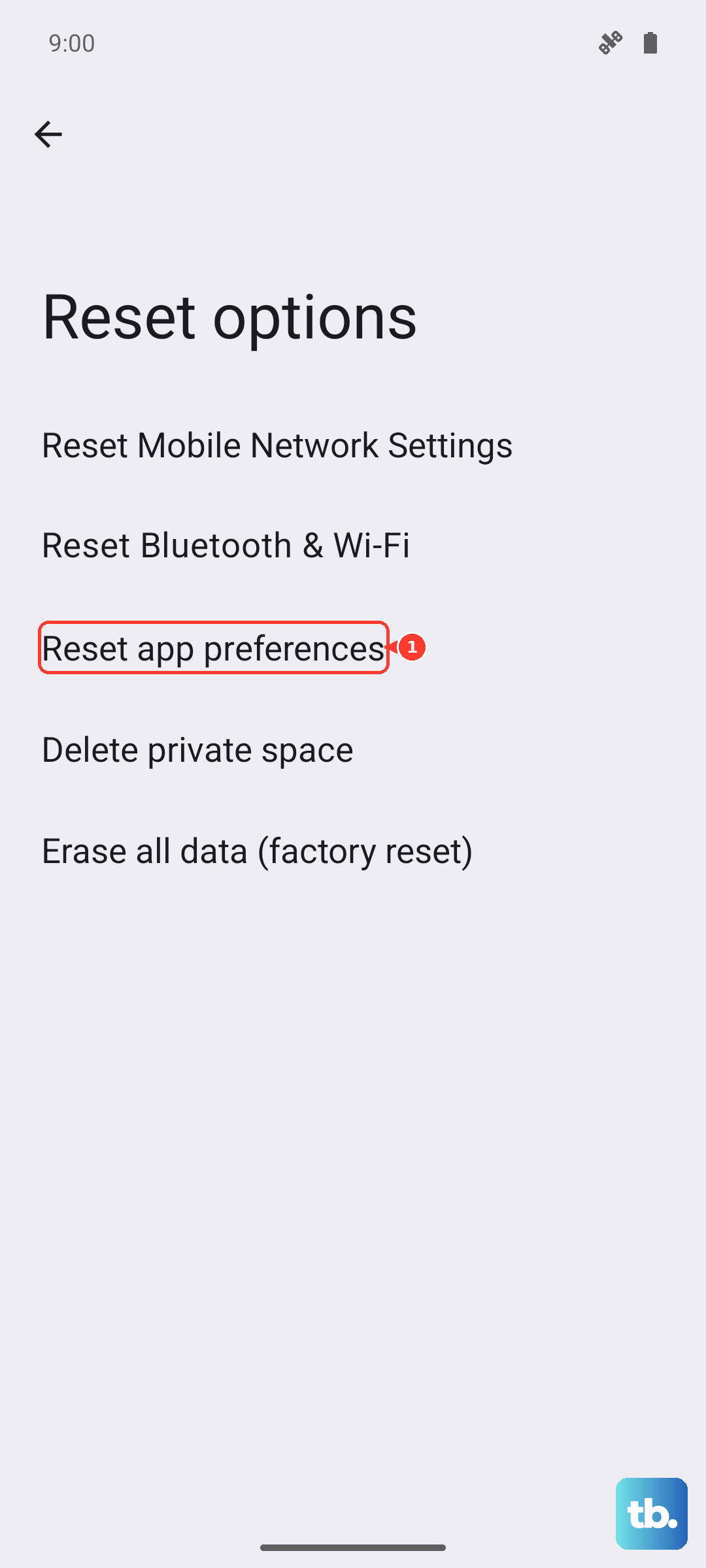
This won't delete your data, but it will reset Wi-Fi networks, Bluetooth pairings, and most system settings. Go to Settings > System > Reset options > Reset Wi‑Fi, mobile & Bluetooth. That's the most relevant reset for this type of issue. If that doesn't help, you can try Reset app preferences from the same menu.
Clean the Vibration Port (Yes, It's a Thing)
Dust and pocket lint can accumulate near the vibration motor, especially around the charging port on the bottom of the Pixel 10a. Use a wooden toothpick (not metal) to gently scrape around the charging port and the small speaker grille. Compressed air can also dislodge debris. This is a common fix that people overlook.
Hardware Test with Hidden Menu
Google Pixels have a diagnostic code to test the vibration motor. Open the Phone dialer and enter *#0*#. That pulls up a hardware test screen. Tap Vibration and the phone should vibrate for a few seconds. If it doesn't, the motor might be physically broken. You'll hear a faint buzzing even if the motor is dead, so listen closely. No buzz means a hardware failure.