
You tap a text field on your Pixel 10a and nothing happens. Or Gboard flashes on the screen for a split second before disappearing. It's a frustrating glitch, especially when you need to reply to a message right away. The good news is that most keyboard issues on the Pixel 10a are software-related and clear up with a few targeted fixes.
Force Stop Gboard and Start Fresh
Start with the quickest fix. Open Settings and go to Apps > See all apps. Find Gboard in the list and tap it. On the App info page, tap Force stop. This kills the process and lets Android restart it from scratch. Check a text field to see if the keyboard shows up again.
Restart or Force Restart Your Pixel 10a
If force stopping didn't do it, a proper restart often clears up temporary system hiccups. Press and hold the Power button and select Restart. If the screen is frozen or the phone is unresponsive, use the Pixel 10a's force restart: press and hold the Power button for 30 seconds, or press and hold Power + Volume Down for 10-15 seconds until the device restarts.
Clear Out Corrupted Cache and Data
Corrupted temporary files inside Gboard are one of the most common causes. Head back to Settings > Apps > Gboard > Storage & cache. Tap Clear cache first. If the keyboard still won't appear, tap Clear storage (or Manage space > Clear all data). This resets your personal dictionary and learned words, so you will have to retrain a few typing habits, but it usually resolves persistent crashes.
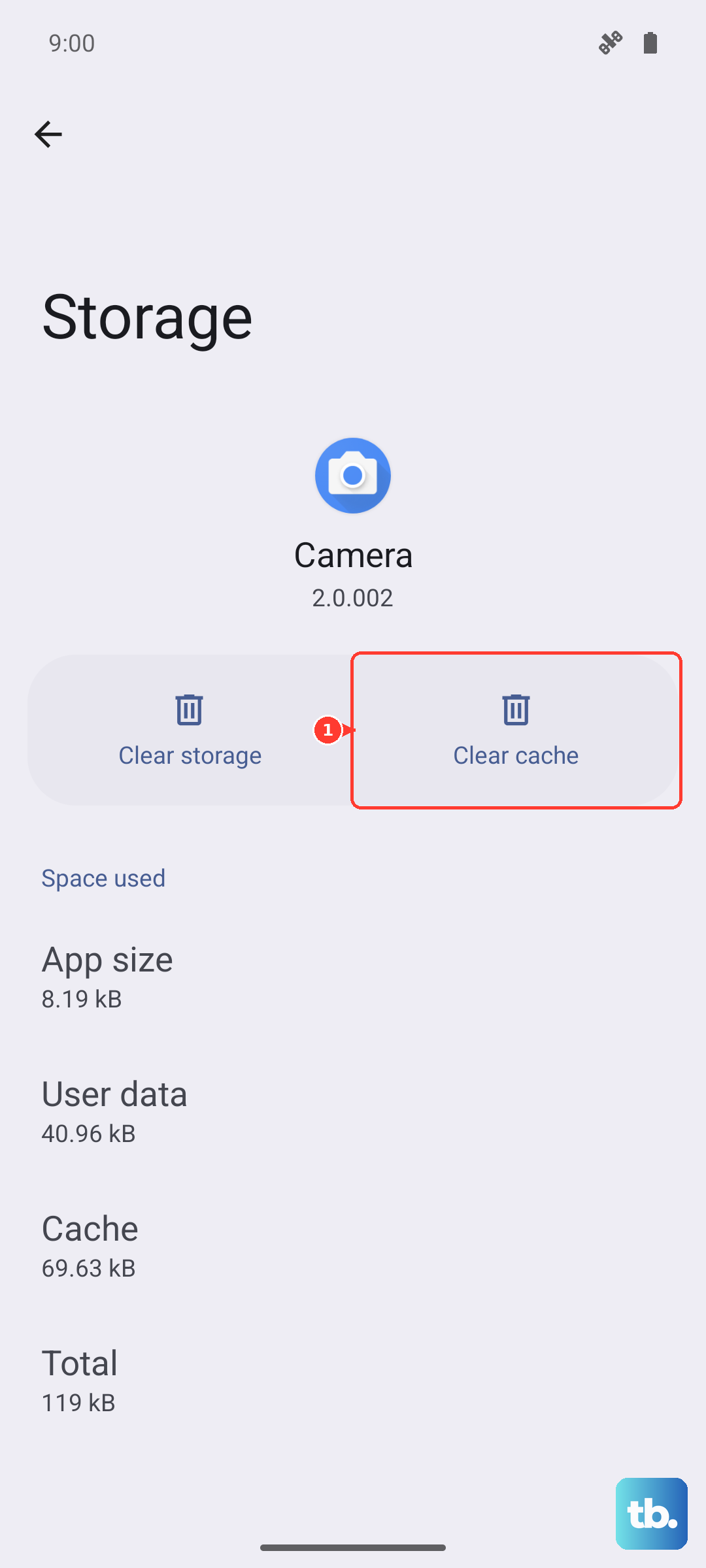
While you are in the app list, tap the three-dot menu and select Show system. Search for User Dictionary or Android Dictionary and clear its cache and data too. A corrupted system dictionary can sometimes prevent Gboard from launching at all.
Is Gboard Still Set as Your Default Keyboard?
An app update or a system process can occasionally switch your default input method. Go to Settings > System > Languages & input > On-screen keyboard > Manage on-screen keyboards. Make sure the toggle for Gboard is turned on, then go back and select Gboard as your default keyboard.
Check for App and System Updates
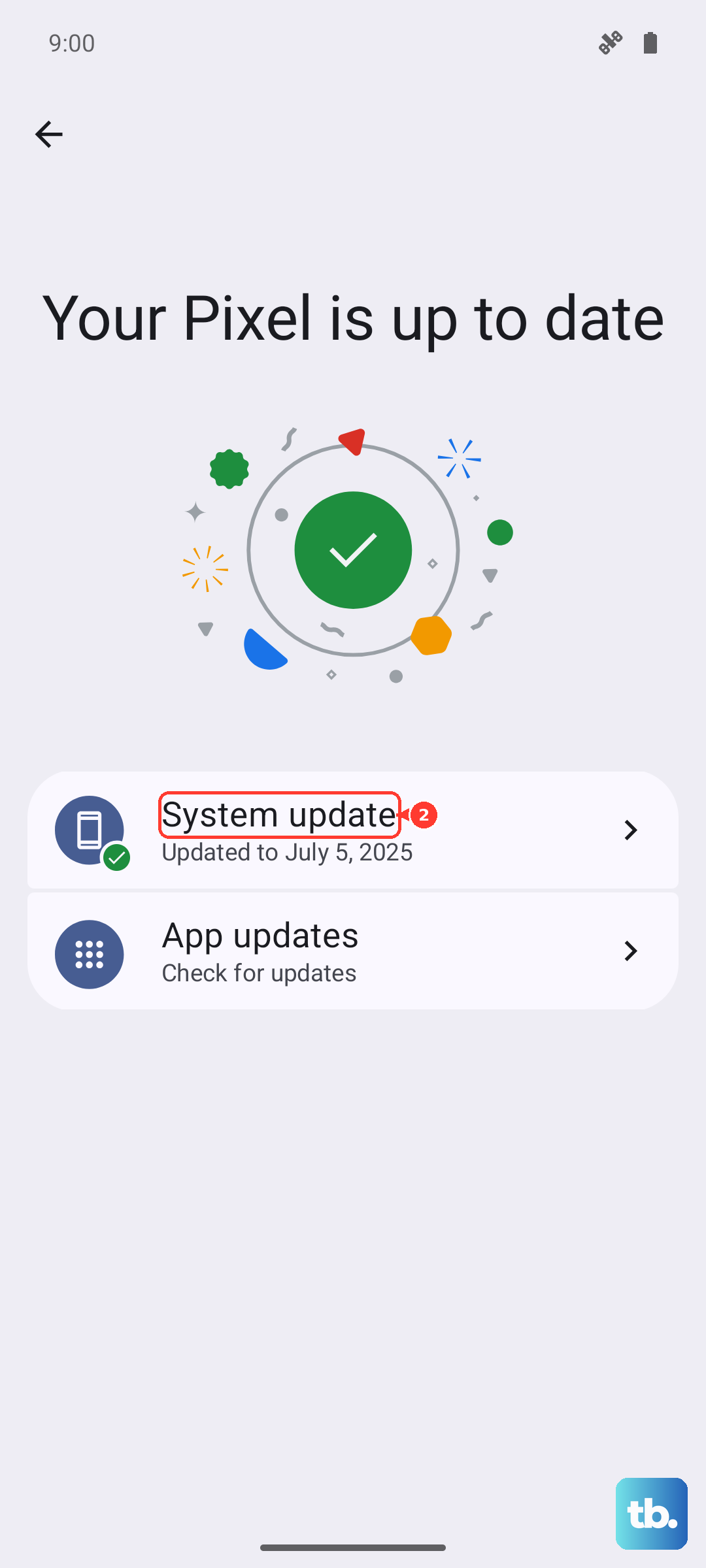
Running outdated software can cause compatibility problems. Open the Google Play Store, tap your profile icon, and go to Manage apps & device. Update Gboard if a version is available. While you're at it, check for a system update in Settings > System > System update. Google frequently pushes fixes for touch input and IME stability on the Pixel 10a through Android 16 updates.
Make sure your Pixel 10a has a solid charge before starting any major updates. If the phone feels hot, let it cool down first. Overheating can cause temporary glitches on the 10a, including keyboard crashes.
Boot Into Safe Mode to Find Conflicts
If the keyboard works fine sometimes but not others, a third-party app might be interfering. Boot into Safe Mode to check. Press and hold the Power button, then tap and hold Power off on the screen. You will see a prompt asking if you want to reboot into Safe Mode. Tap OK. If Gboard works perfectly here, a downloaded app is the culprit. Restart the phone normally to exit Safe Mode, then start uninstalling recently added apps until you find the one causing the conflict.
Remove Conflicting Keyboard Apps
If you have installed other keyboards like SwiftKey or Microsoft Keyboard, try uninstalling them temporarily. They can sometimes interfere with Gboard's ability to launch as the system input method. You can always reinstall them later once Gboard is stable.
Reset App Preferences
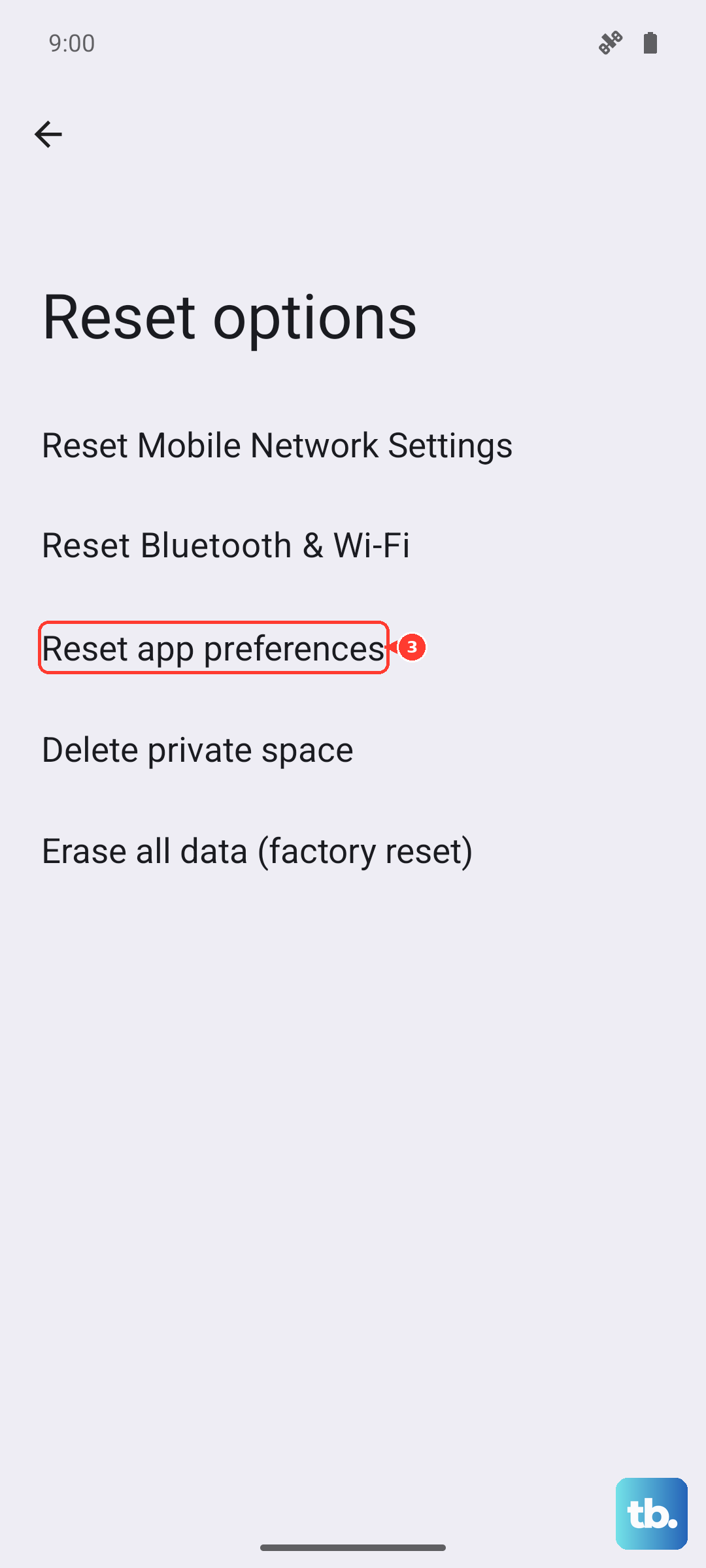
Resetting app preferences is a handy middle ground that doesn't delete your personal data. It resets disabled apps, notification settings, and default apps. Go to Settings > System > Reset options > Reset app preferences. You will need to re-set your default apps after this, but it can clear up weird permission or integration issues that cause the keyboard to fail silently.
Clear Gboard cache and test Safe mode
Use app-level troubleshooting instead of a recovery-cache wipe. Open Settings > Apps > See all apps, tap Gboard, then tap Storage & cache > Clear cache. Restart the phone and test the keyboard again.
If Gboard still fails, update Android and Gboard, then start the phone in Safe mode to see whether another downloaded keyboard or utility app is interfering. Avoid Clear storage unless you are ready to reset that app's local data.