
Screen flickering on your Google Pixel 10 Pro XL is a genuine headache. The display might flash, blink, or show horizontal lines out of nowhere. This can be a software quirk, a settings conflict, or a hardware issue. Let's work through the fixes.
The good news is most cases are software-related and fixable in a few minutes. Start with the quickest fix first.
Force Restart Your Pixel 10 Pro XL
A force restart clears temporary system glitches without erasing any data. This is the first thing to try if the flickering just started. Press and hold the Power button for up to 60 seconds, then release when the device begins to reboot and the G logo appears. That specific sequence is different from a normal restart, so follow it exactly.
If the flickering stops, you're good to go. If it returns later, move on to the next fix.
Disable Adaptive Brightness
Adaptive Brightness uses a sensor to adjust the screen based on ambient light, and a misbehaving sensor can cause flickering. Go to Settings > Display > Adaptive Brightness and toggle it off. Then manually set your brightness to a comfortable level using the slider in the quick settings panel.
This is a common culprit on Pixel devices running Android 16. If the flickering disappears, you can try turning Adaptive Brightness back on after a few days to see if the issue reoccurs.
Turn Off Smooth Display
The Pixel 10 Pro XL has a 120Hz display that can dynamically adjust refresh rates. While this makes scrolling smoother, it can sometimes cause flickering on specific apps or with certain content. Go to Settings > Display > Smooth Display and toggle it off.
This forces the screen to stay at 60Hz, which is stable. If the flickering stops, you can leave it off or turn it back on later and see if a future software update resolves the problem.
Update Android 16
Display bugs are regularly patched in system updates. Google has addressed screen flickering issues in Android 16 updates, particularly for OLED panels. Go to Settings > System > Software Update and check for any available updates. Install them if there are any.
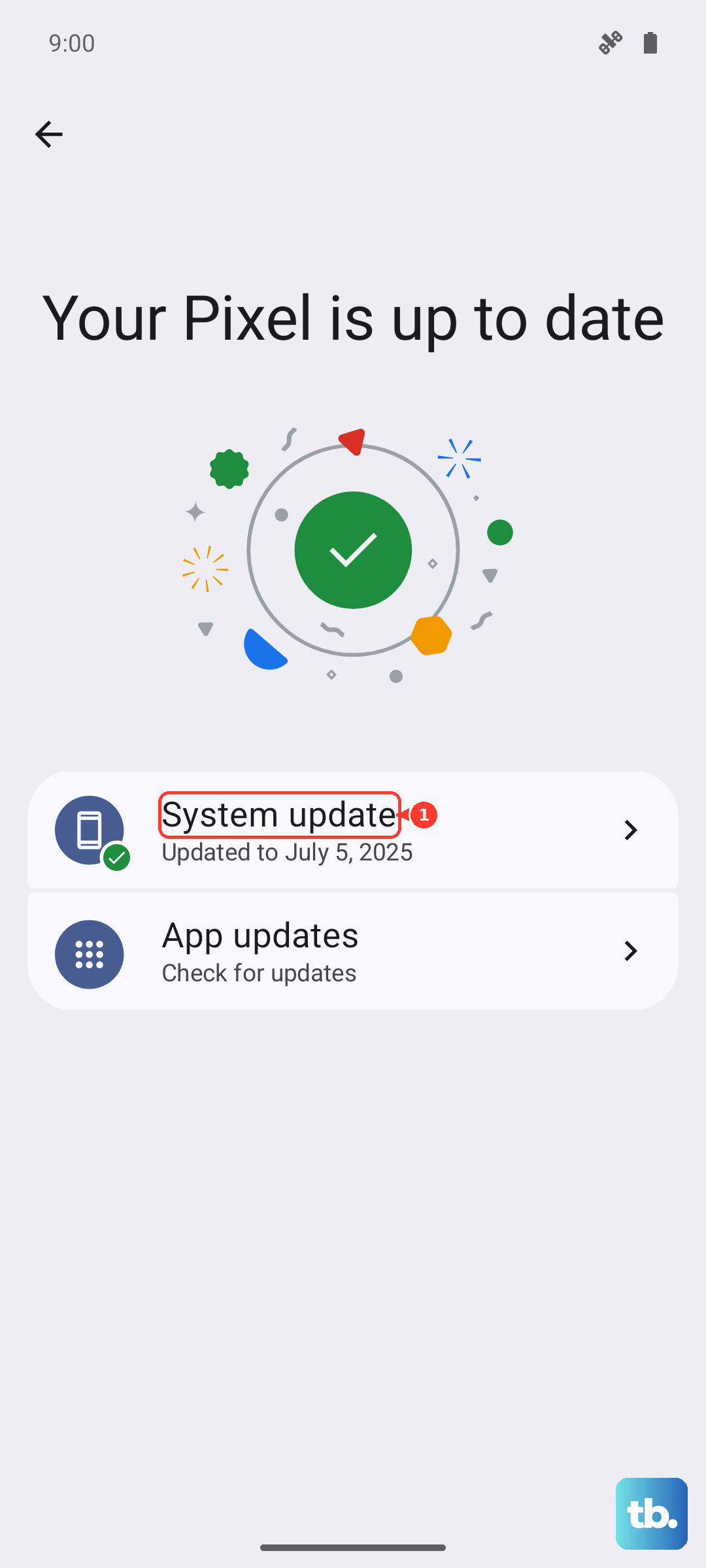
Even if you're on the latest version, it's worth checking. Sometimes a small patch specifically targets display stability.
Close Background Apps and Use Safe Mode
A poorly coded third-party app can interfere with the display. First, close all background apps by swiping up from the bottom, holding briefly, and then swiping away each app card. If the flickering stops, reopen apps one by one to find the troublemaker.
If you can't pinpoint it, boot into Safe Mode. Press and hold the Power button, then tap and hold Power off until you see the Safe Mode prompt. In Safe Mode, only pre-installed apps run. If the flickering disappears, a third-party app is the cause. Uninstall recently added apps until you find the one responsible.
Check for Physical Damage or Overheating
If the flickering started after dropping the phone, the display cable might be loose or the screen itself could be damaged. Look for cracks, pressure marks, or color distortion. Any physical damage likely requires a repair from Google or an authorized service center.
Another possibility is overheating. The Pixel 10 Pro XL is known to heat up during charging, which can cause display instability. If the flickering happens mainly while charging, remove the phone case to improve heat dissipation. Let it cool down and see if that helps.
Reset Display Settings
Resetting all system settings can fix configuration issues that a restart doesn't touch. Go to Settings > System > Reset Options > Reset All Settings. This won't delete your photos, contacts, or apps, but it will reset Wi-Fi passwords, display preferences, and notification settings to default.
After the reset, reconfigure your screen settings one by one. This often clears up weird display glitches.
Factory Reset as a Last Resort
If nothing else works, a full factory reset will tell you if the problem is software or hardware. Back up your data first, then go to Settings > System > Reset Options > Erase All Data (Factory Reset). This wipes everything and reinstalls Android 16 from scratch.
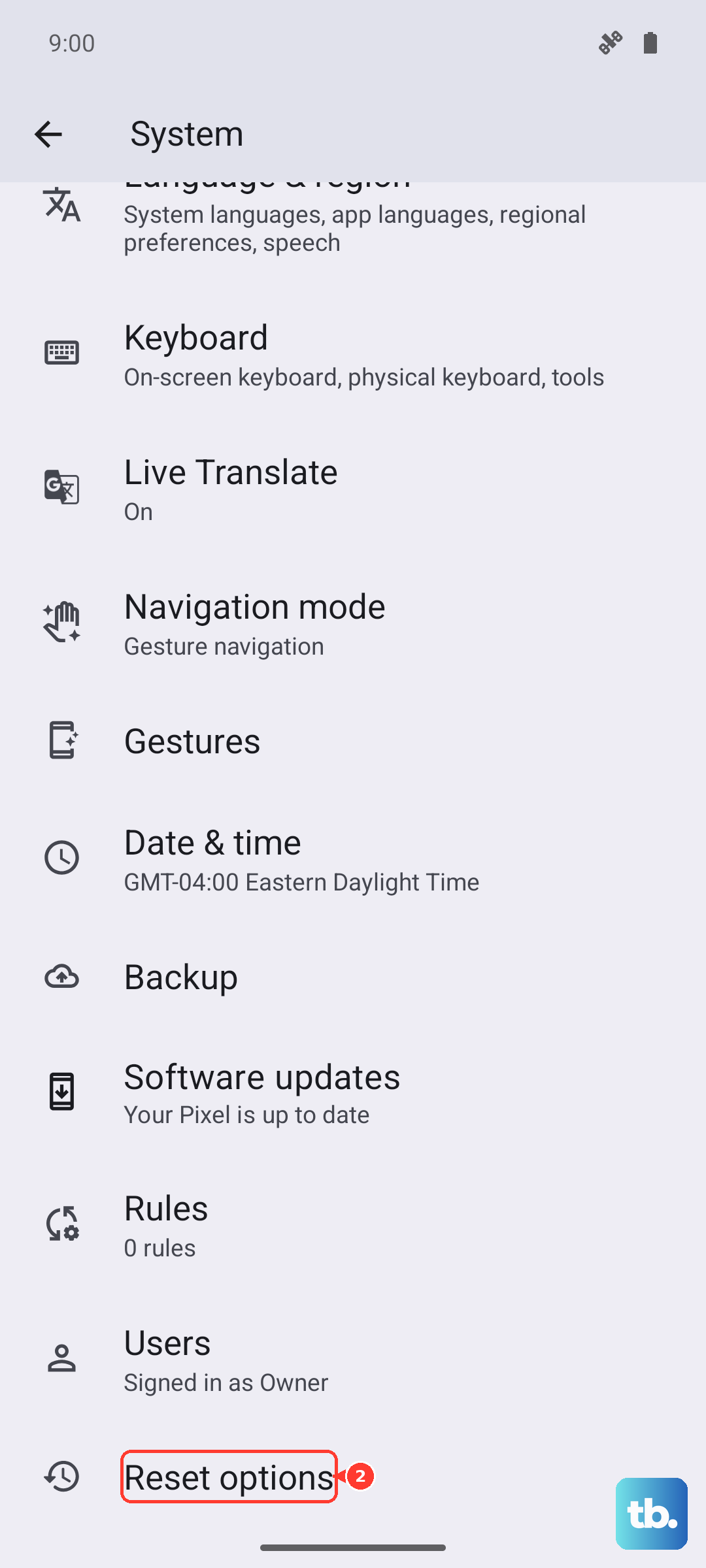
If the flickering stops after the reset, it was a software issue. If it continues on a clean system, the display hardware is faulty and needs professional repair.