
You tilt your Google Pixel 10 Pro XL to watch a video, and the screen stays stubbornly upright. The auto-rotate feature has stopped working, locking you into portrait mode.
This happens sometimes on the Pixel 10 Pro XL, but it's usually a quick fix. Here are eight ways to get the rotation working again.
Quick Auto-Rotate Toggle
The most common culprit is the auto-rotate setting itself. It might have been turned off accidentally by tapping the quick settings icon.
Swipe down twice from the top of the screen to open the full Quick Settings panel. Look for the auto-rotate icon (it looks like a phone rotating) and tap it. When it's enabled, the icon will be highlighted. Try rotating your phone again.
Restart Your Pixel
If the toggle didn't help, a simple restart clears up temporary glitches without losing any data. Hold the Power button and Volume up button together for a second, then tap Restart.
This refreshes the system processes and often fixes sensor-related bugs. Once the phone boots up, test the rotation.
Force Restart the Phone
A normal restart sometimes misses deeper glitches. If your Pixel 10 Pro XL is still ignoring rotation, try a force restart.
Press and hold the Volume up and Power buttons simultaneously for 10 seconds, then release when the device restarts. This is the official force restart method for this model and it can kick the sensors back into action.
Enable Home Screen Rotation in Settings
By default, Android 16 on the Pixel 10 Pro XL rotates apps but keeps the home screen locked in portrait. If you're testing rotation on the home screen itself, it won't work without an extra setting.
Go to Settings > Display and toggle on Rotate home screen. Now tilt your phone while on the home screen to see if it works.
Check Individual App Orientation Settings
Some apps lock themselves to portrait mode no matter what your system setting says. YouTube, for example, only rotates when you're playing a video in full screen. Games and camera apps often force a specific orientation.
If auto-rotate works in some apps but not others, the app is the problem. Check the app's own settings for orientation controls or just test a different app to confirm your phone's sensor is fine.
Update Android 16
Software bugs in the rotation system are sometimes fixed in system updates. The Pixel 10 Pro XL runs Android 16, and Google regularly pushes patches.
Go to Settings > System > System update and tap Check for update. Install any available updates, then restart your phone.
Clear System UI Cache
The System UI app handles the auto-rotate logic. If its cache is corrupted, rotation can stop working.
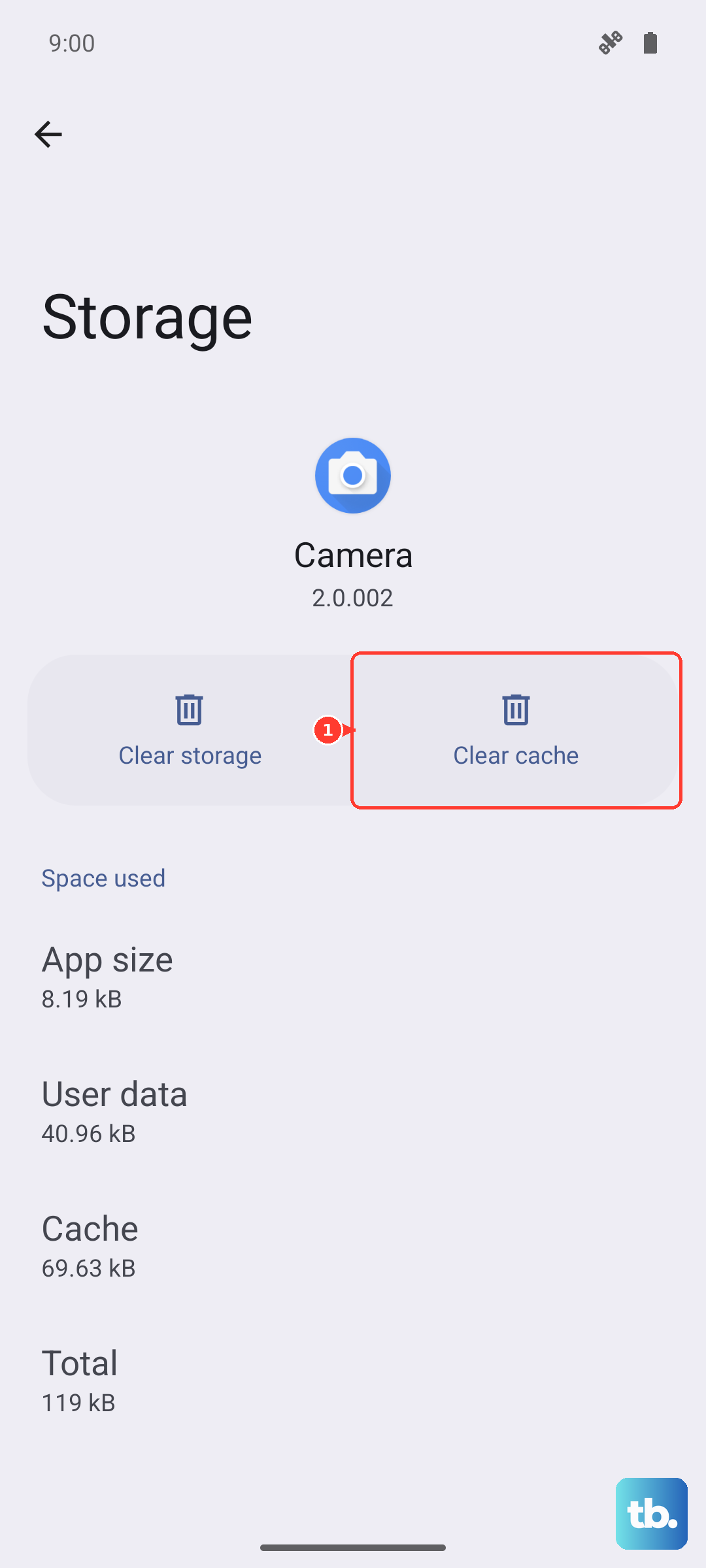
Open Settings > Apps > See all apps. Tap the three-dot menu and select Show system. Find System UI, then go to Storage & cache and tap Clear cache. Restart your phone to apply the change.
Cool Down Your Phone
One known issue with the Pixel 10 Pro XL is overheating, especially during charging or heavy use. When the phone gets too hot, the system may disable certain sensors, including the gyroscope that controls rotation.
If your phone feels warm, remove the case (which can trap heat) and let it cool down for a few minutes. Avoid charging it while testing rotation. Once it's cool, the sensor usually starts working again.