You pressed the power button on your Google Pixel 10 Pro expecting your home screen, but instead the colorful "G" logo just sits there, frozen, going nowhere no matter how long you wait. A boot loop or a phone hung on the startup logo is unsettling, especially when everything looked fine the last time you used it. The good news is that this is usually a software hiccup you can clear yourself, and only rarely a hardware fault that needs a repair.
The fixes below are ordered from the safest and easiest to the most involved, with the data-erasing and contact-support options saved for last. Work through them in order and stop as soon as your Pixel 10 Pro boots normally. None of the early steps will touch your photos, apps, or settings, so you can try them with confidence.
Force a Reboot to Break the Boot Loop
When a Pixel is stuck on the boot logo, the first move is a force restart, which is different from the normal restart gesture. The normal gesture (press and hold the Power button and Volume up button for a few seconds, then tap Restart) needs a responsive screen, and a frozen logo will not give you that. A true force restart relies on the Power button alone.
This works on all Pixel models and does not erase anything. It simply cuts power and forces a clean reboot, which often clears whatever process stalled during startup.
Press and hold the Power button for up to 60 seconds.
Once your phone begins to reboot and the screen displays the "G" logo, release the Power button.
If your Pixel 10 Pro is frozen with the screen on rather than stuck at the logo, Google's guidance is slightly different. Hold down the power button for about 30 seconds to restart. Either way, give the phone a moment after it reboots to finish loading before you decide whether it worked.
Try a Longer Power Hold When the Screen Stays Dark
Sometimes the first force restart does not take, or the screen goes dark and stays that way. For a phone that will not turn on or shows a blank screen, Google recommends a longer hold to force a reboot, followed by a short wait.
Press and hold the Power button for about 35 seconds to force reboot.
Wait about 2 minutes.
Even if the screen still looks dead, your phone may actually be running. To confirm it is alive, call it from another phone or use Find Hub to see if it rings. If it rings, you are dealing with a display or boot issue rather than a phone that is completely off, which is encouraging news as you move to the next steps.
Rule Out a Drained Battery
A near-dead battery can leave your Pixel 10 Pro stuck partway through startup, where it has just enough power to show the logo but not enough to finish booting. Charging it back up is a simple fix that is easy to overlook.
- 1.Plug in your phone with a working cable, charger, and outlet.
- 2.Wait one minute. If a battery icon appears, it is charging.
- 3.For a very low battery, allow at least another 10 minutes before trying to turn it on again.
If nothing happens, work through the obvious physical causes. Remove the case so it does not interfere with charging, inspect the charging port for dust or lint, test another cable and adapter, and confirm the outlet works by plugging in another device. For the Pixel 10 Pro, Google specifies a 30W USB-C PPS charger or higher for proper fast charging, so using an underpowered charger can slow things down. To turn the phone back on once it has some charge, press and hold the Power button for 5 to 7 seconds.
Install the Latest Software Update Once It Boots
If one of the steps above gets your Pixel 10 Pro to the home screen, do not stop there. Boot problems are often caused by software bugs, and an outstanding system update may contain the fix that prevents the logo freeze from happening again.
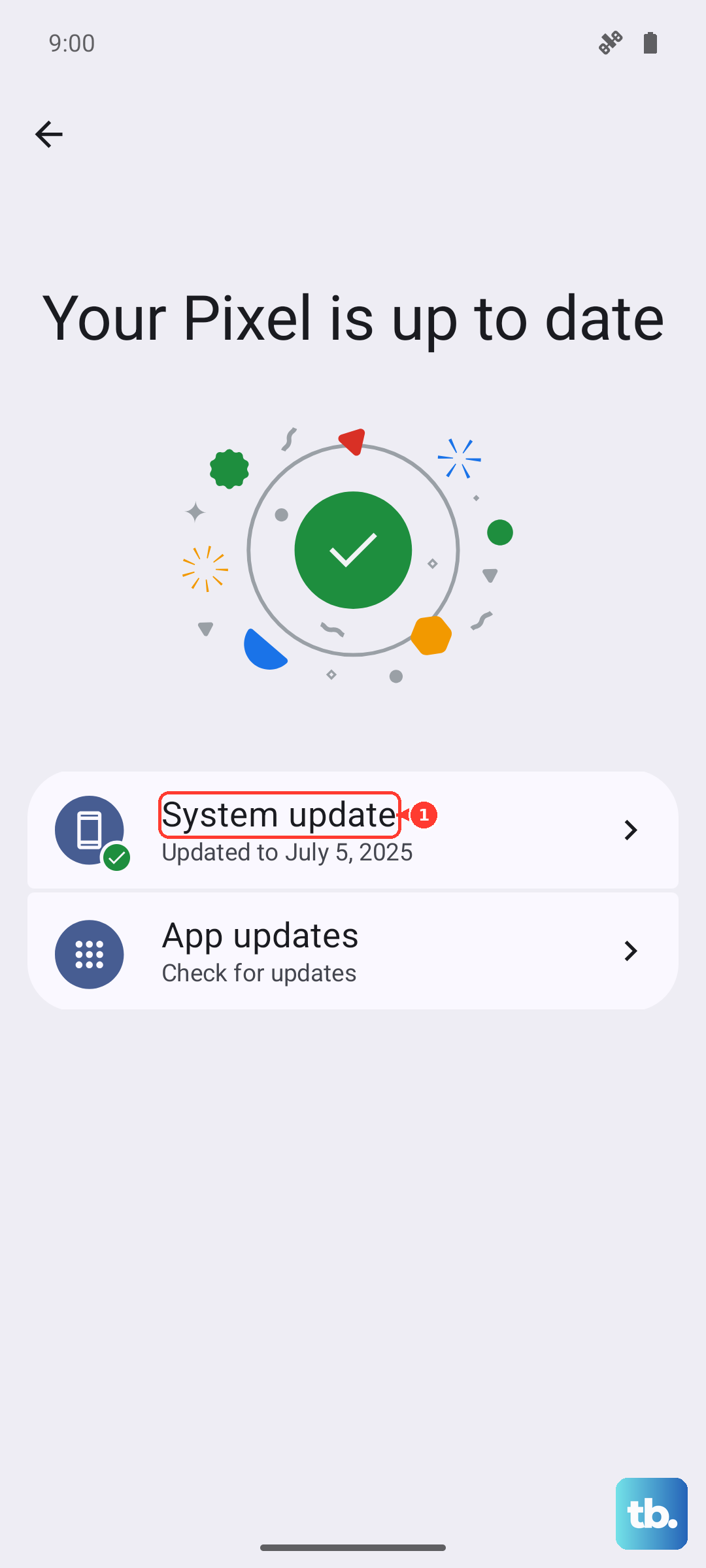
Go to Settings > System > Software updates and follow the on-screen instructions to download and install anything that is waiting. If you want to confirm your current build first, you can check it under Settings > About phone > Android version. The Pixel 10 Pro launched with Android 16, so keeping it current on the latest patch is the best way to stay ahead of boot-related glitches.
Test for a Misbehaving App in Safe Mode
If your phone reaches the home screen but keeps freezing or hangs at boot again afterward, a downloaded app may be the culprit. Safe mode starts the phone with only its built-in software, so you can tell whether something you installed is causing the trouble.
If the freezing or boot problem stops while in Safe mode, an app is responsible.
Restart normally, then remove recently downloaded apps one at a time, restarting after each removal, until the problem disappears.
Working through them individually tells you exactly which app to leave uninstalled.
Repair the Software Without Losing Your Data
If your Pixel 10 Pro still will not get past the logo no matter what you try from the phone itself, Google offers a dedicated tool that runs from a computer. The Google Pixel Update and Software Repair tool can fix software issues without a factory reset, meaning it can repair the phone without deleting your data.
Connect your phone to a computer with a USB cord.
Open Google's official Pixel Update and Software Repair tool website in a browser.
Follow the on-screen instructions.
This tool can update the software to fix software issues, and it can also reset the device to the most recent version of Android if a deeper repair is needed. Because it can fix problems without wiping your files, it is worth trying before you resort to a full reset.
Erase and Start Fresh as a Last Resort
When nothing else clears the logo freeze, a factory reset is the final software option. This wipes the phone clean, so treat it as a last resort and back up anything you can first. Google is blunt about this, warning that a factory reset erases all your data from your phone.
If you can still reach Settings, back up first, then go to Settings > System > Reset options > Erase all data (factory reset) and tap Erase all data, entering your PIN if prompted.
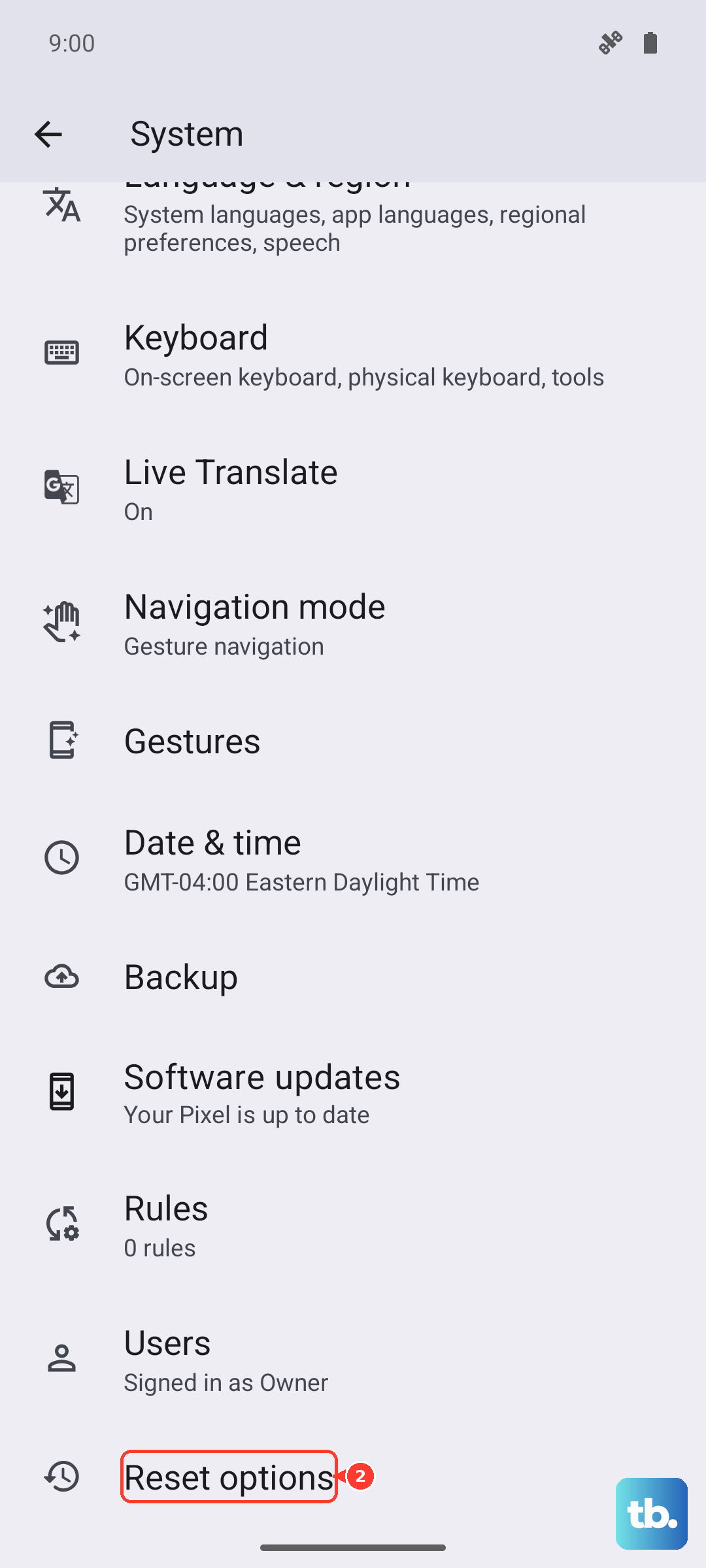
If you cannot reset from the Settings app or you cannot use your screen at all, Google's guidance is to reset your Pixel phone manually with Fastboot mode instead. Be aware that the Fastboot method also erases all data on your device, so the same data-loss warning applies.
Reach Out for Repair or Warranty Help
If your Pixel 10 Pro is still stuck on the logo after all of the above, the problem may be hardware rather than software, and that calls for professional help. Back up your data if you can and remove the SIM card before sending the phone anywhere.
To check your coverage, you can look under Settings > About Phone > Limited Warranty. Start a repair or check your warranty status through the official Google Store repair center, where walk-in and mail-in repair are available in many countries. If you are in a region the repair center does not cover, contact Pixel phone support to ask about your repair options.
Frequently Asked Questions
How do I force restart a Pixel 10 Pro that is stuck on the logo?
Press and hold the Power button for up to 60 seconds. Once the phone begins to reboot and the screen displays the "G" logo, release the Power button. This is the official force restart for all Pixel models and does not erase any data.
Will any of these fixes delete my photos and apps?
The force restart, charging steps, software update, Safe mode check, and the Update and Software Repair tool all leave your data in place. Only a factory reset from Settings or a manual Fastboot reset will erase everything, which is why those are saved for last and come with a clear data-loss warning.
My screen stays black but I am not sure if the phone is on, so how can I check?
After holding the Power button for about 35 seconds and waiting about 2 minutes, try calling the phone from another device or use Find Hub to see if it rings. If it rings, the phone is running even though the screen looks dark, which points to a display or boot issue rather than a phone that is fully off.
Which charger should I use to rule out a battery problem?
Plug in with a working cable, charger, and outlet, and wait at least a minute for a battery icon to appear. For proper fast charging on the Pixel 10 Pro, Google specifies a 30W USB-C PPS charger or higher, so an underpowered charger may charge slowly or not show progress quickly.
What if the phone is still stuck after a factory reset?
If the logo freeze survives a factory reset, the issue is likely hardware. Back up your data, remove the SIM card, and start a repair or check warranty status through the official Google Store repair center, or contact Pixel phone support if your region is not supported.