
When your Google Pixel 10 Pro's location is off, it can make navigation a real headache. The good news is that inaccurate GPS is usually a software hiccup you can fix yourself. I'd start with the quick refresh below, as it solves the issue more often than not.
Refresh Your Location Services
Pull down from the top of your screen twice to open the full Quick Settings panel. Find the tile labeled "Location" and tap it to turn it off. Wait about 20 seconds, then tap it again to turn it back on. This simple reset clears the temporary connection to GPS satellites and often snaps your location back into focus immediately.
Perform a Force Restart
If toggling location didn't help, a force restart is your next best move. This clears out any minor system glitches affecting the GPS sensor. Press and hold just the Power button for up to 60 seconds, until the phone reboots and the Google "G" logo appears on the screen, then let go.
Your Pixel 10 Pro will reboot. Once it's back on, open Google Maps or another navigation app to see if your location is more accurate. This step alone fixes a surprising number of location problems.
Check Your Location Mode in Android 16
Your Pixel 10 Pro has a few different location modes, and using the wrong one can hurt accuracy. Go to Settings > Location. At the top, make sure the main Location switch is on. Then, tap on "Location services" or "Mode".
For the best possible accuracy, especially when navigating, open Location services and make sure Google Location Accuracy is switched on. This lets your Pixel combine Wi-Fi, Bluetooth, and mobile networks with GPS to pinpoint you. With it turned off, your phone relies on GPS satellites alone, which can be slower to lock and less accurate indoors or between tall buildings.
Review App Permissions
Sometimes, the app you're using might not have permission to access your precise location. Go to Settings > Apps and select the app giving you trouble, like Google Maps or Waze. Tap Permissions and then Location.
Make sure it's set to "Allow all the time" or "Allow only while using the app," depending on your preference. If it's set to "Deny," that's why your location isn't working within that specific application.
Disable Battery Saver and Adaptive Features
Battery Saver is designed to extend battery life by limiting background processes, which can include frequent GPS checks. Swipe down and check your Quick Settings for the Battery Saver icon. If it's active, tap it to turn it off.
Also, check for any adaptive battery settings that might be overly aggressive. You can find these in Settings > Battery > Adaptive preferences. Temporarily pausing these features can help determine if they're interfering with location services.
Update Your Apps and System Software
An outdated version of Google Maps or your Android system software can have bugs that mess with location data. Open the Google Play Store, tap your profile icon, and go to Manage apps & device. Tap "Update all" to ensure everything is current.
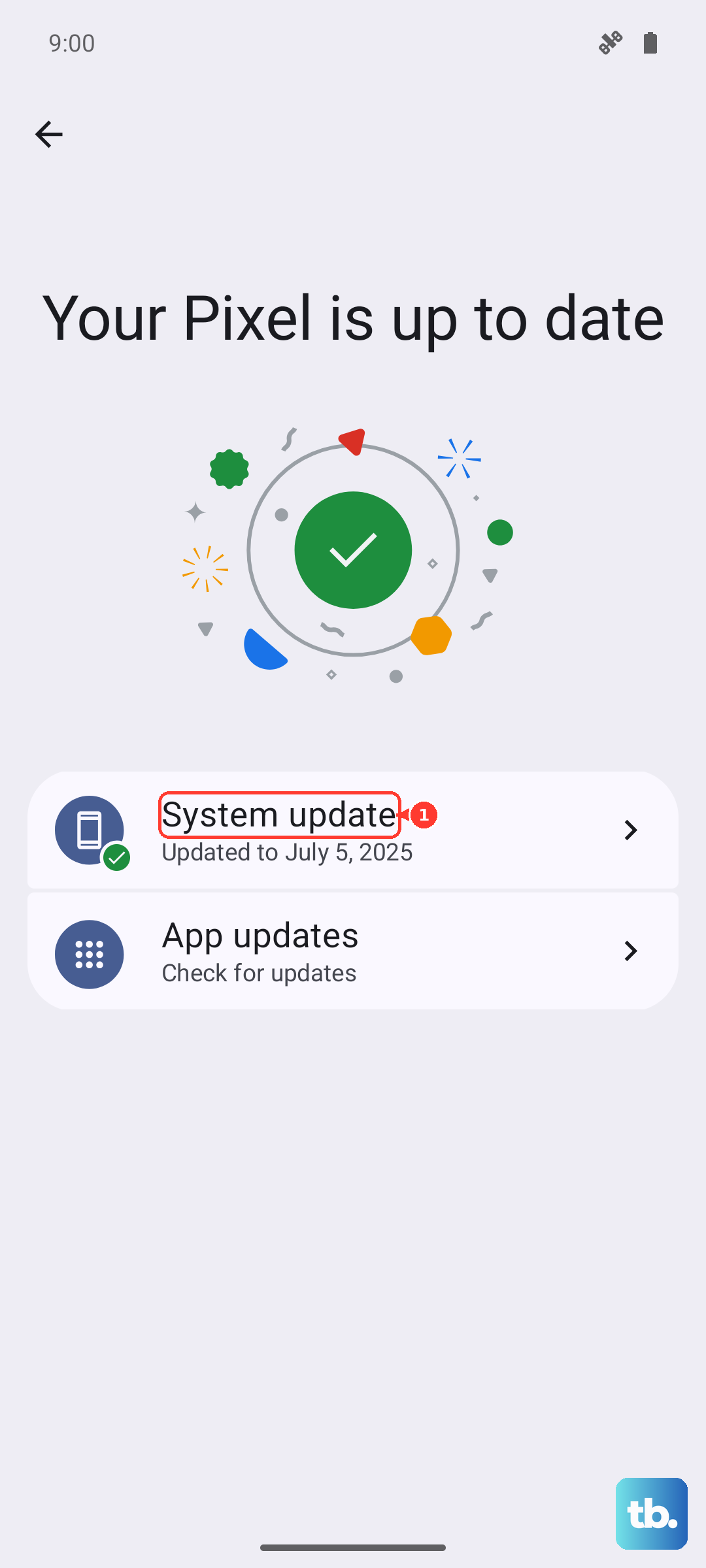
Next, check for a system update. Go to Settings > System > System update. If an update is available, install it. These updates often include important fixes for connectivity and sensor performance.
Clear the Cache for Maps
Corrupted temporary data in your navigation app can cause location drift. You don't need to clear your saved places or search history. Go to Settings > Apps > Google Maps. Tap Storage & cache and then hit "Clear cache."
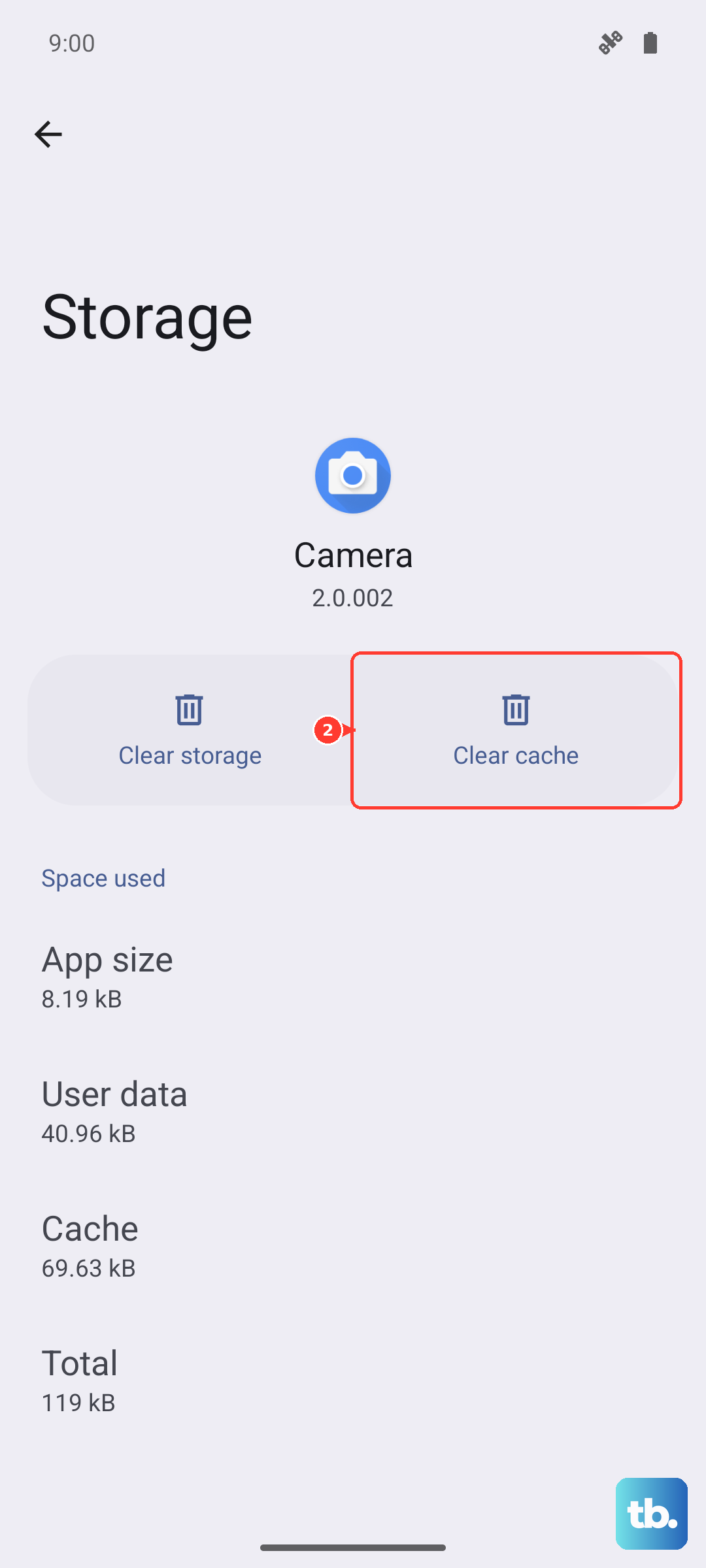
This only deletes temporary files. Restart the Maps app and test your location again. If the problem is severe and persists, you can try "Clear storage" or "Manage space," but be aware this will reset the app to its default state and you'll need to log back in.
Calibrate Your Compass
A poorly calibrated compass can make your orientation on the map wrong, even if your pinpoint location is correct. Open Google Maps and tap the blue dot that represents you. A menu will pop up from the bottom. Select "Calibrate compass."
You'll be prompted to move your phone in a figure-eight motion through the air. Do this a few times until the calibration reaches "High" accuracy. This helps with the direction you're facing, which is crucial for turn-by-turn navigation.
Test in Safe Mode
This helps you figure out if a third-party app you installed is causing the conflict. Press and hold the Power button until the power menu appears. Then, tap and hold the "Power off" option on your screen.
You'll see a prompt to reboot into Safe Mode. Tap "OK." Once booted, you'll see "Safe mode" in the bottom corner. Test your location in Google Maps. If it works perfectly here, a recently downloaded app is likely the culprit. Restart your phone normally to exit Safe Mode and try uninstalling apps one by one to find the offender.
Check for Physical and Environmental Factors
GPS signals are line-of-sight and can be blocked. Thick phone cases, especially those with metal plates or elements, can interfere. Try removing your case temporarily to see if accuracy improves.
Your environment plays a huge role. Being indoors, in urban canyons between tall buildings, or under dense tree cover will degrade signal. For the best lock, step outside to an open area with a clear view of the sky and give your phone a moment to reconnect to the satellites.
Reset Location & Network Settings
If you're still having trouble, resetting your network-related settings can clear deeper configuration errors. Go to Settings > System > Reset options. Tap on "Reset Wi-Fi, mobile & Bluetooth."
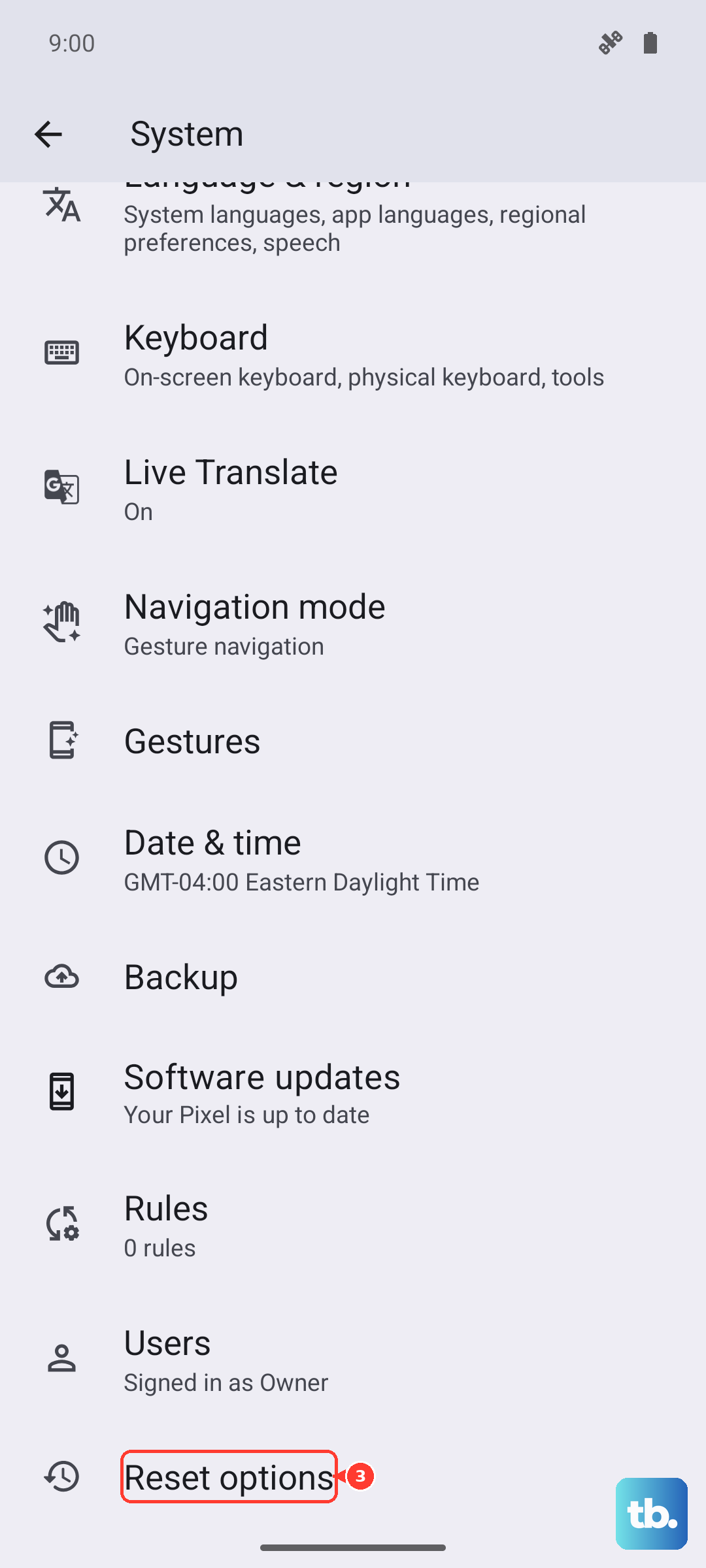
This will erase all saved networks, Bluetooth pairings, and mobile settings. It also resets your location permissions to default. You'll have to reconnect to Wi-Fi and pair Bluetooth devices again, but it often resolves persistent connectivity issues, including GPS.