
When your Google Pixel 10 Pro starts acting up with apps that freeze or close unexpectedly, it pulls you right out of whatever you were doing. It's a common hiccup, especially as apps and the Android 15 system get updated throughout the year. I'd start with a simple restart, as that clears out temporary glitches more often than not.
For a force restart on the Pixel 10 Pro, press and hold the Power button and the Volume Up button together for about ten seconds. Keep holding until you see the Google logo appear on the screen, then let go. This is a bit more thorough than a standard restart and can kick stubborn background processes back into line.
Update Everything First
Outdated software is one of the biggest culprits behind app instability. Head to the Google Play Store, tap your profile icon in the top right, and go to Manage apps & devices. Under the "Updates available" section, tap "Update all" to get everything current. Developers are constantly pushing out patches for bugs that cause crashes.
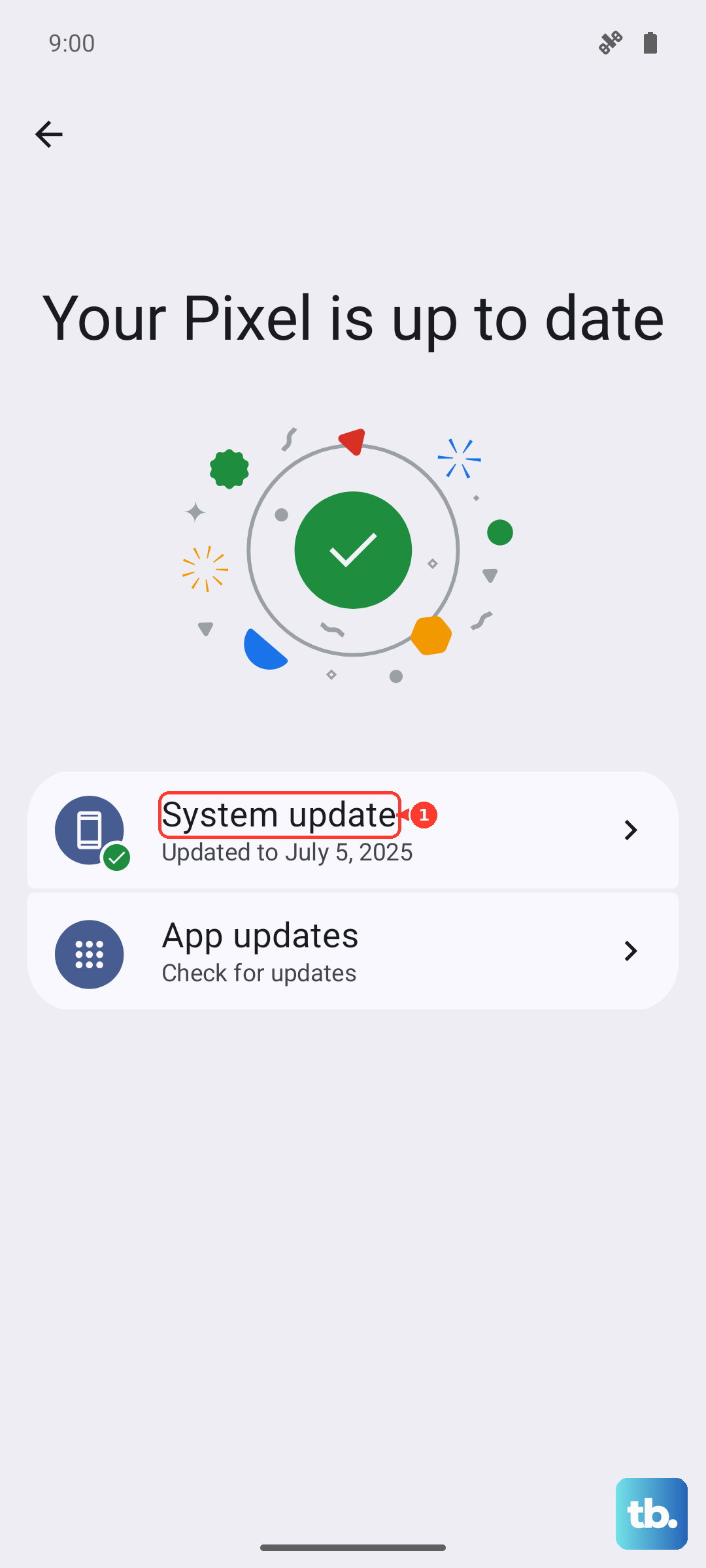
Don't forget to check for a system update, too. Go to Settings > System > System update to see if Android 15 has a newer security patch or feature drop waiting. Installing this can resolve conflicts between the OS and your apps.
Give the Problem App a Fresh Start
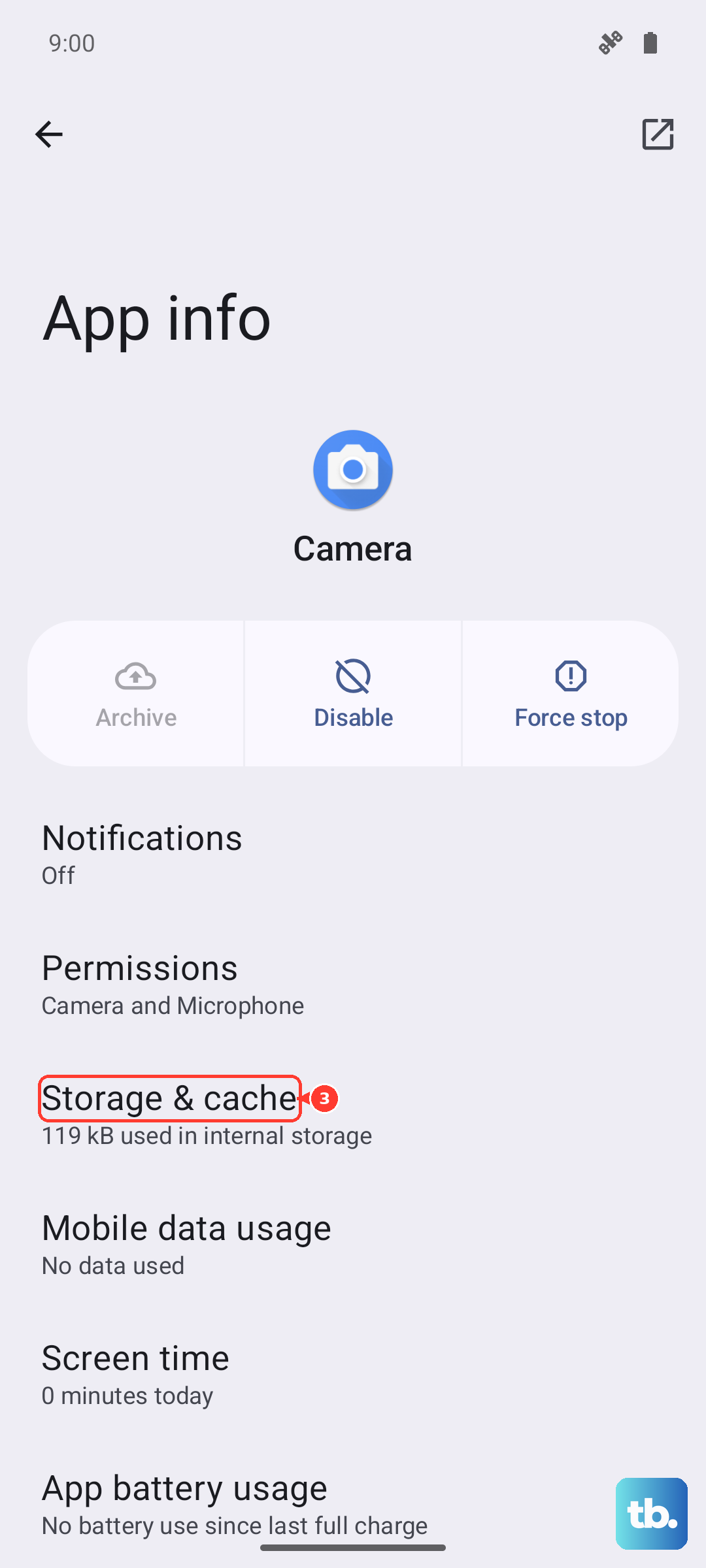
If a specific app like Instagram or Gmail is misbehaving, force stopping it is the next move. Go to Settings > Apps, find the troublesome app in the list, and tap on it. On the app's info page, tap "Force stop." This completely shuts it down, along with any errant processes. Wait a moment, then open the app again normally.
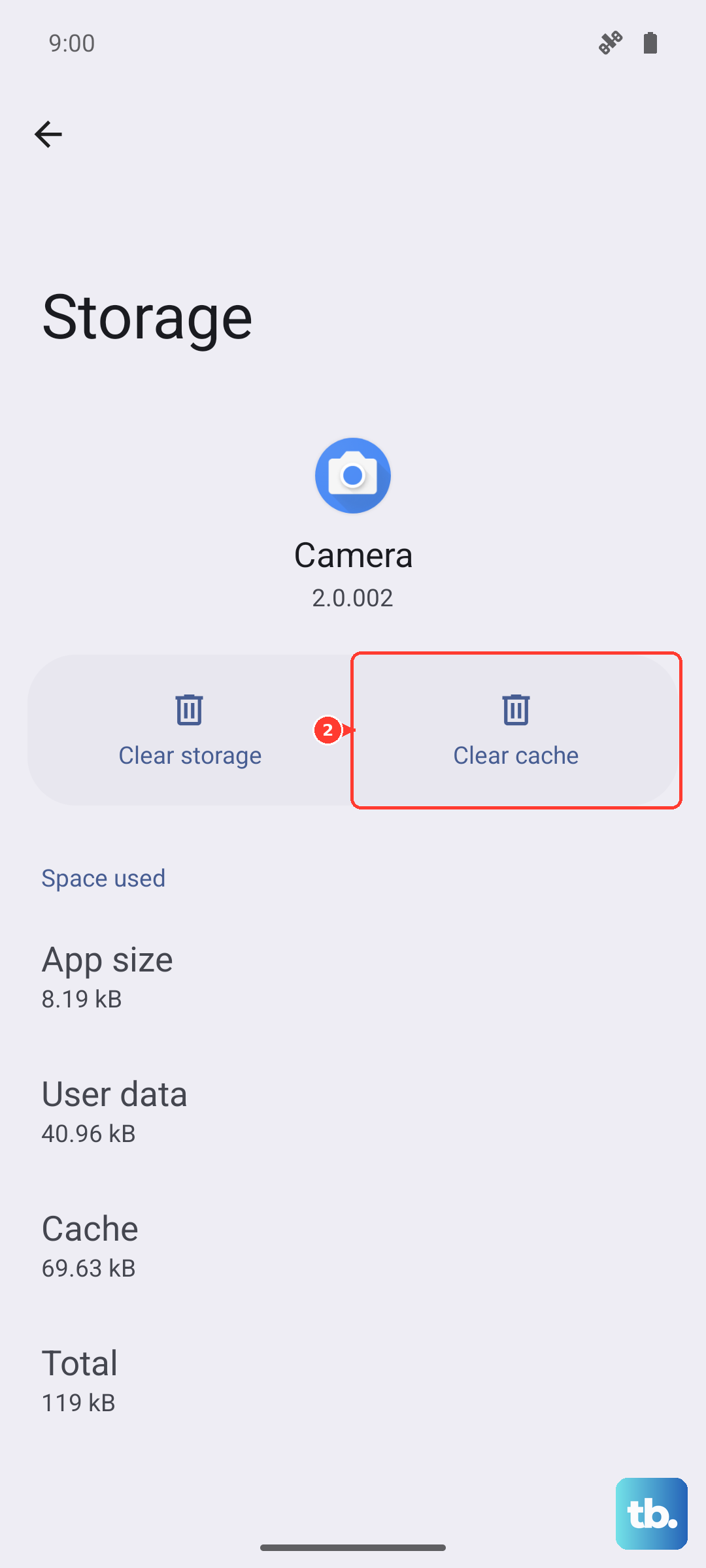
When force stopping doesn't cut it, clearing the app's cache is a great middle ground. In the same app info screen, tap Storage & cache and then "Clear cache." This deletes temporary files that might have become corrupted, without touching your login info or saved data. It's a safe first step.
Clear App Data or Reinstall
For more persistent crashes, you might need to clear the app's data. This is a stronger fix. In the Storage & cache menu, tap "Clear storage" or "Clear data." Be warned, this will log you out and reset the app to its default state, like it's brand new. You'll need to sign back in and reconfigure any settings.
Sometimes, a clean reinstall is the most effective solution. Uninstall the app completely, then head to the Play Store to download it again. This ensures you have a fresh copy of all the app's files, which can fix issues that clearing data alone might not solve.
Check Your Internet Connection
Apps that rely on a network connection can crash or hang if your signal is weak or unstable. Try toggling Airplane mode on and off from the Quick Settings panel to reset your cellular and Wi-Fi radios. If you're on Wi-Fi, try forgetting the network and reconnecting, or test the app using your mobile data to see if the problem follows you.
A slow or intermittent connection won't always throw an error message. Sometimes the app will just freeze or close. This is especially true for streaming, banking, and social media apps that need constant data flow.
Free Up Storage Space on Your Pixel
Android needs breathing room to operate smoothly. If your Pixel 10 Pro's storage is nearly full, apps can struggle to function. Open Settings > Storage to see what's taking up space. The built-in Files app can help you quickly delete old downloads, screenshots, and cached data from multiple apps at once.
Consider offloading photos and videos to Google Photos with the "Free up space" option, or move files to a cloud service. Aim to keep at least 10% of your storage free for the system to work with. I've seen this simple fix resolve lag and crashes on many devices.
Review Recently Installed Apps
Think about what changed right before the crashes started. Did you install a new app, a new widget, or a custom launcher? Sometimes, a newly added app can conflict with others or with the system itself. Try uninstalling any recent additions to see if stability returns.
This also applies to apps you sideloaded from outside the Google Play Store. These APK files might not be fully compatible with Android 15 on the Pixel 10 Pro and can cause unpredictable behavior.
Boot Into Safe Mode
Safe mode is a diagnostic tool that temporarily disables all third-party apps. To enter Safe Mode on your Pixel 10 Pro, press and hold the Power button and Volume Up button together until the power menu appears. Then, press and hold the "Power off" option on your screen. A prompt will ask if you want to reboot to Safe Mode. Tap "OK."
If the crashes stop while in Safe Mode, you know for sure that a downloaded app is the cause. You can then restart normally and begin uninstalling apps one by one, starting with the most suspicious, to find the offender.
Reset App Preferences
This is a useful reset that doesn't delete any personal data. It reverts all your app-specific settings back to default. Go to Settings > Apps > See all apps, tap the three-dot menu in the top right, and select "Reset app preferences."
This action resets permissions, notification settings, background data restrictions, and default app assignments. After doing this, you'll need to re-grant permissions when apps ask for them, but it can clear up weird conflicts causing apps to crash.