
When a photo or video message gets stuck on "Downloading" on your Google Pixel 10, it's a common hiccup that usually has a simple cause. MMS relies on your mobile data connection and the right settings to work, and a quick network refresh or setting toggle often gets things moving again.
Let's start with the most likely fixes that take just a minute.
Restart Your Pixel 10
A simple restart clears out temporary glitches in the system that can block MMS downloads. Just press and hold the Power button and Volume Up button together for about 10 seconds until you see the Google logo appear on the screen.
Check Your Mobile Data Connection
MMS requires an active mobile data connection to download, even if you're on Wi-Fi. Swipe down from the top of your screen twice to open the Quick Settings panel and make sure the Mobile Data icon is turned on. If your signal is weak, try moving to a different location.
Force Stop and Relaunch Messages
Sometimes the Google Messages app itself just needs a fresh start. Go to Settings > Apps > See all apps, find and tap "Messages," then tap Force stop. Open the app again and check if the MMS downloads.
Verify Your MMS Settings in Google Messages
Your phone might not be set to grab MMS automatically. Open the Google Messages app, tap your profile picture in the top right, then go to Messages settings > Advanced. Here, make sure both "Auto-download MMS" and "Auto-download MMS when roaming" are toggled on.
I've found that the roaming setting is often overlooked, especially if you've recently traveled or are near a network boundary.
Review Your APN Settings
Incorrect Access Point Name (APN) settings are a frequent culprit for MMS problems. These settings tell your phone how to connect to your carrier's multimedia service. You can find them by going to Settings > Network & internet > Internet, tapping the gear icon next to your carrier's name, then scrolling down to Access Point Names.
Don't change these randomly. The best move is to contact your carrier's support or visit their website to get the exact, updated APN configuration for your Pixel 10 on Android 15.
Clear the Cache for Carrier Services and Messages
Corrupted temporary data can interfere. Start by clearing the cache for Carrier Services, which handles communication between your phone and your network. Go to Settings > Apps > See all apps, tap the three-dot menu and select Show system, then find and tap "Carrier Services." Tap Storage & cache followed by Clear cache.
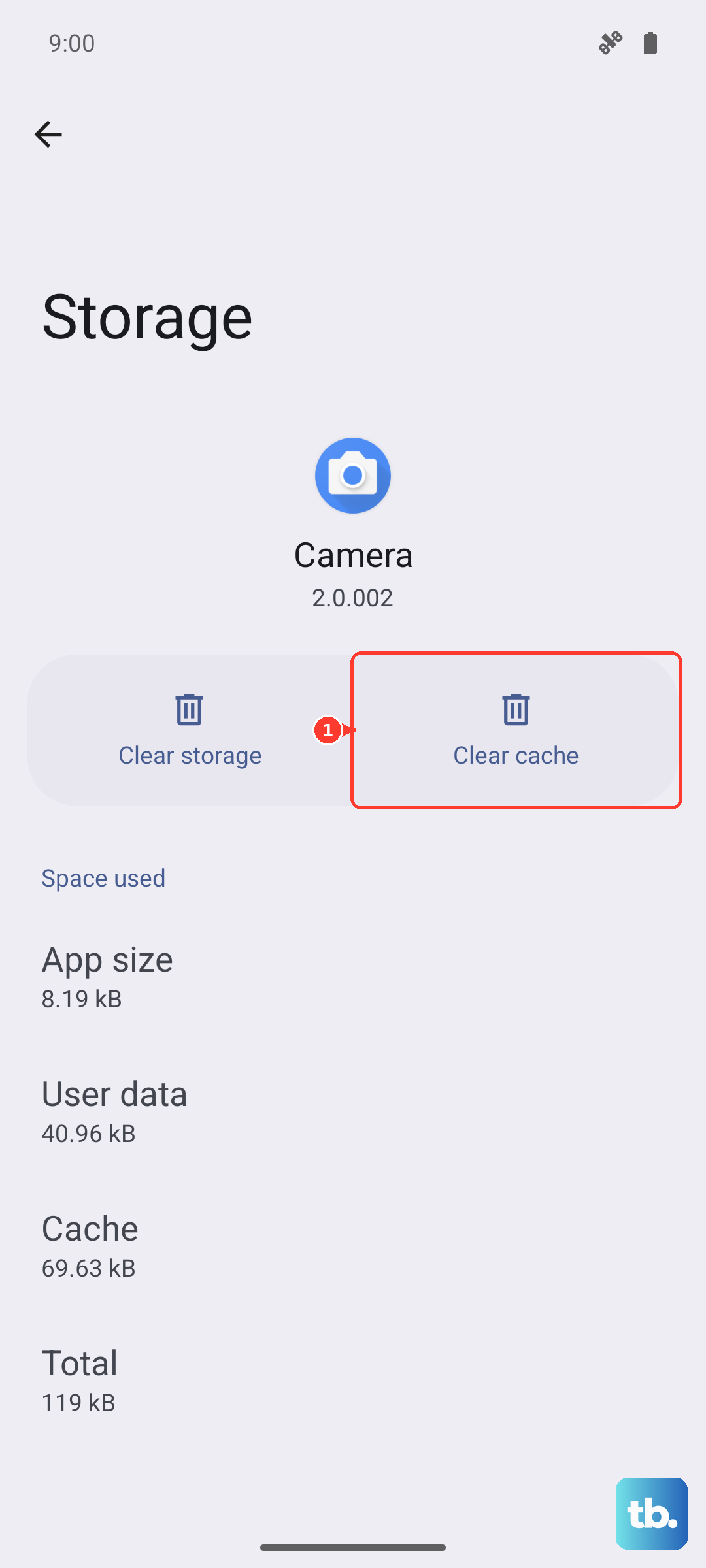
Next, do the same for the Google Messages app. Go back to your apps list, find "Messages," and tap Storage & cache > Clear cache. This won't delete your conversations.
Check for a Software Update
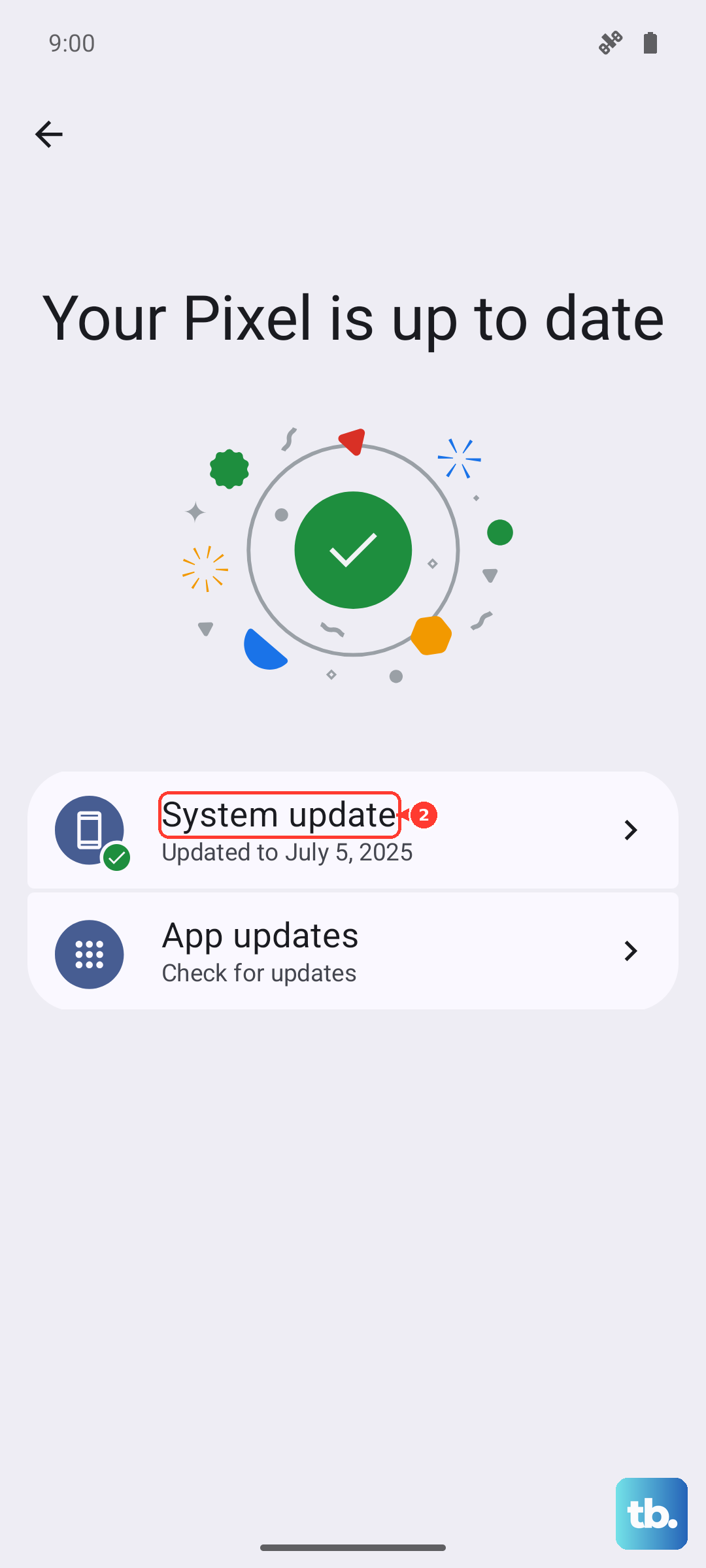
Google frequently releases updates that fix connectivity bugs. Make sure your Pixel 10 is running the latest available version of Android. Go to Settings > System > System update and tap "Check for update." If one is available, install it and see if it resolves the MMS issue.
Reset Your Network Settings
This will wipe all your Wi-Fi networks, paired Bluetooth devices, and mobile network settings back to default, which can clear out any deep-seated configuration errors. To do this, navigate to Settings > System > Reset options and tap Reset Wi-Fi, mobile & Bluetooth.
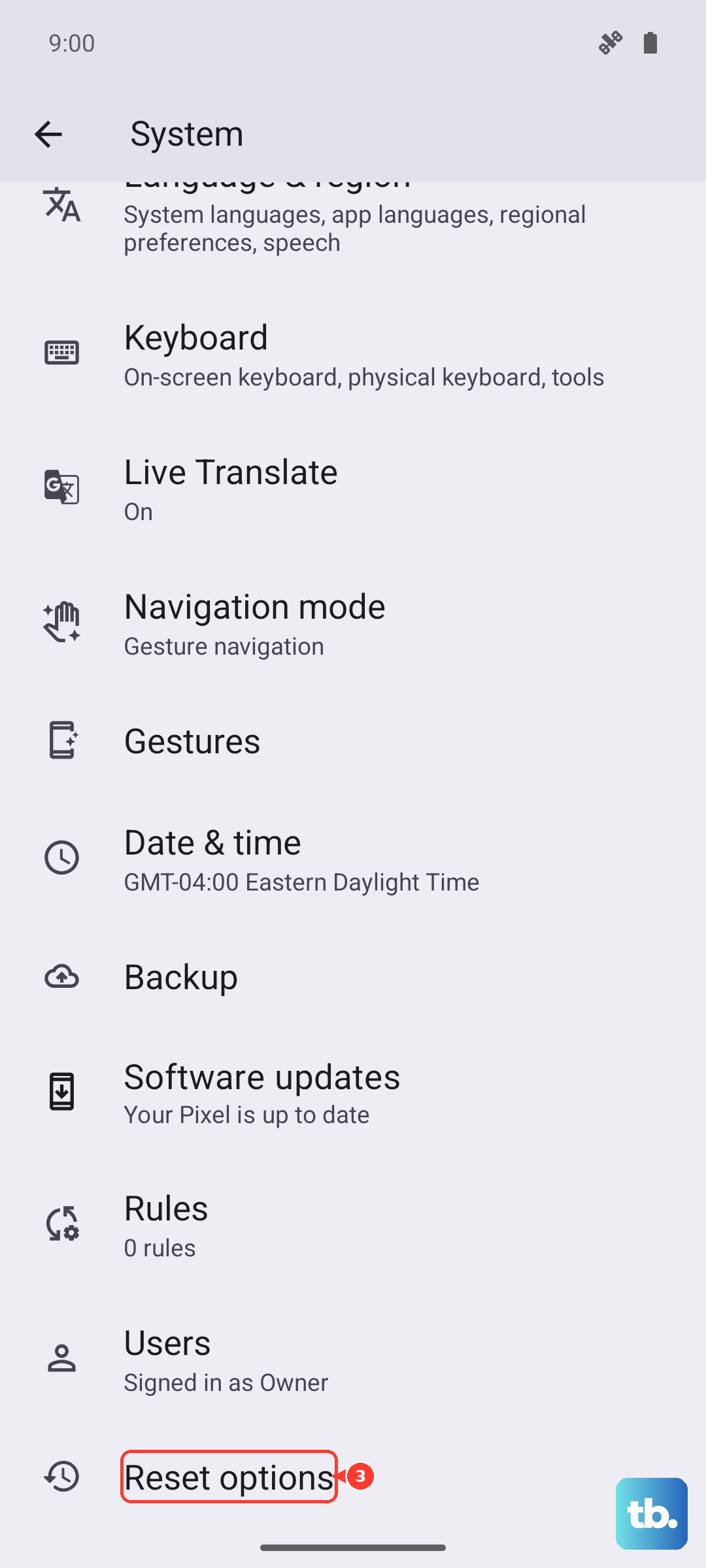
Remember, you'll need to reconnect to your Wi-Fi and re-pair Bluetooth accessories afterward, but your personal files and apps will be safe.
Try a Different Messaging App Temporarily
This is a great way to figure out if the problem is with the Google Messages app specifically or with the phone's system. Download a simple, alternative messaging app like Textra from the Play Store and set it as your default. If MMS downloads work fine in the other app, the issue is likely with your primary app's data or settings.
Ensure You Have Enough Storage Space
Your Pixel 10 needs a little free space to process and store incoming media files. If your storage is critically full, it can fail to download MMS. Go to Settings > Storage to see how much space you have left. If it's very low, consider deleting some old files, photos, or unused apps to free up room.