
When your Google Pixel 10 starts restarting on its own, it can be incredibly disruptive. This is usually a software hiccup, often tied to a recent app update or a system process that's gotten stuck. Before you worry about hardware, there are several straightforward steps you can take to get things back to normal.
It's a good idea to make sure your data is backed up to Google One or your computer before you start, just as a precaution. This protects your photos, messages, and app data in case you need to take more drastic steps later.
Perform a Force Restart
This is almost always the first thing I'd try. A force restart clears the phone's temporary memory and can stop a minor software glitch that's causing the loop. For the Pixel 10, press and hold the Power button and the Volume Up button together for about 10 seconds.
Keep holding until you see the Google logo appear on the screen, then let go. Your phone will boot up normally. This doesn't erase any of your personal data or settings.
Check for and Update Problematic Apps
Third-party apps are a very common cause of random restarts. Start by checking the Play Store for any pending updates. Open the Play Store, tap your profile icon in the top right, and go to Manage apps & device. If updates are available, tap Update all.
If the restarts started after installing or updating a specific app, that app is likely the culprit. You can try uninstalling it to see if the problem stops. Go to Settings > Apps, find the app, and select Uninstall.
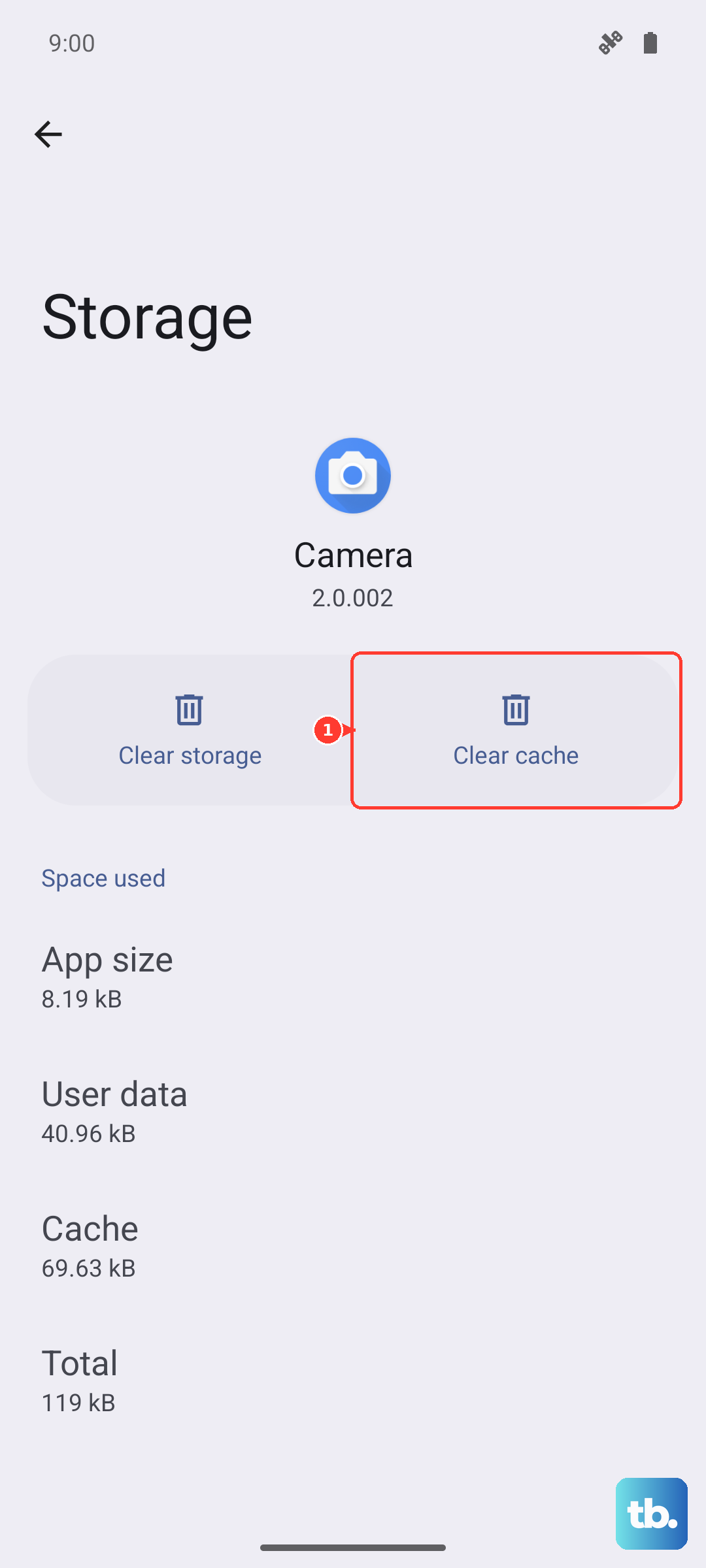
For essential apps you can't remove, try clearing their cache and data first. In the same app info screen, go to Storage & cache and tap Clear cache. If that doesn't help, you can try Clear storage (this will delete the app's data, like login info).
Install the Latest Android Update
Google frequently releases system updates that fix bugs and improve stability. Make sure your Pixel 10 is running the latest version of Android. Go to Settings > System > System update.
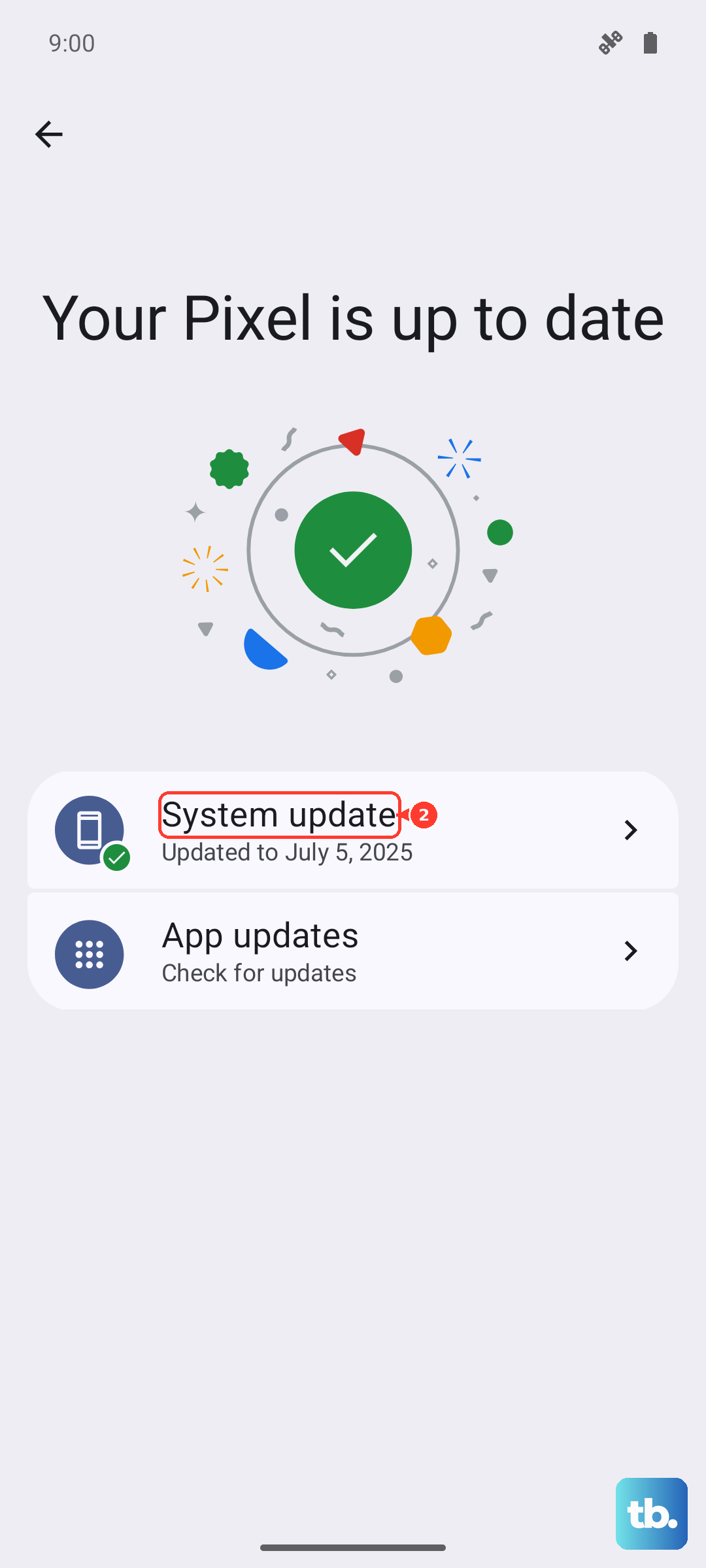
Tap Check for update and install anything that's available. It's best to do this while connected to Wi-Fi and with your phone plugged into its official 30W charger, as the update can take a few minutes.
Boot Into Safe Mode
Safe Mode temporarily disables all third-party apps. If your phone stops restarting in Safe Mode, you've confirmed the issue is caused by an app you installed. To enter Safe Mode on the Pixel 10, press and hold the Power button and Volume Up button together until the power menu appears.
Then, press and hold the Power off option on your screen. A prompt will ask if you want to reboot to Safe Mode. Tap OK. If the restarts stop, restart your phone normally to exit Safe Mode and begin uninstalling recently added apps one by one.
Free Up Storage Space
When your phone's storage is critically full, the operating system can become unstable. Android needs some free space to function properly. Check your storage by going to Settings > Storage.
The Pixel 10 will show you a breakdown and offer tools to free up space, like removing downloaded files or clearing cached data from apps. Try to keep at least 10% of your storage free for the system to work smoothly.
Review Device Diagnostics
Android keeps logs that can sometimes point to what's causing the crash. You can access a basic diagnostic menu on your Pixel. Open the Phone app and dial *#*#7287#*#* to access the "Device Diagnostics" menu.
This menu lets you run tests on various hardware components. While it might not give you a simple answer like "App X is crashing," it can help rule out immediate hardware failures if all tests pass.
Reset All App Preferences
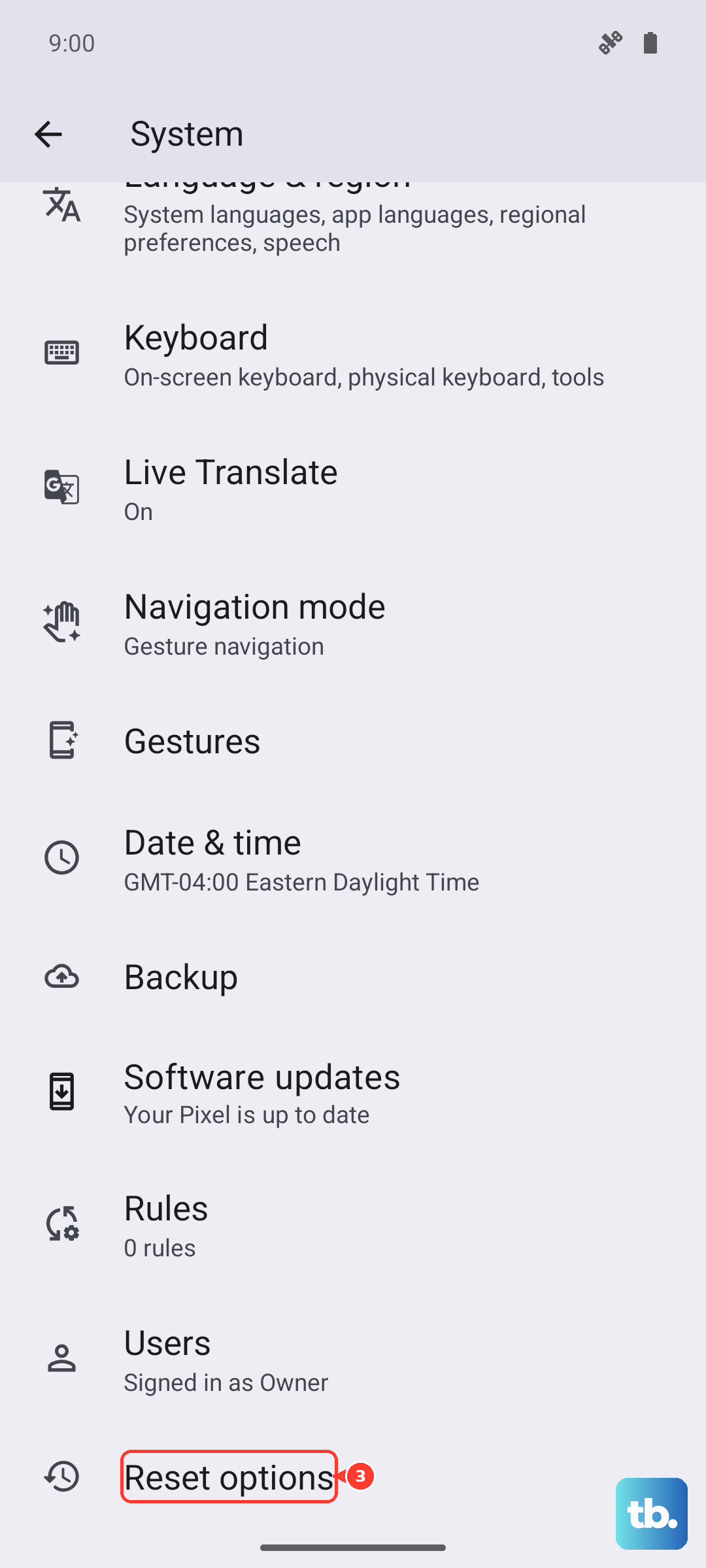
This resets permissions, background restrictions, and notification settings for all your apps back to their defaults, but it won't delete any app data. It can fix issues caused by an app being denied a critical permission. Go to Settings > System > Reset options.
Tap Reset app preferences and confirm. You'll need to re-grant permissions to apps when you use them next, but this often resolves strange app-related behavior without a full reset.
Perform a Factory Reset
If nothing else has worked, a factory reset will return your phone to its original out-of-the-box state. This will erase all your data, so ensure everything is backed up first. Go to Settings > System > Reset options > Erase all data (factory reset).
You may need to enter your PIN, pattern, or password. Follow the prompts to confirm. After the reset, you can set up the phone as new to see if the restarting stops, which would confirm it was a software issue.
Use Android Flash Tool for a Clean Install
If your phone is stuck in a constant restart loop and you can't access settings, this is a more advanced option. You'll need a computer with a USB-C cable. The Android Flash Tool is a web-based tool from Google that lets you reinstall the factory system image.
On your computer, visit the Android Flash Tool website. Put your Pixel 10 into bootloader mode by turning it off, then holding the Volume Down button while you plug it into the computer. Follow the web tool's instructions to flash the latest stable Android build, which can often recover a severely corrupted software state.