You plug your USB-C earbuds into your Pixel 10 or reach for your Bluetooth headphones, hit play, and nothing comes through. Maybe the sound keeps blasting out of the phone's stereo speakers, or the headphones connect but stay silent during calls.
With no 3.5mm headphone jack on the Pixel 10, every wired connection runs through the single USB Type-C 3.2 port, and wireless audio leans on Bluetooth v6, so a small misconfiguration in either path can leave you with no sound at all. The good news is that most headphone problems on this phone come down to settings or a quick reset, and you can usually fix them yourself in a few minutes.
It helps to confirm what actually works before changing settings. Run a quick headphone test, note which channels and frequencies play correctly, and match the result against the steps below.
Work through the fixes below in order. They start with the safest, fastest checks and move toward the official reset and support paths only if nothing earlier solves it.
Start With the Bluetooth Basics for Wireless Headphones
If you are using wireless headphones, this is Google's documented first step for Bluetooth problems, and it clears the most common connection hiccups. Turn Bluetooth off and then on again, confirm that your devices are paired and connected, and restart both your Pixel 10 and your headphones.
A simple power cycle on both ends often re-establishes a connection that quietly dropped or got stuck. Once everything is back on, try playing audio again before moving on.
Make Sure Media and Call Audio Are Routed to the Headphones
Your headphones can show as connected and still play nothing if the audio profiles are switched off. The Pixel routes media and call sound separately, so check both.
Open Settings > Connected devices > Saved devices.
Select your headphones from the list.
Tap the Settings (gear) icon next to the device.
Toggle Media audio on.
Toggle Phone audio on if you also want sound during calls.
If either toggle was off, that alone explains why nothing was reaching your ears. Turn them on and test playback again.
Forget the Headphones and Pair Them Fresh
When the connection is acting unpredictable, removing the saved pairing and starting over gives the phone a clean handshake. This often fixes garbled audio, one-sided sound, or headphones that connect but refuse to play.
Go to Settings > Connected devices.
Tap the Settings (gear) next to the device name.
Choose Forget, then tap Forget device.
Tap Pair new device.
Select your headphones to set up a fresh connection.
Put your headphones into pairing mode before tapping Pair new device so they appear in the list. After re-pairing, double-check that Media audio is enabled as covered in the previous fix.
Confirm USB-C Digital Audio Support for Wired Headphones
The Pixel 10 has no 3.5mm jack, so wired headphones connect through the USB-C port, and that connection has specific requirements. According to the official guidance, you need to make sure the device uses USB-C digital audio; to find out, check the device's tech specs or contact the manufacturer.
The accessory must have a USB-C port (or a compatible USB-C adapter that supports digital audio), and the connected device or adapter has to support USB-C digital audio for sound to pass through. The official guidance also notes to check the device's sound settings, because on some devices you will need to turn on audio through your USB-C port.
If your headphones or adapter were built for an analog headphone jack rather than digital audio, they will not work directly with this phone's USB-C port, and confirming the spec with the manufacturer is the quickest way to know.
Restart the Pixel 10 to Clear Temporary Glitches
A normal restart clears temporary audio glitches that build up while the phone runs for days at a time. It is quick, safe, and surprisingly effective for sound that suddenly stopped.
Press and hold the Power and Volume up buttons for a few seconds.
On your screen, tap Power off.
Turn the phone back on.
Once it boots, reconnect your headphones and play something to confirm sound is back.
Force Restart a Frozen or Unresponsive Phone
If your Pixel 10 is frozen and a normal restart will not go through, a forced reboot can bring it back. This sequence applies to Pixel 6 and later, including the Pixel 10.
Press and hold the Power button for up to 60 seconds. Once your phone begins to reboot and the screen displays the "G" logo, release the Power button.
Give it a full minute if needed, since the reboot does not happen instantly. After it restarts, test your headphones again.
Use Safe Mode to Rule Out a Misbehaving App
Sometimes a downloaded app interferes with audio routing, hijacking the output or blocking it entirely. Safe mode is the built-in tool for isolating a problem app, because it temporarily disables everything you installed yourself.
Press and hold the Power and Volume Up buttons for a few seconds.
Tap and hold the Power off (or Restart) button on screen.
Tap OK.
While in Safe mode, test your headphone audio. If sound works normally there, a downloaded app is the cause, and you can narrow it down by removing recently installed apps. To exit Safe mode, simply restart the phone normally.
Install the Latest Software Update
Audio and Bluetooth bugs are frequently fixed in software updates, so running the latest version can quietly resolve a problem you have been fighting manually. The Pixel 10 launched with Android 16, and Google pushes updates regularly.
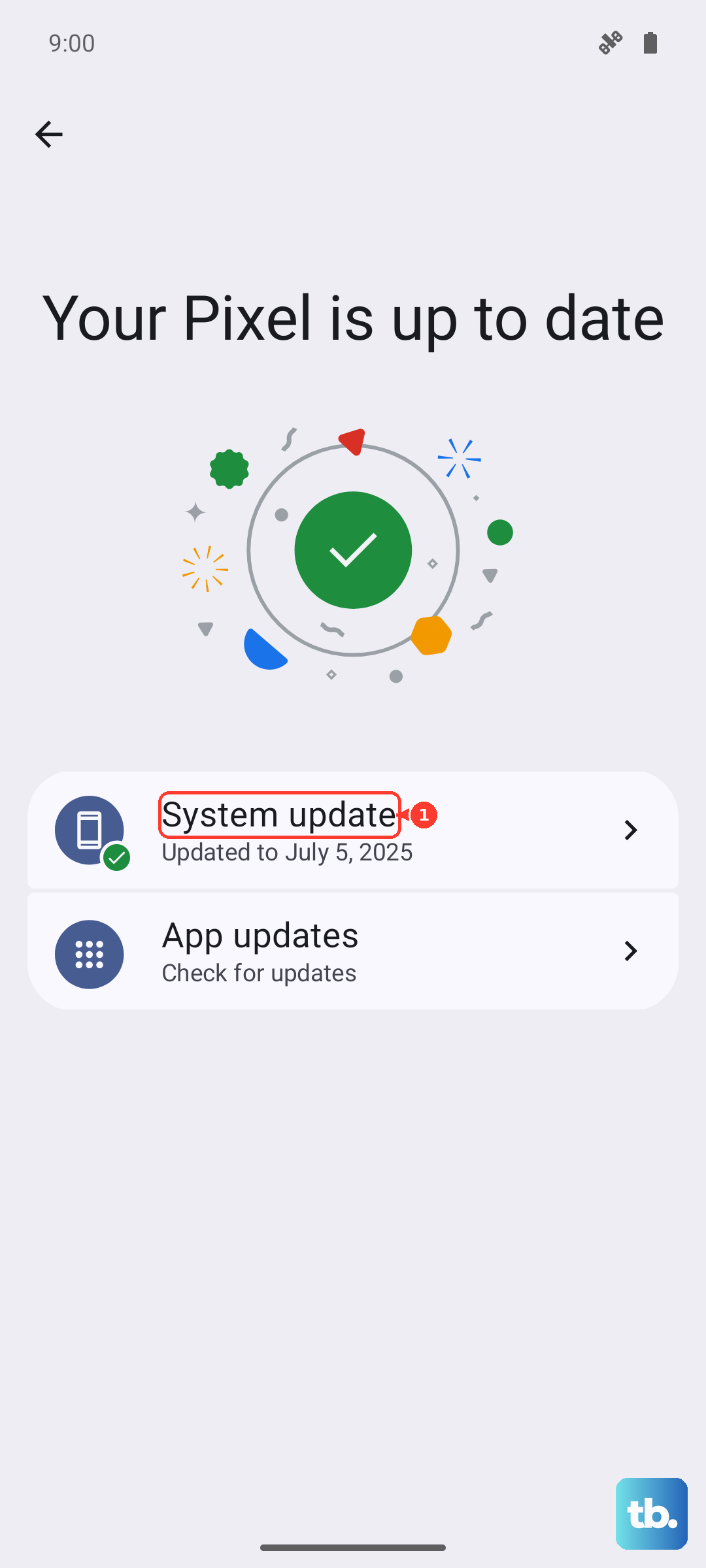
Open Settings > System > Software updates.
Follow the on-screen instructions.
The menu may appear as Software updates or System update depending on your phone. Pixel updates install in the background and become active after you restart, so let the update finish and reboot before testing your headphones again.
Factory Reset as a Last Resort
If you have tried everything above and sound still will not reach your headphones, a factory reset returns the phone to a clean state and clears any deep software fault. Treat this as a true last resort, because a factory reset erases all your data from your phone.
Before you begin, charge your phone to at least 70 percent, connect your phone to Wi-Fi or your mobile network, and set aside time, since a factory reset can take up to an hour. Back up anything you want to keep first.
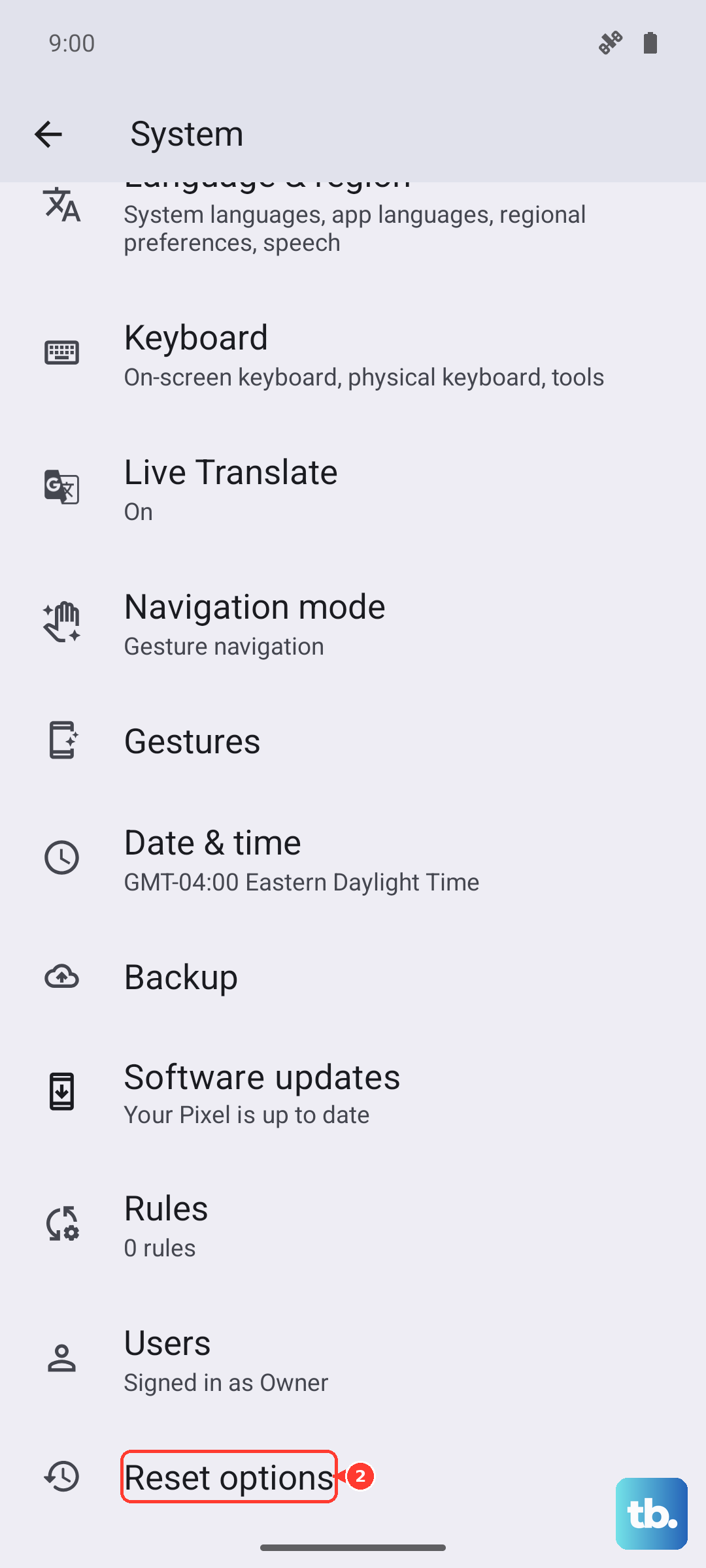
- 1.Open Settings > System > Reset options.
- 2.Tap Erase all data (factory reset).
- 3.Tap Erase all data.
- 4.Enter your PIN if asked.
After the reset completes and you set the phone up again, reconnect your headphones to confirm the audio issue is gone.
Try a Manual Reset or Reach Out to Support
If you cannot reset from Settings or cannot use the screen at all, Google documents a way to reset the Pixel manually, including from Fastboot mode when the phone is unresponsive enough that the normal reset path is out of reach. As with any reset, this erases all your data from your phone, so back up anything you want to keep first.
If the headphone problem persists even after a reset, it may point to a hardware fault rather than software. At that point, contact Google Pixel support for hardware service so the issue can be properly diagnosed.
Frequently Asked Questions
Does the Pixel 10 have a 3.5mm headphone jack?
No. The Pixel 10 has no 3.5mm headphone jack, and its only port is USB Type-C 3.2. Wired headphones must connect over USB-C, and the connected device or adapter must support USB-C digital audio.
Why do my USB-C headphones not work on my Pixel 10?
The most common reason is that the headphones do not use USB-C digital audio. Check the device's tech specs or contact the manufacturer to confirm it supports USB-C digital audio, make sure it has a USB-C port, and check the device's sound settings, since some devices require turning on audio through the USB-C port.
My Bluetooth headphones connect but there is no sound. What should I do?
Open Settings > Connected devices > Saved devices, select your headphones, tap the Settings (gear) icon, and make sure Media audio is turned on (and Phone audio for calls). If audio still will not route, forget the device and pair it again.
How do I force restart a frozen Pixel 10?
On Pixel 6 and later, including the Pixel 10, press and hold the Power button for up to 60 seconds. Once your phone begins to reboot and the screen displays the "G" logo, release the Power button.
Will a factory reset fix my headphone problem?
It can resolve a deep software fault, but it should be a last resort because a factory reset erases all your data from your phone. Before resetting, charge to at least 70 percent, connect to Wi-Fi or your mobile network, and allow up to an hour for it to finish. If the problem continues after a reset, contact Google Pixel support, as it may be a hardware issue.