
If your Google Pixel 10's fingerprint scanner suddenly stops recognizing you, it can lock you out of your phone and apps. The good news is this is usually a software hiccup you can fix yourself. Let's get it working again.
Clean the Sensor and Your Finger
Start with the simplest fix. The ultrasonic under-display sensor on your Pixel 10 needs a clean surface to read your fingerprint accurately. Gently wipe the screen over the sensor area (usually the lower third) with a soft, dry microfiber cloth.
Make sure your finger is clean and dry, too. Lotions, grease, sweat, or even minor cuts can throw off the scan. I've found that washing and thoroughly drying your hands often solves what seems like a major sensor problem.
Restart Your Pixel 10
A quick reboot clears out temporary glitches that can confuse the biometric system. Just press and hold the power button, then tap "Restart" on your screen.
If your phone is completely unresponsive, you can force a restart. Press and hold the Power button and the Volume Up button together for about ten seconds until you see the Google logo appear, then let go.
Check for Android Updates
Google frequently releases updates that fix bugs, including ones related to security features like the fingerprint sensor. It's worth checking if you're running the latest version of Android 16.
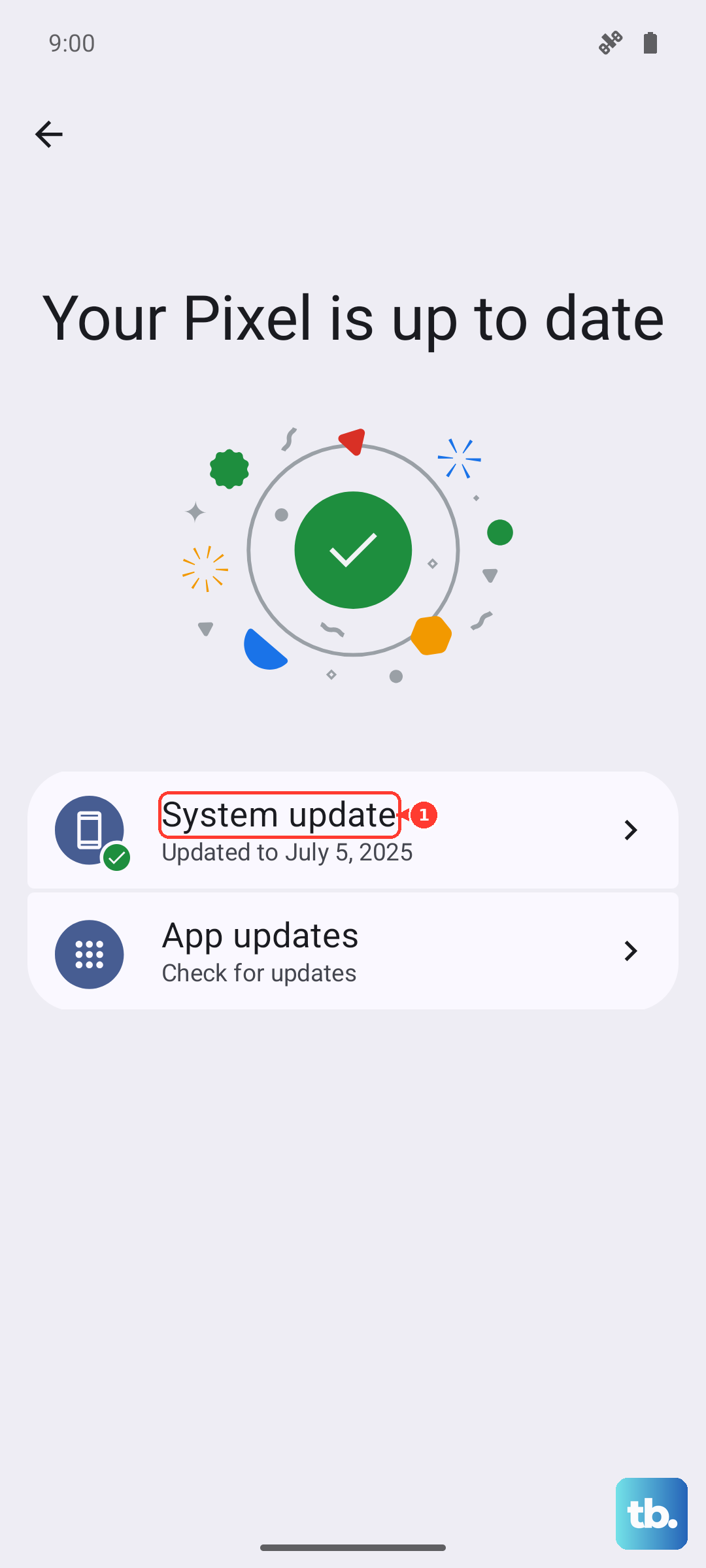
Go to Settings > System > System update. If an update is available, install it. Your phone will restart, and you should test the scanner immediately after it boots back up.
Re-register Your Fingerprint
If the sensor is having trouble reading your print, the stored data might have gotten corrupted. Removing and re-adding your fingerprint often does the trick.
Open Settings > Security & privacy > Device unlock > Fingerprint Unlock. You'll need to enter your PIN, pattern, or password. Tap the fingerprint you're having issues with and select "Remove."
Now, tap "Add fingerprint" and follow the prompts. Press your finger lightly against the screen where indicated, lifting and adjusting slightly each time until the registration is complete. Try to capture the edges and center of your fingertip.
Examine Your Screen Protector
This is a very common culprit, especially with thicker glass protectors or ones not designed for in-display sensors. Some protectors create a small air gap or use materials that scatter the sensor's light.
Try temporarily removing the screen protector to see if the fingerprint reader starts working reliably again. If it does, you'll need to look for a protector marketed as compatible with under-display fingerprint sensors, and you should re-register your prints after applying it.
Improve Your Scanning Technique
Ultrasonic sensors can be a bit fussier than the older capacitive ones. Apply firm, even pressure with the pad of your finger, not the tip. Hold it in place for a full second, don't tap and immediately pull away.
Make sure your finger is covering the entire sensor icon. If you have dry skin, moisturizing can sometimes improve scan accuracy, just wipe off any excess lotion first.
Try Safe Mode
A third-party app could be interfering with the phone's security processes. Booting into Safe Mode temporarily disables all downloaded apps.
Press and hold the power button until the power menu appears. Then, tap and hold the "Power off" option on your screen. You'll get a prompt to reboot to Safe Mode; tap "OK." If the fingerprint scanner works perfectly in Safe Mode, you know a recently installed app is the cause. You'll need to uninstall apps one by one to find the offender.
Clear the Biometrics Cache
Android stores temporary data for system processes, and clearing this cache can resolve odd behavior without deleting your personal data. Go to Settings > Apps > See all apps.
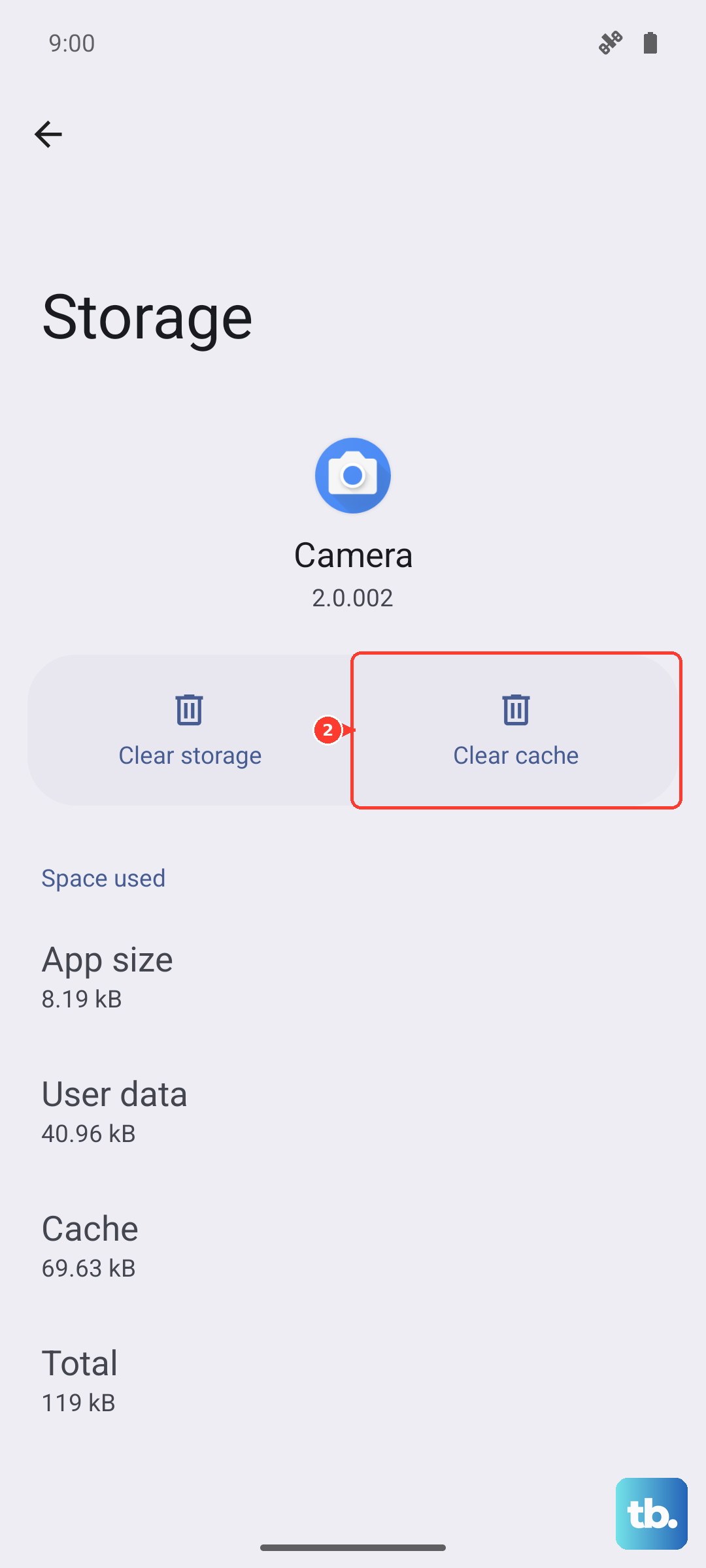
Tap the three-dot menu in the top right and select "Show system." Scroll down and find "Biometrics" or "Biometric Service." Tap on it, then go to Storage & cache and tap "Clear cache." Restart your phone afterward.
Check for App-Specific Issues
Is the fingerprint scanner failing only in a specific app, like your banking app, but works fine to unlock the phone? The problem is likely with that app's implementation.
Go to your app's settings (usually within the app itself) and remove fingerprint authentication. Then, re-enable it and re-register your fingerprint within the app. Also, check the Google Play Store for any updates to that particular app.
Perform a Factory Reset (Last Resort)
If nothing else works, a software conflict deep in the system might be to blame. A factory reset will wipe your phone back to its original settings, so this is a major step.
Back up everything important first. You can back up to your Google account. Once ready, go to Settings > System > Reset options > Erase all data (factory reset). After the reset and setup, test the fingerprint sensor before restoring your apps to see if it works on a clean system.