You raise your Pixel 10 to catch a moment, tap the shutter, and the result is a soft, hazy mess instead of the crisp shot you expected. Blurry photos on a phone with a 48 MP wide camera, a 5x telephoto lens, and Super Res Zoom up to 20x are frustrating, especially when the hardware is clearly capable. The good news is that most blur on the Pixel 10 comes from something fixable, whether it is a smudge on the glass, a focus that landed on the wrong spot, or a software hiccup that a quick reset clears. Work through the steps below in order, starting with the easiest and safest, and you will usually have your camera sharp again before you reach the harder fixes.
Start With the Glass, Not the Settings
Before you touch a single menu, look at the lenses themselves. A fingerprint, a fleck of dust, or a thin film of grease on the rear camera glass is one of the most common reasons Pixel photos turn out hazy or refuse to focus.
Google's own Pixel Camera guidance is blunt about this. If your photos and videos seem blurry or hazy, or the camera will not focus, clean the camera lens. The fix is simple and gentle.
Locate the rear camera glass on the back of your Pixel 10.
Wipe it gently with a soft, clean cloth.
Open the Pixel Camera app and take a test shot to confirm the haze is gone.
Do not use anything abrasive or any harsh liquid. A soft cloth, used gently, removes the smudges that scatter light and soften every photo.
Tell the Camera Exactly Where to Focus
Sometimes the lens is clean but the camera focused on the wrong thing, leaving your subject soft while the background is sharp. The Pixel Camera app lets you take control of focus with a single tap, and it also has a dedicated mode for close-ups.
Point your camera at the subject, then tap on the subject. A white circle appears and moves on the screen with the subject, telling you where the camera is now focusing. That tap usually snaps your intended subject into sharpness immediately.
For anything that moves, lock the focus so it does not drift. To lock the focus and exposure on a subject that moves, tap Lock. With focus locked, a wandering pet or a fidgeting child stays sharp instead of slipping out of focus between the framing and the shutter.
If your blur only shows up when you move in tight on small things, you are probably inside the lens's minimum focus distance. The Pixel 10 handles this with Macro Focus, which is officially available on the Pixel 9 and later, so your phone has it.
Move your device close to your subject, tap the screen to place the focus, and when the Macro flower appears, take your photo or video.
If you take the shot before the Macro flower shows up, the camera may still be trying to focus at a normal distance, which is exactly what produces a blurry close-up. Wait for the flower, then fire.
Give the Phone a Quick Restart
When the lens is clean and your focus technique is right but shots are still soft, a temporary software glitch may be interfering with the camera. A restart clears those temporary problems without affecting your photos or settings.
As part of its camera fix flow, Google says to power off and then press and hold the Power button until it turns back on. To restart normally on the Pixel 10:
Press and hold the Power button + Volume up button for a few seconds.
Tap Restart.
Once the phone is back up, open the Pixel Camera app and check whether the blur has cleared.
Clear Out the Camera App's Cache
If the camera is slow, will not focus, or keeps producing blurry results, corrupted temporary data inside the app may be to blame. Clearing the cache removes that data without deleting any of your photos.
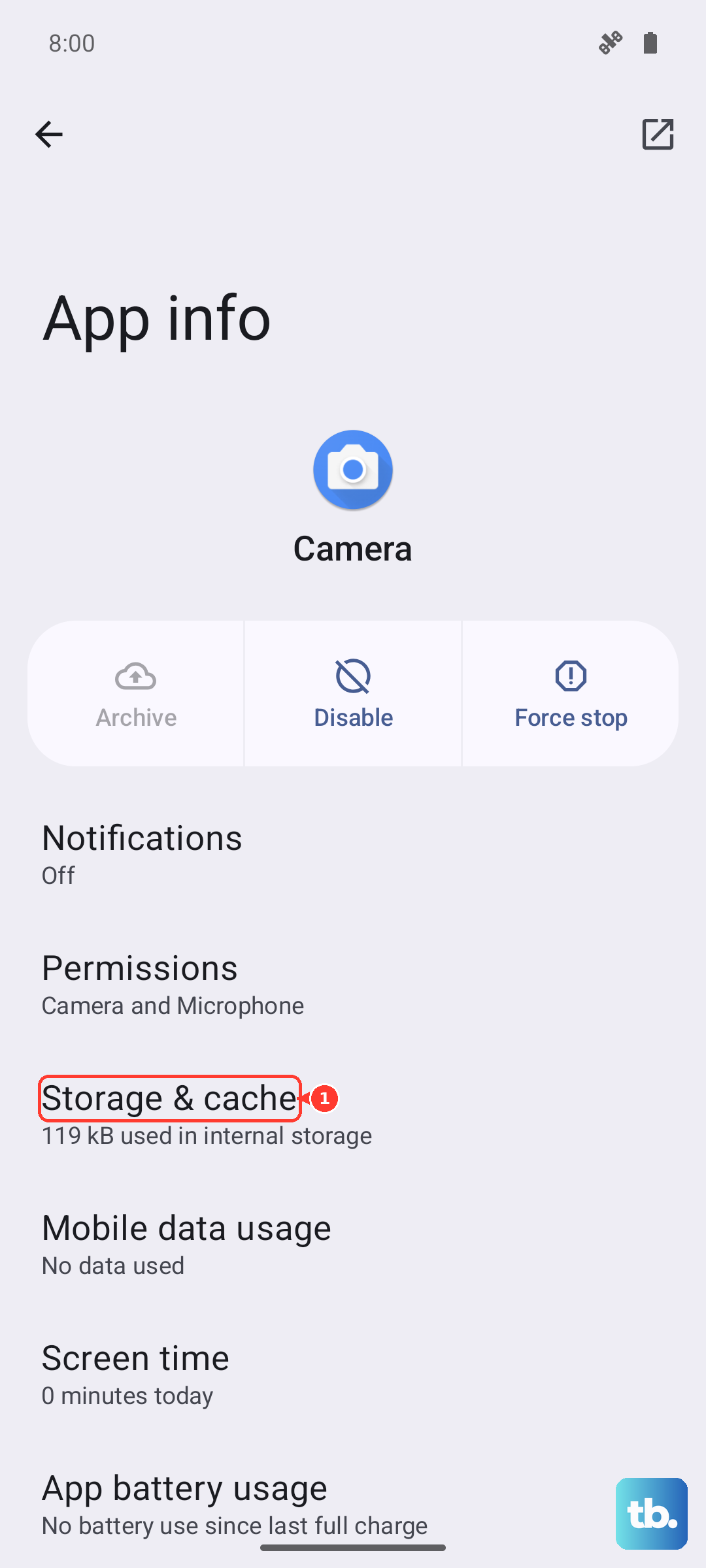
Press and hold the Camera app icon.
Tap App info.
Tap Storage & cache.
Tap Clear Cache.
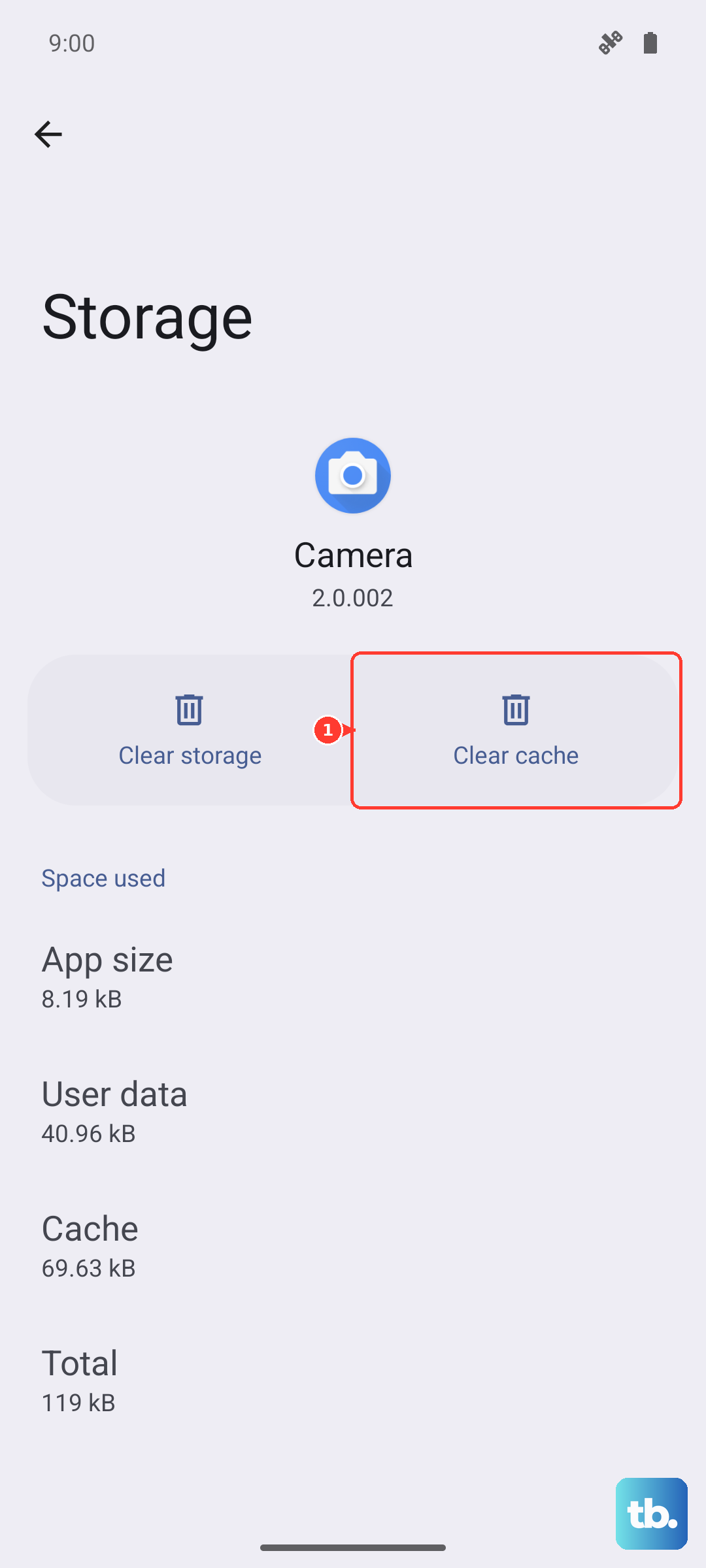
Reopen the camera afterward and take a few test shots. With the stale cache gone, the app often focuses cleanly again.
Make Sure the Camera App Is Up to Date
An outdated camera app can carry focus and image-quality bugs that have already been fixed in a newer release. Updating the Pixel Camera app is a quick way to rule that out.
Open the Google Play Store.
Tap your Profile icon.
Tap Manage apps & devices to install any available updates for the Pixel Camera app.
If an update is waiting, install it, then reopen the camera to see whether the sharpness has returned.
Install the Latest Android System Update
Camera issues are often resolved in Pixel software updates, so it is worth checking that your system is current. The Pixel 10 launched with Android 16 and is eligible for ongoing updates.
Before you start, Google advises connecting to Wi-Fi and charging to at least 75 percent so the update can finish without interruption.
Open Settings.
Tap System, then Software updates.
Select System update, then Check for update.
Follow the on-screen instructions to install anything available.
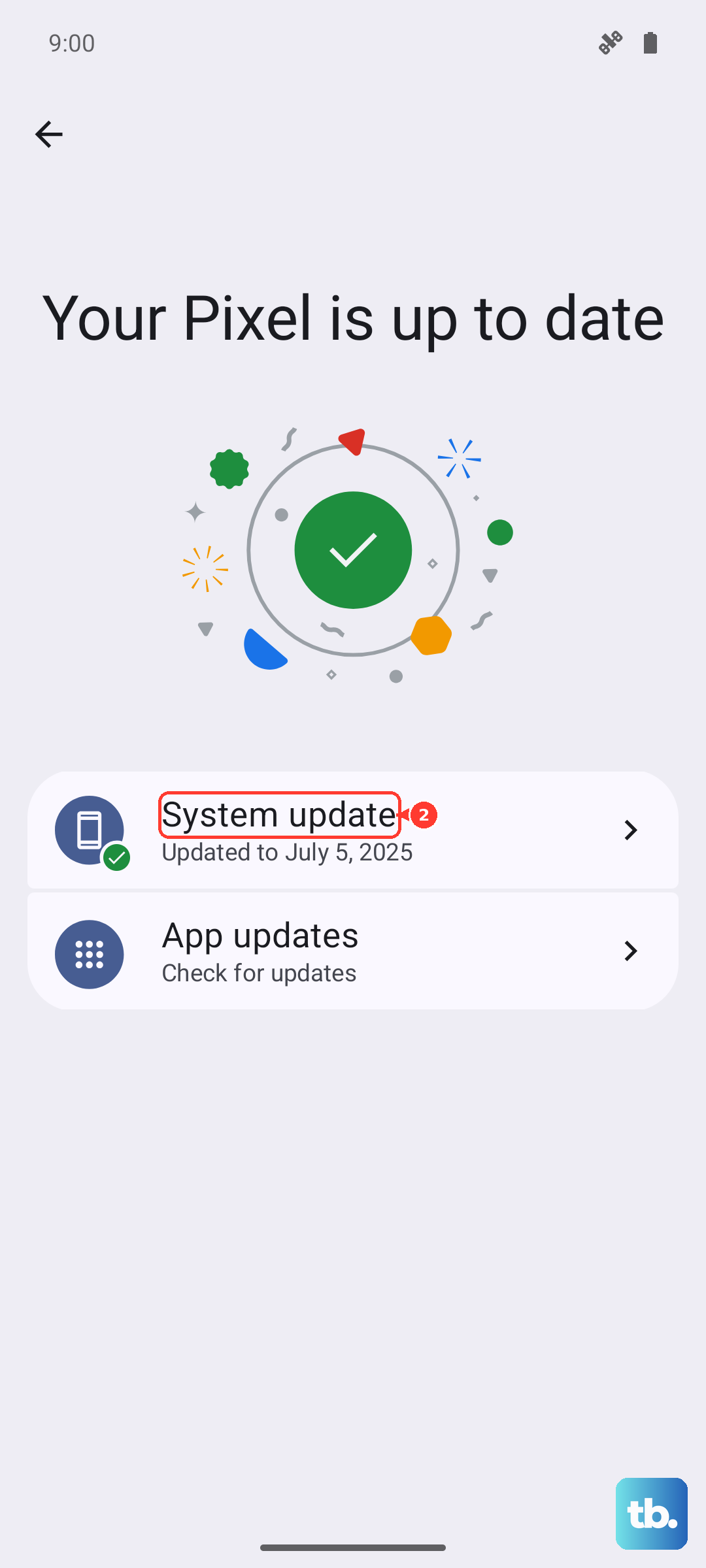
A system update can patch deeper camera bugs that an app update alone cannot reach.
Rule Out a Misbehaving Third-Party App
Another installed app can sometimes interfere with the camera and leave your photos soft. Safe mode loads the phone with only its built-in software, so you can test whether something you downloaded is the culprit.
Restart the device and, once Safe mode appears at the bottom of the screen, open the camera. If the camera works in safe mode, Google notes that another app might cause the problem.
If that is the case, return to normal mode and uninstall recently downloaded apps one at a time, checking the camera after each removal, until the blur is gone. That isolates the offending app without wiping anything you want to keep.
Force a Reboot When the Camera Freezes
If the Pixel 10 becomes unresponsive when you open the camera, a normal restart may not be possible. In that case, you can force the phone to reboot.
On the Pixel 10, press and hold the Power button for up to 60 seconds. Once your phone begins to reboot and the screen displays the "G" logo, release the Power button.
Let it boot fully, then open the camera again. A force restart often clears a hard freeze that an ordinary restart could not.
The Last Software Step, Done Safely
If nothing above has worked and you suspect deeper software corruption, a factory reset is the final software option. This is a serious step, so treat it carefully. Google warns that a factory reset erases all your data from your phone, so back everything up first.
Before starting, charge the phone to at least 70 percent and connect to Wi-Fi or a mobile network. The process can take a while, so do not start it when you are pressed for time.
- 1.Open Settings.
- 2.Tap System.
- 3.Tap Reset options.
- 4.Tap Erase all data (factory reset) and follow the prompts.
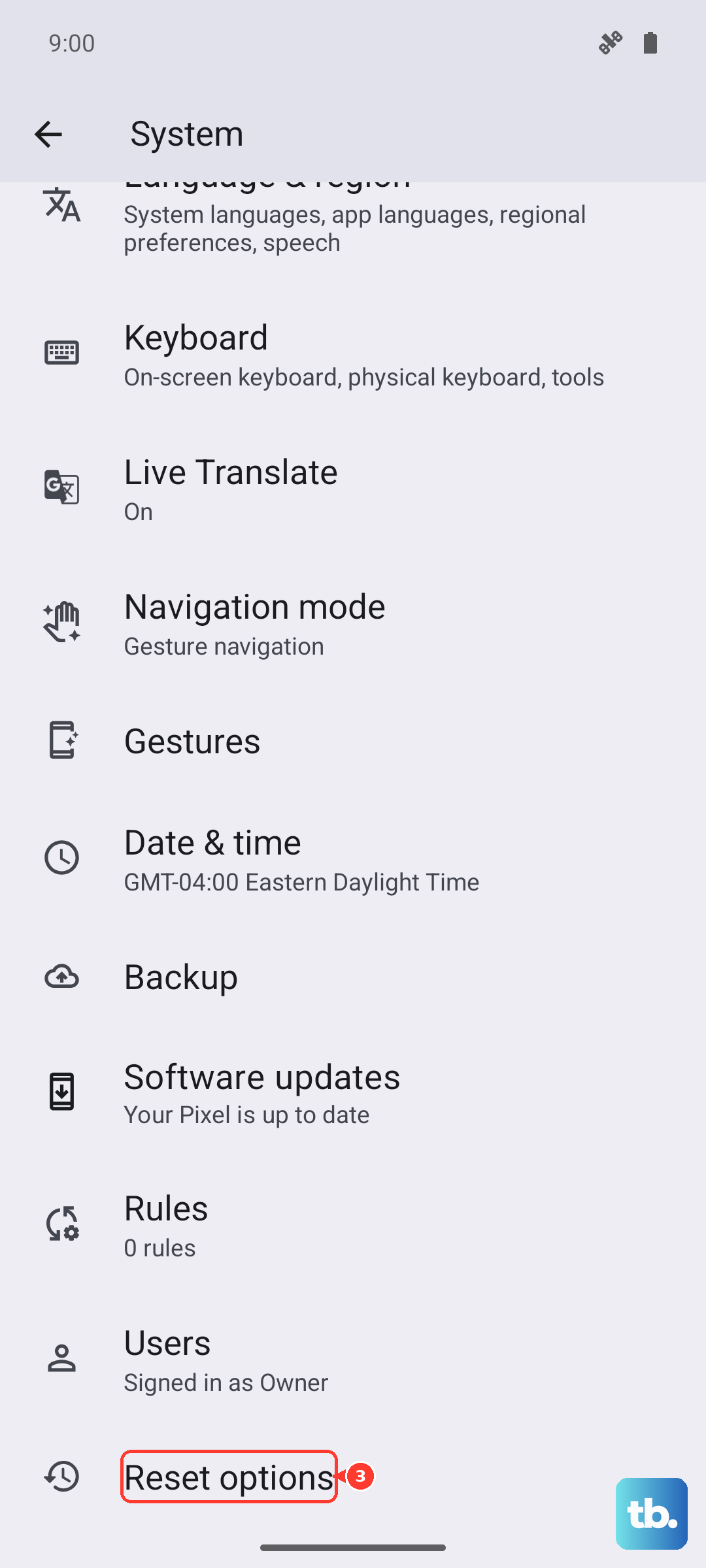
Once the phone restarts and you have set it up again, test the camera. If a software issue was behind the blur, a clean reset should resolve it.
When It Is a Hardware Fault
If the camera is still blurry after every software step, you may be dealing with a hardware problem that needs a repair. Google handles this through its Google Store Repair services.
Sign in to your Google Account, then select a device or enter your device's IMEI or serial number. Select all the issue categories and details that apply, then choose Mail-In or walk-in repair. In-warranty repairs are at no charge. If Google Store Repair services are not available in your location, contact Google Support for other repair options.
Frequently Asked Questions
Why are only my close-up photos on the Pixel 10 blurry?
You are likely too close for the standard lens to focus. Use Macro Focus. Move your device close to the subject, tap the screen to place the focus, and wait until the Macro flower appears before taking the photo or video.
Will clearing the Camera app cache delete my photos?
No. Clearing the cache only removes corrupted temporary data from the app. Your saved photos are not affected when you press and hold the Camera app icon, tap App info, then Storage & cache, then Clear Cache.
How do I check whether another app is causing the blur?
Restart the phone into Safe mode and open the camera. If the camera works in safe mode, another app might be the cause. Return to normal mode and uninstall recently downloaded apps one at a time until the problem stops.
What should I do before a factory reset?
Back up your data first, because a factory reset erases all your data from your phone. Charge to at least 70 percent and connect to Wi-Fi or a mobile network, then go to Settings > System > Reset options > Erase all data (factory reset).
Is a Pixel 10 camera repair free?
In-warranty repairs through Google Store Repair services are at no charge. Sign in to your Google Account, enter your device's IMEI or serial number, select the issue, and choose Mail-In or walk-in. If Google Store Repair services are not available where you are, contact Google Support for other repair options.