
When your Google Pixel 10 won't download apps from the Play Store, it can stop you from getting work done or just enjoying your phone. That download button just spins forever, or you get an error message you don't understand. I've found that on Android 15, the fixes are usually straightforward once you know where to look.
Let's get your Pixel downloading again. I'd start with the quick checks first, as they solve the problem more often than you'd think.
Check Your Connection and Restart
First, make sure you're actually online. Swipe down from the top of your screen to open the Quick Settings panel and look at the Wi-Fi and mobile data icons. If you're on Wi-Fi, try turning it off and using your mobile data instead, or vice versa. Some public Wi-Fi networks can block the ports the Play Store needs.
Next, give your Pixel 10 a fresh start. Press and hold the Power button and Volume Up button together for about 10 seconds until you see the Google logo. This force restart can clear out a temporary software hiccup that's stopping downloads. It's a simple step, but it works surprisingly often.
Verify Your Date and Time
This one catches a lot of people off guard. If your phone's clock is wrong, it can confuse Google's servers and prevent downloads. Go to Settings > System > Date & time. Make sure the "Use network-provided time" toggle is switched on.
If it's already on and you're still having trouble, try turning it off for a moment. Manually set the correct date and time, then try your download again. After it works, you can switch the automatic setting back on.
Clear the Google Play Store's Cache
The Play Store saves temporary data to run faster, but that cache can get corrupted. Clearing it is a safe first step that doesn't delete any of your apps or personal info. Head to Settings > Apps > See all apps.
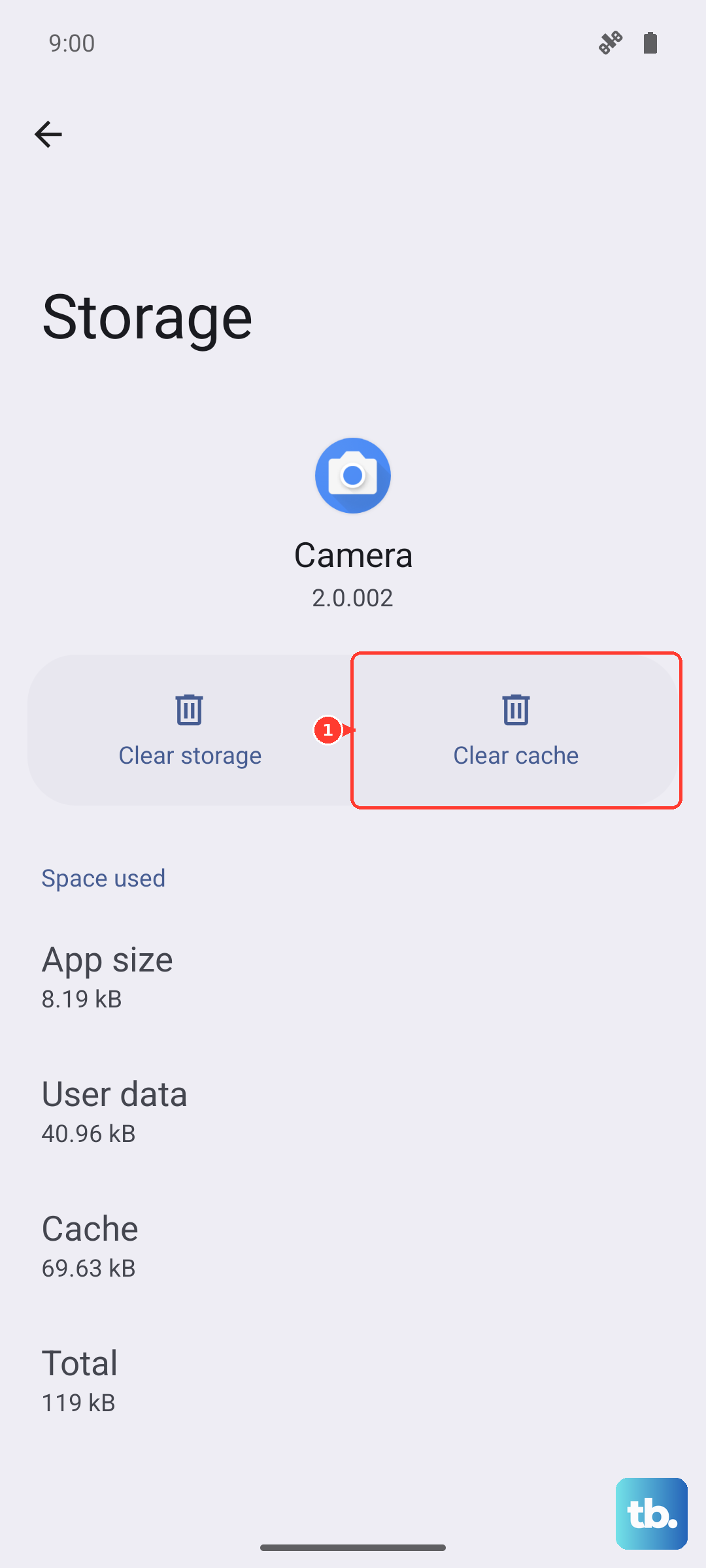
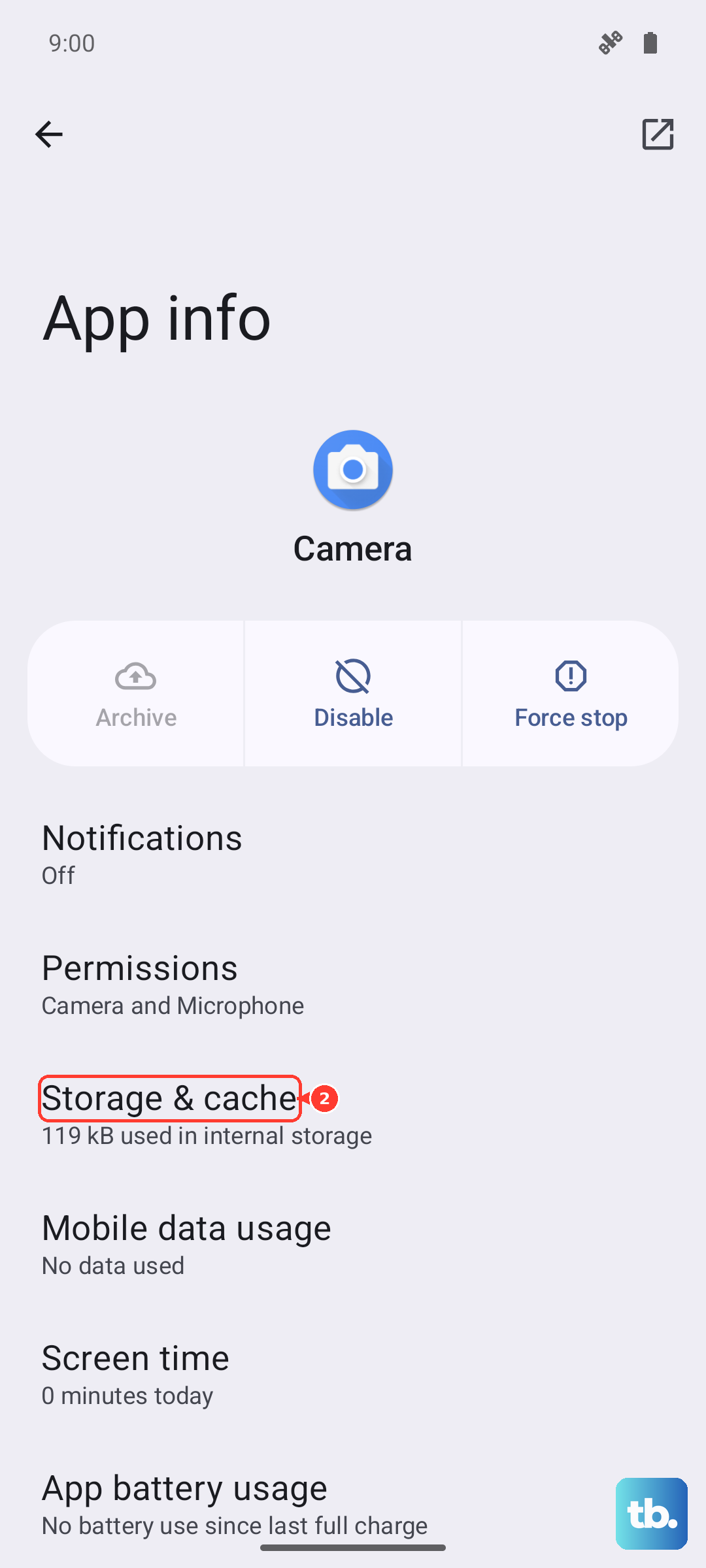
Find and tap on "Google Play Store." Then, tap Storage & cache and hit "Clear cache." Go back to the Play Store and try your download. If that doesn't do it, you can go back and tap "Clear storage" (this used to be called Clear Data). This will reset the Play Store app to its default state, so you might need to sign in again.
Reset Google Play Services
Google Play Services is the background engine that helps your apps and the Play Store talk to each other. If it's acting up, downloads can fail. Go back to Settings > Apps > See all apps and find "Google Play Services."
Tap on it, then go to Storage & cache. Tap "Clear cache" first. If the problem persists, tap "Manage space" and then "Clear all data." Don't worry, this won't delete your personal files, but it will reset the service. Your phone will work to rebuild its data afterward.
Check for Problematic Apps and Permissions
Sometimes another app can interfere with the download process. If you recently installed a new VPN, ad blocker, or "cleaner" app, try temporarily disabling or uninstalling it to see if downloads resume. Also, make sure Google Play Services has the permissions it needs.
Go to Settings > Apps > See all apps > Google Play Services > Permissions. Ensure that "Files and media" (or Storage) permission is allowed. While you're there, you can also tap "Force stop" to give the service a fresh start.
Review Your Download Manager
Your Pixel has a system app called Download Manager that handles all downloads. We need to make sure it's enabled and working. In your app list (Settings > Apps > See all apps), tap the three-dot menu and select "Show system apps."
Scroll to find "Download Manager." If the button says "Enable," tap it. If it's already enabled, tap on it, then go to Storage & cache and clear its cache. This can clear out any stuck download queues.
Update Your Pixel 10 Software
An outdated version of Android 15 could have a bug that's affecting the Play Store. Google regularly releases updates with fixes. Go to Settings > System > System update and tap "Check for update."
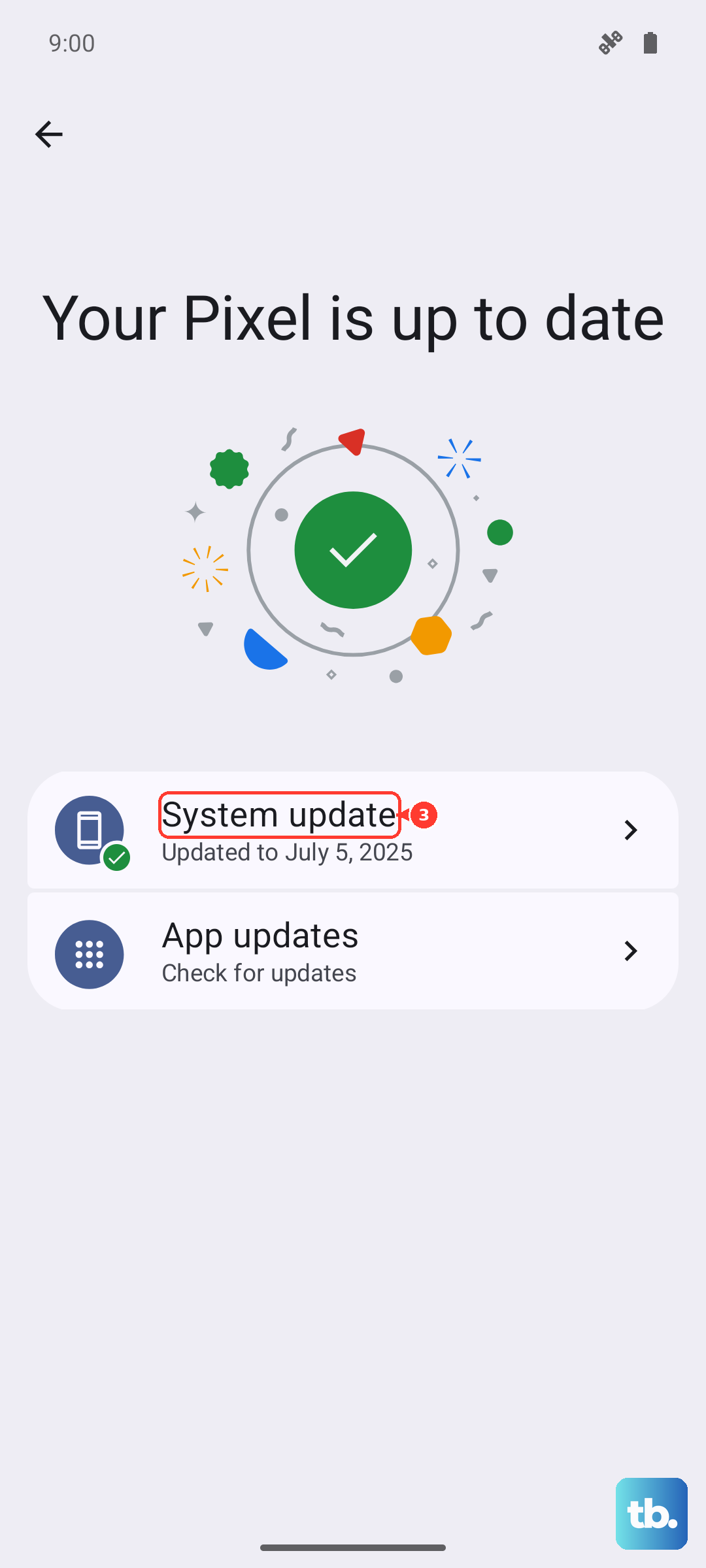
If an update is available, install it. Your phone will restart. It's a good idea to be on a Wi-Fi network and have your phone charged above 50% before starting a system update.
Remove and Re-add Your Google Account
This step refreshes the connection between your phone and your Google account, which can resolve sync and authentication issues. Go to Settings > Passwords & accounts. Tap on your Google account.
Tap "Remove account." Confirm, then go back and tap "Add account" to sign back in with the same credentials. You'll need your password handy. This process usually only takes a minute and can clear up stubborn problems.
Free Up Storage Space
If you're seeing an "Insufficient storage" error, your Pixel 10 is simply too full. The download needs space to unpack and install the app, even if the final size is smaller. Go to Settings > Storage to see what's using space.
You can offload photos and videos to Google Photos with the "Free up space" tool, delete old downloads, or uninstall apps you no longer use. Clearing the cache for several large apps can also reclaim a surprising amount of space quickly.
Address Specific Play Store Errors
Sometimes you get a numeric error code. For error DF-BPA-09, you'll want to clear data for Google Services Framework. Find it in your system apps list, go to its storage, and tap "Clear storage" or "Clear data."
For a generic Error 911, it's almost always a network issue. Toggle Airplane mode on and off, switch between Wi-Fi and mobile data, or try forgetting and reconnecting to your Wi-Fi network. If you're on a corporate or school network, it might be actively blocking app downloads.