
Your Galaxy S26 Ultra has been noticeably slower since the latest update. Apps lag, the phone runs warmer than it used to, and the battery seems to drain faster.
Background apps, insufficient available memory, outdated software, or temporary system errors may be causing the slowdown. There are a few things you can try to improve performance, including freeing up memory, restarting the phone, and checking for software updates.
Why the Phone May Be Slow After an Update
Apps running in the background can affect performance and cause slowdowns. If you have several apps open, tap the Recent button (three vertical lines), then tap Close all. Check whether the phone feels more responsive after closing them.
Temporary software issues can also affect performance. Restarting the phone closes running apps and refreshes the system, so it is worth trying even if the phone already restarted during the update.
The S26 Ultra shipped with One UI 8.5 preinstalled. Check for any further updates at Settings > Software update > Check for updates, then follow the on-screen instructions if an update is available.
Try Device Care First
Go to Settings > Device care and tap Optimize now, then Done. This closes background apps, clears unneeded items from memory, and checks for apps using excessive battery power. Optimize now will not appear if Device care rates the phone in Great condition.
You can also go to Settings > Device care > Memory and tap Clean now to stop unused background apps and free up memory.
For automatic restarts, open Settings > Device care > Auto optimization > Auto restart. Turn on Restart when needed, or choose Restart on schedule and select the days and time. You will need to unlock the phone after it restarts.
Wipe the Cache of Your Most-Used Apps
If particular apps are slow or unresponsive, try clearing their caches. This removes residual files that could be slowing down those apps. Start with the apps where you notice the lag most, rather than clearing unrelated apps.
Go to Settings > Apps and find each of the apps you use heavily (social media, browser, messaging). For each one, tap Storage, then Clear cache.
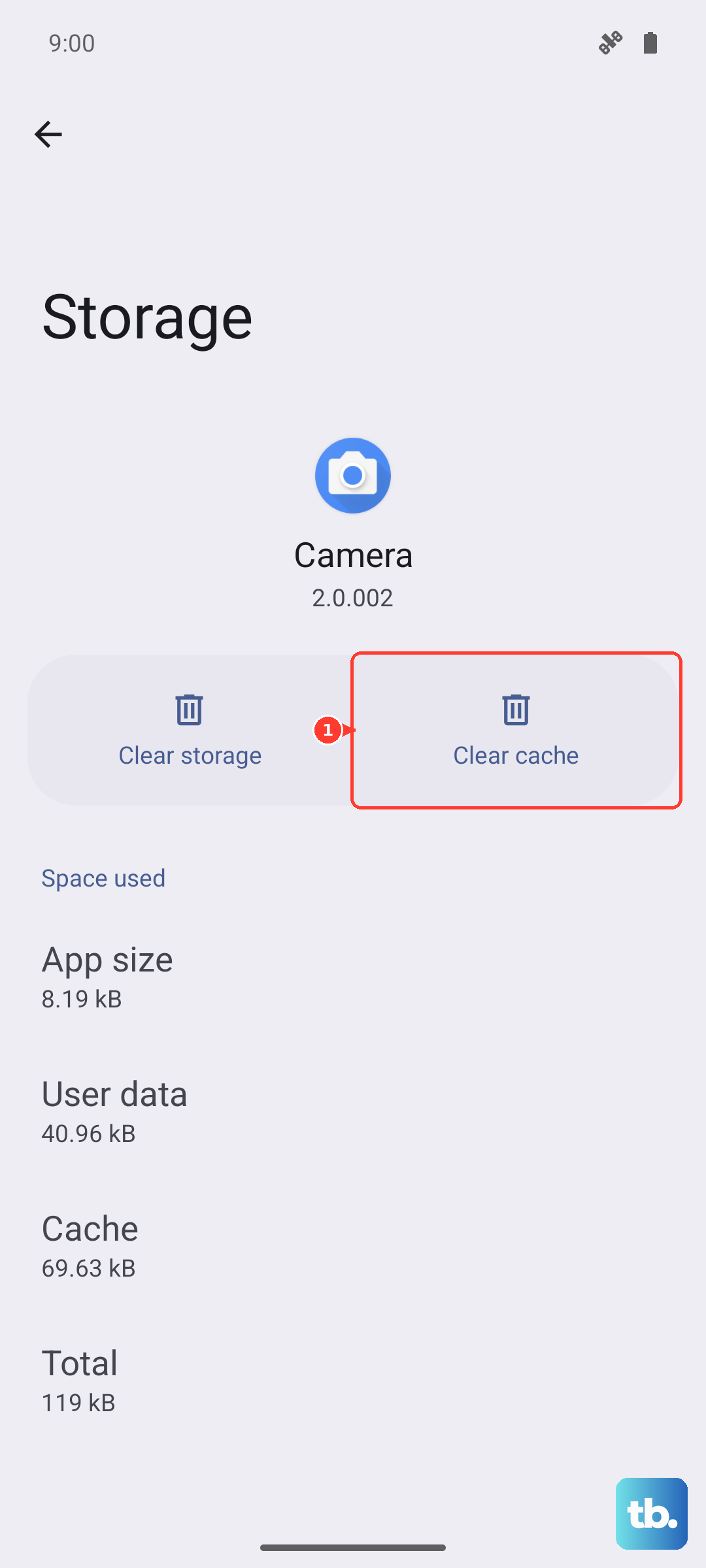
Don't tap Clear data; that wipes your settings and login state. Clear cache removes cached files without resetting the app. It can help if those files are slowing the app down.
Run the Galaxy App Booster
Galaxy App Booster is an optional plugin in Samsung's Good Guardians suite. It scans and optimizes installed apps and can help improve their performance after a system update. If Good Guardians and Galaxy App Booster are available for your phone in the Galaxy Store, you can install them from there.
Galaxy App Booster is delivered through the Good Guardians app rather than living directly in the Settings menu. If Good Guardians is preinstalled on your phone, open it from the app drawer and tap Galaxy App Booster, then Optimize. If you don't see it, search "Good Guardians" in the Galaxy Store (availability varies by region). Follow any prompts shown by the plugin.
After the optimization completes, check whether the affected apps feel more responsive. Galaxy App Booster can help improve app performance after a system update.
Reboot the Phone
A plain reboot can help with temporary software issues and background processes that affect performance. It closes running apps and refreshes the system. Try it if the phone is still slow after closing apps or clearing memory, even if it restarted during the update.
Hold the Side button and Volume down button together to open the power menu, tap Restart, then tap Restart again. If the phone is frozen, hold the Side and Volume down buttons together for more than 7 seconds until it restarts.
Check Background-Heavy Apps
If the slowdown is still there, check whether any specific app is consuming an unusual amount of background resources.
Go to Settings > Battery and look at the per-app usage. Apps with high background usage that you don't actively use are good candidates for restricting.
To restrict an individual app, go to Settings > Apps > select the app > Battery > Restricted. Avoid restricting apps that need background activity.
Go to Settings > Battery > Background usage limits > Deep sleeping apps. Tap Add (the plus sign), select the apps, then tap Add. Deep sleeping apps only work when you open them, so avoid adding apps you rely on for background activity.
If Performance Stays Bad
If you've cleared app caches, rebooted, and restricted heavy background apps but the phone still feels slow, a cache partition wipe may be another option if it is available in your phone's Recovery menu.
A cache partition wipe is different from clearing every app's cache. Clear individual app caches through Settings > Apps > select the app > Storage > Clear cache. Clearing every app's cache at once requires a factory reset, which erases your data.
The procedure requires entering Recovery Mode and varies by Galaxy model. If you're comfortable with that, look up the specific Recovery Mode procedure for the S26 Ultra. If not, contact Samsung Support for help with the continuing slowdown.