You tried to update your Galaxy Buds3 from the Galaxy Wearable app, and instead of a clean install you got a stalled progress bar, an error, or no firmware screen at all. It is a frustrating place to be, because your earbuds work fine on their own but the software refuses to move forward. The good news is that most failed Galaxy Buds3 firmware updates trace back to a handful of fixable causes, such as low battery, a disconnected bud, an out-of-date companion app, or a shaky Bluetooth link. Work through the fixes below in order, starting with the quickest and safest, and save the reset and support steps for last.
Before anything else, it helps to know how the update actually reaches your buds. Firmware for the Galaxy Buds3 is delivered over Bluetooth from the phone or tablet they are paired to, so a strong, uninterrupted link between the two matters as much as the buds themselves. Samsung supports updates on Android 11.0 or above (with at least 1.5 GB of memory) through the Galaxy Wearable app, and the whole process depends on both earbuds being charged, seated, and connected at the same time.
Make sure both buds are charged, seated, and connected first
The single most common reason a Galaxy Buds3 update will not start is that the earbuds are not properly charged and connected. Place both buds in the charging case with the lid open, confirm they have a charge, and check that they show as connected in the Galaxy Wearable app on your phone. Samsung requires both earbuds to be charged and connected before an update will run, and if the buds are not connected, the update option (and the reset option) simply will not appear.
If the battery looks low, give the case a real charge before you try again. Samsung advises charging the earbuds for at least 30 minutes using a Samsung-approved charger plugged directly into a wall outlet, not into a computer. A wall outlet delivers steadier power than a USB port on a laptop, which can leave the buds underpowered for an update.
Start the update from the exact right menu
It is easy to look in the wrong place, so use the official path. Updating happens through one specific menu in the Galaxy Wearable app.
- 1.Open the Galaxy Wearable app on your paired phone or tablet.
- 2.Tap Earbuds settings (also shown as Earbud settings).
- 3.Scroll to the bottom of the menu and tap Earbuds software update.
- 4.Tap Download and install.
If an update is available, it begins. The earbuds disconnect during installation and automatically reconnect when it finishes, so do not be alarmed by the brief drop. The same menu lets you turn on Auto download over Wi-Fi or review Last update to see what version you are on. One important caveat from Samsung is that, depending on the model, network, and version information you are using, the "Earbuds software update" menu may not appear at all, which usually means there is nothing new to install right now.
Update the Galaxy Wearable app before you blame the buds
When an update stalls or fails outright, the companion app is often the real bottleneck. Make sure the Galaxy Wearable app itself is fully up to date by updating it from the Galaxy Store or Google Play. Samsung lists updating the Galaxy Wearable app as a primary fix for earbud software-update problems, and once the app is current, the buds will usually update normally without any further fiddling. It only takes a minute and resolves a surprising number of failed updates.
Check your network and your phone's own software
Because firmware is downloaded to the phone first and then pushed to the buds, your network condition matters. Samsung advises checking your network connection, since connection quality affects how the update is delivered, and a weak or interrupted link can cause the firmware download to stall partway through. Switch to a stable Wi-Fi network if you can, and avoid starting an update while you are moving in and out of coverage.
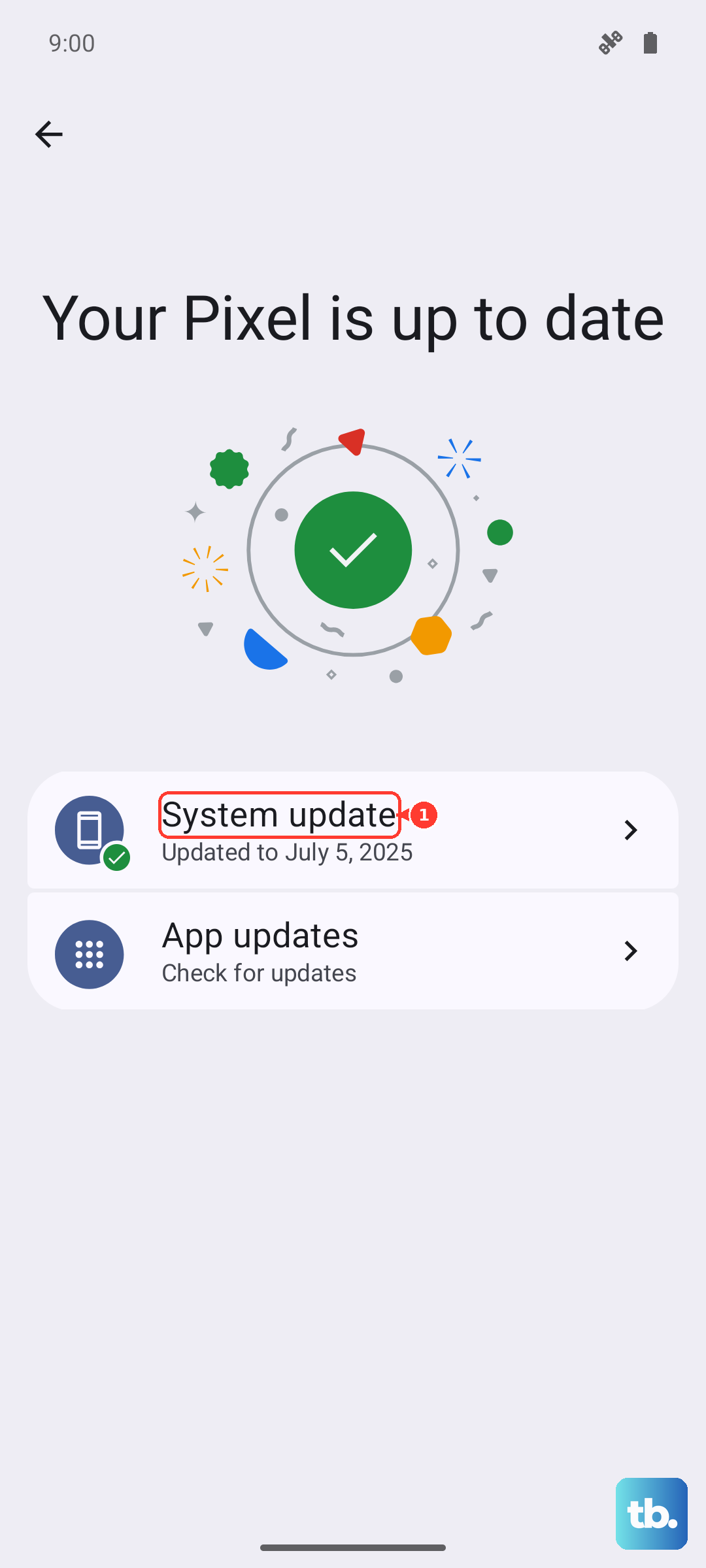
While you are at it, confirm the phone or tablet running the update has its own software up to date. An out-of-date host device can interfere with the update handoff to the earbuds, so clearing any pending system update on the phone removes one more variable.
Restart the earbuds and cut out interference, then try again
A quick restart clears temporary glitches without touching any of your settings. To restart the Galaxy Buds3, put both earbuds back in the case and close the lid, wait until the case light goes out (about 7 seconds), then reopen the lid and remove them. This restarts the buds without erasing anything, so it is completely safe to do as often as you like.
Interference is the other half of this fix. Move away from Wi-Fi routers and microwaves so there is an uninterrupted signal path between the earbuds and your phone, then start the update again. Those devices crowd the same frequencies your earbuds use, and putting some distance between them often lets a previously stalled update sail through.
Forget the earbuds on the phone and pair them fresh
If the update still will not complete, a clean re-pair often clears out a corrupted connection. Start by removing the existing pairing on the phone.
- 1.On the phone, go to Settings > Connections > Bluetooth.
- 2.Tap the Settings (gear) icon next to your earbuds.
- 3.Tap Unpair (this may also be labeled Forget device).
Next, put the Galaxy Buds3 back into pairing mode. Place both buds in the charging case, close the lid, then reopen it. With the buds still in the case, press and hold the Connect button on the bottom of the case for three seconds. The buds will then appear in your Bluetooth list so you can pair them again. Once they reconnect in the Galaxy Wearable app, retry the software update.
Reset the earbuds from the Galaxy Wearable app
A factory reset returns the earbuds to their default settings and clears out deeper software problems that the steps above cannot reach. Because it returns the earbuds to their default settings and wipes your custom settings, treat this as a later resort rather than a first move, and only do it if the earlier fixes did not work. You will need to set up your preferences again afterward. The earbuds must be connected to the app for the reset option to be available.
- 1.With the buds connected in the Galaxy Wearable app, open the earbud settings.
- 2.Choose the reset option for the earbuds.
- 3.Confirm the reset when the app prompts you.
This returns the earbuds to their default settings, so any saved preferences will be cleared. After the reset finishes, pair the buds to your phone again and attempt the firmware update one more time. With the settings cleared, the install will frequently go through.
When to hand it to Samsung Support
If you have charged the buds, updated the companion app, checked your network, restarted, re-paired, and even reset the earbuds and the firmware update still fails, the issue is likely beyond a home fix. At that point Samsung directs users to contact Samsung Support for service. They can look at your specific case and arrange service if the hardware needs attention.
Frequently Asked Questions
Why is the "Earbuds software update" menu missing in my Galaxy Wearable app?
Samsung notes that, depending on the model, network, and version information you are using, the "Earbuds software update" menu may not appear. In most cases this means there is no new firmware for your buds at the moment, or the buds are not currently connected. Confirm both earbuds are charged, seated in the open case, and connected in the app, then check again.
Will restarting or resetting my Galaxy Buds3 erase my settings?
Restarting will not erase anything. Placing both buds in the case, closing the lid for about 7 seconds until the case light goes out, then removing them simply restarts the buds without losing settings. A factory reset is different. It returns the earbuds to their default settings, so you will need to set up your preferences again afterward.
How long should I charge the buds before retrying the update?
If the battery is low, Samsung advises charging the earbuds for at least 30 minutes using a Samsung-approved charger plugged directly into a wall outlet rather than a computer. A wall outlet provides steadier power than a laptop USB port, which helps the update run without dropping out mid-install.
How do I put the Galaxy Buds3 back into pairing mode?
Place both buds in the charging case, close the lid, then reopen it. With the buds still in the case, press and hold the Connect button on the bottom of the case for three seconds. The earbuds will then show up in your phone's Bluetooth list so you can pair them again.
Do I need to keep my phone updated for the earbuds to update?
Yes. The firmware is delivered over Bluetooth from the connected phone, so Samsung advises verifying that the phone or tablet running the update has its own software up to date and that your network connection is stable. Clearing any pending system update on the phone removes a common cause of stalled earbud updates.