
The fastest fix for the Epson EcoTank ET-2850 is the dual restart. Unplug the printer from power, wait 30 seconds, plug it back in. While it's booting up, restart your computer. The ET-2850's 2.4 GHz Wi-Fi radio can get stuck in a half-connected state where the printer thinks it's online but your computer doesn't agree. A clean power cycle on both ends clears the simple version of this every time.
If that didn't do it, the problem is usually one of a few common causes. The ET-2850 is a 2021 all-in-one that connects only over 2.4 GHz Wi-Fi, USB, AirPrint, or Mopria. Its radio is at the low end of the spectrum and doesn't handle congested networks well. Let's walk through the real fixes.
Check the "Use Printer Offline" Toggle (Windows)
Windows has a manual offline toggle that's easy to flip by accident. Open the legacy Control Panel (right-click the Start button and choose it, or search for "Control Panel"). Go to Devices and Printers. Right-click the ET-2850. If "Use Printer Offline" has a checkmark next to it, click it once to uncheck. The printer comes back online instantly. No other fix in this guide will work while that toggle is on.
Restart the Print Spooler (Windows)
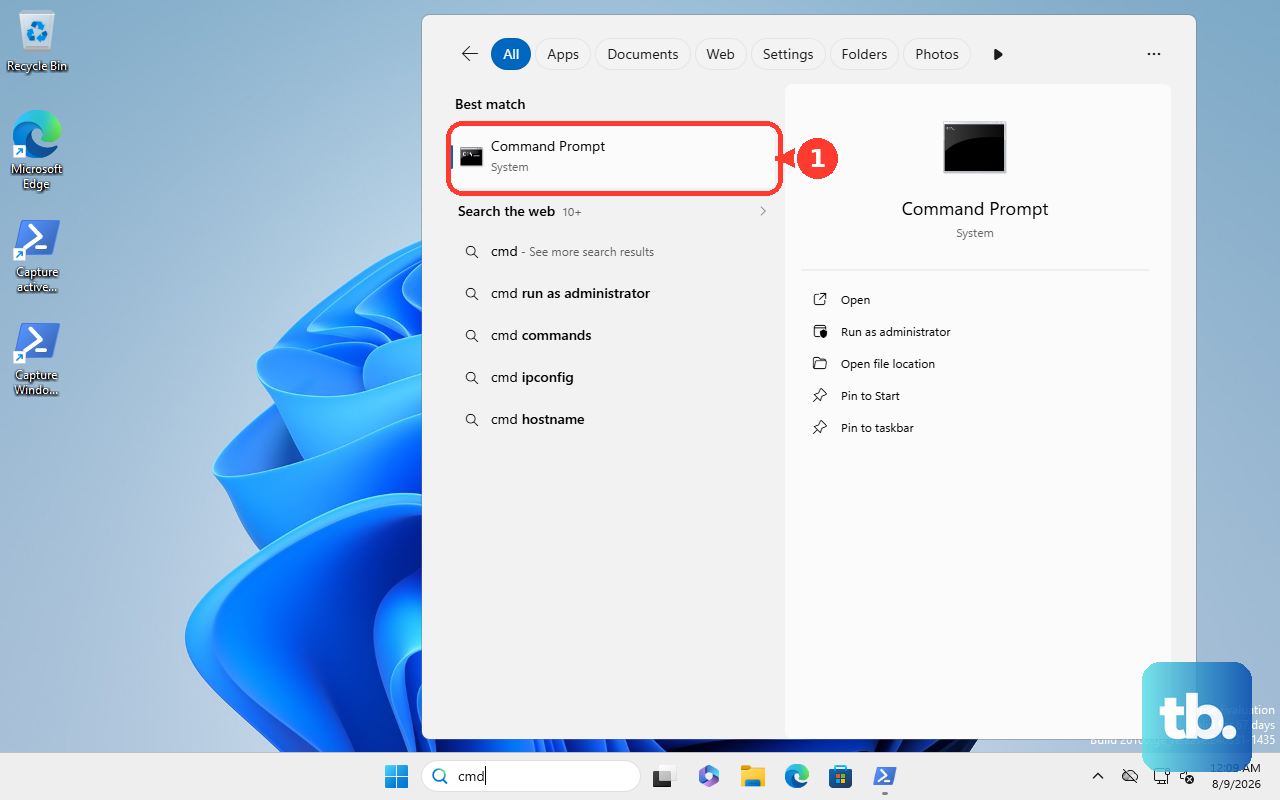
The Windows print spooler can crash quietly, leaving the printer marked offline. Open Command Prompt as Administrator (right-click Start > Windows Terminal (Admin)). Type net stop spooler and press Enter, then net start spooler. The spooler restarts cleanly. Now check Settings > Bluetooth and devices > Printers and scanners the ET-2850 should show online.
If the spooler refuses to restart, a stuck print job is blocking it. After stopping the spooler, open File Explorer and navigate to %windir%\System32\spool\PRINTERS. Delete every file inside, then start the spooler.

Disable SNMP Status in Port Properties (Windows)
This one is overlooked constantly. Windows uses SNMP polling on TCP/IP printer ports to confirm the printer is reachable. If those SNMP responses time out, even briefly, Windows marks the printer offline even though it's working fine. Open Settings > Bluetooth and devices > Printers and scanners. Click the ET-2850, then Printer properties > Ports. Highlight the active TCP/IP port and click Configure Port. Uncheck "SNMP Status Enabled" and click OK. Send a test print if the printer jumps online, this was the culprit.
Reset the Print System (macOS)
On a Mac, the fix is straightforward. Open System Settings > Printers and Scanners. Right-click (or Control-click) anywhere in the printer list and choose "Reset printing system." This wipes all configured printers. Confirm, then re-add the ET-2850 using the + button. The fresh add almost always brings it back online.
Print a Network Status Page
You need to see what IP the printer actually has. On the ET-2850's control panel, press the Home button (the house icon). Navigate to Settings > Network Settings > Print Status Sheet. The printer will print a page showing its current IP address, subnet, and signal strength. Compare that IP to what your computer sees in the printer properties (Windows: Printer properties > Ports; macOS: Printers and Scanners > Options & Supplies).
If they don't match, your router gave the printer a new IP address via DHCP. The easiest fix is to set a DHCP reservation in your router so the printer keeps the same IP. If you can't do that, update the IP on your computer manually in the printer's port settings.
Re‑Add the Printer via Epson Smart Panel
The Epson Smart Panel app (iOS 14+ / Android 7+) is your best tool for clean re‑pairing. Open the app, tap the printer icon at the bottom, then the gear icon for Settings. Choose "Remove Printer" and confirm. Then tap "Add Printer" at the top. The app will discover the ET-2850 on your network. Follow the prompts to reconnect it. This rebuilds the connection from scratch and fixes most lingering config corruption.
Fix the WPA3 Issue on Your Mesh Network
The ET-2850 is 2.4 GHz only, and although it does support WPA3-Personal (WPA3-SAE), some WPA3 configurations can still keep it from staying connected. If your router or mesh system (Eero, Orbi, TP‑Link Deco, etc.) is set to WPA3‑only or has PMF (Protected Management Frames) required, the printer will fail to stay connected and go offline. Log into your router's app or web interface and switch the 2.4 GHz security mode to WPA2‑Personal or WPA2/WPA3 transitional. Re‑pair the printer through Epson Smart Panel. Once it's connected, you can turn WPA3 back on the printer usually holds the connection after initial pairing.
Set the ET-2850 as Default Printer (Windows)
Windows 11 loves to change your default printer to whatever you used last, including "Microsoft Print to PDF." Open Settings > Bluetooth and devices > Printers and scanners. Toggle off "Let Windows manage my default printer." Then click the ET-2850 and choose "Set as default." This locks it in place so it never mysteriously stops being the active printer.
Update Printer Firmware via Epson Smart Panel
Outdated firmware can cause compatibility issues with newer Windows or macOS releases. Open the Epson Smart Panel app, tap the printer icon, then the gear icon. Scroll down to "Firmware Update." If an update is available, install it. The process takes about 5 minutes and the printer restarts automatically. After it comes back, the offline problem often disappears.
Switch to a USB Connection
If your Wi‑Fi network is crowded or the ET-2850 keeps dropping off, plugging it in via USB is the most reliable alternative. The ET-2850 has a USB‑B port on the back use a standard USB printer cable to connect it directly to your computer. Windows and macOS will detect it as a new printer (you may need to install the driver manually from Epson's site). USB connections never go offline from network issues. If you need AirPrint or mobile printing, this won't cover that, but for a dedicated hardwired computer it's bulletproof.
Factory Reset the Printer (Last Resort)
If nothing above worked, a full factory reset wipes all Wi‑Fi config and custom settings. On the printer's control panel, press the Home button. Navigate to Settings > Restore Default Settings > Clear All Data and Settings. Confirm the reset. The printer will wipe everything - ink levels remain, but network settings, scan to email, and any paired apps are gone. After the restart, set it up fresh via Epson Smart Panel. Deep configuration corruption that causes offline behavior clears completely this way.