Your Epson EcoTank ET-2850 was printing happily over Wi-Fi, and now the LCD shows a dropped connection or your computer insists the printer is offline. It is a frustrating spot, because a supertank printer that cannot reach your network is no better than an expensive paperweight sitting in the corner. The good news is that almost every wireless dropout on this model traces back to a handful of fixable causes, such as a mistyped password, a 5 GHz band the printer cannot see, or a stale connection your computer is clinging to.
This guide walks through the fixes in the order Epson itself recommends, starting with the quickest and safest and saving the full network reset for last. Because the ET-2850 is a cartridge-free EcoTank with refillable ink tanks, none of the cartridge advice you may have seen elsewhere applies here, so we will stick to what actually moves the needle on Wi-Fi.
Re-enter Your Wi-Fi Details Straight From the Printer Screen
Before changing anything on your router or computer, confirm the basics at the printer itself. The single most common reason the ET-2850 fails to connect, according to the official guidance, is selecting the wrong network name or mistyping the wireless password. Passwords are case-sensitive, so a single wrong character will stop the connection cold.
On the printer, follow this path: Home > Wi-Fi Setup > Wi-Fi (Recommended) > Wi-Fi Setup Wizard. Select your network name (SSID) from the list, then carefully re-enter the wireless password with the on-screen keyboard.
From the printer's Home screen, choose Wi-Fi Setup.
Next, select Wi-Fi (Recommended), then Wi-Fi Setup Wizard.
Pick your network name (SSID) from the displayed list.
Type the wireless password exactly, watching for case and stray spaces.
Once it connects, the Wi-Fi icon on the LCD will show the connection status. If that icon never settles, move on to the band check below.
Check That You Are Joining the 2.4 GHz Network, Not 5 GHz Only
This is the fix most people miss. The ET-2850's Wi-Fi operates on the 2.4 GHz band, so if your router is broadcasting a 5 GHz network exclusively, the printer simply cannot see it. Many modern routers favor 5 GHz, which quietly locks this printer out.
If you have a 5 GHz router, set it to dual-band mode so it broadcasts both 2.4 GHz and 5 GHz. When a router uses a single SSID for both bands, give each band its own separate network name so the printer can find and join the 2.4 GHz one directly. You will make this change in your router's settings, not on the printer.
Physical placement matters on 2.4 GHz too. Keep the printer within range of the router and away from microwaves, 2.4 GHz cordless phones, and large metal objects, all of which can interfere with the signal.
Restart Everything in the Order Epson Specifies
A stale connection often clears with a proper power-cycle, but the sequence matters. First, confirm the router is actually working by getting online from another device such as a phone or laptop. Then restart the router according to its own documentation.
Epson's specified order is precise. Turn off the devices you want to connect, wait about 10 seconds, then turn them back on in this order, wireless router first, then your computer or smart device, and finally the printer. Powering them up in that sequence lets each device find the one before it.
If your wireless connection keeps dropping mid-use rather than failing outright, unplug the router's power cord, wait briefly, plug it back in, and then try printing again.
Print a Network Connection Report to Find the Real Cause
When the guesswork is not paying off, let the printer diagnose itself. The ET-2850 can print a Network Connection Report that includes a specific error code pointing you to the exact problem.
Press the home button if necessary.
Go to Settings > Network Settings > Connection Check.
Press the start button to print the network connection report.
If an error code appears on the printout, check the solution at the website listed on the report itself. That code narrows the cause to something specific, such as a wrong password, a band mismatch, or a router that is out of range, which saves you from guessing your way through the rest of these steps.
Clear the Offline State on a Windows PC
Sometimes the printer is on Wi-Fi just fine and it is Windows that has gone stubborn, showing the printer as offline. Start by ruling out a simple hold-up. Confirm the printer prints from its own controls, power-cycle both the printer and router, and clear any stuck jobs from the print queue.
If Windows still reports the printer as offline, open the Epson print queue, select Printer from the menu, and deselect the Use Printer Offline checkbox. After clearing that checkbox, confirm the printer's Wi-Fi connection is still active so the job can route to it.
Clear the Offline State and Re-Add the Printer on a Mac
The macOS version of this fix follows the same logic. On a Mac showing the printer as offline, first confirm the printer responds from its own controls, power-cycle the printer and computer, and clear the print queue of any stuck jobs.
If it stays offline, you can remove and re-add the printer. Open the Apple menu > System Preferences or System Settings > Print & Scan / Print & Fax / Printers & Scanners.
Select the printer and remove it, then add it back.
When adding it, choose your printer with Kind set as Bonjour, select your printer from the Use drop-down list, and click Add.
Use the Epson Smart Panel App to Set Up or Repair the Connection
Epson's free Smart Panel app can handle the whole wireless setup from your phone or tablet, which is often easier than tapping through the printer's small screen. The app sets the printer up on your network, monitors status and ink, and offers built-in troubleshooting tips.
Install it from the Apple App Store or Google Play. Epson's official requirements are iOS 11.0 or later, iPadOS 13.1 or later, and Android 5.0 or later, so a current phone will run it without issue.
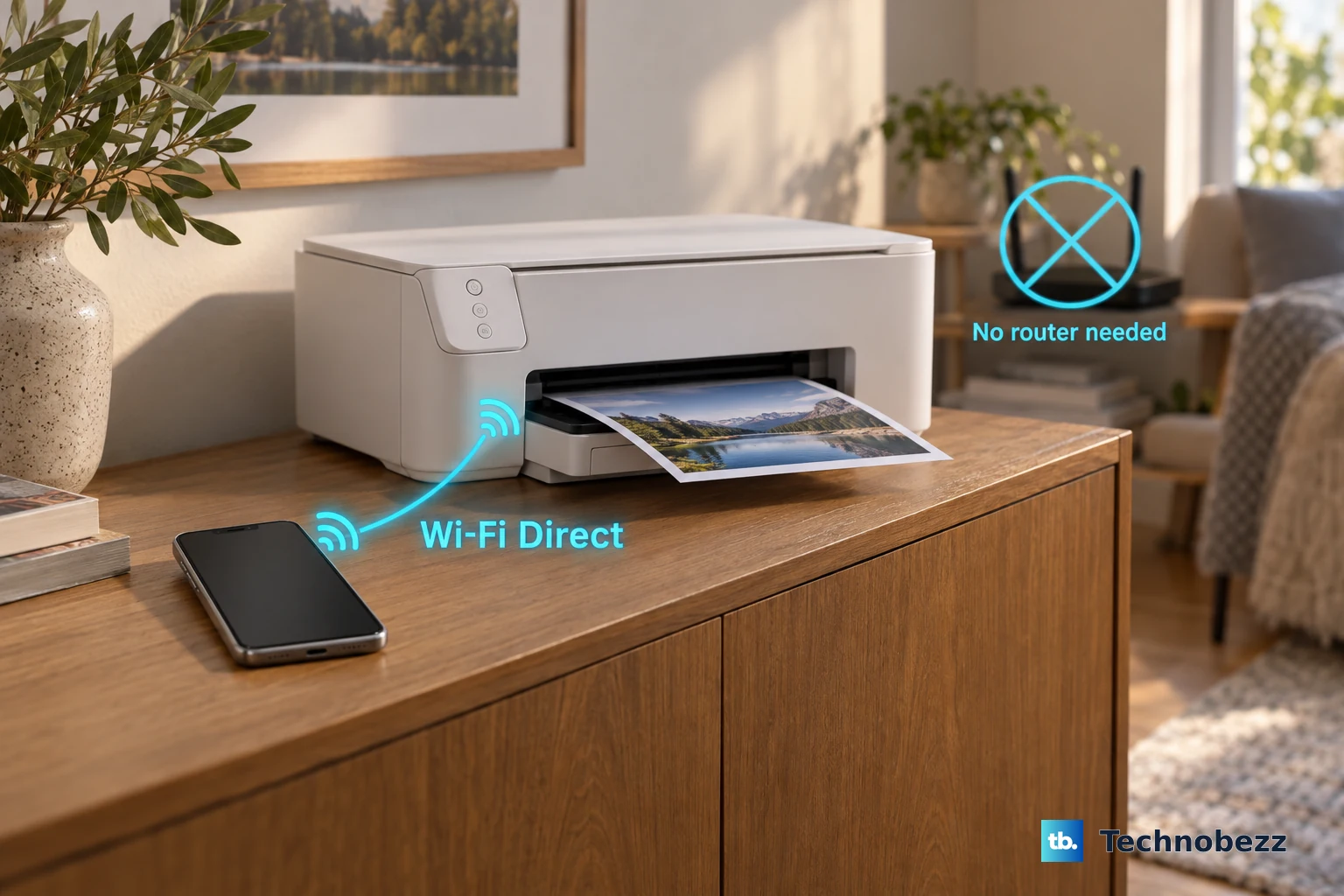
If you cannot get onto your router at all, the ET-2850 can also accept a direct connection through Wi-Fi Direct (Simple AP) mode, which links up to 8 devices without any router. Go to Home > Wi-Fi Setup > Wi-Fi Direct. On iOS, scan the QR code with the camera app, while on other devices you select the displayed SSID and enter the shown password.
Update the Firmware and Reinstall the Driver
Outdated printer firmware or a corrupted driver can break a connection that looks fine on the surface. Epson Software Updater, available from the ET-2850's Downloads tab on the official support site, handles both. Make sure the printer is powered on and the computer is online before you start.
Open Epson Software Updater on your Windows or Mac computer.
Check the box next to Firmware Updater.
Click Install and let it run to completion.
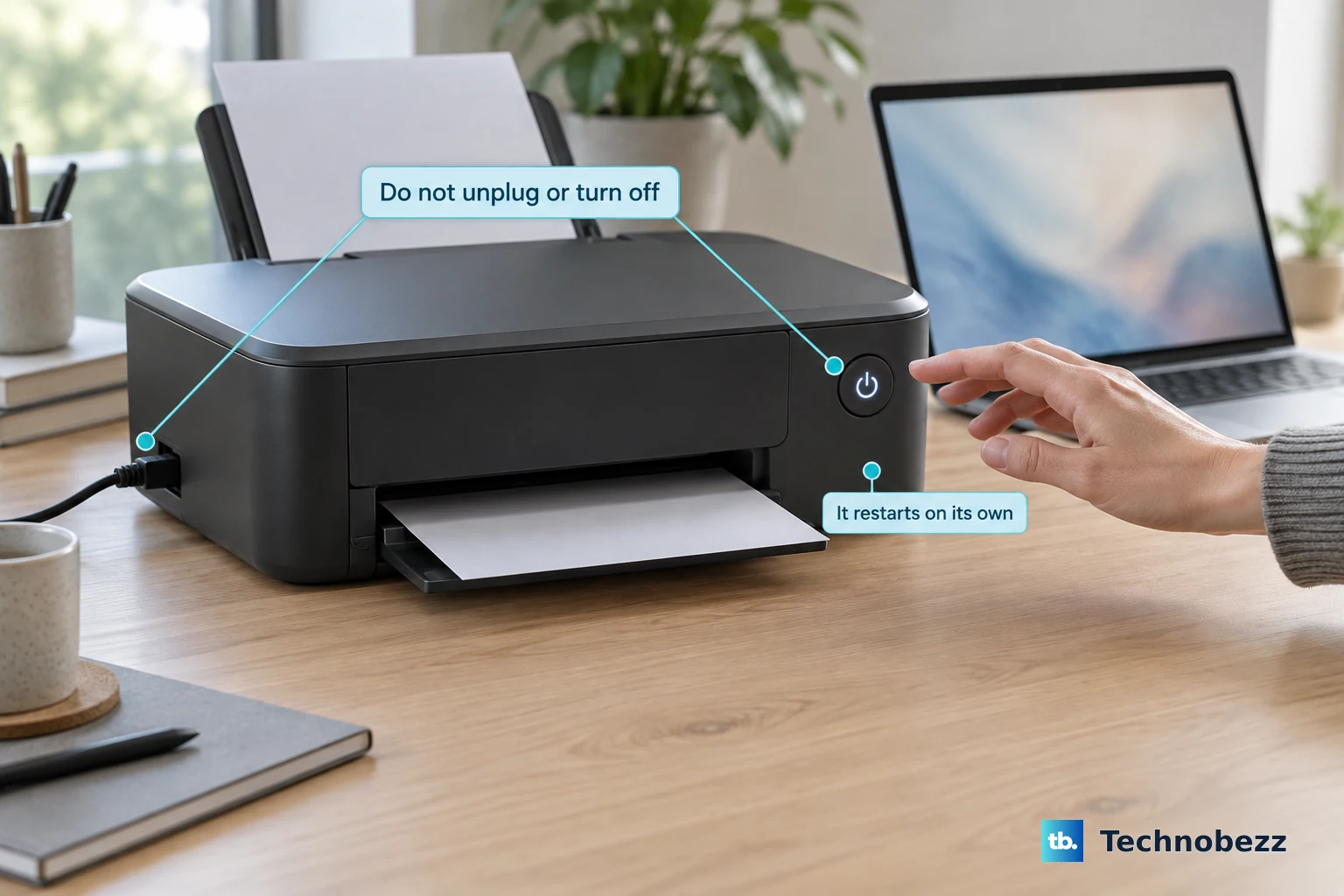
Do not turn off or unplug the printer while it updates, even if the display changes or goes dark, because interrupting a firmware update can damage the printer. If the connection trouble continues, temporarily disable your firewall, then uninstall and reinstall the printer software from the official support page, restart the router, and re-enable the firewall once everything is back in place.
To disable the firewall on Windows 11, go to Settings > Network & Internet > Advanced network settings > Windows Firewall and turn it off. On Windows 10, go to Settings > Network & Internet > Windows Firewall and turn it off. Re-enable it after the software is reinstalled.
Reset the Printer's Network Settings as a Last Resort
If nothing above restores the connection, clearing the printer's stored network settings gives you a clean slate. This wipes the saved Wi-Fi configuration, so be ready to run the setup wizard again afterward.
- 1.Press the home button if necessary.
- 2.Go to Settings > Restore Default Settings.
- 3.Choose Network Settings to reset all network settings, or Clear All Data and Settings for a full reset that also clears all control panel settings and any stored information.
- 4.Press OK to confirm.
Choose Network Settings first, since it is the least destructive option that still solves most Wi-Fi problems. After the reset finishes, run the Wi-Fi Setup Wizard again from Home > Wi-Fi Setup > Wi-Fi (Recommended) > Wi-Fi Setup Wizard to reconnect. If it still will not join your network, reinstall the product software following Epson's instructions, and if the problem remains unresolved, contact Epson Support for further help.
Frequently Asked Questions
Why does my ET-2850 not see my Wi-Fi network at all?
The most likely reason is the band. The ET-2850 connects on the 2.4 GHz band, so a 5 GHz-only network will not appear in its list. Set your router to dual-band mode and, if both bands share one name, give each band its own SSID so the printer can find the 2.4 GHz network.
What does the Network Connection Report tell me?
It prints the printer's connection status and, when there is a problem, a specific error code. Check that code against the website printed on the report for the matching solution. To print it, go to Settings > Network Settings > Connection Check and press the start button.
Can I print without a router?
Yes. The ET-2850 supports Wi-Fi Direct (Simple AP) mode, which connects up to 8 devices directly without a router. Go to Home > Wi-Fi Setup > Wi-Fi Direct, then scan the QR code with the camera app on iOS, or select the displayed SSID and enter the shown password on other devices.
Will resetting network settings erase my other data?
Choosing Network Settings under Settings > Restore Default Settings clears only the network configuration. If you select Clear All Data and Settings instead, it resets all control panel settings and any stored information, so use that broader option only when a network-only reset has not worked.
Is it safe to update the firmware if my connection is unstable?
Yes, as long as you do not interrupt it. Run Epson Software Updater with the printer on and the computer online, check Firmware Updater, and click Install. Never turn off or unplug the printer mid-update, even if the display changes or goes dark, because interrupting it can damage the printer.