
When your Dell XPS 15 keyboard stops responding, it can feel like you've hit a brick wall. The keys might not register at all, certain rows could be dead, or you might get the wrong characters when you type. Let's get it working again.
Start with a free keyboard tester to map out exactly which keys respond. Knowing whether the fault is one key or the whole board changes which fixes below apply.
Force a Full Shutdown and Restart
This is the universal first step for a reason. A full restart clears out any temporary software glitches that might be hanging up the keyboard driver. If the keyboard is completely dead, hold down the physical power button for a full 15 seconds to force the laptop off, then press it once to turn it back on.
Check for Physical Debris
The XPS 15's keyboard has a relatively low travel distance, so even a small crumb can block a key. Turn the laptop off, tilt it sideways, and gently tap on the back. A can of compressed air is your best friend here. Use short bursts to blow debris out from between the keys.
Disable Filter Keys in Windows
It's surprisingly easy to accidentally trigger Windows' Filter Keys feature, which ignores brief or repeated keystrokes. Press the Shift key five times quickly to see if a dialog pops up. To turn it off permanently, go to Settings > Accessibility > Keyboard and ensure Filter Keys is toggled off. Check Sticky Keys here too.
Update or Reinstall the Keyboard Driver
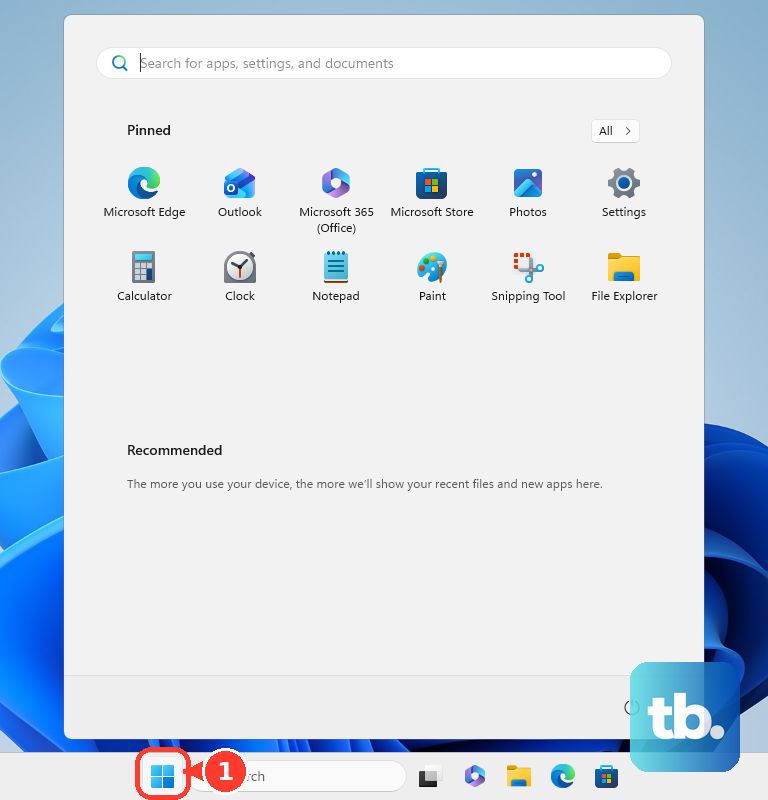
Open the Start menu and type "Device Manager." Expand the Keyboards section, right-click on "Standard PS/2 Keyboard" or a similar HID device, and select Update driver. If that doesn't help, choose Uninstall device and then restart your laptop. Windows will automatically reinstall a fresh driver when it boots back up.
Verify Your Keyboard Layout and Language
If you're typing a "Y" and getting a "Z," your keyboard layout has likely been switched. Go to Settings > Time & Language > Language & Region. Under your preferred language, click the three dots and select Language options. Make sure your keyboard layout is set correctly, like "US QWERTY," and remove any extra layouts you don't use.
Boot into Safe Mode to Isolate Software
If the keyboard works fine in Safe Mode, you know a third-party app is the culprit. To boot into Safe Mode, go to Settings > System > Recovery and click "Restart now" under Advanced startup. After the reboot, choose Troubleshoot > Advanced options > Startup Settings > Restart, then press 4 or F4 for Safe Mode. Uninstall any recently added programs.
Run the Dell SupportAssist Diagnostics
Your XPS 15 has powerful built-in hardware tests. Restart the laptop and press the F12 key repeatedly as soon as you see the Dell logo. On the boot menu, use the arrow keys to select Diagnostics and run the test. It will check the keyboard hardware and tell you if there's a physical failure.
Update Your BIOS and Drivers via Dell
Outdated system firmware, or BIOS, can cause all sorts of peripheral issues, including keyboard problems. Open the Dell SupportAssist app (pre-installed on your XPS) and run a full scan for driver updates. Pay special attention to any BIOS, chipset, or keyboard driver updates it finds. I've seen a BIOS update resolve weird input issues on several XPS models.
Use an External Keyboard to Test
Plug in any USB keyboard or pair a Bluetooth one. If the external keyboard works flawlessly, it strongly points to a hardware problem with your laptop's internal keyboard. This could be a loose ribbon cable connection, which sometimes happens, or damage from a past spill. It helps confirm where the problem lies before looking into repairs.