
A slow Dell Inspiron 14 can turn a simple task into a test of patience, with programs hanging and web pages taking forever to load. The plastic chassis might flex a bit, but the performance shouldn't. I've found that most slowdowns on these laptops are due to software clutter or background processes that you can clean up yourself.
Run a Full Restart
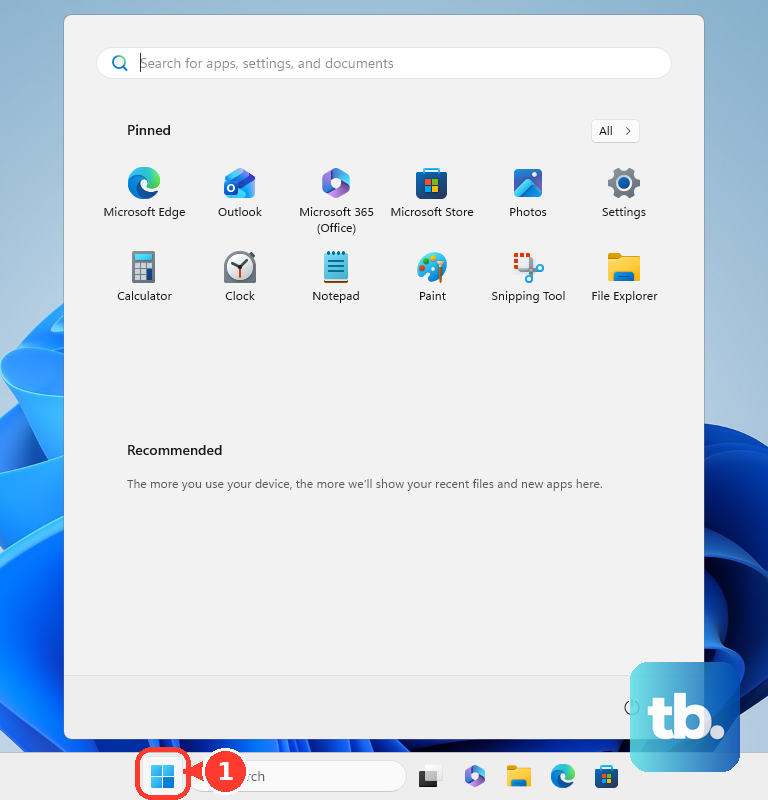
If you usually just close the lid, your laptop never gets a fresh start. Click the Start menu, select the power icon, and choose Restart. This clears out temporary memory and stops any stuck background services that could be dragging everything down. It's a simple first step that often makes a noticeable difference.
Identify What's Slowing You Down
Press Ctrl + Shift + Esc to open Task Manager. Click on the CPU, Memory, and Disk columns to sort by what's being used the most. Look for any single process using a very high percentage. Common culprits on the Inspiron 14 can be Windows Search indexing, a browser with too many tabs, or a background update. Right-click on anything suspicious and select End task.
Stop Unnecessary Programs from Launching
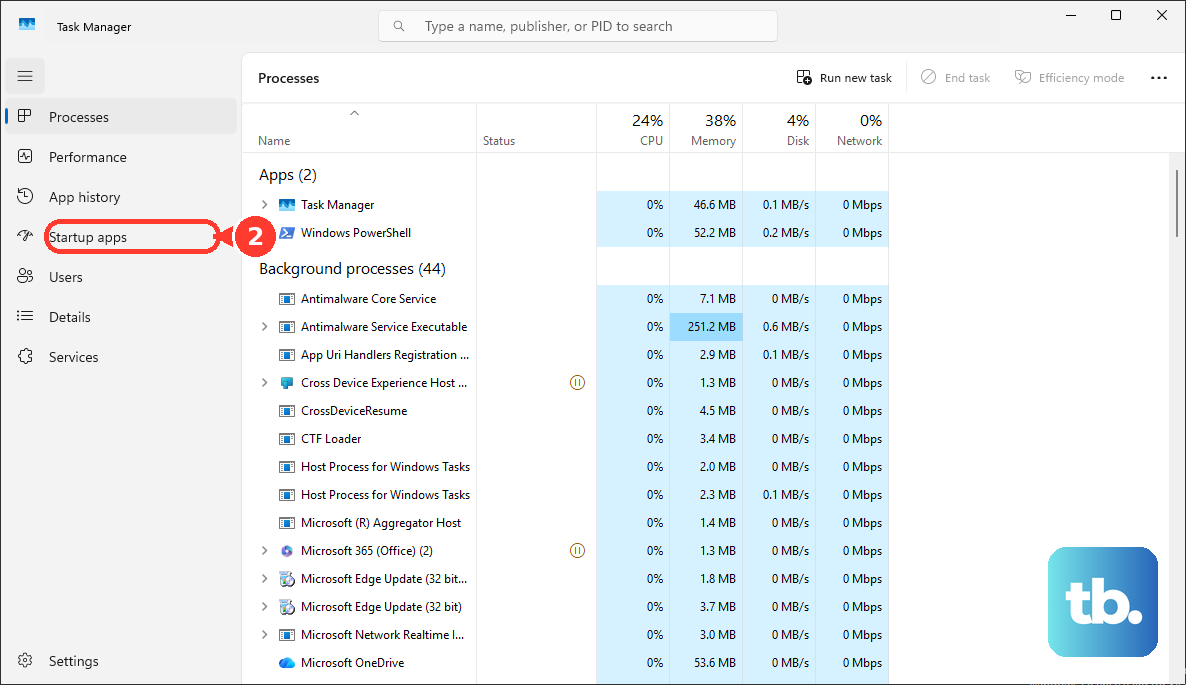
In Task Manager, click the Startup apps tab. You'll see a list of programs that launch when you turn on your laptop. Right-click and Disable any you don't need immediately, like messaging apps, cloud storage utilities, or media players. Each disabled app shaves time off your boot and frees up RAM for what you actually want to do.
Free Up Space on Your Drive
Open Settings > System > Storage. If your main drive is over 85% full, performance will suffer. Click on Temporary files and check the boxes for items like "Delivery Optimization Files" and "Windows Update Cleanup." You can also enable Storage Sense here to have Windows automatically manage this for you in the future.
Scan for Malware
Open Windows Security from the Start menu. Go to Virus & threat protection and click Scan options. Choose Microsoft Defender Antivirus (offline scan) for the most thorough check. Malware running in the background is a classic cause of unexplained lag and high CPU usage.
Update Everything
First, go to Settings > Windows Update and install all available updates. Next, tackle your drivers. Outdated audio, chipset, or WiFi drivers are a known source of issues for the Inspiron 14. Open Dell SupportAssist (it should be pre-installed) and run a scan for driver updates. For the most precise drivers, go to Dell's support website and enter your Service Tag.
Maximize Your Power Plan
Click the battery icon in your system tray and drag the slider all the way to Best performance. If you don't see the slider, go to Settings > System > Power & battery and set Power mode to "Best performance." This ensures Windows isn't artificially limiting your processor speed to save battery, which can happen even when you're plugged in.
Reduce Visual Animations
Search for "Adjust the appearance and performance of Windows" in the Start menu and open it. In the Visual Effects tab, select Adjust for best performance. This will turn off animations, shadows, and transparency effects. While it makes Windows look plainer, it can free up significant resources on a laptop that's struggling.
Check Your WiFi Adapter
Some budget configurations of the Inspiron 14 use Intel WiFi adapters that can have slower or less stable performance. If your internet feels slow, right-click the Start button and select Device Manager. Expand Network adapters, right-click your WiFi adapter, and select Update driver. Choose "Search automatically for drivers." If that doesn't help, use your Service Tag on Dell's site to find the latest driver specifically for your model.
Consider a Hardware Upgrade
If your Inspiron 14 has a traditional hard drive (HDD), upgrading to a solid-state drive (SSD) is the single most impactful change you can make. It makes Windows boot, apps launch, and files save dramatically faster. Adding more RAM is also a great upgrade if you're frequently multitasking with 8GB or less; it prevents your system from slowing down when it runs out of memory.
Run Dell's Built-in Diagnostics
Restart your laptop and press the F12 key repeatedly as it boots to enter the one-time boot menu. Use the arrow keys to select Diagnostics and press Enter. This will run a hardware check on your memory, hard drive, and other components. It can help rule out a failing piece of hardware as the cause of your slowdown.
Reset Windows as a Last Resort
If all else fails, you can refresh your system. Go to Settings > System > Recovery and click Reset PC. Choose Keep my files to reinstall Windows while preserving your personal documents, photos, and music. You'll have to reinstall your applications, but it removes any accumulated software conflicts or bloat that might be causing the lag.