
When your Dell G16 goes silent in the middle of a game or video, it's a jarring experience. The issue could be a simple Windows setting, a driver conflict, or something specific to the laptop's gaming hardware. Let's get your sound back.
A browser based online speaker test helps narrow this down fast. If test tones play clearly, the speakers work and the problem lives in an app or setting.
Check Volume and Output Device
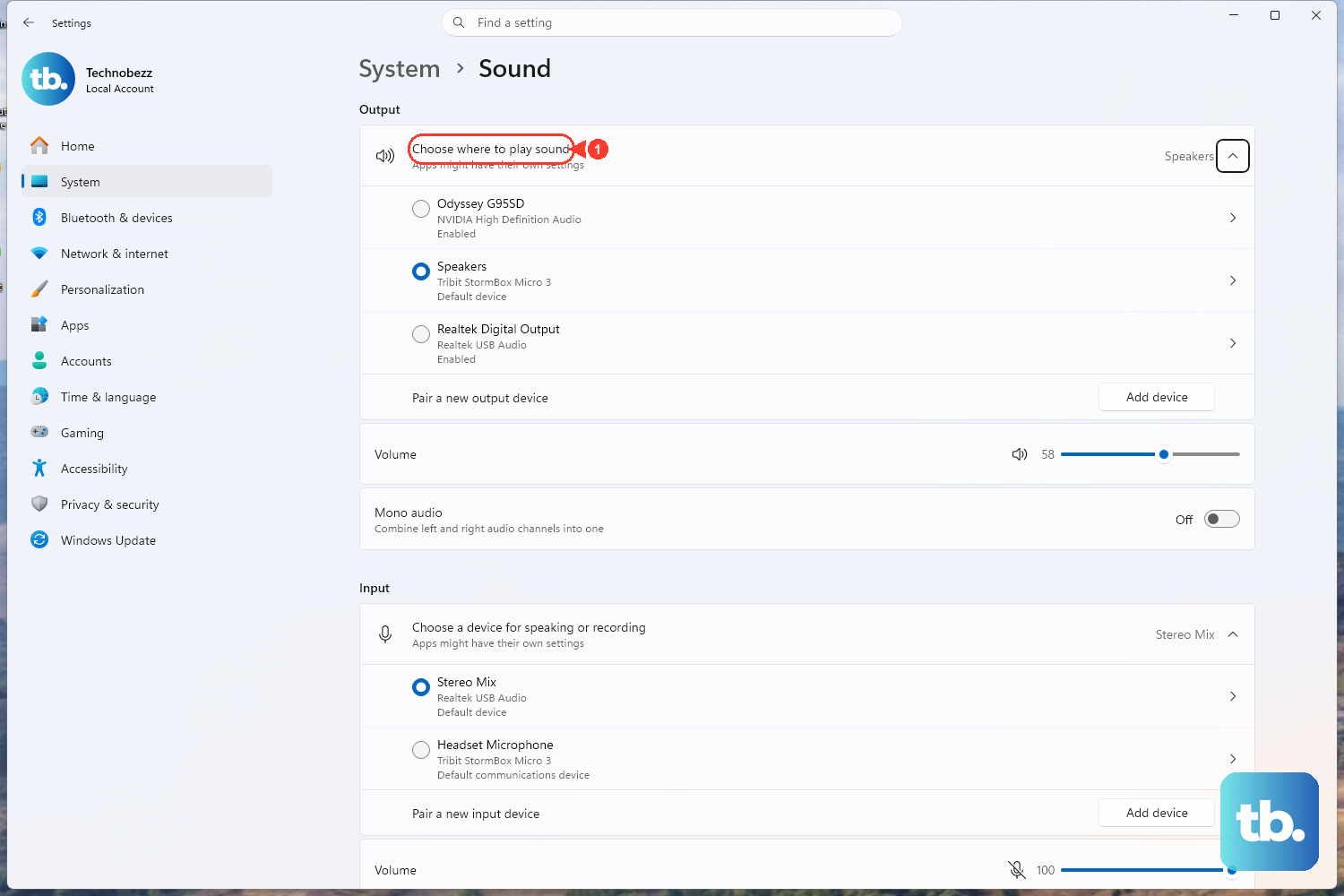
First, click the speaker icon in your system tray. Make sure the master volume slider isn't at zero and that the mute icon isn't highlighted. Right next to the volume slider, click the small arrow to see the output device list. If you recently unplugged headphones, Windows might still be trying to send audio to them. Select "Speakers" or your G16's internal audio device.
Run the Windows Audio Troubleshooter
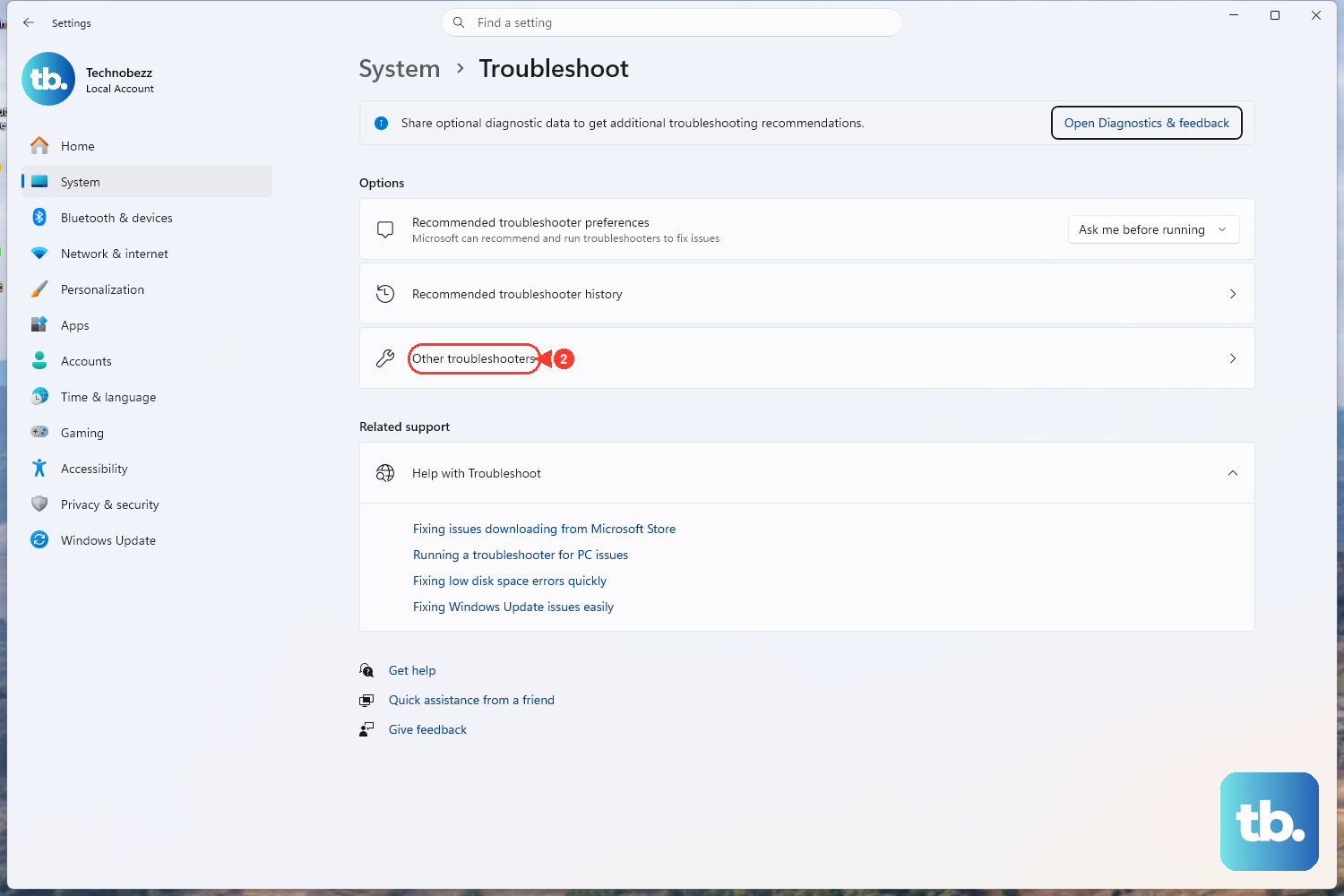
Windows has a built-in tool that can automatically fix common glitches. Go to Settings > System > Troubleshoot > Other troubleshooters. Find "Playing Audio" and click "Run." This tool checks for disabled services, incorrect default devices, and other configuration problems, often fixing them with a single click.
Restart Your Laptop
This is the classic fix for a reason. A full restart clears out any stuck audio processes and reloads all your drivers from scratch. Click Start > Power > Restart. I've found this particularly effective if the audio cut out after the laptop woke from sleep or hibernation, which can sometimes confuse the audio subsystem.
Update Your Audio Drivers Manually
For the G16, you should get drivers directly from Dell's support site, not through Windows Update. Go to Dell's driver page, enter your G16's Service Tag, and look for the latest "Audio" or "Realtek High Definition Audio" driver. Download and install it. Using the manufacturer's specific driver can resolve conflicts that generic Windows drivers might cause, especially with the laptop's built-in speaker array.
Update Your Graphics Drivers Separately
This is a critical step for gaming laptops. Your NVIDIA or AMD GPU also handles audio when connected via HDMI or DisplayPort. Outdated graphics drivers can break audio pathways. Go to NVIDIA's or AMD's website and download the latest Game Ready or Adrenalin driver for your specific G16 GPU model. Installing this can fix audio that cuts out when launching games or using external displays.
Check the Alienware Command Center
The Alienware Command Center software that comes with the G16 can affect audio through its profiles. Open the Command Center and check if you have any audio enhancement features enabled, like "Sound Tracker" or specific EQ profiles. Try disabling all enhancements here to see if a software feature is causing the conflict. You can also try switching to a different performance profile, like "Balanced," to reset associated audio settings.
Restart the Windows Audio Services
Press Windows Key + R, type services.msc, and hit Enter. In the list, find "Windows Audio." Right-click it and select "Restart." Do the same for "Windows Audio Endpoint Builder." If either service was hung or stopped, this will get them running again immediately without a full reboot.
Disable Audio Enhancements in Windows
Go to Settings > System > Sound. Click on your output device (like your speakers), then scroll down to find "Audio enhancements." Set this dropdown to "Off." Enhancements like spatial sound or loudness equalization can sometimes conflict with the G16's hardware, resulting in no sound at all.
Check the App Volume Mixer
Sometimes, the system volume is fine, but a specific app is muted. Right-click the speaker icon in the taskbar and select "Open Volume mixer." You'll see individual volume sliders for every open application. Make sure the app you're using (like your game, Chrome, or Spotify) isn't set to zero or muted independently.
Examine Physical Connections and BIOS
If you're using headphones or external speakers, test them on another device to rule out a hardware fault. Try the G16's built-in speakers alone. For a deeper reset, you can enter the BIOS by pressing F2 during startup. Look for any audio-related settings (sometimes under "Audio" or "Integrated Devices") and ensure they are enabled. A BIOS reset to default settings can also clear any incorrect configurations causing the issue.