You click a search result or open a new tab, and your browser jumps to a page you never asked for: a fake alert, a coupon site, or a sketchy ad landing page. When this keeps happening, the cause is almost always something on your PC, a rogue browser extension, bundled adware, or malware that hijacks your traffic, rather than the website you tried to reach. The good news is that Windows ships with the tools to clean this up, and you can work through them from safest to most thorough without installing anything extra. Here are the fixes, in the order you should try them on Windows 10 or Windows 11.
Confirm Microsoft Defender Real-Time Protection Is Switched On
Redirect malware often survives because the antivirus that should catch it has been quietly switched off. Before scanning, make sure your live shield is actually running.
- 1.Open the Windows Security app by searching Windows Security in Start.
- 2.Select Virus & threat protection.
- 3.Under Virus & threat protection settings, select Manage settings.
- 4.Make sure Real-time protection is set to On.
You can jump straight to that screen with the shortcut windowsdefender://threatsettings/. There are a few normal reasons it might be off. You may have turned it off temporarily. Tamper Protection may be preventing apps from changing it. Or, if you installed a compatible non-Microsoft antivirus, Microsoft Defender Antivirus will automatically turn itself off, which is expected behavior rather than a bug.
Keep Tamper Protection On So Malware Cannot Disable Your Antivirus
Many viruses and malware try to disable anti-malware software or other security settings when they are installed in order to evade detection. Tamper Protection is the guardrail that stops them.
In the Windows Security app, go to Virus & threat protection > Virus & threat protection settings > Manage settings and confirm Tamper Protection is On. It helps prevent malicious apps from changing important Microsoft Defender Antivirus settings such as real-time protection and cloud-delivered protection. For consumers this setting is on by default.
Update Your Definitions, Then Run a Quick Scan
An out-of-date scanner can miss a fresh redirect infection, so refresh the security intelligence first. In the Windows Security app, open Virus & threat protection and, under Virus & threat protection updates, select Check for updates.
Once Defender is current, run a Quick scan. Under Current threats, select Scan options and choose Quick scan, or use the shortcut windowsdefender://quickscan/. A Quick scan checks the folders where threats are commonly found, so it is useful when you do not want to spend the time on a full scan. If it flags anything, let Defender remove it and then see whether the redirects stop.
Run a Full Scan If the Redirects Continue
A Quick scan only covers the usual hiding spots, so a clean result does not always mean a clean PC. When the browser keeps being redirected, escalate to a Full scan.
Go to Virus & threat protection > Current threats > Scan options, choose Full scan, and select Scan now. You can also launch it with windowsdefender://fullscan/. A Full scan scans every file and program on your device, so it is the right choice when a Quick scan came back clean but the problem persists. Let it finish, remove anything it flags, then review the results.
Use an Offline Scan for Stubborn, Hard-to-Remove Malware
Some redirect malware is built to hide while Windows is running, defeating even a Full scan. The Microsoft Defender Antivirus (offline) scan defeats that trick by running before Windows loads.
Go to Virus & threat protection > Current threats > Scan options, select Microsoft Defender Antivirus (offline scan), then Scan now, or use windowsdefender://wdoscan/. The scan happens after a restart, without loading Windows, so any persistent malware has a more difficult time hiding or defending itself.
Save any open files first, because the device restarts. Microsoft's malware-removal guidance suggests restarting the computer and running the scan immediately, before opening other apps. When it is done, you can view what it found in the Windows Security app.
Remove Suspicious Browser Extensions in Microsoft Edge
Redirects are often caused by a single rogue browser extension rather than a system-wide infection. Audit your add-ons and clear out anything you don't recognize.
- 1.In Microsoft Edge, select the Extensions icon (the puzzle-piece icon to the right of the address bar) > Manage extensions.
- 2.Toggle off any extension you don't recognize to disable it.
- 3.To delete one, right-click the extension icon and choose Remove from Microsoft Edge > Remove.
You can also remove an extension by selecting Extensions > More actions next to the extension > Remove from Microsoft Edge > Remove. After removing a suspect extension, restart the browser and test whether the redirects are gone.
Clear Microsoft Edge Browsing Data
Even after the source is gone, adware can leave behind cookies and cached redirects that keep sending you to the wrong place. Wiping that data clears the residue.
In Microsoft Edge, select Settings and more (the three-dot menu) > Settings > Privacy, search, and services > Clear browsing data, then Choose what to clear and select the data types to delete, such as cookies and cached files. This is Microsoft's documented path for managing and clearing Edge browsing data.
Uninstall Any Suspicious Program That Arrived With the Problem
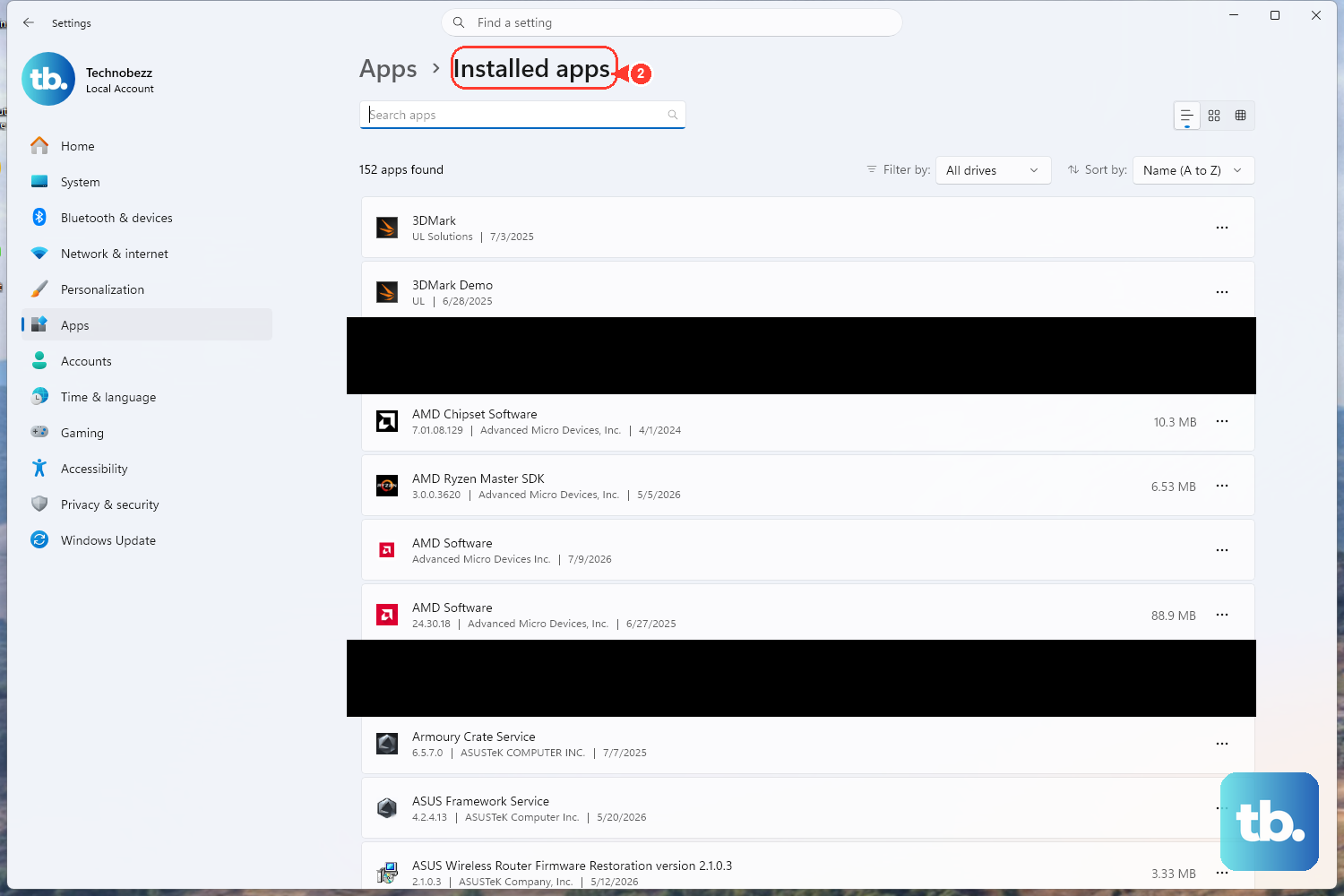
Bundled adware often installs as a regular desktop program, not just a browser add-on. Look for unfamiliar software that appeared around the time the redirects started.
On Windows 11, go to Start > Settings > Apps > Installed apps, find the unfamiliar app, and select More (...) > Uninstall. On Windows 10, go to Start > Settings > Apps > Apps & features, select the app, and choose Uninstall.
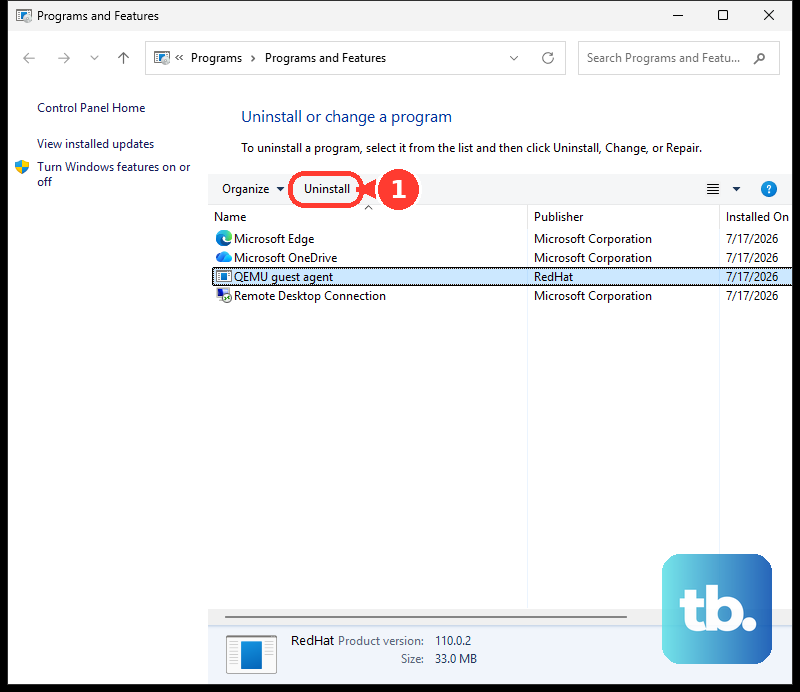
If an app refuses to uninstall from Settings, open Control Panel: in taskbar search enter Control Panel > Programs > Programs and Features, right-click the program, and select Uninstall. Sort the list by install date to spot anything added when the redirects began.
Repair Microsoft Edge Without Losing Your Data
If Edge still misbehaves after you have removed extensions and cleared data, repairing the browser is the safe last step. It fixes the installation while leaving your information intact.
- 1.Go to Start > Settings > Apps > Installed apps.
- 2.Select Microsoft Edge > Modify.
- 3.Make sure you are connected to the internet, then select Repair.
Microsoft notes that your browser data and settings shouldn't be affected by repair, so this is a low-risk move once everything else is done.
Frequently Asked Questions
Why is my browser redirecting even though Microsoft Defender says it is on?
Real-time protection running does not always mean a hidden infection has been caught. Update your definitions with Check for updates, then escalate from a Quick scan to a Full scan, and finally to the Microsoft Defender Antivirus (offline) scan, which runs before Windows loads so persistent malware has a harder time hiding.
Is there a dedicated Windows troubleshooter for browser redirects?
No dedicated Microsoft browser-redirect troubleshooter exists. Microsoft directs users to run a Defender scan and to reset or repair the browser, which is the same sequence covered above: scan with Windows Security, remove suspect extensions, clear browsing data, and repair Edge.
Will I lose my passwords or bookmarks if I repair Microsoft Edge?
No. Repairing Edge through Settings > Apps > Installed apps > Microsoft Edge > Modify > Repair is data-safe; Microsoft notes that your browser data and settings shouldn't be affected by repair.
Can I use the Windows Malicious Software Removal Tool to clean a redirect?
Microsoft documents the Windows Malicious Software Removal Tool (MSRT, KB890830) for removing specific prevalent malware. It is an additional cleanup option alongside a Microsoft Defender scan if the redirects come from a known, widespread threat.
Why does Microsoft Defender turn off when I install another antivirus?
That is intended behavior. If you install a compatible non-Microsoft antivirus program, Microsoft Defender Antivirus will automatically turn itself off so the two products do not conflict. If a second antivirus is installed and active, Defender being off is expected, not a sign of a problem.











