You open Quick Settings to connect your headphones, and the Bluetooth tile is simply gone. No toggle, no menu, no trace of it in your settings; it looks like the feature vanished overnight. Your PC may lack a Bluetooth adapter, or its driver may be missing or unresponsive. Driver or firmware problems can also cause Bluetooth hardware errors. The fixes below start with basic checks and work toward driver reinstalls, followed by audio troubleshooting if Bluetooth connects but stays silent. Stop once your problem is resolved.
Fix 1: Confirm Your PC Actually Has a Bluetooth Adapter
When the Bluetooth toggle, tile, or settings are absent, your device may not have a Bluetooth adapter, or the adapter's drivers may not be installed. Knowing which one you're dealing with saves you from chasing a driver fix on a PC that has no Bluetooth hardware in the first place.
On Windows 11, go to Start > Settings > Bluetooth & devices.
On Windows 10, go to Start > Settings > Devices.
On the Bluetooth settings page, look under Related settings for the More Bluetooth settings (Windows 11) or More Bluetooth options (Windows 10) link.
If that link is present, your PC has a Bluetooth adapter and you should focus on the driver fixes below. If the link is absent, check your PC's product specifications for Bluetooth support before trying the fixes below. Driver or firmware problems can also make Bluetooth disappear. If your PC has no Bluetooth hardware, a plug-in USB Bluetooth adapter adds it.
Fix 2: Turn Bluetooth On and Switch Off Airplane Mode
Sometimes Bluetooth isn't broken at all; it's just switched off, or Airplane mode has quietly disabled it. This is the fastest thing to rule out before you touch any drivers.
On Windows 11, select the Network, Sound, or Battery icons on the right side of the taskbar to open Quick Settings, then select the Bluetooth tile to turn it on. You can also press the Windows logo key + A to open Quick Settings, where you should confirm the Airplane mode tile is off. As an alternative, go to Start > Settings > Bluetooth & devices and turn the Bluetooth toggle on.
On Windows 10, open Action Center (select Expand if Bluetooth isn't shown) and select the Bluetooth tile, or go to Start > Settings > Devices > Bluetooth & other devices. Verify Airplane mode is off at Start > Settings > Network & Internet > Airplane mode. If you're on a laptop with a physical wireless or Bluetooth switch, make sure that switch is on too.
Fix 3: Let the Built-In Bluetooth Troubleshooter Do the Work
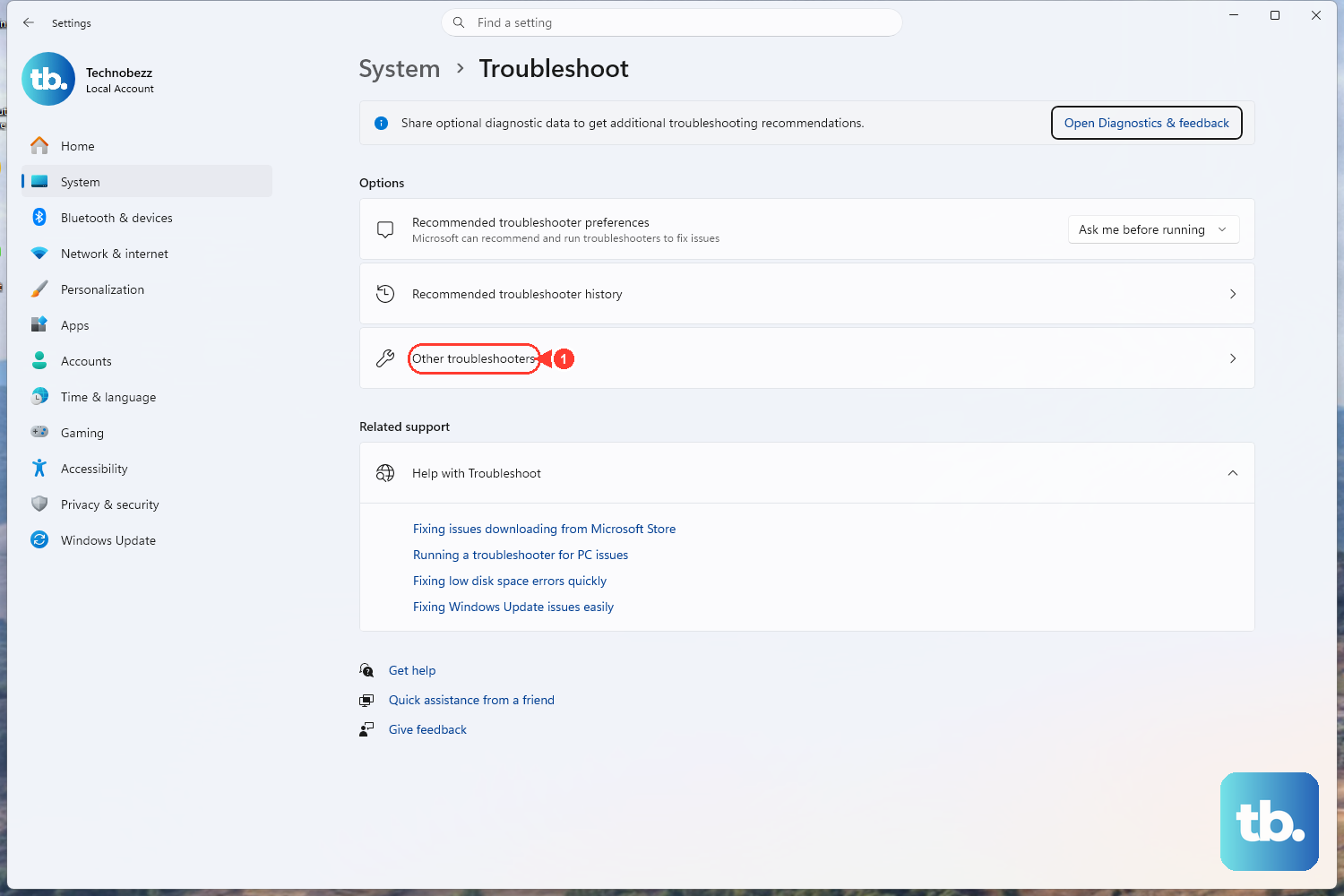
This automated fix runs diagnostics and attempts the repair for you. It works on both Windows 10 and Windows 11.
The simplest route is to open the Get Help app and start the Bluetooth troubleshooter, which handles the diagnostics automatically. If you prefer to launch it from Settings, the path differs by version.
On Windows 11, go to Start > Settings > System > Troubleshoot > Other troubleshooters, then select Run next to Bluetooth.
On Windows 10, go to Start > Settings > Update & Security > Troubleshoot, select Bluetooth, then choose Run the troubleshooter.
Let it finish and apply any fix it suggests, then check whether the Bluetooth option has returned.
Fix 4: Restart the PC and Install Pending Updates
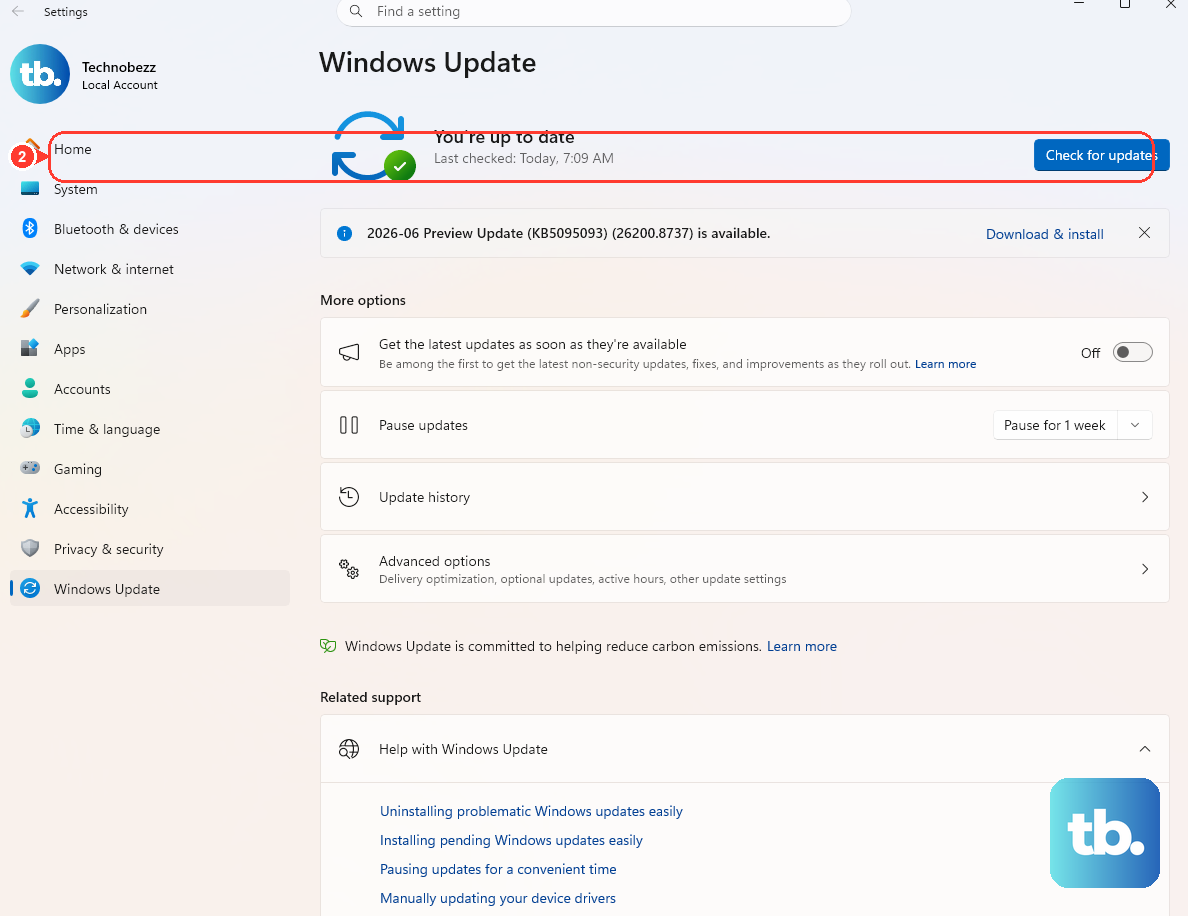
A restart clears temporary system issues that can knock Bluetooth offline, and installing updates can deliver fresh Bluetooth driver and operating system fixes. Together they resolve a surprising number of cases.
First hold Shift while selecting Start > Power > Shut down. Once the PC turns off, wait one minute, then turn it back on to check Bluetooth. Use Shut down rather than Restart to fully power off the PC and Bluetooth hardware. Then check for updates: on Windows 11, go to Start > Settings > Windows Update > Check for updates; on Windows 10, go to Start > Settings > Update & Security > Windows Update > Check for updates.
Let everything download and install, then restart again so the changes take full effect. On Windows 11, also check Windows Update > Advanced options > Optional updates for firmware updates. Select available updates, choose Download & install, then select Restart now when installation finishes.
Fix 5: Update the Bluetooth Driver in Device Manager
An outdated or missing driver is one of the most common reasons Bluetooth disappears entirely. Updating it directly through Device Manager often brings the option straight back.
- 1.Select Start, type Device Manager, and open it.
- 2.Expand the Bluetooth section.
- 3.Right-click (or press and hold) the Bluetooth adapter and select Update driver > Search automatically for drivers.
- 4.Restart the PC with Start > Power > Restart.
If a manufacturer driver was provided for your specific PC, install that and run its setup, then restart and check whether Bluetooth has returned.
Fix 6: Uninstall and Reinstall the Bluetooth Adapter
When updating the driver doesn't restore Bluetooth, reinstalling the adapter forces Windows to set it up cleanly from scratch. This is more involved than a simple update, so save your work before you start.
Open Device Manager and expand the Bluetooth section.
Right-click the Bluetooth adapter and select Uninstall device > Uninstall.
Restart the PC with Start > Power > Restart.
On restart, Windows attempts to reinstall the adapter automatically. If it doesn't reappear, open Device Manager and select Action > Scan for hardware changes to prompt Windows to detect it again.
Fix 7: Remove a Stubborn Device and Pair It Again
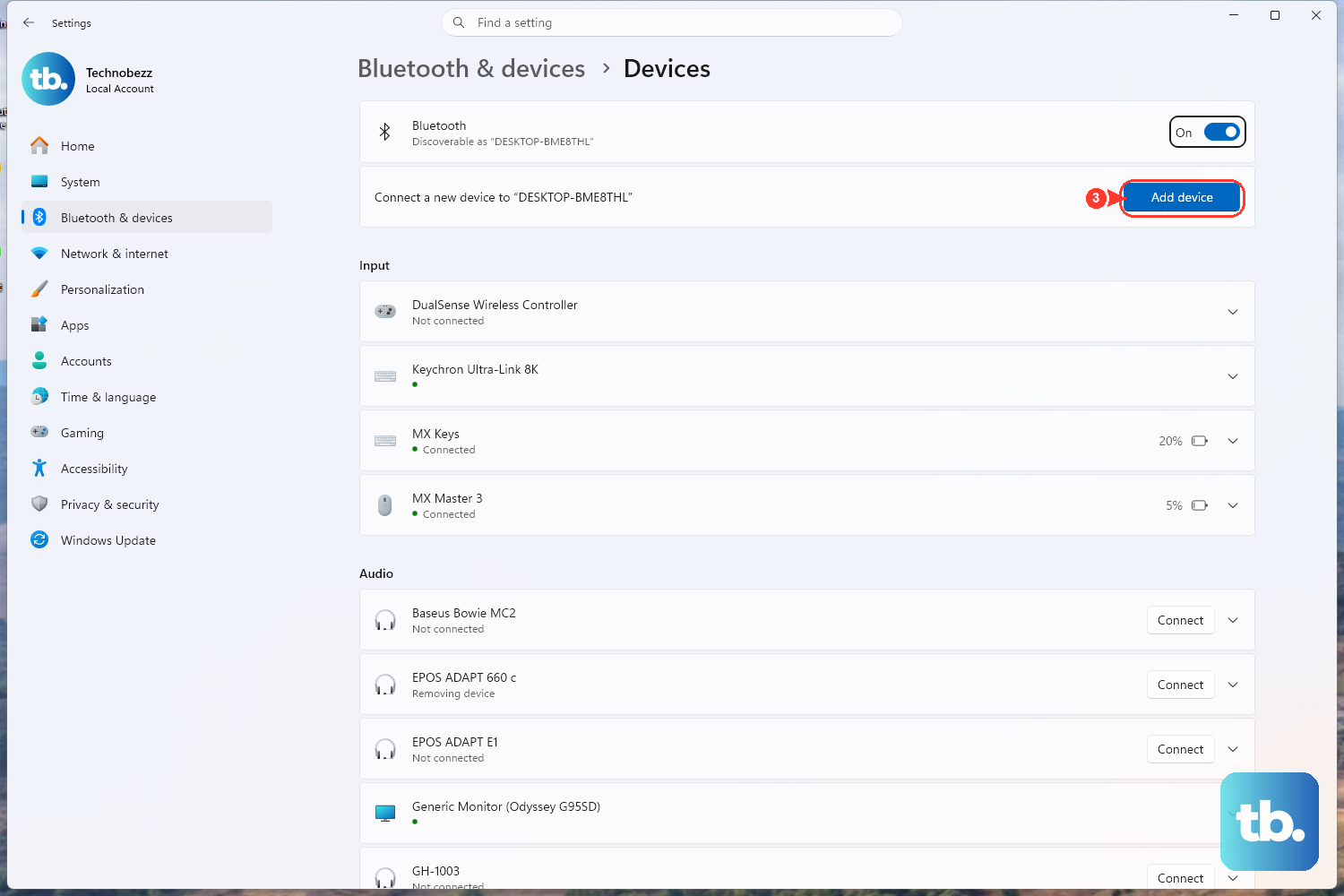
If the Bluetooth option itself is back but one specific device refuses to connect, the cleanest fix is to remove it and pair it fresh. Put the device into pairing mode first so it's ready to be found.
On Windows 11, go to Start > Settings > Bluetooth & devices > Devices, select More options (the three dots) next to the device, then choose Remove device > Yes. Now select Add device > Bluetooth and pick it again.
On Windows 10, go to Start > Settings > Devices > Bluetooth & other devices, select the device, then choose Remove device > Yes. Then select Add Bluetooth or other device > Bluetooth and choose your device from the list.
When Bluetooth Connects but No Sound Comes Out
A related and frustrating situation is when your Bluetooth headphones or speaker pair successfully but stay silent. The first thing to check is whether Windows is actually routing audio to them.
Go to Start > Settings > System > Sound and, under Output, select your Bluetooth headphones or speaker so it becomes the default playback device. Make sure the volume isn't muted and the slider is turned up. Then run the audio troubleshooter from the Get Help app, or on Windows 11 at Start > Settings > System > Troubleshoot > Other troubleshooters > Audio > Run, or on Windows 10 at Start > Settings > Update & Security > Troubleshoot > Playing audio > Run the troubleshooter.
Restart the Audio Services for Persistent Silence
If sound still won't play after pairing, or it stopped working right after a Windows update, try restarting the audio services. These services manage how Windows handles sound output.
Select Start, type services.msc, and press Enter.
In the Services list, right-click Windows Audio and select Restart.
Right-click Windows Audio Endpoint Builder and select Restart.
After restarting both services, test playback again to confirm sound is now coming through.
Update, Roll Back, or Reinstall the Audio Driver
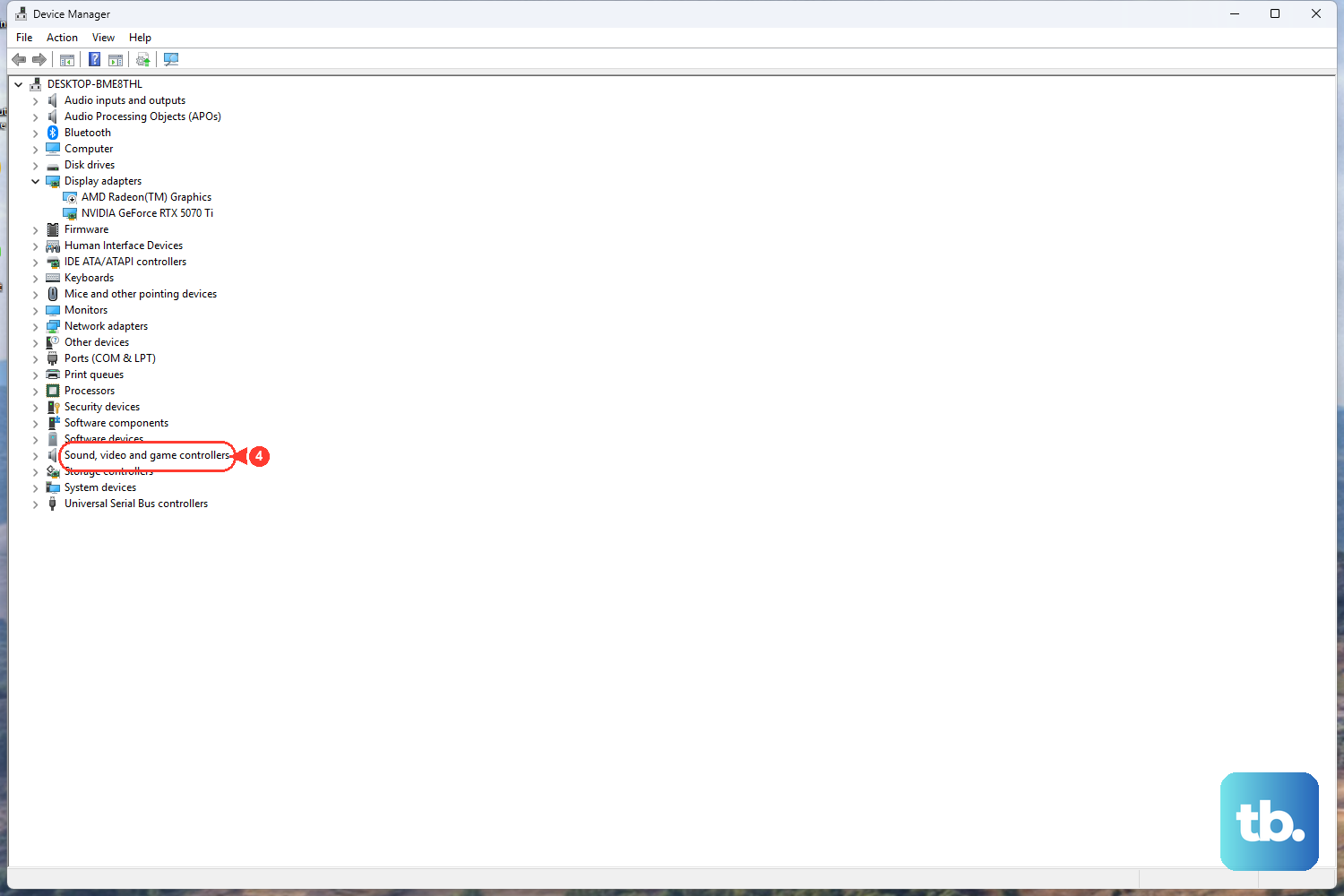
For ongoing no-sound problems, the audio driver itself may be the culprit. Device Manager gives you three ways to address it depending on what triggered the issue.
Open Device Manager, expand Sound, video and game controllers, and right-click your audio device. To update, choose Update driver > Search automatically for drivers. If sound broke right after an update, choose Properties > Driver tab > Roll Back Driver; note that this option is only available if a previous driver version exists. To reinstall, choose Uninstall device > Uninstall, then restart the PC so Windows reinstalls the driver automatically.
Frequently Asked Questions
How do I know if my PC even has Bluetooth?
Open Start > Settings > Bluetooth & devices on Windows 11 (or Start > Settings > Devices on Windows 10) and look for the More Bluetooth settings or More Bluetooth options link under Related settings. If that link is present, your PC has a Bluetooth adapter. If it's missing, check your PC's product specifications for Bluetooth support; missing drivers or driver and firmware problems can also hide Bluetooth.
What should I try first when the Bluetooth option disappears?
Start with the safest checks: confirm Bluetooth is turned on and Airplane mode is off, then run the built-in Bluetooth troubleshooter from the Get Help app. If those don't help, restart your PC and install any pending Windows updates before moving on to driver fixes.
My PC has no Bluetooth adapter at all. Now what?
If the More Bluetooth settings link is absent and your device simply has no adapter, adding a plug-in USB Bluetooth adapter is the straightforward solution. Driver fixes only help when the hardware is already present but its software isn't working.
My headphones pair but play no sound. How do I fix that?
Go to Start > Settings > System > Sound and select your Bluetooth device as the Output, then confirm it isn't muted. If it's still silent, run the audio troubleshooter, restart the Windows Audio and Windows Audio Endpoint Builder services in services.msc, and as a last step update, roll back, or reinstall the audio driver in Device Manager.
Is uninstalling the Bluetooth adapter safe?
Yes. After you uninstall the adapter in Device Manager and restart, Windows attempts to reinstall it automatically. If it doesn't come back on its own, select Action > Scan for hardware changes in Device Manager to prompt Windows to detect it again.