
When your ASUS VivoBook 15's webcam shows a black screen or isn't detected by apps like Zoom or Teams, it can stop your video calls and work dead in its tracks. The fixes are usually straightforward, so let's get your camera working again.
Start with a free camera test to rule out a hardware fault. If a live preview appears there but not in your app, the camera is fine and the app is the problem.
Check for a Physical Camera Cover
First, take a close look at the bezel above your screen. Many VivoBook models have a built-in privacy shutter, a small plastic slider that physically blocks the camera lens. Gently slide it to the side to make sure the lens underneath is fully uncovered.
It's an easy thing to miss, especially if you've recently cleaned the screen or someone else used the laptop. I'd start with this check every time.
Use the MyASUS App for a Quick Health Check
ASUS includes the MyASUS app for system diagnostics. Open it and look for a section called "Hardware Settings" or "System Diagnosis." You can run its System Diagnosis for an overall hardware checkup, though note it doesn't include a dedicated camera test.
This tool can tell you right away if Windows is seeing the camera at all, which helps narrow down if it's a hardware or software issue. It's a good first stop before diving into Windows settings.
Verify Camera Privacy Settings in Windows
Windows has a master privacy switch for the camera. Go to Settings > Privacy & security > Camera. Ensure the main "Camera access" toggle is turned on.
Scroll down to the list of apps and make sure the specific application you're trying to use (like Microsoft Teams, Zoom, or Google Chrome) has its individual toggle switched to "On." If it's off, the app will never see your webcam.
Close Other Apps Using the Camera
Windows typically only allows one app to access the camera at a time. If you have another video app running in the background, even minimized, it can lock the camera.
Press Ctrl + Shift + Esc to open Task Manager. Look for any apps like Camera, Teams, Zoom, or Skype, right-click them, and select "End task." Then try opening your desired app again.
Update or Reinstall the Camera Driver
Press the Windows key, type "Device Manager," and open it. Expand the section called "Cameras," "Imaging devices," or even "Sound, video and game controllers." Right-click on your ASUS camera and select "Update driver." Choose "Search automatically for drivers."
If that doesn't work, right-click the camera again and select "Uninstall device." Check the box that says "Attempt to remove the driver software for this device" if it appears. Restart your VivoBook. Windows will attempt to reinstall a fresh driver upon startup.
Check for Windows Updates and Optional Drivers
Go to Settings > Windows Update and click "Check for updates." Install all available updates, as they often contain system fixes. After the main updates install, click "Advanced options."
Look for "Optional updates" and click it. Sometimes, Microsoft or ASUS provides updated camera drivers here that aren't installed by the standard update process. Install any driver updates you see listed.
Test with the Built-in Camera App
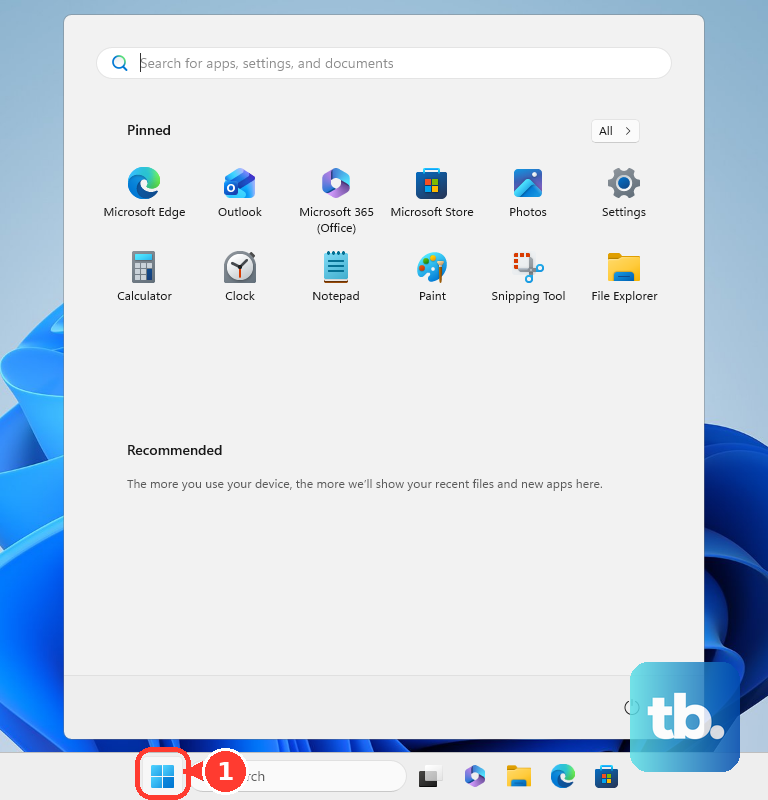
Open the Start menu and type "Camera" to launch the default Windows Camera app. If the camera works perfectly here, then the hardware is fine. The problem is isolated to the settings within your other video conferencing app.
Go into that app's settings (like in Zoom or Teams) and look for the video or camera section. Make sure it's set to use the "ASUS USB2.0 HD UVC WebCam" or a similar named device, not an external camera.
Reset the Camera App
If the built-in Camera app is also having issues, you can reset it. Go to Settings > Apps > Installed apps. Find the "Camera" app in the list, click the three dots next to it, and select "Advanced options."
Scroll down and click the "Reset" button. This clears the app's cache and data without affecting your other programs or personal files. Launch the Camera app again to see if it works.
Perform a Clean Boot to Check for Software Conflicts
Sometimes, background programs from ASUS or other software can interfere with the camera. Performing a "clean boot" starts Windows with only essential services. Search for "System Configuration" and open it.
Go to the "Services" tab, check "Hide all Microsoft services," then click "Disable all." Go to the "Startup" tab and click "Open Task Manager." Disable all startup items. Restart your laptop. If the camera works now, a background program is the culprit. You can re-enable services and startup items in groups to find the problematic one.