
Screen flickering on your Acer Nitro V 15 is incredibly distracting, especially when you're trying to game or focus on work. The display might flash, show horizontal lines, or have intermittent blackouts. Let's get it fixed.
I'd start by checking the NitroSense app. Open it and look at the performance monitoring section. If you see the CPU or GPU temperatures spiking into the high 80s or 90s Celsius right when the flickering happens, overheating could be the culprit. The default fan curve on these laptops can be a bit too quiet.
Use NitroSense to Control Fans and Thermals
If you suspect heat is causing the issue, open the NitroSense app. Click on the fan control section and manually increase the fan speed, or just hit the "Max Fan" button. This forces the cooling system to work at its maximum, which can stabilize performance if thermal throttling is making the display driver act up.
Give it a minute and see if the flickering reduces or stops as the temperatures drop. This is a quick way to rule out one of the Nitro V 15's known quirks. You can always set the fans back to auto later.
Update Your Graphics Drivers
Outdated or corrupted display drivers are a prime suspect. Don't just rely on Windows Update for this. Since your Nitro V 15 has either an NVIDIA or AMD GPU, visit the manufacturer's website directly.
Download the latest driver for your specific graphics card model. During installation, choose the "Custom" or "Clean Install" option. This removes old driver files before installing the new ones, which often resolves flickering caused by software conflicts.
Check Task Manager to Identify the Cause
Press Ctrl + Shift + Esc to open Task Manager. Watch the Task Manager window itself closely. If it flickers along with everything else on your screen, the problem is almost certainly a system-wide driver or Windows issue.
If Task Manager remains perfectly stable while your desktop or a game flickers, the problem is likely isolated to a specific application. This simple test points you in the right direction and saves a lot of time.
Adjust Your Display's Refresh Rate
Go to Settings > System > Display > Advanced display. Look at your current refresh rate. If your Nitro V 15 has a high-refresh-rate panel (like 144Hz), try switching it down to 120Hz or 60Hz temporarily.
Sometimes, panel compatibility issues or game frame rates that don't sync well with the refresh rate can cause flickering. Switching the rate and testing for a few minutes can tell you if this is the source of the problem.
Disable Hardware Acceleration in Apps
Apps like Chrome, Discord, and Steam use hardware acceleration to offload work to your GPU. A conflict here can cause screen tearing and flickering. In Chrome, go to Settings > System and turn off Use hardware acceleration when available.
Restart the app and see if the flickering stops. Do this for any other app where you notice the issue. It's a very common fix for flickering that only happens in specific programs.
Roll Back a Recent Display Driver
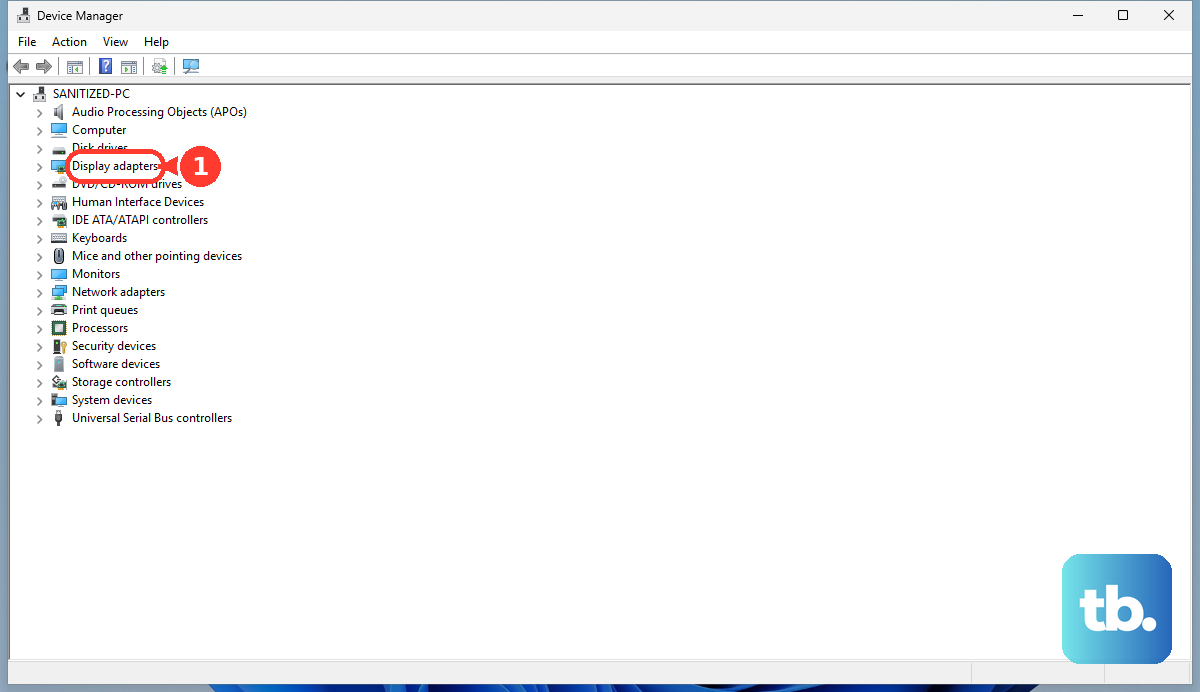
If the flickering started right after you updated your graphics driver, rolling it back is a logical step. Press the Windows key, type "Device Manager," and open it. Expand Display adapters, right-click your GPU, and select Properties.
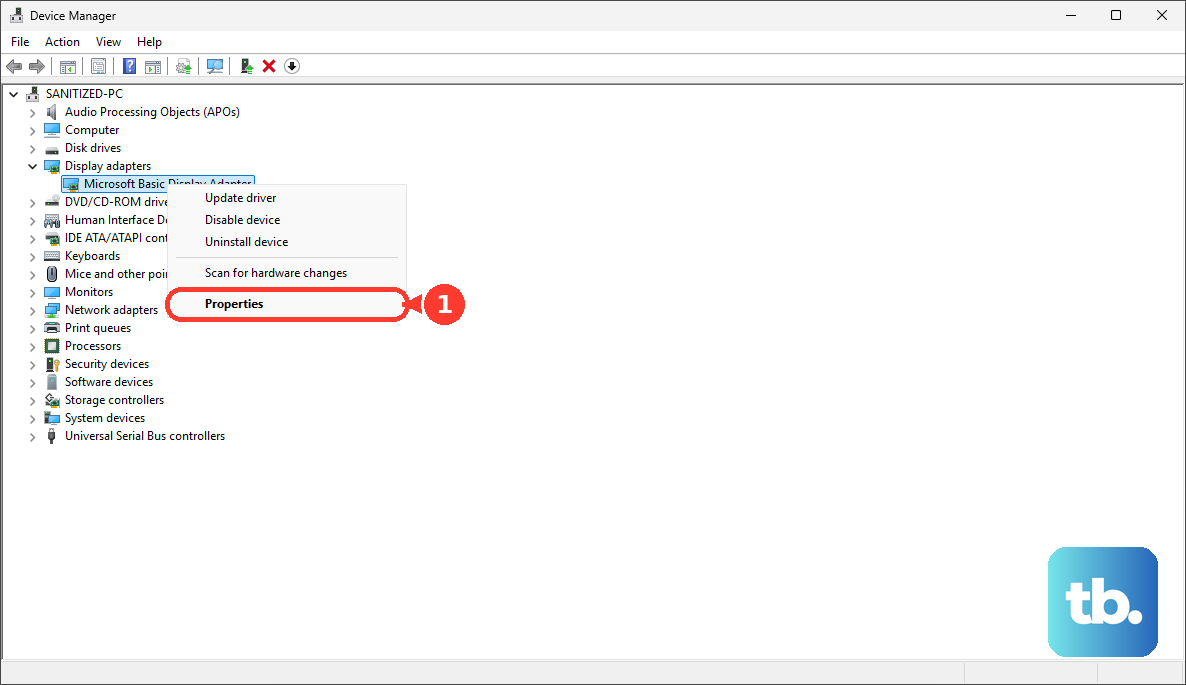
Go to the Driver tab and click Roll Back Driver. Follow the prompts. This reverts you to the previous driver version that was working correctly. The option is only available if a newer driver was recently installed.
Boot Into Safe Mode to Test
If the flickering is constant and severe, booting into Safe Mode can be a lifesaver. It loads Windows with only the most basic drivers and services. If the screen is perfectly stable in Safe Mode, you've confirmed that a third-party driver or startup program is causing the problem.
You can then use Safe Mode to uninstall recent software or drivers you suspect. To get into Safe Mode, go to Settings > System > Recovery and click "Restart now" under Advanced startup.
Check for a Loose Internal Cable
This is a hardware possibility, especially if the flickering gets worse when you open or close the laptop lid, or if you see artifacts and lines on the screen. The internal display cable (eDP cable) can become slightly loose over time due to hinge movement.
This isn't a simple fix, as it requires opening the laptop chassis to reseat the cable. If all software solutions fail and the flickering is tied to physical movement of the screen, this is likely the issue.
Run All Available Windows Updates
Finally, make sure Windows itself is completely up to date. Go to Settings > Windows Update and click "Check for updates." Install everything available, including optional updates if offered.
Microsoft and hardware partners often push critical fixes for display and graphics issues through these updates. A pending update might contain the patch you need.